Agent Starter App - Android
VideoSDK enables you to add a voice-enabled AI agent to your Android app. This guide walks you through connecting your Android frontend to an agent configured and deployed directly from the VideoSDK dashboard.
Prerequisites
- A deployed AI agent on VideoSDK Agent Cloud. If you haven't done this yet, create and deploy your agent using the Low-Code Deployment UI on the VideoSDK Dashboard. Once deployed, note down your Agent ID.
- Android 8.0 (API level 26) or later
- Android Studio (latest stable) with JDK 17
- Valid Video SDK Account
Explore the complete Quickstart implementation in the Android Agent Starter and see how to run and customize it for your own use case.
Generate Token
To manage secured communication, every participant that connects to a meeting needs an access token. You can easily generate this token by using your apiKey and secret-key, which you can obtain from the VideoSDK Dashboard.
For development purpose, you can generate a temporary token from VideoSDK Dashboard's API section.
The best practice for obtaining a token involves generating it from your backend server which will help in keeping your credentials safe.
Run the Sample Project
Step 1: Clone the sample project
Clone the repository to your local environment.
git clone https://github.com/videosdk-live/agent-starter-app-android.git
cd agent-starter-app-android
Step 2: Open in Android Studio
Launch Android Studio and open the agent-starter-app-android folder. Let Gradle finish syncing before proceeding.
Step 3: Create Your Agent (Optional)
If you've already configured and deployed your agent from the VideoSDK Dashboard, you can jump directly to Step 4.
You can create and configure a powerful AI agent directly from the VideoSDK dashboard — no coding required.
Step 1: Create Your Agent
First, follow our detailed guide to Build a Custom Voice AI Agent in Minutes. This will walk you through creating the agent's persona, configuring its pipeline (Realtime or Cascading), and testing it directly from the dashboard.
Step 2: Get Agent ID
Once your agent is created, you need to get its agentId to connect it to your frontend application.
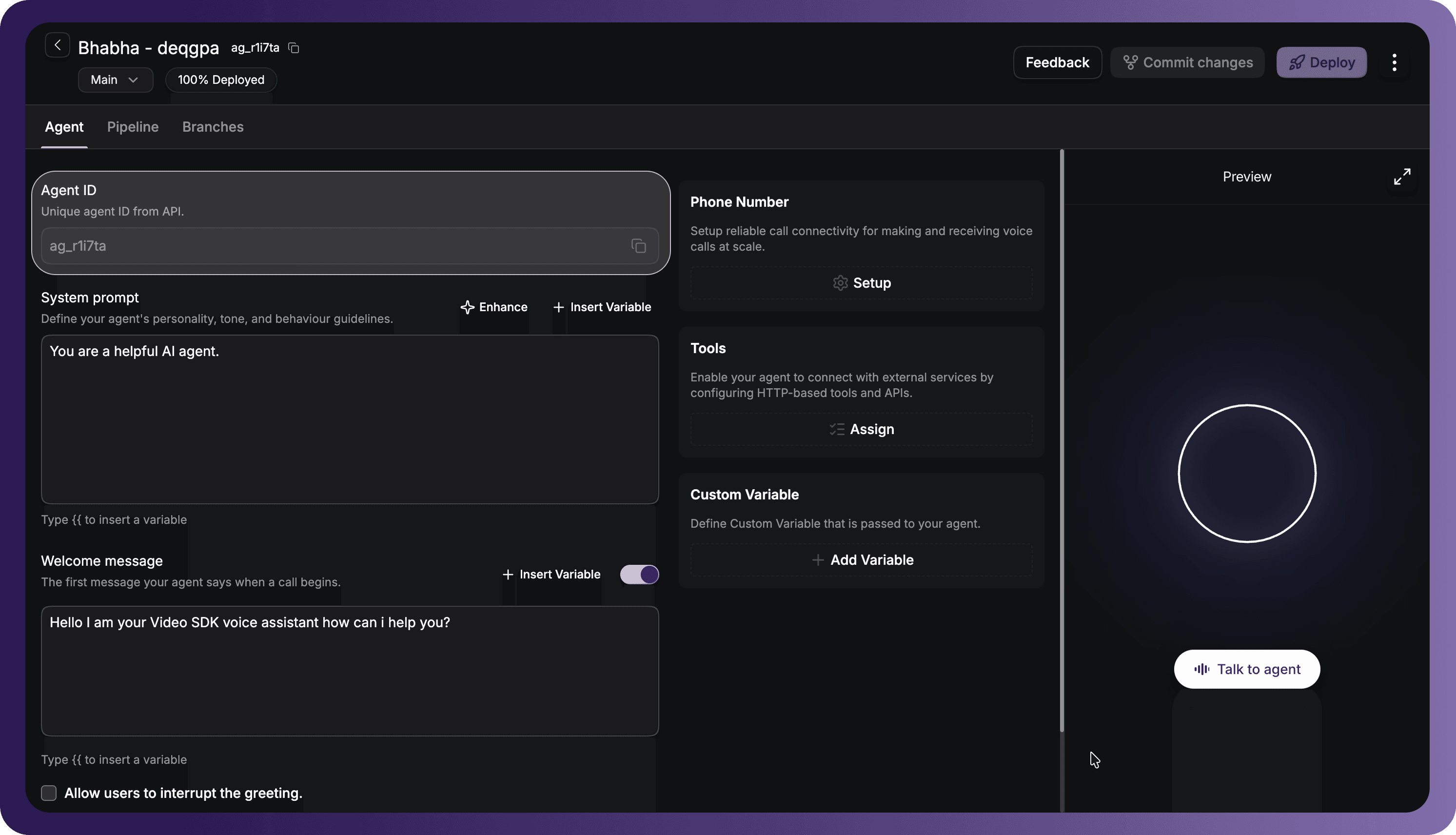
- You can copy the
agentIdfrom the Agent tab or from beside the Agent name at top left.
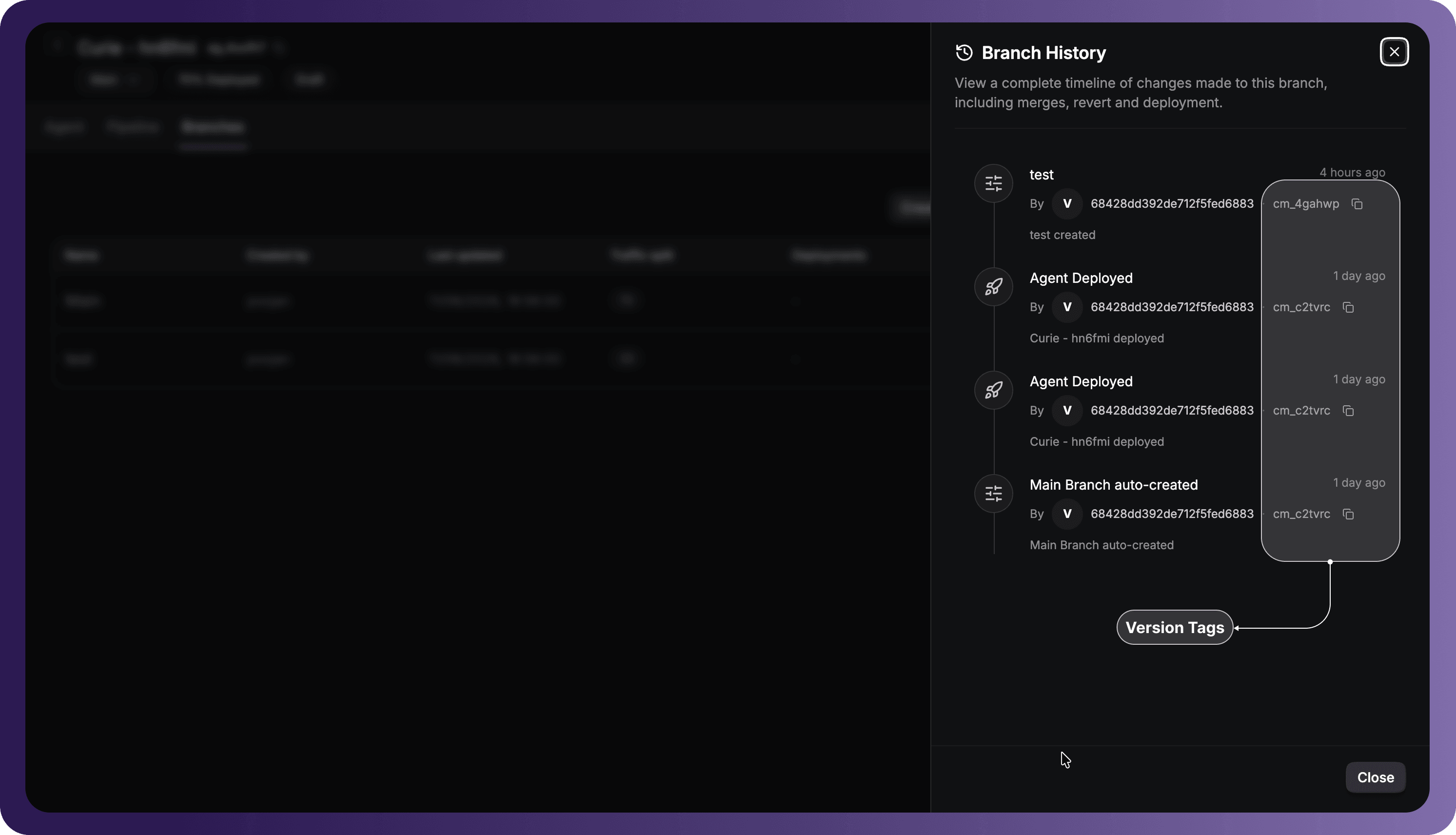
- There is an optional versionTag parameter in dispatch API. To get the
versionTag, go to Branches tab, click on the 3 dots of branch you want versionTag of and click on "See Branch History". Copy the versionTag via the copy button of the version you want.
Step 4: Setup Environment Variables
Copy the local.properties.example file to local.properties at the project root.
cp local.properties.example local.properties
Update the local.properties file with your credentials. The agentId is the identifier for the Low-Code agent you deployed from the VideoSDK Dashboard.
authToken=your_videosdk_auth_token
agentId=your_agent_id
meetingId=your_meeting_id
versionTag=your_version_tag
You can obtain your authToken and agentId from the VideoSDK Dashboard under your Agent Cloud deployment. meetingId and versionTag are optional — if left blank, the app will create a new meeting automatically and use the latest deployed version of your agent.
Step 5: Run the Sample App
Bingo, it's time to push the launch button.
Connect a physical Android device (or start an emulator running API 26+), select it as the run target in Android Studio, and click the Run button (or press Shift + F10).
You can also install a debug build from the command line:
./gradlew installDebug
Once running, the app will use the Dispatch API to send your deployed agent into the meeting room. You'll see the live transcription as you speak, and the agent will respond in real time.
Troubleshooting
Common Issues:
-
Agent not joining:
- Check that the
agentIdandversionTagin yourlocal.propertiesare correctly set. - Verify your VideoSDK token is valid and has the necessary permissions.
- Check that the
-
Audio not working:
- Check device permissions for microphone access.
- Ensure
RECORD_AUDIOpermission is declared inAndroidManifest.xml.
-
"Failed to connect agent" error:
- Verify your
agentIdandversionTagare correct. - Check the debug console for any network errors.
- Verify your
-
Android build issues:
- Ensure you are running Android 8.0 (API level 26) or higher.
- Verify JDK 17 is configured in Android Studio under File → Project Structure → SDK Location.
- Confirm Android Gradle Plugin version is 9.0.1 and Kotlin version is 2.0.21.
- Try cleaning the build:
./gradlew clean. - Try File → Invalidate Caches / Restart in Android Studio, then sync Gradle again.
Got a Question?  Ask us on discord

