Quick Start for Conference in Android (Jetpack Compose)
VideoSDK enables you to embed the video calling feature into your Android application in minutes.
In this quick start you build a group calling app with Jetpack Compose in four Kotlin files. The app creates a meeting, joins it, shows every participant's camera, and lets you toggle the mic and the camera. Every code block on this page is a complete file: copy it as-is, and it compiles.
Prerequisites
Before proceeding, ensure that your development environment meets the following requirements:
- Android Studio Narwhal 3 Feature Drop (2025.1.3) or later.
- Android SDK API level 21 or higher. The example uses
minSdk = 24. - One or two devices (physical or emulator) running Android 5.0 or later. Two devices let you see a real call.
One should have a VideoSDK account to generate token. Visit VideoSDK dashboard to generate token
Getting Started with the Code!
Follow the steps to create the environment necessary to add video calls into your app. You can also find the complete code sample for this quickstart here.
Create new Android Project
In Android Studio, create a Phone and Tablet project with the Empty Activity template. This template already uses Jetpack Compose and Kotlin DSL build files (build.gradle.kts), which is what this guide assumes.
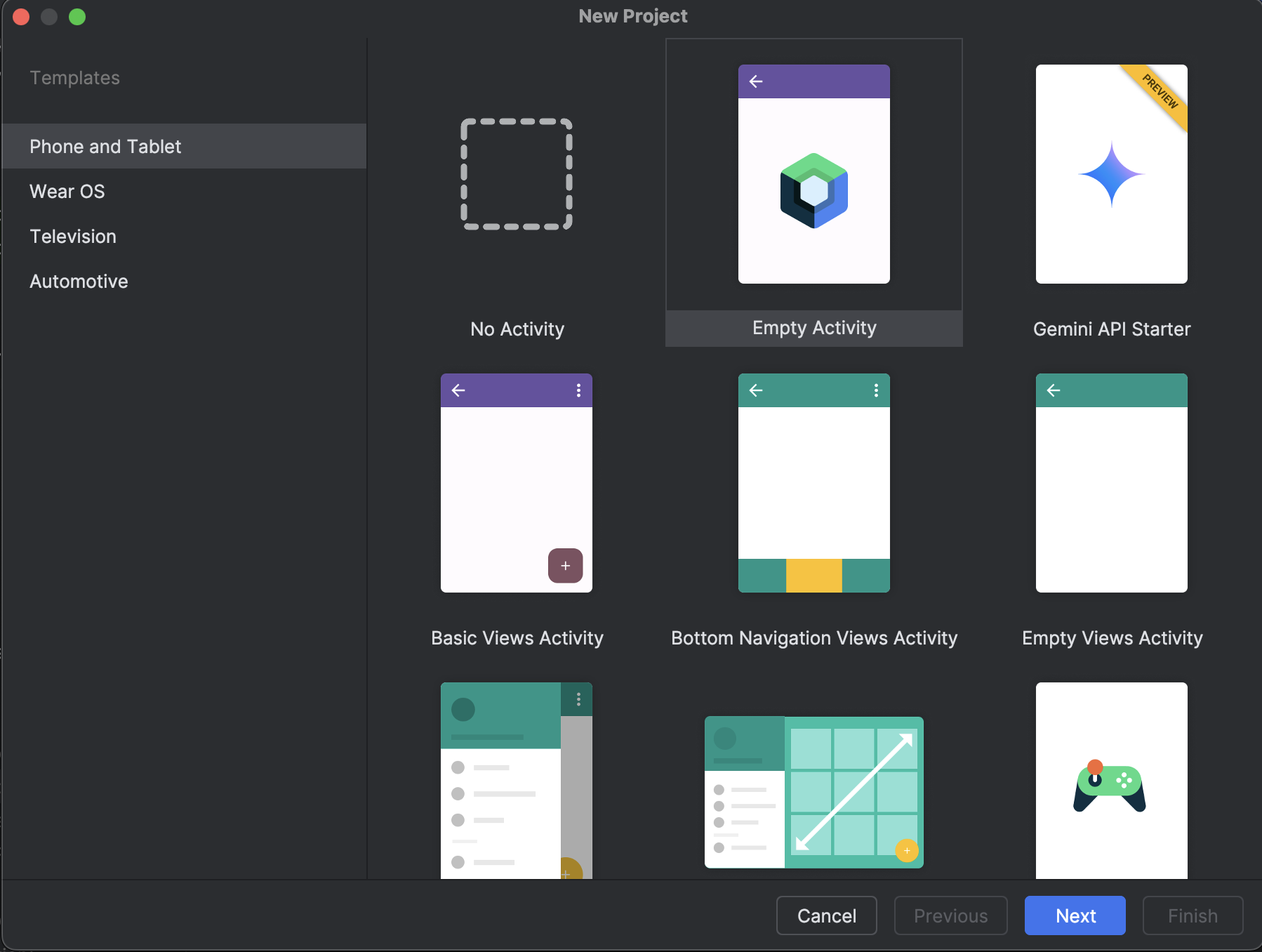
After creating the project, Android Studio automatically starts gradle sync. Ensure that the sync succeeds before you continue.
Integrate Video SDK
The SDK is published on Maven Central, so a new project needs no extra repository. Pick the tab that matches your build files.
- Kotlin DSL
- Groovy
- Make sure
mavenCentral()is listed insettings.gradle.kts(a new project already has it).
dependencyResolutionManagement {
    repositoriesMode.set(RepositoriesMode.FAIL_ON_PROJECT_REPOS)
    repositories {
        google()
        mavenCentral()
    }
}
- Add the versions and libraries to the version catalog.
[versions]
lifecycle = "2.8.7"
okhttp = "4.12.0"
rtcAndroidSdk = "2.2.0"

[libraries]
androidx-lifecycle-viewmodel-compose = { group = "androidx.lifecycle", name = "lifecycle-viewmodel-compose", version.ref = "lifecycle" }
okhttp = { group = "com.squareup.okhttp3", name = "okhttp", version.ref = "okhttp" }
rtc-android-sdk = { module = "live.videosdk:rtc-android-sdk", version.ref = "rtcAndroidSdk" }
- Add the dependencies to the app module.
dependencies {
    // VideoSDK
    implementation(libs.rtc.android.sdk)
    // Used once, to create a meeting id through the VideoSDK REST API
    implementation(libs.okhttp)
    // viewModel() inside composables
    implementation(libs.androidx.lifecycle.viewmodel.compose)

    // ...the dependencies generated by the template stay as they are
}
- Make sure
mavenCentral()is listed insettings.gradle.
dependencyResolutionManagement {
    repositories {
        google()
        mavenCentral()
    }
}
- Add the dependencies to the app module.
dependencies {
    // VideoSDK
    implementation "live.videosdk:rtc-android-sdk:2.2.0"
    // Used once, to create a meeting id through the VideoSDK REST API
    implementation "com.squareup.okhttp3:okhttp:4.12.0"
    // viewModel() inside composables
    implementation "androidx.lifecycle:lifecycle-viewmodel-compose:2.8.7"

    // ...your existing dependencies
}
Android SDK compatible with armeabi-v7a, arm64-v8a, x86_64 architectures. If you want to run the application in an emulator, choose ABI x86_64 (Intel) or arm64-v8a (Apple silicon) when creating a device.
Add permissions into your project
In app/src/main/AndroidManifest.xml, add the permissions and register the MainApplication class that you create in Step 1.
<manifest xmlns:android="http://schemas.android.com/apk/res/android">

    <uses-feature android:name="android.hardware.camera" android:required="false" />
    <uses-permission android:name="android.permission.INTERNET" />
    <uses-permission android:name="android.permission.CAMERA" />
    <uses-permission android:name="android.permission.RECORD_AUDIO" />
    <uses-permission android:name="android.permission.MODIFY_AUDIO_SETTINGS" />

    <application
        android:name=".MainApplication"
        ... >
        <!-- the MainActivity generated by the template stays as it is -->
    </application>

</manifest>
Structure of the project
The whole app is four Kotlin files next to each other in your package. Every file below starts with package live.videosdk.rtc.android.quickstart; replace that line with your own package name. Delete the template's ui/theme folder, it is not needed.
app/src/main/java/<your package>/
├── MainApplication.kt       initializes VideoSDK and holds the token
├── MeetingViewModel.kt      creates, joins, and controls the meeting
├── ParticipantVideoView.kt  renders one participant's camera, and the grid
└── MainActivity.kt          Join screen and Meeting screen
How the pieces fit together: MeetingViewModel owns the Meeting object and exposes plain Compose state (meetingId, participants, micEnabled, webcamEnabled). MainActivity shows the Join screen while meetingId is null and the Meeting screen once it is set. ParticipantVideoView wraps the SDK's VideoView so each participant's camera can be shown in a Compose grid.
Step 1: Initialize VideoSDK
Create MainApplication.kt. It initializes the SDK once, when the process starts, and holds the token from the VideoSDK dashboard. The same token is used to create meetings and to join them.
package live.videosdk.rtc.android.quickstart

import android.app.Application
import live.videosdk.rtc.android.VideoSDK
import live.videosdk.rtc.android.lib.tracing.LogLevel

class MainApplication : Application() {

    // Generate a token at https://app.videosdk.live/api-keys and paste it here.
    val sampleToken = "YOUR_TOKEN"

    override fun onCreate() {
        super.onCreate()
        // SDK logs stay silent until a level is set; DEBUG shows what the SDK does while you build.
        VideoSDK.setLogLevel(LogLevel.DEBUG)
        VideoSDK.initialize(applicationContext)
    }
}
Register it in AndroidManifest.xml with android:name=".MainApplication" on the <application> tag, as shown in the permissions section above.
The SDK writes nothing to Logcat until you call VideoSDK.setLogLevel(). LogLevel.DEBUG shows connection, join, and media events while you build; filter Logcat by the tag VideoSDK. The levels are NONE, ERROR, WARN, INFO, DEBUG, and ALL (adds real-time events, use only for performance debugging). Lower the level or remove the call before you ship.
Step 2: Manage the meeting
Create MeetingViewModel.kt. It is the only file that talks to the SDK:
- Create a meeting:
createMeeting()calls the Create Room API with your token and reads theroomIdfrom the response, then joins it. - Join a meeting:
joinMeeting()configures the SDK with the token, creates theMeetingwithVideoSDK.initMeeting(), registers aMeetingEventListener, and callsjoin(). SettingmeetingIdis what switches the UI to the Meeting screen. - Track participants:
onMeetingJoinedadds the local participant,onParticipantJoinedandonParticipantLeftkeep the list in sync. Entries are matched by participant id because the SDK replays these callbacks after a network reconnect. - Media controls:
toggleMic()andtoggleWebcam()callmuteMic()/unmuteMic()anddisableWebcam()/enableWebcam(). - Leave:
leaveMeeting()detaches the listener, callsleave(), and resets the state right away, which brings the Join screen back.onMeetingLeftruns the same reset when the server ends the call. - Errors:
onErrorstores the SDK's message so the UI can show it.
package live.videosdk.rtc.android.quickstart

import android.app.Application
import androidx.compose.runtime.getValue
import androidx.compose.runtime.mutableStateListOf
import androidx.compose.runtime.mutableStateOf
import androidx.compose.runtime.setValue
import androidx.lifecycle.AndroidViewModel
import androidx.lifecycle.viewModelScope
import kotlinx.coroutines.Dispatchers
import kotlinx.coroutines.launch
import kotlinx.coroutines.withContext
import live.videosdk.rtc.android.Meeting
import live.videosdk.rtc.android.Participant
import live.videosdk.rtc.android.VideoSDK
import live.videosdk.rtc.android.listeners.MeetingEventListener
import okhttp3.OkHttpClient
import okhttp3.Request
import okhttp3.RequestBody.Companion.toRequestBody
import org.json.JSONObject

class MeetingViewModel(application: Application) : AndroidViewModel(application) {

    private val token = (application as? MainApplication)?.sampleToken
        ?: error("Add android:name=\".MainApplication\" to <application> in AndroidManifest.xml")
    private var meeting: Meeting? = null

    // Non-null while we are inside a meeting. MainActivity switches screens on it.
    var meetingId by mutableStateOf<String?>(null)
        private set

    val participants = mutableStateListOf<Participant>()

    var micEnabled by mutableStateOf(true)
        private set

    var webcamEnabled by mutableStateOf(true)
        private set

    // Set by the SDK (or a failed network call); MainActivity shows it as a Toast.
    var errorMessage by mutableStateOf<String?>(null)

    // Creates a room through the VideoSDK REST API, then joins it.
    fun createMeeting() {
        if (meeting != null) return  // already joining or joined
        viewModelScope.launch {
            try {
                val roomId = withContext(Dispatchers.IO) {
                    val request = Request.Builder()
                        .url("https://api.videosdk.live/v2/rooms")
                        .header("Authorization", token)
                        .post("".toRequestBody())
                        .build()
                    OkHttpClient().newCall(request).execute().use { response ->
                        val body = response.body?.string().orEmpty()
                        check(response.isSuccessful) { "HTTP ${response.code}: $body" }
                        JSONObject(body).getString("roomId")
                    }
                }
                joinMeeting(roomId)
            } catch (e: Exception) {
                errorMessage = "Could not create meeting: ${e.message}"
            }
        }
    }

    // Configures the SDK, creates the Meeting object and joins it.
    fun joinMeeting(meetingId: String) {
        if (meeting != null) return  // already joining or joined
        VideoSDK.config(token)
        val meeting = VideoSDK.initMeeting(
            getApplication<Application>(),        // context
            meetingId,                            // meetingId
            "John Doe",                           // participant name
            micEnabled,                           // micEnabled
            webcamEnabled,                        // webcamEnabled
            null,                                 // participantId, SDK generates one
            null,                                 // mode, defaults to SEND_AND_RECV
            false,                                // multiStream
            null,                                 // customTracks
            null,                                 // metaData
            VideoSDK.PreferredProtocol.UDP_OVER_TCP // preferredProtocol (the default)
        )
        meeting.addEventListener(meetingEventListener)
        meeting.join()
        this.meeting = meeting
        this.meetingId = meetingId
    }

    // All SDK callbacks arrive on the main thread.
    private val meetingEventListener = object : MeetingEventListener() {
        override fun onMeetingJoined() {
            meeting?.let { addParticipant(it.localParticipant) }
        }

        override fun onParticipantJoined(participant: Participant) {
            addParticipant(participant)
        }

        override fun onParticipantLeft(participant: Participant) {
            participants.removeAll { it.id == participant.id }
        }

        // Also fired by the SDK when the server ends the call.
        override fun onMeetingLeft() {
            reset()
        }

        override fun onError(error: JSONObject) {
            errorMessage = error.optString("message")
        }
    }

    // The SDK replays join callbacks after a reconnect; never list the same participant twice.
    private fun addParticipant(participant: Participant) {
        if (participants.none { it.id == participant.id }) participants.add(participant)
    }

    fun toggleMic() {
        if (micEnabled) meeting?.muteMic() else meeting?.unmuteMic()
        micEnabled = !micEnabled
    }

    fun toggleWebcam() {
        if (webcamEnabled) meeting?.disableWebcam() else meeting?.enableWebcam()
        webcamEnabled = !webcamEnabled
    }

    fun leaveMeeting() {
        meeting?.let {
            it.removeAllListeners()  // this Meeting is finished, ignore anything else it reports
            it.leave()
        }
        // Reset here instead of waiting for a callback: onMeetingLeft never fires if the join itself failed.
        reset()
    }

    // Back to the Join screen with clean state; setting meetingId to null switches the UI.
    private fun reset() {
        meeting = null
        participants.clear()
        micEnabled = true
        webcamEnabled = true
        meetingId = null
    }
}
Don't confuse with Room and Meeting keyword, both are same thing 😃
Step 3: Render participants
Create ParticipantVideoView.kt. It contains two composables: ParticipantVideoView shows one participant's camera, and ParticipantsGrid lays them out two per row.
- The participant's video is displayed using
VideoView. To know more aboutVideoView, please visit here. VideoViewis a classic AndroidView. Jetpack Compose cannot host it directly, so it is wrapped inAndroidView.- A
ParticipantEventListenerfollows the participant's camera:onStreamEnabledattaches the new video track,onStreamDisableddetaches it. The listener is registered once per tile in aDisposableEffectand removed when the tile leaves the screen. - Grid items are keyed by participant id, so a tile is never reused for a different participant.
package live.videosdk.rtc.android.quickstart

import androidx.compose.foundation.background
import androidx.compose.foundation.layout.Arrangement
import androidx.compose.foundation.layout.Box
import androidx.compose.foundation.layout.aspectRatio
import androidx.compose.foundation.layout.fillMaxSize
import androidx.compose.foundation.layout.fillMaxWidth
import androidx.compose.foundation.layout.padding
import androidx.compose.foundation.lazy.grid.GridCells
import androidx.compose.foundation.lazy.grid.LazyVerticalGrid
import androidx.compose.foundation.lazy.grid.items
import androidx.compose.material3.Text
import androidx.compose.runtime.Composable
import androidx.compose.runtime.DisposableEffect
import androidx.compose.runtime.getValue
import androidx.compose.runtime.mutableStateOf
import androidx.compose.runtime.remember
import androidx.compose.runtime.setValue
import androidx.compose.ui.Alignment
import androidx.compose.ui.Modifier
import androidx.compose.ui.graphics.Color
import androidx.compose.ui.unit.dp
import androidx.compose.ui.viewinterop.AndroidView
import live.videosdk.rtc.android.Participant
import live.videosdk.rtc.android.Stream
import live.videosdk.rtc.android.VideoView
import live.videosdk.rtc.android.listeners.ParticipantEventListener
import org.webrtc.VideoTrack

@Composable
fun ParticipantsGrid(participants: List<Participant>, modifier: Modifier = Modifier) {
    LazyVerticalGrid(
        columns = GridCells.Fixed(2),
        verticalArrangement = Arrangement.spacedBy(8.dp),
        horizontalArrangement = Arrangement.spacedBy(8.dp),
        modifier = modifier.padding(8.dp)
    ) {
        // Keyed by participant id so a tile is never reused for someone else.
        items(participants, key = { it.id }) { participant ->
            ParticipantVideoView(participant)
        }
    }
}

@Composable
fun ParticipantVideoView(participant: Participant) {
    var videoTrack by remember(participant) { mutableStateOf(participant.videoTrack()) }

    // One listener per tile: follows the participant's camera on/off.
    DisposableEffect(participant) {
        val listener = object : ParticipantEventListener() {
            override fun onStreamEnabled(stream: Stream) {
                if (stream.kind == "video") videoTrack = stream.track as VideoTrack
            }

            override fun onStreamDisabled(stream: Stream) {
                if (stream.kind == "video") videoTrack = null
            }
        }
        participant.addEventListener(listener)
        onDispose { participant.removeEventListener(listener) }
    }

    Box(
        modifier = Modifier
            .fillMaxWidth()
            .aspectRatio(3f / 4f)
            .background(Color.DarkGray)
    ) {
        // VideoView is a classic View, so it is wrapped in AndroidView.
        AndroidView(
            factory = { context -> VideoView(context) },
            update = { view ->
                // Re-attach only when the track actually changed.
                if (view.tag != videoTrack) {
                    view.removeTrack()
                    videoTrack?.let { view.addTrack(it) }
                    view.tag = videoTrack
                }
            },
            onRelease = { view ->
                view.removeTrack()  // must come first, release is a no-op while a track is attached
                view.releaseSurfaceViewRenderer()
            },
            modifier = Modifier.fillMaxSize()
        )

        if (videoTrack == null) {
            Text(
                text = "Camera off",
                color = Color.White,
                modifier = Modifier.align(Alignment.Center)
            )
        }

        Text(
            text = participant.displayName,
            color = Color.White,
            modifier = Modifier
                .align(Alignment.BottomCenter)
                .fillMaxWidth()
                .background(Color(0x99000000))
                .padding(4.dp)
        )
    }
}

// The participant's current camera track, if the camera is on.
private fun Participant.videoTrack(): VideoTrack? =
    streams.values.firstOrNull { it.kind == "video" }?.track as? VideoTrack
Step 4: Build the screens
Replace the template's MainActivity.kt with the file below. It contains:
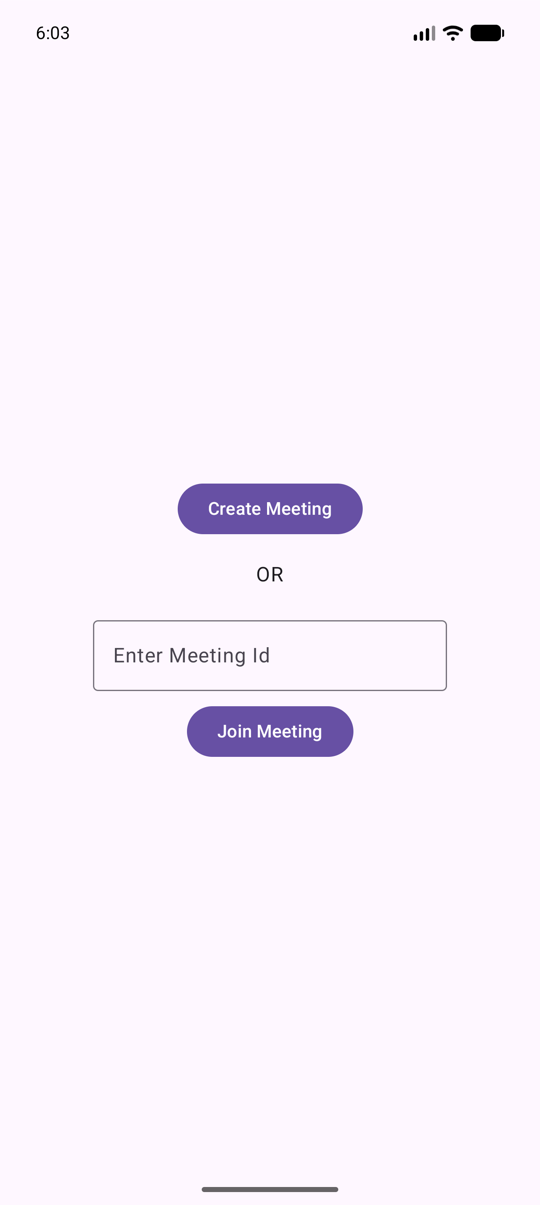
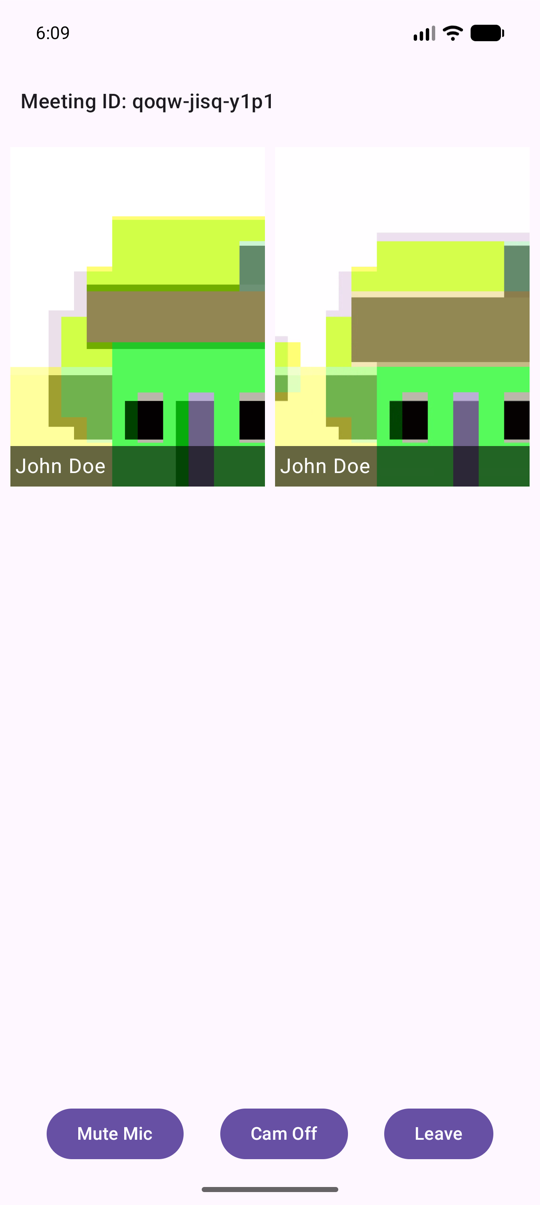
MainActivity: enables edge-to-edge and sets the Compose content insideMaterialTheme.VideoSDKApp: asks for the camera and microphone permissions on first launch, shows SDK errors as aToast, and switches between the two screens based onviewModel.meetingId.JoinScreen: a Create Meeting button, a text field for an existing meeting id, and a Join Meeting button.MeetingScreen: the meeting id, the participants grid, and buttons to toggle the mic, toggle the camera, and leave. The system Back button also leaves the meeting.
package live.videosdk.rtc.android.quickstart

import android.Manifest
import android.os.Bundle
import android.widget.Toast
import androidx.activity.ComponentActivity
import androidx.activity.compose.BackHandler
import androidx.activity.compose.rememberLauncherForActivityResult
import androidx.activity.compose.setContent
import androidx.activity.enableEdgeToEdge
import androidx.activity.result.contract.ActivityResultContracts
import androidx.compose.foundation.layout.Arrangement
import androidx.compose.foundation.layout.Column
import androidx.compose.foundation.layout.Row
import androidx.compose.foundation.layout.fillMaxSize
import androidx.compose.foundation.layout.fillMaxWidth
import androidx.compose.foundation.layout.padding
import androidx.compose.material3.Button
import androidx.compose.material3.MaterialTheme
import androidx.compose.material3.OutlinedTextField
import androidx.compose.material3.Scaffold
import androidx.compose.material3.Text
import androidx.compose.runtime.Composable
import androidx.compose.runtime.LaunchedEffect
import androidx.compose.runtime.getValue
import androidx.compose.runtime.mutableStateOf
import androidx.compose.runtime.saveable.rememberSaveable
import androidx.compose.runtime.setValue
import androidx.compose.ui.Alignment
import androidx.compose.ui.Modifier
import androidx.compose.ui.platform.LocalContext
import androidx.compose.ui.unit.dp
import androidx.lifecycle.viewmodel.compose.viewModel

class MainActivity : ComponentActivity() {
    override fun onCreate(savedInstanceState: Bundle?) {
        super.onCreate(savedInstanceState)
        enableEdgeToEdge()
        setContent {
            MaterialTheme {
                VideoSDKApp()
            }
        }
    }
}

@Composable
fun VideoSDKApp(viewModel: MeetingViewModel = viewModel()) {
    val context = LocalContext.current

    // Ask for camera and microphone as soon as the app opens.
    val permissionLauncher = rememberLauncherForActivityResult(
        ActivityResultContracts.RequestMultiplePermissions()
    ) { }
    LaunchedEffect(Unit) {
        permissionLauncher.launch(
            arrayOf(Manifest.permission.CAMERA, Manifest.permission.RECORD_AUDIO)
        )
    }

    // Show SDK and network errors as a Toast.
    viewModel.errorMessage?.let { message ->
        LaunchedEffect(message) {
            Toast.makeText(context, message, Toast.LENGTH_LONG).show()
            viewModel.errorMessage = null
        }
    }

    Scaffold(modifier = Modifier.fillMaxSize()) { innerPadding ->
        val meetingId = viewModel.meetingId
        if (meetingId == null) {
            JoinScreen(viewModel, Modifier.padding(innerPadding))
        } else {
            MeetingScreen(meetingId, viewModel, Modifier.padding(innerPadding))
        }
    }
}

@Composable
fun JoinScreen(viewModel: MeetingViewModel, modifier: Modifier = Modifier) {
    var input by rememberSaveable { mutableStateOf("") }

    Column(
        modifier = modifier
            .fillMaxSize()
            .padding(16.dp),
        horizontalAlignment = Alignment.CenterHorizontally,
        verticalArrangement = Arrangement.Center
    ) {
        Button(onClick = { viewModel.createMeeting() }) {
            Text("Create Meeting")
        }

        Text("OR", modifier = Modifier.padding(16.dp))

        OutlinedTextField(
            value = input,
            onValueChange = { input = it },
            label = { Text("Enter Meeting Id") }
        )

        Button(
            onClick = { if (input.isNotBlank()) viewModel.joinMeeting(input.trim()) },
            modifier = Modifier.padding(top = 8.dp)
        ) {
            Text("Join Meeting")
        }
    }
}

@Composable
fun MeetingScreen(meetingId: String, viewModel: MeetingViewModel, modifier: Modifier = Modifier) {
    // Back button leaves the meeting; onMeetingLeft brings the join screen back.
    BackHandler { viewModel.leaveMeeting() }

    Column(modifier = modifier.fillMaxSize()) {
        Text(
            text = "Meeting ID: $meetingId",
            style = MaterialTheme.typography.titleMedium,
            modifier = Modifier.padding(16.dp)
        )

        ParticipantsGrid(viewModel.participants, Modifier.weight(1f))

        Row(
            modifier = Modifier
                .fillMaxWidth()
                .padding(8.dp),
            horizontalArrangement = Arrangement.SpaceEvenly
        ) {
            Button(onClick = { viewModel.toggleMic() }) {
                Text(if (viewModel.micEnabled) "Mute Mic" else "Unmute Mic")
            }
            Button(onClick = { viewModel.toggleWebcam() }) {
                Text(if (viewModel.webcamEnabled) "Cam Off" else "Cam On")
            }
            Button(onClick = { viewModel.leaveMeeting() }) {
                Text("Leave")
            }
        }
    }
}
Run the app
- Run the app on the first device and allow the camera and microphone permissions.
- Tap Create Meeting. The app creates a room, joins it, and shows your own camera. The meeting id is printed at the top of the screen.
- Run the app on the second device, type that meeting id, and tap Join Meeting. Both cameras now appear on both devices.
- Use Mute Mic, Cam Off, and Leave to control the call.
Final Output
We are done with implementation of customised video calling app in Android using Video SDK. To explore more features go through Basic and Advanced features.
You can checkout the complete quick start example here.
Got a Question?  Ask us on discord

