Picture-in-Picture Mode - Android
Overview
Picture-in-Picture (PiP) mode lets users continue video calls while they use other apps. This guide uses Android's built-in PiP API, so you don't need a third-party library.
This guide will help you integrate PiP mode into your app, ensuring it activates both when the user presses the PiP button and when the app is sent to the background.
You can check out the complete implementation in the Github repository. It is built on an older SDK version, so follow the Migration Guide for the 3.0.0 API.
Prerequisites
- Clone our Quick Start Repository. It is built on SDK 2.2.0, so follow the Migration Guide for the 3.0.0 API.
- Run the base application
- Ensure Android API level 26+ (Oreo) for PiP support
By default, the SDK turns your camera off while the call activity is stopped in the background. To keep publishing your camera in the background, call VideoSDK.setEnableActivityLifecycle(false) before you join.
Android Manifest Setup
Add these essential attributes to your AndroidManifest.xml:
<activity
    android:name=".MainActivity"
    android:configChanges="orientation|screenSize|smallestScreenSize|screenLayout"
    android:resizeableActivity="true"
    android:supportsPictureInPicture="true">
</activity>
Getting Started with the Code!
ViewModel
The RoomViewModel manages two key variables: pipMode and roomJoined.
-
pipModetracks whether the app is currently in Picture-in-Picture (PiP) mode. This variable is primarily used in the UI to show or hide relevant controls based on the PiP state. -
roomJoinedindicates whether the user has currently joined the room. This is useful in various scenarios, such as determining whether to allow PiP mode whenonPictureInPictureRequestedis called.
roomJoined changes only if roomEventListener is registered on the room, so add it before you call join().
class RoomViewModel : ViewModel() {
    // Track PiP activation state
    var pipMode = mutableStateOf(false)
    // Monitor room connection status
    var roomJoined = mutableStateOf(false)
    private var room: Room? = null
    private val roomEventListener: RoomEventListener = object : RoomEventListener() {
        override fun onRoomJoined(switchRoomId: String?) {
            roomJoined.value = true
        }
        override fun onRoomLeft(reason: LeaveReason) {
            roomJoined.value = false
        }
    }

    fun createRoom(token: String, roomId: String) {
        val room = try {
            VideoSDK.createRoom(roomId = roomId, token = token)
        } catch (e: VideoSDKException) {
            Log.e("RoomViewModel", "Could not create the room", e)  // empty token or room ID
            return
        }
        // Register before join() so onRoomJoined is not missed
        room.addEventListener(roomEventListener)
        this.room = room
        viewModelScope.launch {
            try {
                room.join()
            } catch (e: VideoSDKException) {
                Log.e("RoomViewModel", "Could not join the room", e)
            }
        }
    }

    // participants, toggleMic(), toggleCam() and leaveRoom() stay as in the Quick Start
}
MainActivity
- Handling PiP Mode Changes (
onPictureInPictureModeChanged)
- Called when the activity enters or leaves PiP mode, for example when the user minimizes the app or returns to full screen.
- The system passes a
Booleanflag (isInPictureInPictureMode), which indicates whether the activity is currently in PiP mode. - Here, we update the
pipModestate inRoomViewModelto notify the UI.
- Handling PiP Mode Requests (
onPictureInPictureRequested)
- Called when the system suggests entering PiP mode, usually when the user presses the home button or switches to another app.
- It checks whether the user has joined the room (
roomJoined == true) before allowing PiP mode.
class MainActivity : ComponentActivity() {
    // ViewModel instance for managing room state
    private lateinit var viewModel: RoomViewModel
    @RequiresApi(Build.VERSION_CODES.O)
    override fun onCreate(savedInstanceState: Bundle?) {
        super.onCreate(savedInstanceState)
        // Initialize the ViewModel using ViewModelProvider
        viewModel = ViewModelProvider(this)[RoomViewModel::class.java]
    }
    override fun onPictureInPictureModeChanged(
        isInPictureInPictureMode: Boolean,
        newConfig: Configuration
    ) {
        // Update the ViewModel state when PiP mode changes
        viewModel.pipMode.value = isInPictureInPictureMode
        super.onPictureInPictureModeChanged(isInPictureInPictureMode, newConfig)
    }
    override fun onPictureInPictureRequested(): Boolean {
        // Allow PiP mode only if the room is joined
        viewModel.pipMode.value = viewModel.roomJoined.value
        return super.onPictureInPictureRequested()
    }
}
RoomScreen
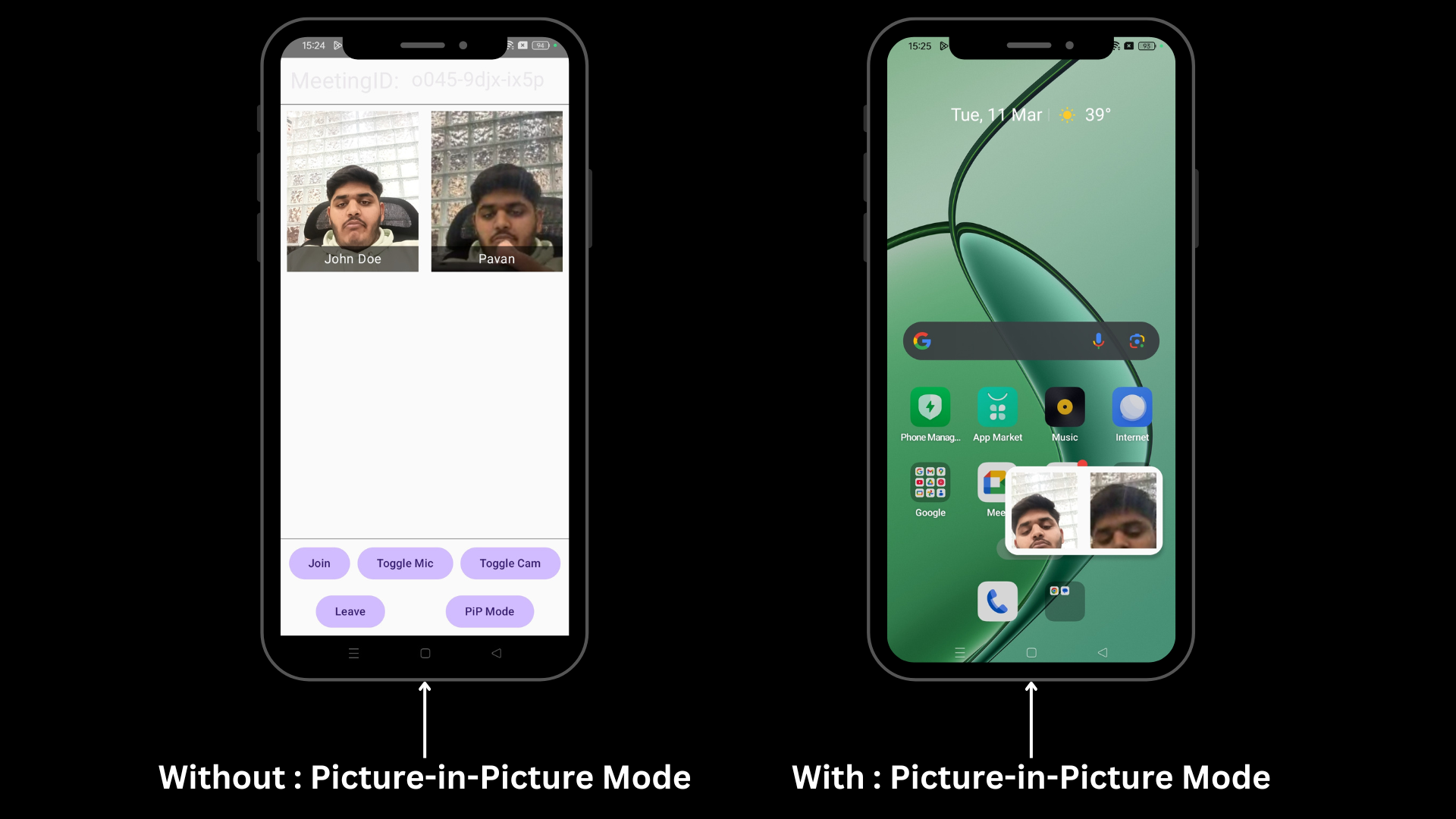
The RoomScreen UI includes a Picture-in-Picture (PiP) mode button, allowing users to switch to PiP mode when the room is joined. The screen displays room participants in a grid layout. If the user is alone, a message is shown. If there are more than two participants, only the first two are displayed.
-
When not in PiP mode, the full room UI is shown, including the header, participant grid, and media control buttons (Join, Mic, Cam, Leave, PiP).
-
When in PiP mode, the UI adapts by hiding the header and buttons. If the user is alone, a message is displayed. Otherwise, up to two participants are shown.
@RequiresApi(Build.VERSION_CODES.O)
@Composable
fun RoomScreen(
    viewModel: RoomViewModel,
    navController: NavController,
    roomId: String
) {
    // Observing the Picture-in-Picture (PiP) mode state from the ViewModel
    val pipMode = viewModel.pipMode
    val activity = LocalContext.current as? Activity
    // If PiP mode is not enabled, show the full room UI
    if (!pipMode.value) {
        Column(modifier = Modifier.fillMaxSize()) {
            Header(roomId)
            MySpacer()
            ParticipantsGrid(
                gridCells = GridCells.Fixed(2),
                participants = viewModel.participants,
                modifier = Modifier.weight(1f)
            )
            MySpacer()
            // Media control buttons (Join, Mic, Cam, Leave, PiP)
            MediaControlButtons(
                onJoinClick = { viewModel.createRoom(
                    app.sampleToken, roomId
                ) },
                onMicClick = { viewModel.toggleMic() },
                onCamClick = { viewModel.toggleCam() },
                onLeaveClick = { viewModel.leaveRoom() },
                // Enable PiP if room is joined
                onPiPClick = { pipMode.value = viewModel.roomJoined.value }
            )
        }
    }
    // If PiP mode is enabled, adjust UI accordingly
    if (pipMode.value) {
        // Enter PiP once, not on every recomposition
        LaunchedEffect(Unit) {
            activity?.enterPictureInPictureMode(
                PictureInPictureParams.Builder()
                    // Custom aspect ratio for PiP window
                    .setAspectRatio(Rational(16, 9))
                    .build()
            )
        }
        if (viewModel.participants.size == 1) {
            Row(modifier = Modifier.fillMaxSize()) {
                // Display the single participant
                Box(modifier = Modifier.weight(1f)) {
                    ParticipantsGrid(
                        gridCells = GridCells.Fixed(1),
                        participants = viewModel.participants.take(1),
                    )
                }
                // Display a message when the user is alone in the room
                Box(
                    modifier = Modifier
                        .weight(1f)
                        .fillMaxHeight()
                        .wrapContentSize(Alignment.Center),
                    contentAlignment = Alignment.Center
                ) {
                    Text(
                        text = "You are alone \n in the \n room",
                        color = Color.Black,
                        textAlign = TextAlign.Center,
                        fontSize = 12.sp,
                        maxLines = 3,
                        overflow = TextOverflow.Ellipsis,
                        modifier = Modifier.fillMaxWidth()
                    )
                }
            }
        } else {
            // Display up to two participants in PiP mode
            ParticipantsGrid(
                gridCells = GridCells.Fixed(2),
                participants = viewModel.participants.take(2),
                modifier = Modifier.fillMaxSize()
            )
        }
    }
}
@Composable
fun MediaControlButtons(
    onJoinClick: () -> Unit,
    onMicClick: () -> Unit,
    onCamClick: () -> Unit,
    onLeaveClick: () -> Unit,
    onPiPClick: () -> Unit
) {
    Row {
        // Other buttons (Join, Mic, Cam, Leave) can be placed here
        // Button to toggle Picture-in-Picture mode
        MyAppButton(onPiPClick, "PiP Mode")
    }
}
Final Output
This is the final output of Picture-in-Picture (PiP) mode in an Android app using VideoSDK. You can further customize the view and optimize it as per your requirements.
Stuck anywhere? Check out this example code on GitHub. It is built on an older SDK version, so follow the Migration Guide for the 3.0.0 API.
Got a Question?  Ask us on discord

