Optimize Audio and Video Usage - Flutter
VideoSDK usage depends on how you use audio and video in your application. Factors such as the number of participants, video quality, and the number of video streams each participant receives can affect your usage.
This guide explains how VideoSDK calculates usage for audio and video calls and provides practical ways to optimize your integration. You'll learn how video resolution affects your usage tier and how to control the quality of received video while maintaining the experience your users need.
How Usage Is Calculated
VideoSDK measures call usage in participant minutes. Two things determine how your call usage is calculated:
| Factor | What it means |
|---|---|
| Participant minutes | The total time each participant is connected, added together across all participants |
| Video tier per participant minute | The resolution of the video each participant receives, or the audio usage when they receive no video |
A participant minute is one participant connected to a call for one minute. For example, a 30-minute call with 5 participants results in:
30 minutes × 5 participants = 150 participant minutes
How Aggregate Resolution Is Calculated
VideoSDK determines the video tier for each participant from the total resolution of the video they receive from other participants. This total is called the aggregate resolution.
Aggregate resolution is the sum of the resolutions of all the video streams a participant receives, including screen shares.
Three rules determine the video tier:
-
Your usage is based on the video you receive. This includes camera video and screen shares. The combined resolution determines the participant's video tier. For example, receiving one 720p video gives an aggregate resolution of 720. Receiving two 360p videos also gives an aggregate resolution of 720.
-
Your own camera does not count toward your usage tier. Your camera contributes to the aggregate resolution of the participants who receive your video, not your own. Turning your camera off therefore does not reduce your own tier. The one exception is when you are not receiving audio or video from anyone else, e.g. when you are waiting alone in a call with your camera on. In that case, your own video sets your video tier.
-
Receiving no video uses the audio tier. If a participant receives no video, they use the audio tier. Audio is included in every video tier and is not charged separately.
Each video you receive is counted in one of three quality tiers: 360p, 720p, or 1080p. Videos below 360p, such as 180p, are counted as 360p, while videos above 1080p, such as 1440p, are counted as 1080p.
Video Tiers
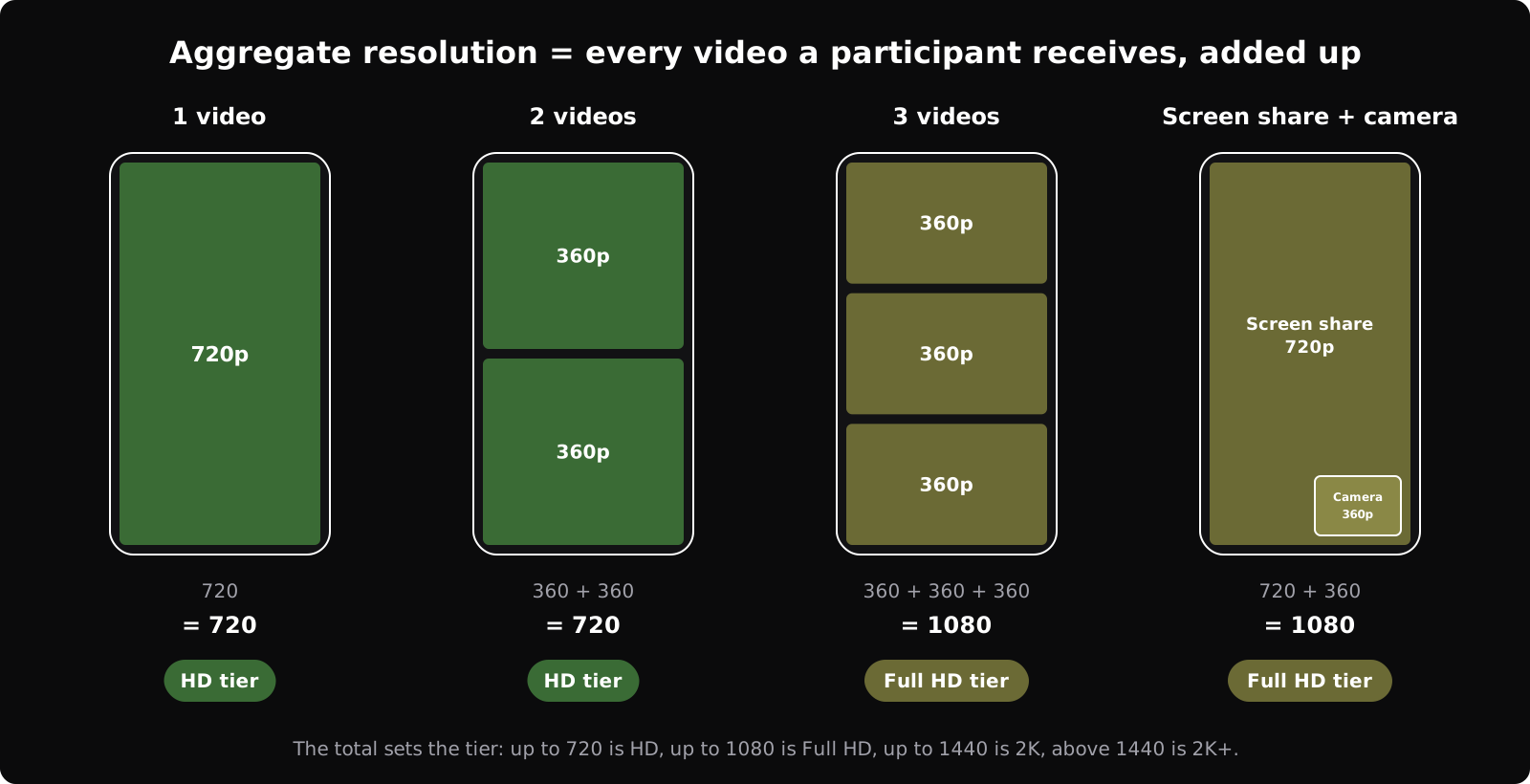
The participant's aggregate resolution determines the applicable video tier.
| Tier | Aggregate resolution | Examples |
|---|---|---|
| HD | Up to 720 | One video at 720p, or two at 360p |
| Full HD | Above 720, up to 1080 | One video at 1080p, or one at 720p and one at 360p, or three at 360p, or a 720p screen share with a 360p camera |
| 2K | Above 1080, up to 1440 | Two videos at 720p, or four at 360p |
| 2K+ | Above 1440 | Five or more videos, or a 1080p video with a 720p video |
How Video Usage Affects Your Tier
The following examples show how the video each participant receives affects the applicable video tier. The number of participant minutes stays the same; changing the video layout and quality changes the aggregate resolution.
One-to-One Call
Two participants, User A and User B, join a 30-minute call. This results in:
30 minutes × 2 participants = 60 participant minutes
Each participant receives one video stream from the other participant.
| Setup | Video received by each participant | Tier |
|---|---|---|
| Each participant receives the other's camera at 1080p | 1 video = 1080 | Full HD |
| Each participant receives the other's camera at 720p | 1 video = 720 | HD |
| Both cameras off | No video | Audio |
Screen Sharing
Screen sharing contributes to the participant's aggregate resolution in addition to camera video. The table shows what User B receives while User A shares their screen.
| What User A sends | Video received by User B | Tier |
|---|---|---|
| 1080p screen and 720p camera | 1080 + 720 = 1800 | 2K+ |
| 720p screen and 720p camera | 720 + 720 = 1440 | 2K |
| 720p screen and 360p camera | 720 + 360 = 1080 | Full HD |
| 1080p screen, camera paused | 1080 | Full HD |
| 720p screen, camera paused | 720 | HD |
Group Call
In a group call, the tier depends on how many videos each participant receives and the quality of each one. The table shows the tier when every video is received at the same quality.
| Participants in the call | Videos each receives | All videos at 720p | All videos at 360p |
|---|---|---|---|
| 2 | 1 | HD | HD |
| 3 | 2 | 2K | HD |
| 4 | 3 | 2K+ | Full HD |
| 5 | 4 | 2K+ | 2K |
| 6 or more | 5 or more | 2K+ | 2K+ |
How to Optimize Your Usage
You can optimize your call usage in three ways. First, choose a layout that keeps each participant in the video tier you want. Next, build that layout with the SDK settings. Finally, if you need a fixed upper limit for every call, set one from the dashboard.
Choose a Layout for Your Target Tier
Decide which tier you want each participant to stay in, then use the layout for your type of call.
The layouts below are examples for calls where cameras are published at 720p. If your cameras publish at a different resolution, apply the same rule: add up the video each participant receives and compare the total with the tier limits in Video Tiers.
| Call | To stay in HD | To stay in Full HD |
|---|---|---|
| One-to-one | Receive the camera at 720p or lower | Receive the camera at up to 1080p |
| One-to-one with screen share | Share at 720p and pause the camera | Share at 720p with the camera at 360p, or share at 1080p and pause the camera |
| 3 participants | Both videos at 360p | Active speaker at 720p, the other at 360p |
| 4 participants | Active speaker at 720p, or two videos at 360p; others paused | All three at 360p |
| 5 or more participants | Active speaker at 720p, or two videos at 360p; others paused | Active speaker at 720p and one at 360p, or three at 360p; others paused |
A paused video is not counted toward the aggregate resolution. The same applies to a video whose sender has turned their camera off.
Example: Large Group Call
Consider a 60-minute group call where one main speaker presents to 30 other participants:
60 minutes × 31 participants = 1,860 participant minutes
The participant minutes are the same in every layout below. Only the tier changes.
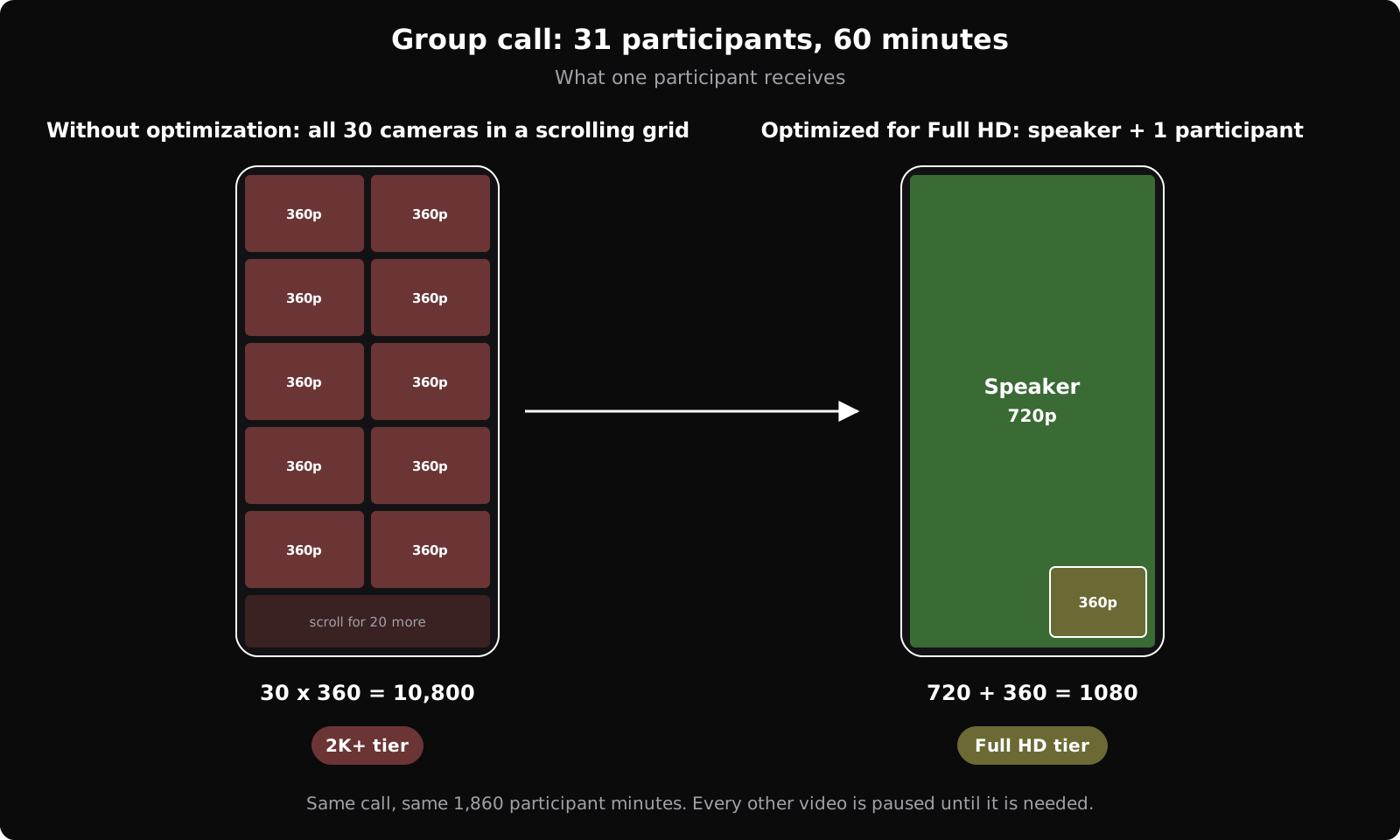
Without Optimization
- The app shows all 30 cameras in a scrolling grid and keeps every video playing, so each participant receives all 30 at 360p, including the ones scrolled off screen.
- Each participant receives
30 × 360 = 10,800. - This places every participant in the 2K+ tier.
Optimized for Full HD
To keep a participant in the Full HD tier, the aggregate resolution must be 1080 or less. The main speaker fills the screen at higher quality, with one other participant in a small picture-in-picture tile:
- Main speaker: 720p
- 1 other participant, e.g. the last person who spoke, or a co-host: 360p
- Every other video is paused
- Each participant receives
720 + 360 = 1080, which places them in the Full HD tier. - The main speaker can see three participants at 360p, which is also
1080and the Full HD tier.
Optimized for HD
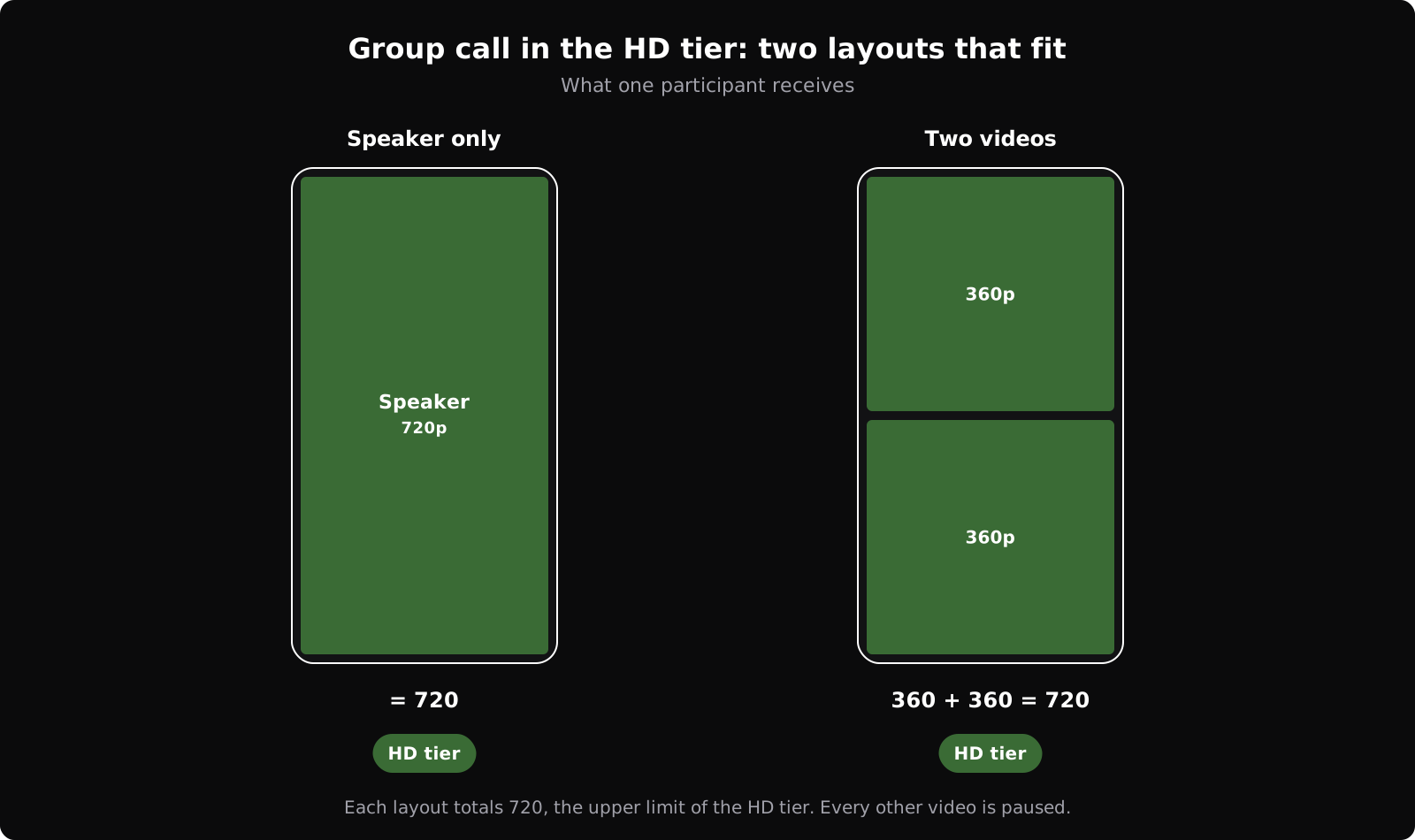
To keep a participant in the HD tier, the aggregate resolution must be 720 or less. Because one video at 720p already uses the entire HD limit, you choose between a sharp main speaker and two smaller videos:
- Speaker only: the speaker at 720p, every other video paused. Best for presentations.
- Two videos: the speaker and one participant stacked on the screen, both at 360p. Best for interviews and co-presenting.
- Each layout totals
720, the HD limit. Adding another video tile or a screen share moves the participant into the next tier.
Build the Layout with the SDK
Use these SDK settings to build the layouts above. For a 720p camera, the high and med values of setQuality() correspond to 720p and 360p.
| What to do | How | Guide |
|---|---|---|
| Match quality to tile size | Call setQuality() with high for the main speaker and med for smaller tiles. | Layout and Grid Management |
| Keep simulcast enabled | Leave multiStream on. With multiStream: false, participants receive the video at the published resolution instead of selecting from simulcast layers. | Simulcast (Adaptive Bitrate) |
| Keep the grid small and page through it | Show only as many participants as your target tier allows, e.g. three at 360p for Full HD, and let participants swipe through the rest. Call pause() on streams that are not on the current page and resume() when they come back. | Grid with Pagination, Scalability for Large Participant |
| Cap the capture resolution | Create the camera track with an encoderConfig no higher than your layout needs. | Optimize Video Tracks |
| Plan for screen share | While a screen is shared, lower the quality of the camera tiles or pause them. | Grid with Screen Share |
Set a Limit from the Dashboard
The send bitrate limit is set on the API key, with no change to your app, and applies to every session that uses that key. Open API Keys in the VideoSDK Dashboard, select your key, and open Settings.

Maximum Send Bitrate Per Participant caps the total upload of everything one participant sends, which caps the quality everyone else can receive. It overrides the configuration in your code, including a custom video track that asks for more. Refer to the API Key Settings guide for details.
The limit covers all the streams a participant sends, so camera and screen share use the same budget. It also applies to every session on the API key, so use a separate key for a use case that needs higher quality.
Monitor Your Usage in the Dashboard
After you optimize your integration, use the VideoSDK Dashboard to check that your usage has changed as you expected. Use the following dashboard pages to monitor your usage:
- Spend Info shows usage, rate and charge for each category, by month.
- Sessions lists every session with its duration and participants.
- Usage Limits shows the concurrency limits of your plan.
Got a Question?  Ask us on discord

