Start HLS - Flutter
Before starting the HLS, the prequisite steps require you to have a VideoSDK Room running which you want to use for interactive livestream. To learn more about setting up a interactive live streaming, you can follow the steps here in the quick start guide.
Important Changes Flutter SDK in Version v1.3.0
- The following modes have been deprecated:
CONFERENCEhas been replaced bySEND_AND_RECVVIEWERhas been replaced bySIGNALLING_ONLY
Please update your implementation to use the new modes.
⚠️ Compatibility Notice:
To ensure a seamless meeting experience, all participants must use the same SDK version.
Do not mix version v1.3.0 + with older versions, as it may cause significant conflicts.
Starting HLS
startHLS() starts an interactive livestream of the room. Call it on the Room object. It takes two optional named parameters:
config: anHLSConfigthat sets how the livestream looks.transcription: aPostTranscriptionConfigthat turns on transcription and summary of the livestream. To learn more, see Post Transcription & Summary.
startHLS() returns a Future. Await it and catch VideoSDKError, which it throws when HLS cannot be started. Every HLSConfig field is optional; a field you leave out takes the server's default.
const config = HLSConfig(
  // Layout: ConfigLayoutGrid.GRID (default), SPOTLIGHT or SIDEBAR
  layout: ConfigLayout(
    type: ConfigLayoutGrid.GRID,
    priority: ConfigLayoutPriority.SPEAKER, // or PIN; default SPEAKER
    gridSize: 4, // at most 25
  ),

  // Theme: ConfigTheme.DEFAULT, LIGHT or DARK
  theme: ConfigTheme.DARK,

  // Stream video and audio, or audio only
  mode: ConfigMode.VIDEO_AND_AUDIO, // or ConfigMode.AUDIO

  // Quality, for video_and_audio only: low (SD), med (HD) or high (FHD)
  quality: ConfigQuality.HIGH,

  // landscape streams the room horizontally,
  // portrait vertically (best for mobile viewers)
  orientation: ConfigOrientation.LANDSCAPE,
);

await room.startHLS(config: config);
If you want only the SEND_AND_RECV participants to be seen in the livestream, you can pin all the participants in the SEND_AND_RECV mode and start the livestream with the SPOTLIGHT layout and PIN as the PRIORITY.
Example
import 'dart:developer';
import 'package:flutter/material.dart';
import 'package:videosdk/videosdk.dart';

class RoomScreen extends StatefulWidget {
  ...
}

class _RoomScreenState extends State<RoomScreen> {
  late Room _room;

  @override
  void initState() {
    ...
  }

  @override
  Widget build(BuildContext context) {
    return Column(
      children:[
        ElevatedButton(
          onPressed: () async {
            const config = HLSConfig(
              layout: ConfigLayout(
                type: ConfigLayoutGrid.GRID,
                priority: ConfigLayoutPriority.SPEAKER,
                gridSize: 4,
              ),
              theme: ConfigTheme.DARK,
              mode: ConfigMode.VIDEO_AND_AUDIO,
              quality: ConfigQuality.HIGH,
              orientation: ConfigOrientation.PORTRAIT,
            );
            try {
              await _room.startHLS(config: config);
            } on VideoSDKError catch (error) {
              log("Could not start HLS: ${error.code} ${error.name}");
            }
          },
          child: const Text("Start HLS"),
        ),
      ]
    );
  }
}
Understanding Layouts
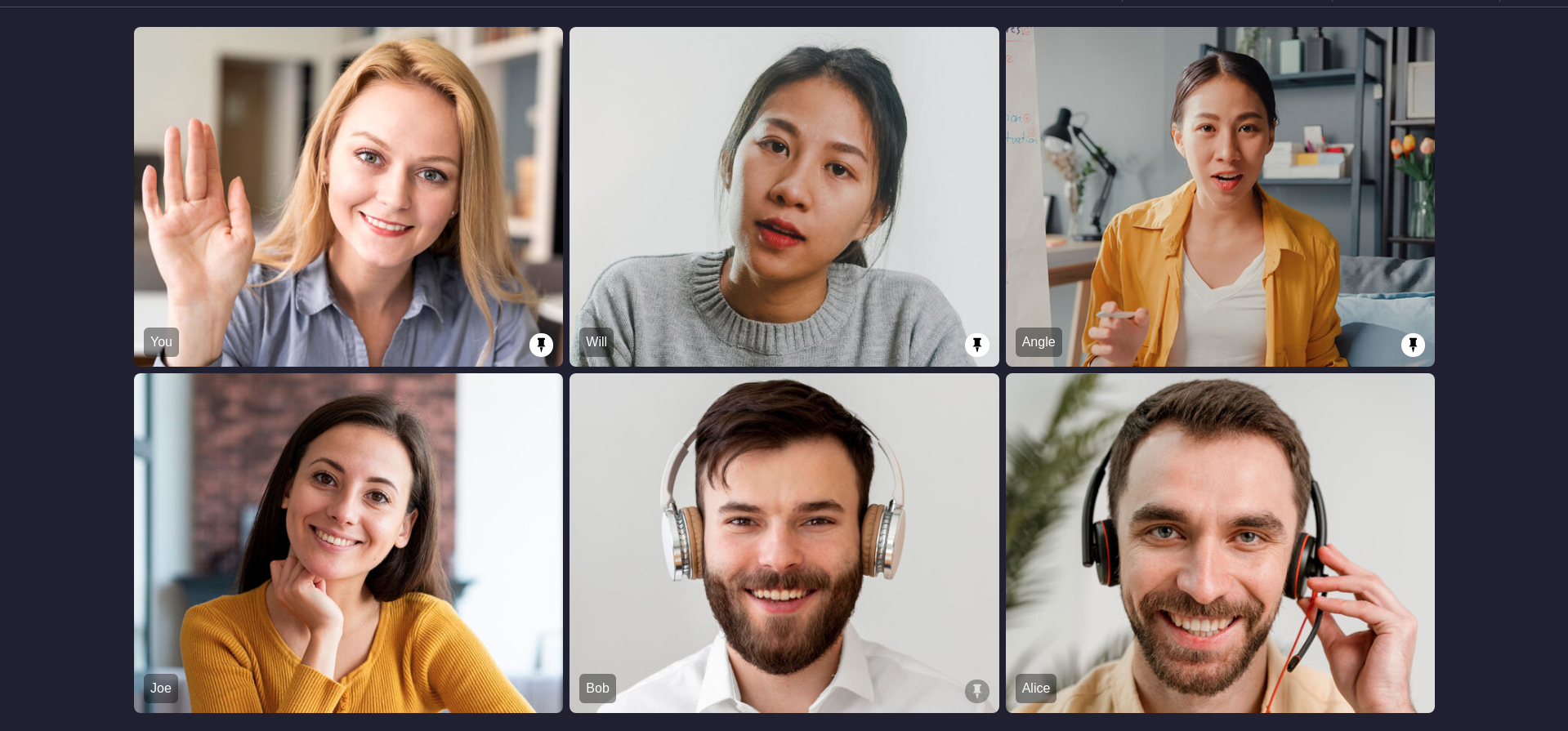
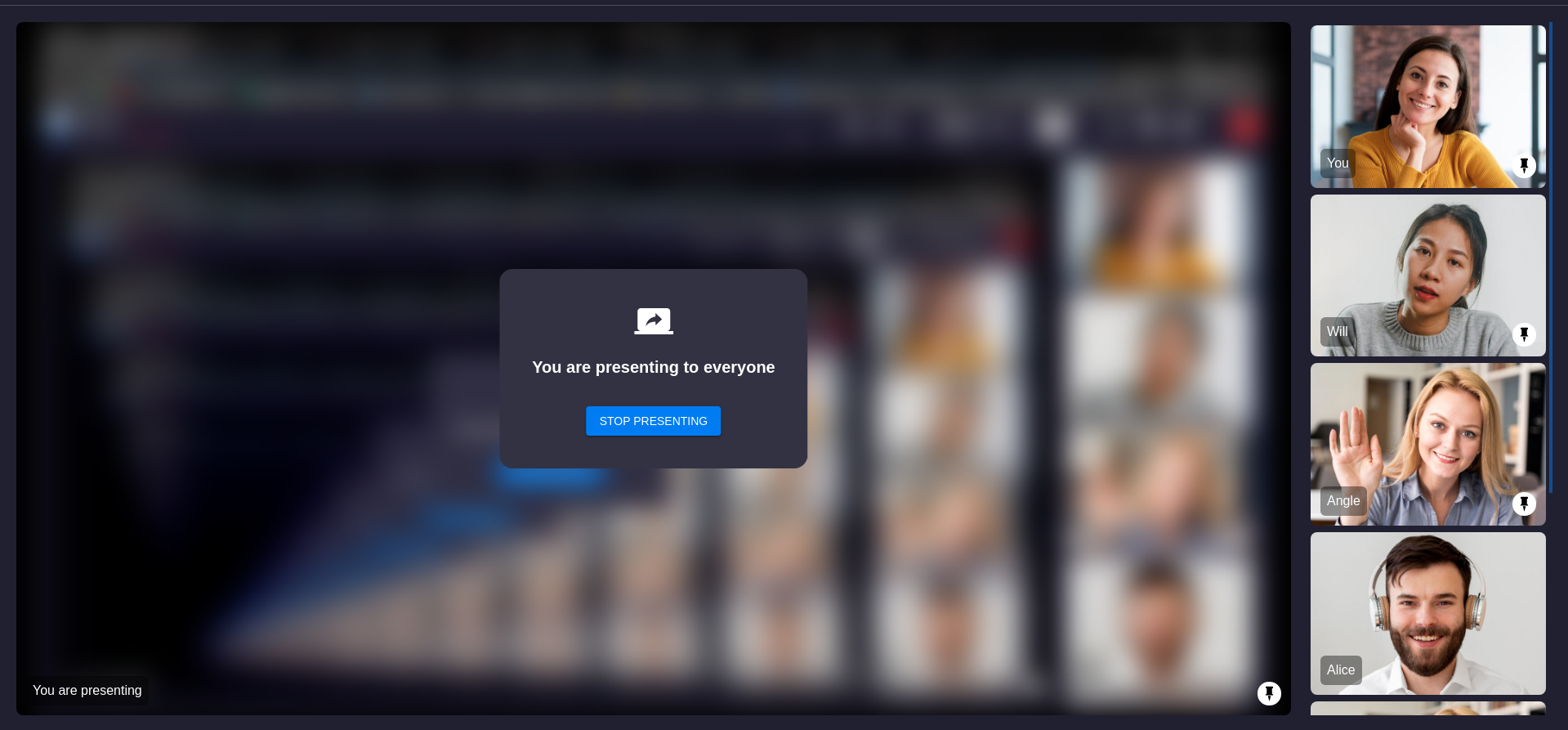
1. GRID Layout
This layout is default layout if no participants are pinned, it will look same as a normal room grid layout, when any participant is pinned that participant will be moved on top of the main screen grid above all non pinned participants
While screenshare as well the main view will contain only screenshare media but the side panel view of participant grid will maintain same order of pinned and unpinned participants.
| Grid | Grid with Screenshare |
|---|---|
 |  |
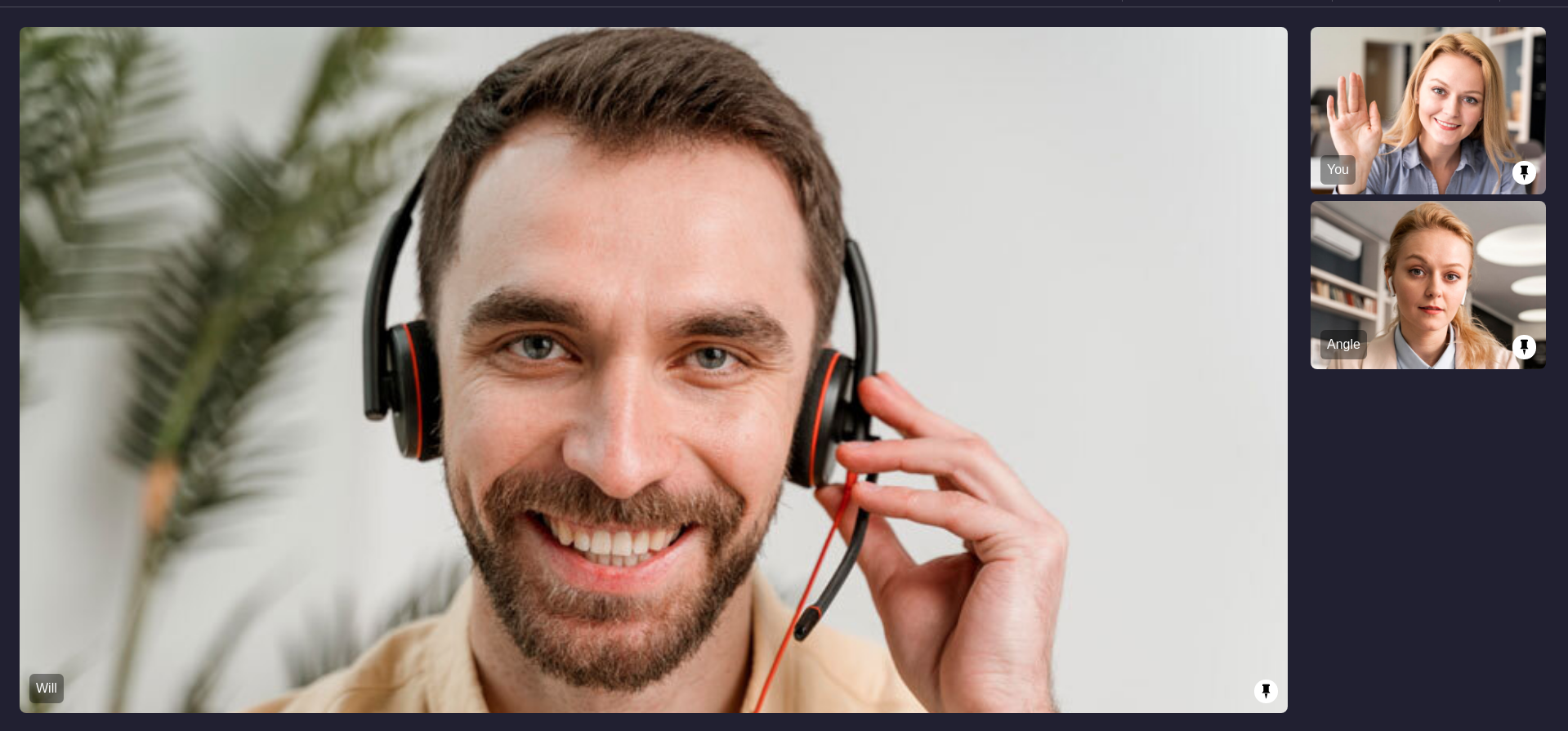
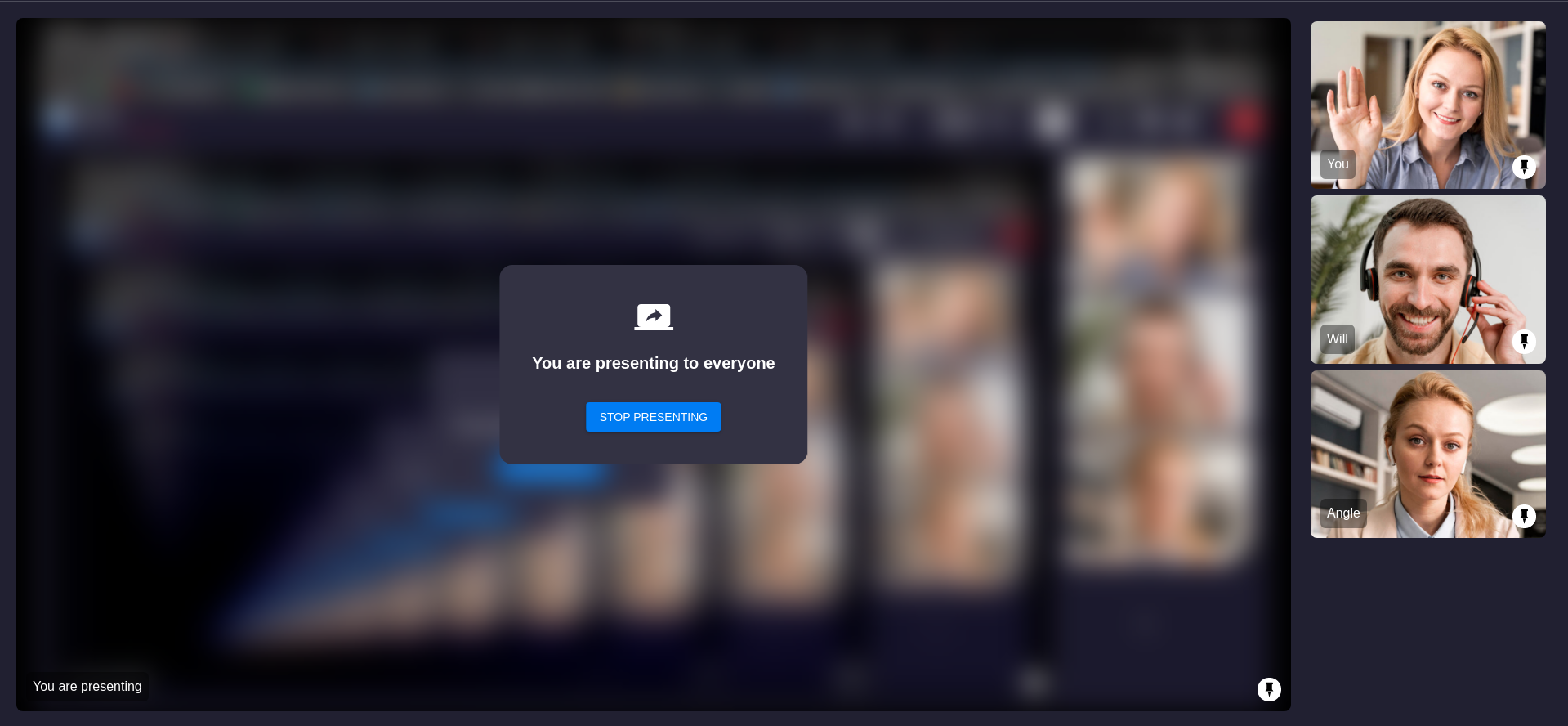
2. SIDEBAR Layout
This layout will have one main screen view and other sidebar grid layout. Only pinned participant will be visible in this layout, all unpinned participants will not be visible in this layout. If more than one participant is pinned then the first participant who was pinned will appear in main screen layout and all other remaining pinned particiapants will be visible in sidebar.
If any pinned participant started screenshare then the screenshare media will be visible in main screen layout and all other pinned participants webcam view will be visible in sidebar
| Sidebar | Sidebar with Screenshare |
|---|---|
 |  |
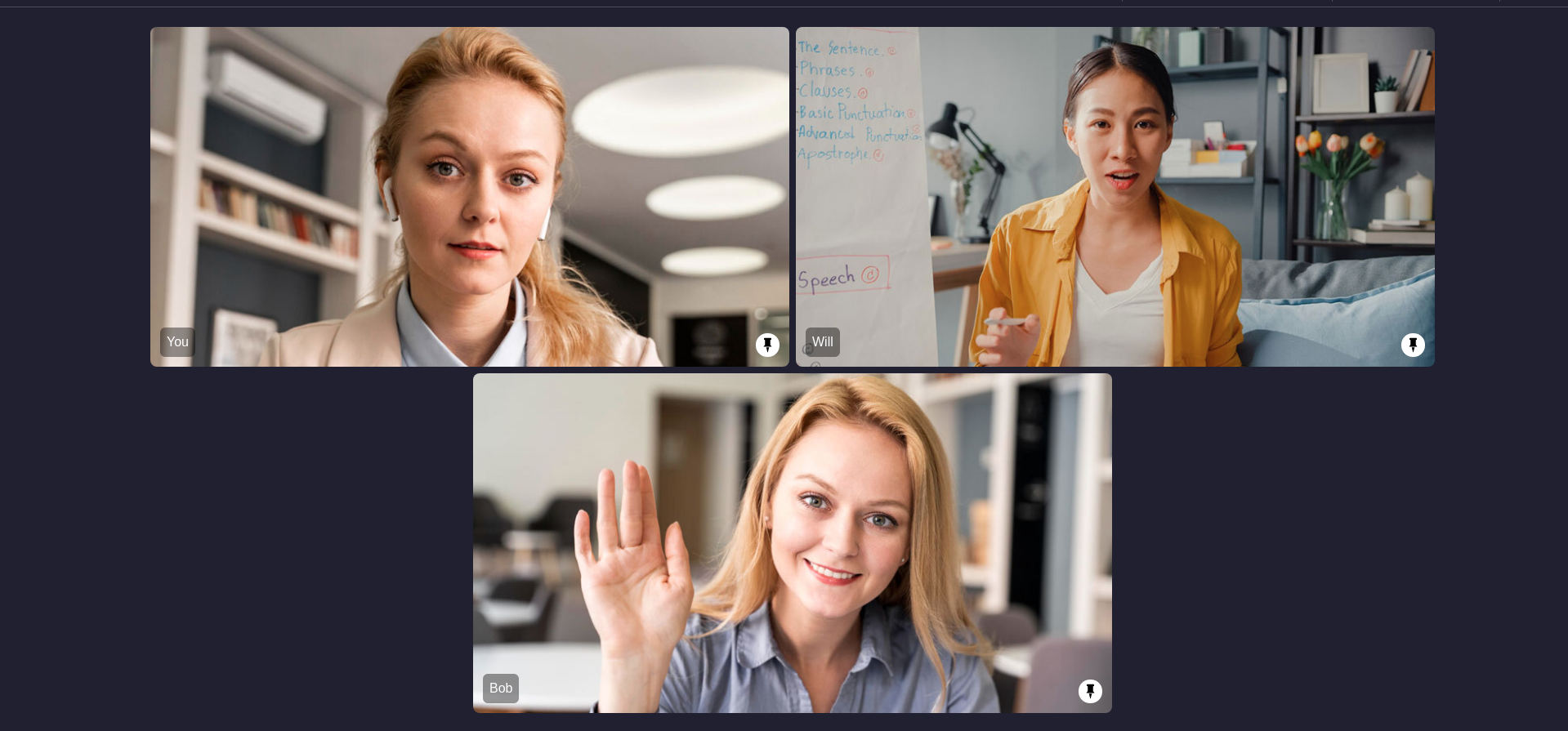
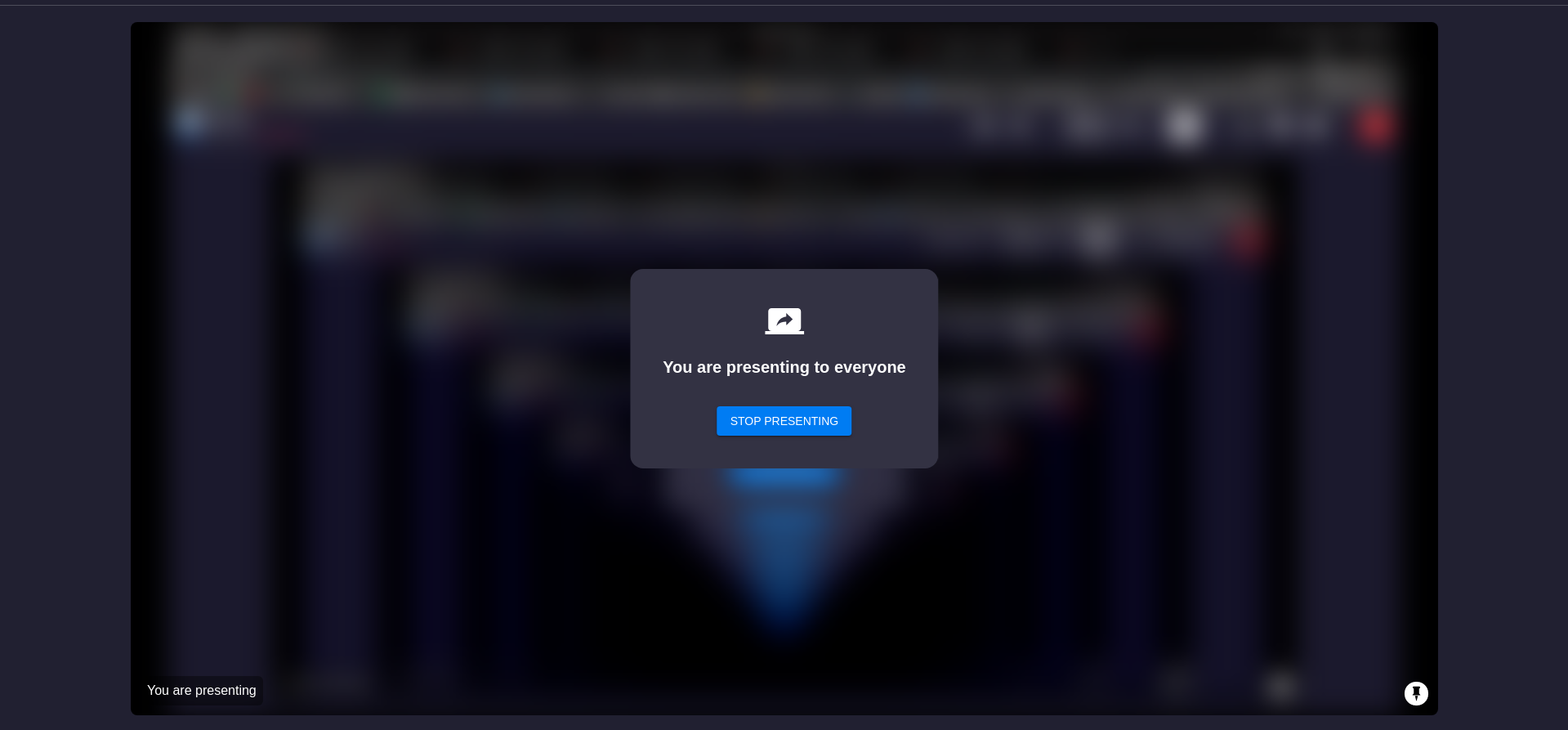
3. SPOTLIGHT Layout
This layout will only contain main screen layout, multiple pinned participants will be visible in main screen view. Same as SIDEBAR layout only pinned participants will be visible in main screen.
If any pinned participant started screenshare then only screenshare view will be visible in main screen, no webcam view will be visible when any pinned participant started screenshare.
| Spotlight | Spotlight with Screenshare |
|---|---|
 |  |
Event associated with HLS
-
hlsStateChanged - Fires whenever the room's HLS state changes. The handler receives the state and an
HLSUrl?. -
When the state is
HLS_PLAYABLE,hlsUrlcarries the URLs viewers play:playbackHlsUrl- Live HLS with playback supportlivestreamUrl- Live HLS without playback support
-
You can also read the latest URLs at any time from
room.hlsUrl.
import 'dart:developer';
import 'package:flutter/material.dart';
import 'package:videosdk/videosdk.dart';

class RoomScreen extends StatefulWidget {
  ...
}

class _RoomScreenState extends State<RoomScreen> {
  late Room room;

  @override
  void initState() {
    ...

    setupRoomEventListener();
  }

  @override
  Widget build(BuildContext context) {
    return YourRoomWidget();
  }

  void setupRoomEventListener() {
    room.on(Events.hlsStateChanged, (String state, HLSUrl? hlsUrl) {
      //State can be :: HLS_STARTING
      //State can be :: HLS_STARTED
      //State can be :: HLS_PLAYABLE
      //State can be :: HLS_STOPPING
      //State can be :: HLS_STOPPED
      log("Room HLS state : $state");
      if (state == "HLS_PLAYABLE") {
        log("Playback HLS URL : ${hlsUrl?.playbackHlsUrl}");
        log("Livestream URL : ${hlsUrl?.livestreamUrl}");
      }
    });
  }
}
Custom Template
With VideoSDK, you can also use your own custom designed layout template to livestream the rooms. In order to use the custom template, you need to create a template for which you can follow this guide. Once you have setup the template, you can use the REST API to start the livestream with the templateUrl parameter.
API Reference
The API references for all the methods utilized in this guide are provided below.
Got a Question?  Ask us on discord

