Quick Start for Interactive Live Streaming in Flutter
This guide walks you through adding interactive live streaming to your Flutter app, with up to 100 hosts/co-hosts and 2,000 viewers in real time.
For standard live streaming with 6-7 second latency and playback support, follow this documentation.
Prerequisites
Before proceeding, ensure that your development environment meets the following requirements:
- Video SDK Developer Account (Not having one, follow Video SDK Dashboard)
- Basic understanding of Flutter
- Flutter VideoSDK
- Have Flutter 3.41 or later installed on your system.
Getting Started with the Code!
Follow the steps to create the environment necessary to add video calls into your app. Also you can find the code sample for quickstart here (this example uses an older SDK version).
Create new Flutter app
Create a new Flutter App using the below command.
$ flutter create videosdk_flutter_quickstart_ils
Install Video SDK
Install the VideoSDK using the below-mentioned flutter command. Make sure you are in your flutter app directory before you run this command.
$ flutter pub add videosdk:^5.0.1
Then pin permission_handler, which the SDK uses to ask for camera and microphone permission, to version 12. Version 13 brings in permission_handler_android 14, which builds only with Android Gradle Plugin 9, so an app created with Flutter 3.41 fails to build for Android.
$ flutter pub add permission_handler:^12.0.1
Run the following command to add the http library, which is used to make the network call that generates a roomId.
$ flutter pub add http
The Flutter SDK runs on Android and iOS. Web, macOS and Windows are not supported.
Structure of the project
Your project structure should look like this.
  root
  ├── android
  ├── ios
  ├── lib
       ├── api_call.dart
       ├── ils_screen.dart
       ├── ils_view.dart
       ├── join_screen.dart
       ├── main.dart
       ├── livestream_controls.dart
       ├── participant_tile.dart
       ├── participant_grid.dart
We are going to create following flutter widgets JoinScreen, ILSScreen, LivestreamControls, ParticipantTile, ParticipantGrid, ILSView for the quickstart app which will cover both Host and Audience part of the app.
App Structure
App widget will contain JoinScreen and ILSScreen screens. ILSScreen will render the ILSView which consist of views based on the participants mode. ILSView will have liveStreamControls and both view will use ParticipantTile which will be conditionally rendered based on the modes.

Configure Project
For Android
- Update the /android/app/src/main/AndroidManifest.xml for the permissions we will be using to implement the audio and video features.
<uses-feature android:name="android.hardware.camera" />
<uses-feature android:name="android.hardware.camera.autofocus" />
<uses-permission android:name="android.permission.CAMERA" />
<uses-permission android:name="android.permission.RECORD_AUDIO" />
<uses-permission android:name="android.permission.ACCESS_NETWORK_STATE" />
<uses-permission android:name="android.permission.CHANGE_NETWORK_STATE" />
<uses-permission android:name="android.permission.MODIFY_AUDIO_SETTINGS" />
<uses-permission android:name="android.permission.INTERNET"/>
- Also you will need to set your build settings to Java 17, because recent versions of the Android Gradle Plugin and the SDK's Android dependencies require it. Just add this to your app-level
/android/app/build.gradle.kts.
android {
    //...
    compileOptions {
        sourceCompatibility = JavaVersion.VERSION_17
        targetCompatibility = JavaVersion.VERSION_17
    }
}
-
If necessary, in the same
build.gradle.ktsyou will need to increaseminSdkofdefaultConfigup to24(currently default Flutter generator set it to24). -
The SDK ships its native libraries for
arm64-v8aandarmeabi-v7a, so it does not run on x86 and x86_64 emulators. Test on an ARM device or on an emulator with anarm64-v8asystem image. To build your app forarm64-v8aandarmeabi-v7aonly, add an ABI filter todefaultConfigin the samebuild.gradle.kts.
android {
    defaultConfig {
        //...
        ndk {
            abiFilters += listOf("arm64-v8a", "armeabi-v7a")
        }
    }
}
- Then add this line to
/android/gradle.properties. Without it, Flutter adds its own ABIs to the filter and yours has no effect.
disable-abi-filtering=true
- For release builds, keep the SDK's classes. Flutter shrinks every Android release build with R8, which removes or renames the
videosdk.orgclasses that the SDK loads by name. Add these rules to/android/app/proguard-rules.pro, and create the file if it does not exist. Keep the-dontwarnline, because the keep rule alone fails the build.
-keep class videosdk.org.** { *; }
-dontwarn videosdk.org.**
If your project still uses the Groovy DSL (android/app/build.gradle), the same property assignments work there too. The older compileSdkVersion and minSdkVersion method syntax is deprecated as of Android Gradle Plugin 9 and will warn during the build.
For iOS
- Add the following entries which allow your app to access the camera and microphone to your /ios/Runner/Info.plist file :
<key>NSCameraUsageDescription</key>
<string>$(PRODUCT_NAME) Camera Usage!</string>
<key>NSMicrophoneUsageDescription</key>
<string>$(PRODUCT_NAME) Microphone Usage!</string>
- The SDK's iOS plugin ships as a Swift Package, so it needs Flutter 3.41 or later with Swift Package Manager turned on. Turn it on for your project by adding
config:under the existingflutter:section of your app'spubspec.yaml, or runflutter config --enable-swift-package-manageron every machine that builds your app.
flutter:
  config:
    enable-swift-package-manager: true
Step 1: Get started with api_call.dart
Before jumping to anything else, you will write a function to generate a unique liveStreamId. You will require auth token, you can generate it using either by using videosdk-rtc-api-server-examples or generate it from the Video SDK Dashboard for development.
- Paste the
Token(which you have generated from Video Sdk Dashboard) in place of<GENERATED_TOKEN_HERE>inapi_call.dart. The same token is used to create the livestream and to join it.
import 'dart:convert';
import 'package:http/http.dart' as http;

//Auth token we will use to generate a liveStream and connect to it
String token = "<GENERATED_TOKEN_HERE>";
// API call to create livestream
Future<String> createLivestream() async {
  final Uri getlivestreamIdUrl =
      Uri.parse('https://api.videosdk.live/v2/rooms');
  final http.Response liveStreamIdResponse =
      await http.post(getlivestreamIdUrl, headers: {
    "Authorization": token,
  });

  if (liveStreamIdResponse.statusCode != 200) {
    throw Exception(json.decode(liveStreamIdResponse.body)["error"]);
  }
  var liveStreamID = json.decode(liveStreamIdResponse.body)['roomId'];
  return liveStreamID;
}
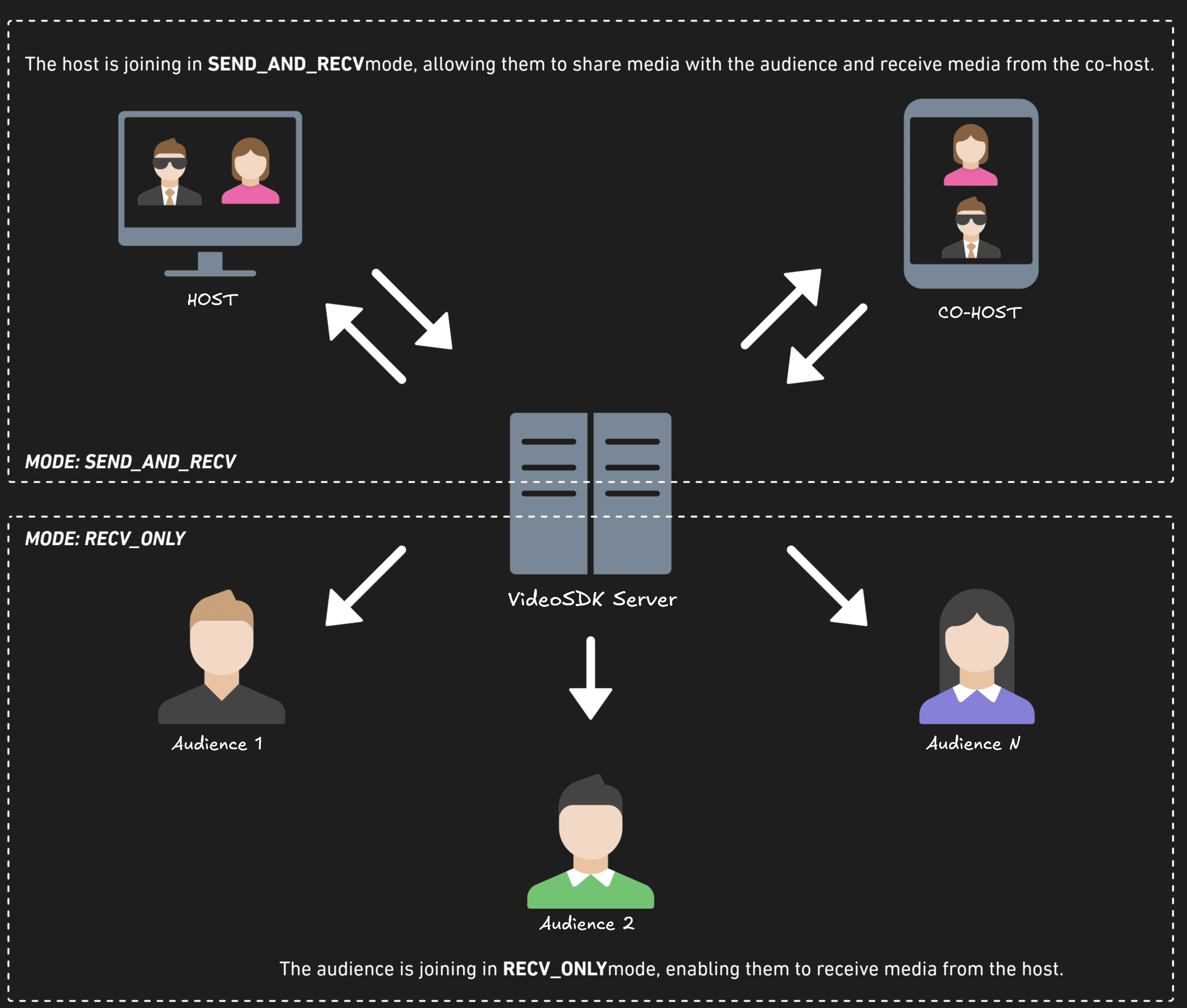
Before proceeding, let's understand the two modes of a Live Stream:
1. SEND_AND_RECV (For Host or Co-host):
- Designed primarily for the Host or Co-host.
- Allows sending and receiving media.
- Hosts can broadcast their audio/video and interact directly with the audience.
2. RECV_ONLY (For Audience):
- Tailored for the Audience.
- Enables receiving media shared by the Host.
- Audience members can view and listen but cannot share their own media.
Step 2: Initialize and Join the Livestream
Let's create join_screen.dart file in lib directory and create JoinScreen StatelessWidget.
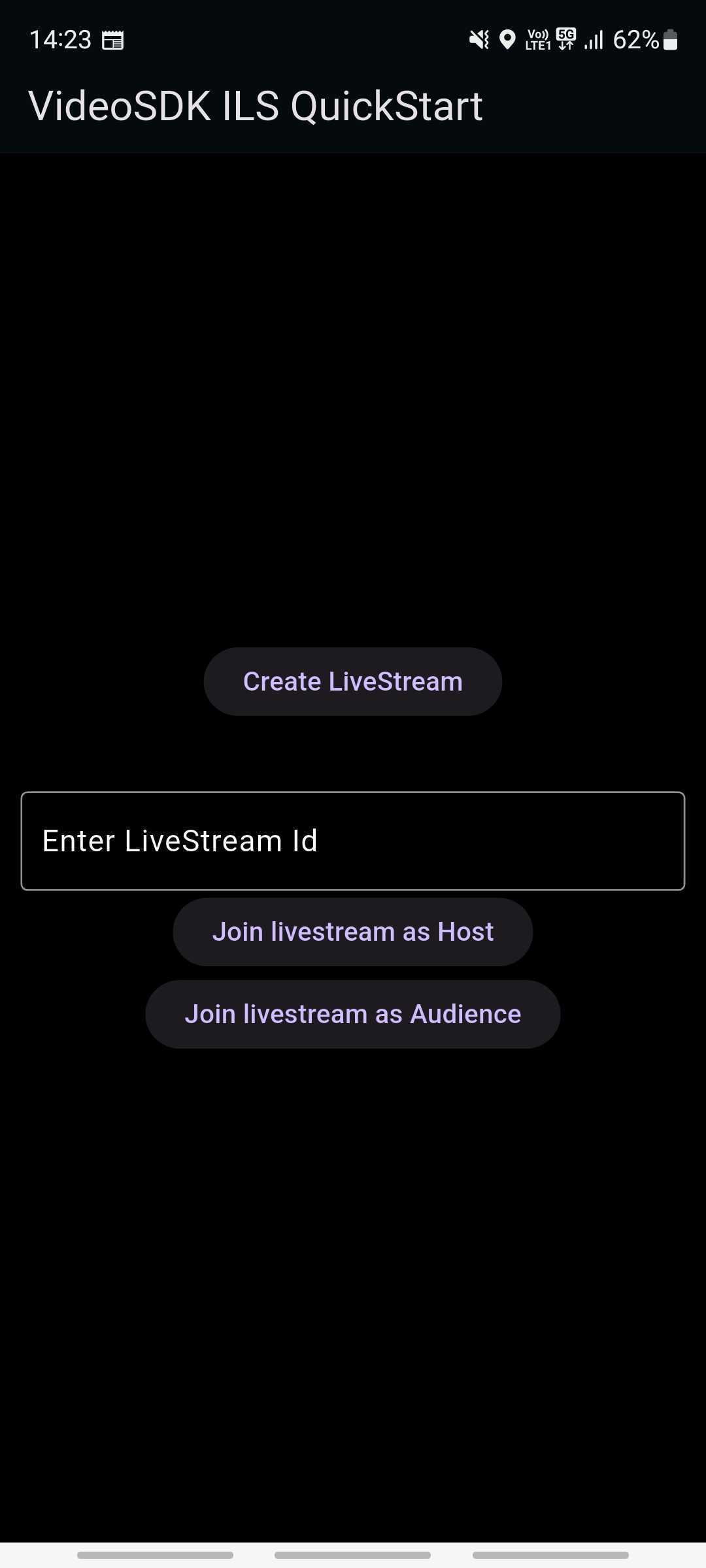
The JoinScreen will consist of:
Create livestream Button- This button will create a new livestream for Host and join it with theSEND_AND_RECVmode.livestream ID TextField- This text field will contain the livestream ID, you want to join.Join Livestream as Host Button- This button allows the user to join an existing Live Stream using the provided livestreamId with theSEND_AND_RECVmode, enabling full host privileges.Join livestream as Audience Button-Enables the user to join an existing Live Stream using the provided livestream with theRECV_ONLYmode, allowing view-only access.
import 'package:flutter/material.dart';
import 'package:videosdk/videosdk.dart';
import 'api_call.dart';
import 'ils_screen.dart';

class JoinScreen extends StatelessWidget {
  final _livestreamIdController = TextEditingController();

  JoinScreen({super.key});

  //Creates new livestream Id and joins it in SEND_AND_RECV mode.
  void onCreateButtonPressed(BuildContext context) async {
    // call api to create livestream and navigate to ILSScreen with livestreamId,token and mode
    await createLivestream().then((liveStreamId) {
      if (!context.mounted) return;
      Navigator.of(context).push(
        MaterialPageRoute(
          builder: (context) => ILSScreen(
            liveStreamId: liveStreamId,
            token: token,
            mode: Mode.SEND_AND_RECV,
          ),
        ),
      );
    });
  }

  //Join the provided livestream with given Mode and livestreamId
  void onJoinButtonPressed(BuildContext context, Mode mode) {
    // check livestream  id is not null or invaild
    // if livestream id is vaild then navigate to ILSScreen with livestreamId, token and mode
    String liveStreamId = _livestreamIdController.text;
    var re = RegExp("\\w{4}\\-\\w{4}\\-\\w{4}");
    if (liveStreamId.isNotEmpty && re.hasMatch(liveStreamId)) {
      _livestreamIdController.clear();
      Navigator.of(context).push(
        MaterialPageRoute(
          builder: (context) => ILSScreen(
            liveStreamId: liveStreamId,
            token: token,
            mode: mode,
          ),
        ),
      );
    } else {
      ScaffoldMessenger.of(context).showSnackBar(const SnackBar(
        content: Text("Please enter valid livestream id"),
      ));
    }
  }

  @override
  Widget build(BuildContext context) {
    return Scaffold(
      backgroundColor: Colors.black,
      appBar: AppBar(
        title: const Text('VideoSDK ILS QuickStart'),
      ),
      body: Padding(
        padding: const EdgeInsets.all(12.0),
        child: Column(
          mainAxisAlignment: MainAxisAlignment.center,
          children: [
            //Creating a new livestream
            ElevatedButton(
              onPressed: () => onCreateButtonPressed(context),
              child: const Text('Create LiveStream'),
            ),
            const SizedBox(height: 40),
            TextField(
              style: const TextStyle(color: Colors.white),
              decoration: const InputDecoration(
                hintText: 'Enter LiveStream Id',
                border: OutlineInputBorder(),
                hintStyle: TextStyle(color: Colors.white),
              ),
              controller: _livestreamIdController,
            ),
            //Joining the livestream as host
            ElevatedButton(
              onPressed: () => onJoinButtonPressed(context, Mode.SEND_AND_RECV),
              child: const Text('Join livestream as Host'),
            ),
            //Joining the livestream as Audience
            ElevatedButton(
              onPressed: () => onJoinButtonPressed(context, Mode.RECV_ONLY),
              child: const Text('Join livestream as Audience'),
            ),
          ],
        ),
      ),
    );
  }
}
Update the app entry to JoinScreen from the main.dart file.
import 'package:flutter/material.dart';
import 'join_screen.dart';

void main() async {
  // Run Flutter App
  WidgetsFlutterBinding.ensureInitialized();

  runApp(const MyApp());
}

class MyApp extends StatelessWidget {
  const MyApp({Key? key}) : super(key: key);

  @override
  Widget build(BuildContext context) {
    // Material App
    return MaterialApp(
      debugShowCheckedModeBanner: false,
      title: 'VideoSDK Flutter ils Example',
      theme: ThemeData.dark().copyWith(
        appBarTheme: const AppBarTheme().copyWith(
          backgroundColor: Colors.black,
        ),
        primaryColor: Colors.black,
        scaffoldBackgroundColor: Colors.black45,
      ),
      home: JoinScreen(),
    );
  }
}
Output For JoinScreen
Step 3: Creating the ILSScreen
Let's create ils_screen.dart file and create ILSScreen StatefulWidget which will take the liveStreamId, token and mode of the participant in the constructor.
We will create a new room using the createRoom method and render the ILSView based on the passed participant mode.
The SDK does not ask for camera and microphone permission on Android, so a host asks with VideoSDK.requestPermissions() before joining. join(), leave() and pin() return a Future that throws a VideoSDKError when the action fails, so the screen awaits them inside try / catch. The room releases itself after it leaves, so there is nothing to clean up when the screen closes.
import 'dart:async' show unawaited;
import 'dart:developer';
import 'package:flutter/material.dart';
import 'package:videosdk/videosdk.dart';
import 'ils_view.dart';
import 'join_screen.dart';

class ILSScreen extends StatefulWidget {
  final String liveStreamId;
  final String token;
  final Mode mode;

  const ILSScreen(
      {super.key,
      required this.liveStreamId,
      required this.token,
      required this.mode});

  @override
  State<ILSScreen> createState() => _ILSScreenState();
}

class _ILSScreenState extends State<ILSScreen> {
  late Room _room;
  bool isJoined = false;
  Mode? localParticipantMode;

  @override
  void initState() {
    super.initState();
    // create room when widget loads
    _room = VideoSDK.createRoom(
      roomId: widget.liveStreamId,
      token: widget.token,
      participantName: "John Doe",
      micEnabled: true,
      camEnabled: true,
      defaultCamera: FacingMode.FRONT, // camera used when the livestream starts
      mode: widget.mode,
    );
    localParticipantMode = widget.mode;
    // setting the event listener for join and leave events
    setLivestreamEventListener();

    // Joining room
    unawaited(joinRoom());
  }

  Future<void> joinRoom() async {
    // On Android, the SDK does not ask for camera and microphone permission.
    if (widget.mode == Mode.SEND_AND_RECV) {
      await VideoSDK.requestPermissions();
    }
    try {
      await _room.join();
    } on VideoSDKError catch (error) {
      log("Could not join the livestream: ${error.code} ${error.name}");
    }
  }

  Future<void> pinLocalParticipant() async {
    try {
      await _room.localParticipant.pin();
    } on VideoSDKError catch (error) {
      log("Could not pin: ${error.code} ${error.name}");
    }
  }

  // listening to room events
  void setLivestreamEventListener() {
    _room.on(Events.roomJoined, () {
      if (widget.mode == Mode.SEND_AND_RECV) {
        unawaited(pinLocalParticipant());
      }
      setState(() {
        localParticipantMode = _room.localParticipant.mode;
        isJoined = true;
      });
    });

    //Handling navigation when livestream is left
    _room.on(Events.roomLeft, () {
      Navigator.pushAndRemoveUntil(
        context,
        MaterialPageRoute(builder: (context) => JoinScreen()),
        (route) => false, // Removes all previous routes
      );
    });
  }

  Future<void> leaveRoom() async {
    try {
      await _room.leave();
    } on VideoSDKError catch (error) {
      // 3054: the room has already left the livestream.
      if (error.code != 3054) {
        log("Could not leave the livestream: ${error.code} ${error.name}");
      }
    }
  }

  @override
  Widget build(BuildContext context) {
    return PopScope(
      // leave the livestream when the back button closes the screen
      onPopInvokedWithResult: (didPop, result) {
        if (didPop) unawaited(leaveRoom());
      },
      child: Scaffold(
        backgroundColor: Colors.black,
        appBar: AppBar(
          title: const Text('VideoSDK ILS QuickStart'),
        ),
        //Showing the Host or Audience View based on the mode
        body: isJoined
            ? ILSView(room: _room, bar: false, mode: widget.mode)
            : const Center(
                child: Text(
                  "Joining...",
                  style: TextStyle(color: Colors.white),
                ),
              ),
      ),
    );
  }
}
Step 4: Implementing View for Host/Audience
Let's create the ILSView which will show the livestreamControls, ParticipantGrid and the ParticipantTile.
- Let us start off by creating the StatefulWidget named ParticipantTile in participant_tile.dart file. It will consist the participant tile where all participant with
SEND_AND_RECVmode will get rendered. Stream events are delivered on theRoom, so the tile takes the room and keeps only the events for its own participant.
import 'package:flutter/material.dart';
import 'package:videosdk/videosdk.dart';

class ParticipantTile extends StatefulWidget {
  final Room room;
  final Participant participant;
  final bool isLocalParticipant;
  const ParticipantTile({
    Key? key,
    required this.room,
    required this.participant,
    this.isLocalParticipant = false,
  }) : super(key: key);

  @override
  State<ParticipantTile> createState() => _ParticipantTileState();
}

class _ParticipantTileState extends State<ParticipantTile> {
  RTCStream? videoStream;
  RTCStream? audioStream;

  @override
  void initState() {
    _initStreamListeners();
    super.initState();

    widget.participant.streams.forEach((key, RTCStream stream) {
      setState(() {
        if (stream.kind == MediaType.VIDEO) {
          videoStream = stream;
        } else if (stream.kind == MediaType.AUDIO) {
          audioStream = stream;
        }
      });
    });
  }

  @override
  void setState(fn) {
    if (mounted) {
      super.setState(fn);
    }
  }

  @override
  void dispose() {
    // The room outlives the tile, so remove the handlers from it.
    widget.room.off(Events.streamEnabled, _onStreamEnabled);
    widget.room.off(Events.streamDisabled, _onStreamDisabled);
    super.dispose();
  }

  @override
  Widget build(BuildContext context) {
    return Container(
      decoration: BoxDecoration(
        borderRadius: BorderRadius.circular(12),
        color: Colors.black12,
      ),
      child: Stack(
        children: [
          videoStream != null
              ? ClipRRect(
                  borderRadius: BorderRadius.circular(12),
                  child: RTCVideoView(
                    videoStream?.renderer as RTCVideoRenderer,
                    objectFit: RTCVideoViewObjectFit.RTCVideoViewObjectFitCover,
                  ),
                )
              : Center(
                  child: Container(
                    padding: const EdgeInsets.all(15),
                    decoration: const BoxDecoration(
                      shape: BoxShape.circle,
                      color: Colors.black12,
                    ),
                    child: Text(
                      widget.participant.displayName.characters.first
                          .toUpperCase(),
                      style: const TextStyle(fontSize: 30),
                    ),
                  ),
                ),
        ],
      ),
    );
  }

  // stream.participantId is the id of the participant the stream belongs to.
  bool _isMine(RTCStream stream) =>
      stream.participantId == widget.participant.id;

  void _onStreamEnabled(RTCStream _stream) {
    if (!_isMine(_stream)) return;
    setState(() {
      if (_stream.kind == MediaType.VIDEO) {
        videoStream = _stream;
      } else if (_stream.kind == MediaType.AUDIO) {
        audioStream = _stream;
      }
    });
  }

  void _onStreamDisabled(RTCStream _stream) {
    if (!_isMine(_stream)) return;
    setState(() {
      if (_stream.kind == MediaType.VIDEO && videoStream?.id == _stream.id) {
        videoStream = null;
      } else if (_stream.kind == MediaType.AUDIO && audioStream?.id == _stream.id) {
        audioStream = null;
      }
    });
  }

  void _initStreamListeners() {
    // Stream events are delivered on the room.
    widget.room.on(Events.streamEnabled, _onStreamEnabled);
    widget.room.on(Events.streamDisabled, _onStreamDisabled);
  }
}
- Along with the
participant_tile.dartfile, you should create aparticipant_grid.dartfile to manage the grid layout where each participant tile will be rendered.participant.modeis already updated whenparticipantModeChangedfires, so the grid rebuilds itself from that event.
import 'package:flutter/foundation.dart';
import 'package:flutter/material.dart';
import 'participant_tile.dart';

import 'package:videosdk/videosdk.dart';

class ParticipantGrid extends StatefulWidget {
  final Room room;
  const ParticipantGrid({Key? key, required this.room}) : super(key: key);

  @override
  State<ParticipantGrid> createState() => _ParticipantGridState();
}

class _ParticipantGridState extends State<ParticipantGrid> {
  late Participant localParticipant;
  int numberofColumns = 1;
  int numberOfMaxOnScreenParticipants = 6;

  Map<String, Participant> participants = {};
  Map<String, Participant> onScreenParticipants = {};

  @override
  void initState() {
    localParticipant = widget.room.localParticipant;
    participants.putIfAbsent(localParticipant.id, () => localParticipant);
    participants.addAll(widget.room.participants);
    updateOnScreenParticipants();
    // Setting livestream event listeners
    setLivestreamEventListener(widget.room);

    super.initState();
  }

  @override
  void setState(fn) {
    if (mounted) {
      super.setState(fn);
    }
  }

  @override
  Widget build(BuildContext context) {
    return Flex(
      direction: Axis.vertical,
      children: [
        for (int i = 0;
            i < (onScreenParticipants.length / numberofColumns).ceil();
            i++)
          Flexible(
            child: Flex(
              direction: Axis.vertical,
              children: [
                for (int j = 0;
                    j <
                        onScreenParticipants.values
                            .toList()
                            .sublist(
                              i * numberofColumns,
                              (i + 1) * numberofColumns >
                                      onScreenParticipants.length
                                  ? onScreenParticipants.length
                                  : (i + 1) * numberofColumns,
                            )
                            .length;
                    j++)
                  Flexible(
                    child: Padding(
                      padding: const EdgeInsets.all(4.0),
                      child: ParticipantTile(
                        room: widget.room,
                        key: Key(
                          onScreenParticipants.values
                              .toList()
                              .sublist(
                                i * numberofColumns,
                                (i + 1) * numberofColumns >
                                        onScreenParticipants.length
                                    ? onScreenParticipants.length
                                    : (i + 1) * numberofColumns,
                              )
                              .elementAt(j)
                              .id,
                        ),
                        participant: onScreenParticipants.values
                            .toList()
                            .sublist(
                              i * numberofColumns,
                              (i + 1) * numberofColumns >
                                      onScreenParticipants.length
                                  ? onScreenParticipants.length
                                  : (i + 1) * numberofColumns,
                            )
                            .elementAt(j),
                      ),
                    ),
                  ),
              ],
            ),
          ),
      ],
    );
  }

  void setLivestreamEventListener(Room livestream) {
    // Called when participant joined livestream
    livestream.on(Events.participantJoined, (Participant participant) {
      final newParticipants = participants;
      newParticipants[participant.id] = participant;
      setState(() {
        participants = newParticipants;
        updateOnScreenParticipants();
      });
    });

    // Called when participant left livestream
    livestream.on(Events.participantLeft,
        (Participant participant, LeaveReason reason) {
      final newParticipants = participants;

      newParticipants.remove(participant.id);
      setState(() {
        participants = newParticipants;
        updateOnScreenParticipants();
      });
    });

    livestream.on(Events.participantModeChanged, (Map<String, dynamic> data) {
      // participant.mode is already updated.
      Map<String, Participant> _participants = {};
      Participant _localParticipant = widget.room.localParticipant;
      _participants.putIfAbsent(_localParticipant.id, () => _localParticipant);
      _participants.addAll(livestream.participants);

      setState(() {
        localParticipant = _localParticipant;
        participants = _participants;
        updateOnScreenParticipants();
      });
    });

    // Stream events are delivered on the room; keep only the local screen share.
    livestream.on(Events.streamEnabled, (RTCStream stream) {
      if (stream.kind == MediaType.SHARE &&
          stream.participantId == livestream.localParticipant.id) {
        setState(() {
          numberOfMaxOnScreenParticipants = 2;
          updateOnScreenParticipants();
        });
      }
    });
    livestream.on(Events.streamDisabled, (RTCStream stream) {
      if (stream.kind == MediaType.SHARE &&
          stream.participantId == livestream.localParticipant.id) {
        setState(() {
          numberOfMaxOnScreenParticipants = 6;
          updateOnScreenParticipants();
        });
      }
    });
  }

  updateOnScreenParticipants() {
    Map<String, Participant> newScreenParticipants = <String, Participant>{};
    List<Participant> conferenceParticipants = participants.values
        .where((element) => element.mode == Mode.SEND_AND_RECV)
        .toList();

    conferenceParticipants
        .sublist(
      0,
      conferenceParticipants.length > numberOfMaxOnScreenParticipants
          ? numberOfMaxOnScreenParticipants
          : conferenceParticipants.length,
    )
        .forEach((participant) {
      newScreenParticipants.putIfAbsent(participant.id, () => participant);
    });

    if (!listEquals(
      newScreenParticipants.keys.toList(),
      onScreenParticipants.keys.toList(),
    )) {
      setState(() {
        onScreenParticipants = newScreenParticipants;
      });
    }
    if (numberofColumns !=
        (newScreenParticipants.length > 2 ||
                numberOfMaxOnScreenParticipants == 2
            ? 2
            : 1)) {
      setState(() {
        numberofColumns = newScreenParticipants.length > 2 ||
                numberOfMaxOnScreenParticipants == 2
            ? 2
            : 1;
      });
    }
  }
}
- Next let us add the StatefulWidget named LivestreamControls in the livestream_controls.dart file. This widget will accept the participant's current mode and the callback handlers for the livestream control buttons.
import 'package:flutter/material.dart';
import 'package:videosdk/videosdk.dart';

class LivestreamControls extends StatefulWidget {
  final Mode mode;
  final void Function()? onToggleMicButtonPressed;
  final void Function()? onToggleCameraButtonPressed;
  final void Function()? onChangeModeButtonPressed;

  LivestreamControls({
    super.key,
    required this.mode,
    this.onToggleMicButtonPressed,
    this.onToggleCameraButtonPressed,
    this.onChangeModeButtonPressed,
  });

  @override
  State<LivestreamControls> createState() => _LivestreamControlsState();
}

class _LivestreamControlsState extends State<LivestreamControls> {
  @override
  Widget build(BuildContext context) {
    return Row(
      mainAxisAlignment: MainAxisAlignment.center,
      children: [
        if (widget.mode == Mode.SEND_AND_RECV) ...[
          ElevatedButton(
            onPressed: widget.onToggleMicButtonPressed,
            child: const Text('Toggle Mic'),
          ),
          const SizedBox(width: 10),
          ElevatedButton(
            onPressed: widget.onToggleCameraButtonPressed,
            child: const Text('Toggle Cam'),
          ),
          ElevatedButton(
            onPressed: widget.onChangeModeButtonPressed,
            child: const Text('Audience'),
          ),
        ] else if (widget.mode == Mode.RECV_ONLY) ...[
          ElevatedButton(
            onPressed: widget.onChangeModeButtonPressed,
            child: const Text('Host/Speaker'),
          ),
        ]
      ],
    );
  }
}
- Lets finally put all these widget in the StatefulWidget named ILSView in ils_view.dart file. This widget will listen to the participantJoined and participantLeft events. It will render the participants and the livestream controls like leave, toggle mic, webcam and Mode. Before a member of the audience becomes a host, it asks for camera and microphone permission, because the SDK turns them on with the mode change.
import 'dart:developer';
import 'package:flutter/material.dart';
import 'package:flutter/services.dart';
import 'package:videosdk/videosdk.dart';
import 'livestream_controls.dart';
import 'participant_grid.dart';

class ILSView extends StatefulWidget {
  final Room room;
  final Mode mode;
  final bool bar;
  const ILSView({
    super.key,
    required this.room,
    required this.bar,
    required this.mode,
  });

  @override
  State<ILSView> createState() => _ILSViewState();
}

class _ILSViewState extends State<ILSView> {
  var micEnabled = true;
  var camEnabled = true;

  Map<String, Participant> participants = {};
  Mode? localMode;
  @override
  void initState() {
    super.initState();
    localMode = widget.mode;
    //Setting up the event listeners and initializing the participants and hls state
    setlivestreamEventListener();
    participants.putIfAbsent(
      widget.room.localParticipant.id,
      () => widget.room.localParticipant,
    );
    //filtering the SEND_AND_RECV participants to be shown in the grid
    widget.room.participants.values.forEach((participant) {
      if (participant.mode == Mode.SEND_AND_RECV) {
        participants.putIfAbsent(participant.id, () => participant);
      }
    });
  }

  @override
  Widget build(BuildContext context) {
    return Padding(
      padding: const EdgeInsets.all(8.0),
      child: Column(
        children: [
          Row(
            children: [
              Expanded(
                child: Text(
                  widget.room.id,
                  style: const TextStyle(
                    color: Colors.white,
                    fontWeight: FontWeight.bold,
                    fontSize: 15,
                  ),
                ),
              ),
              ElevatedButton(
                onPressed: () => {
                  Clipboard.setData(ClipboardData(text: widget.room.id)),
                  ScaffoldMessenger.of(context).showSnackBar(
                    const SnackBar(content: Text("Livestream Id Copied")),
                  ),
                },
                child: const Text("Copy Livestream Id"),
              ),
              const SizedBox(width: 10),
              ElevatedButton(
                onPressed: leave,
                style: ElevatedButton.styleFrom(backgroundColor: Colors.red),
                child: const Text("Leave"),
              ),
            ],
          ),
          Expanded(child: ParticipantGrid(room: widget.room)),
          _buildLivestreamControls(),
        ],
      ),
    );
  }

  Widget _buildLivestreamControls() {
    if (localMode == Mode.SEND_AND_RECV) {
      return LivestreamControls(
        mode: Mode.SEND_AND_RECV,
        onToggleMicButtonPressed: toggleMic,
        onToggleCameraButtonPressed: toggleCam,
        onChangeModeButtonPressed: () => changeMode(Mode.RECV_ONLY),
      );
    } else if (localMode == Mode.RECV_ONLY) {
      return Column(
        children: [
          LivestreamControls(
            mode: Mode.RECV_ONLY,
            onToggleMicButtonPressed: toggleMic,
            onToggleCameraButtonPressed: toggleCam,
            onChangeModeButtonPressed: () => changeMode(Mode.SEND_AND_RECV),
          ),
        ],
      );
    } else {
      // Default controls
      return LivestreamControls(
        mode: Mode.RECV_ONLY,
        onToggleMicButtonPressed: toggleMic,
        onToggleCameraButtonPressed: toggleCam,
        onChangeModeButtonPressed: () => changeMode(Mode.RECV_ONLY),
      );
    }
  }

  Future<void> leave() async {
    try {
      await widget.room.leave();
    } on VideoSDKError catch (error) {
      // 3054: the room has already left the livestream.
      if (error.code != 3054) {
        log("Could not leave the livestream: ${error.code} ${error.name}");
      }
    }
  }

  Future<void> toggleMic() async {
    try {
      micEnabled ? await widget.room.muteMic() : await widget.room.unmuteMic();
      micEnabled = !micEnabled;
    } on VideoSDKError catch (error) {
      log("Could not toggle the mic: ${error.code} ${error.name}");
    }
  }

  Future<void> toggleCam() async {
    try {
      camEnabled ? await widget.room.disableCam() : await widget.room.enableCam();
      camEnabled = !camEnabled;
    } on VideoSDKError catch (error) {
      log("Could not toggle the camera: ${error.code} ${error.name}");
    }
  }

  Future<void> changeMode(Mode mode) async {
    // A host sends media, and on Android the SDK does not ask for permission.
    if (mode == Mode.SEND_AND_RECV) {
      await VideoSDK.requestPermissions();
    }
    try {
      // localMode follows participantModeChanged once the server applies it.
      await widget.room.changeMode(mode);
    } on VideoSDKError catch (error) {
      log("Could not change the mode: ${error.code} ${error.name}");
    }
  }

  // listening to room events for participants join, left and hls state changes
  void setlivestreamEventListener() {
    widget.room.on(Events.participantJoined, (Participant participant) {
      //Adding only Conference participant to show in grid
      if (participant.mode == Mode.SEND_AND_RECV) {
        setState(
          () => participants.putIfAbsent(participant.id, () => participant),
        );
      }
    });
    widget.room.on(Events.participantModeChanged, (Map<String, dynamic> data) {
      if (data['participantId'] == widget.room.localParticipant.id) {
        setState(() => localMode = widget.room.localParticipant.mode);
      }
    });
    widget.room.on(Events.participantLeft,
        (Participant participant, LeaveReason reason) {
      if (participants.containsKey(participant.id)) {
        setState(() => participants.remove(participant.id));
      }
    });
  }
}
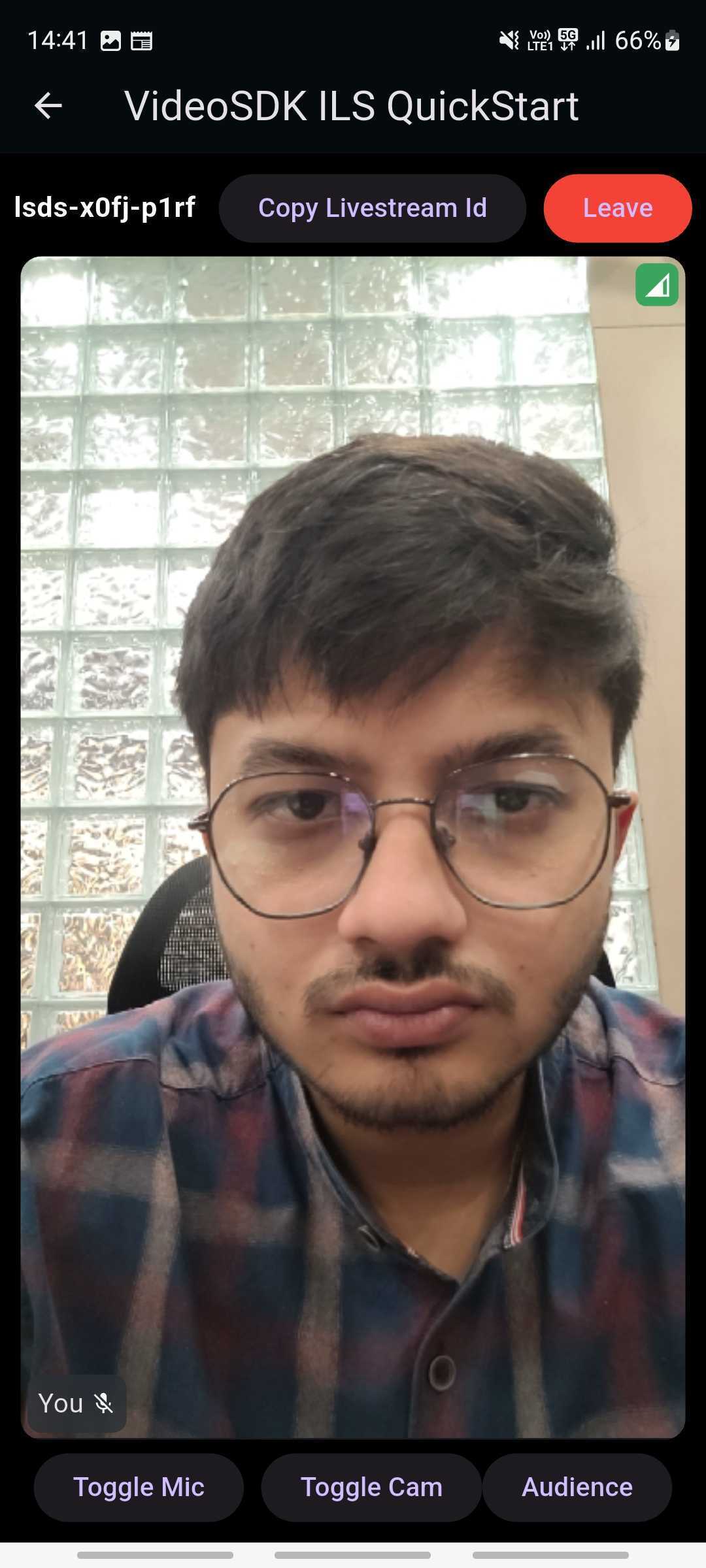
Output of Host View
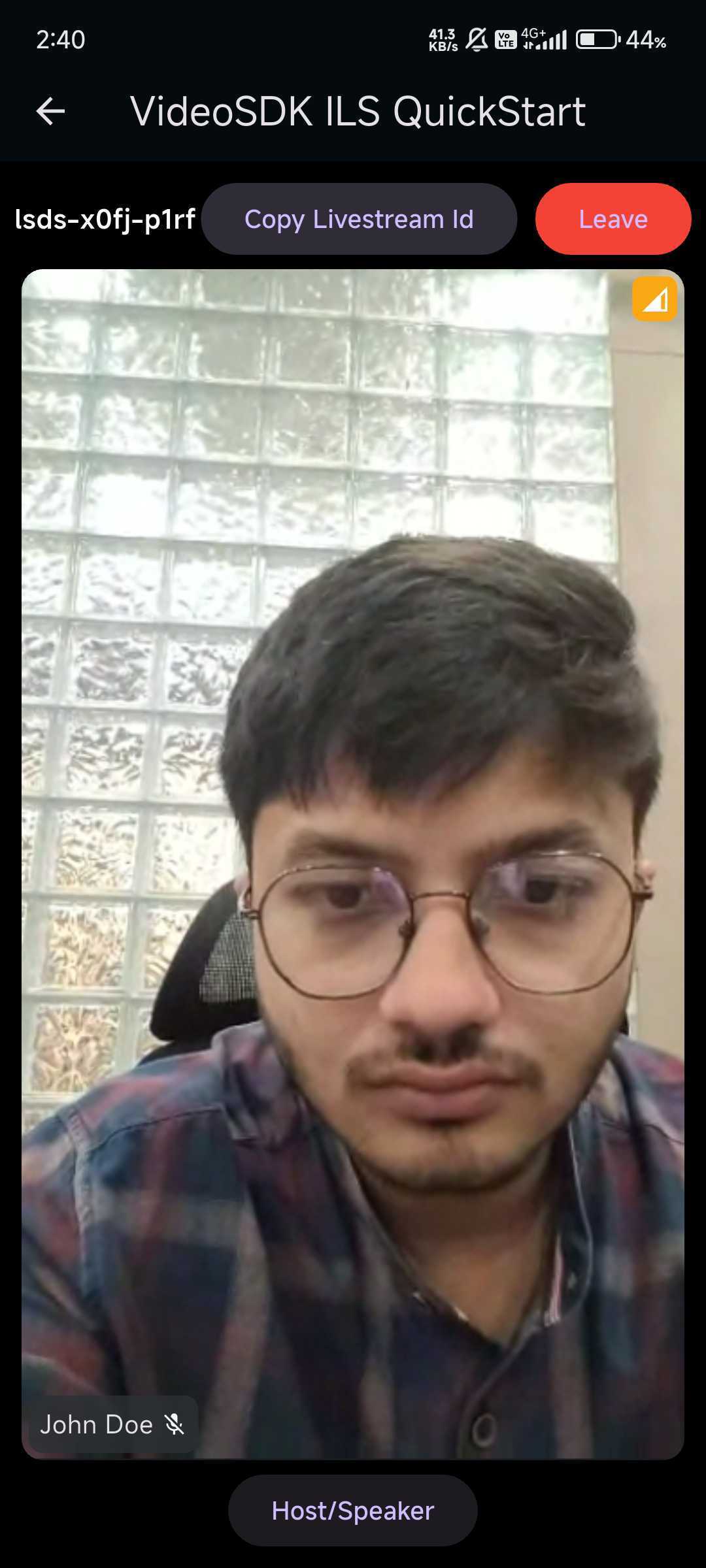
Output of Audience View
Run and Test
Now to run and test, make sure that you have added the Token in api_call.dart.
Your app should look like this after the implementation.
Run the app on an ARM Android device or an arm64-v8a emulator, and on an iPhone, an iPad or the iOS Simulator on a Mac with Apple silicon. x86 and x86_64 Android emulators and the iOS Simulator on an Intel Mac are not supported. See Known Issues.
You can checkout the complete quick start example here (this example uses an older SDK version).
Got a Question?  Ask us on discord

