Quick Start in Flutter using RiverPod
VideoSDK enables you to embed video calling functionality into your Flutter applications within minutes.
In this quick start guide, we’ll walk through integrating group video calling using Flutter Video SDK with Riverpod for state management. You’ll learn how to architect your application using Riverpod to manage state in a clean, modular, and efficient way.
This guide will get you up and running with VideoSDK’s video & audio calling using Riverpod state management in just a few minutes.
Prerequisites
Before proceeding, ensure that your development environment meets the following requirements:
- Video SDK Developer Account (Not having one, follow Video SDK Dashboard)
- Familiarity with Flutter and basic Riverpod concepts.
- Flutter Video SDK
- Have Flutter 3.41 or later installed on your device.
One should have a VideoSDK account to generate token. Visit VideoSDK dashboard to generate token
Getting Started with the Code!
Follow the steps to create the environment necessary to add video calls into your app. Also you can find the code sample for quickstart here (this example uses an older SDK version).
Create a new Flutter project.
Create a new Flutter App using the below command.
$ flutter create flutter_riverpod_quickstart
Install Required Dependencies
Navigate to your project directory and run the following commands to install the necessary dependencies:
$ flutter pub add videosdk:^5.0.0
Then pin permission_handler, which the SDK uses to ask for camera and microphone permission, to version 12. Version 13 brings in permission_handler_android 14, which builds only with Android Gradle Plugin 9, so an app created with Flutter 3.41 fails to build for Android.
$ flutter pub add permission_handler:^12.0.1
Run the following command to add the http library, which is used to make the network call that generates a roomId.
$ flutter pub add http
Run the following command to add Riverpod, the state management library, along with its annotations for code generation and the development dependencies that generate the Riverpod code. Add them in one command, so that pub picks versions that work together.
$ flutter pub add flutter_riverpod riverpod_annotation dev:build_runner dev:riverpod_generator
Video SDK Compatibility
The Flutter SDK runs on Android and iOS. Web, macOS and Windows are not supported.
Structure of the project
Your project structure should look like this.
    root
    ├── android
    ├── ios
    ├── lib
         ├── riverpod
         │     ├── room_controller.dart
         │     └── room_view_state.dart
         ├── api_call.dart
         ├── join_screen.dart
         ├── main.dart
         ├── room_controls.dart
         ├── room_screen.dart
         └── participant_tile.dart
We are going to create flutter widgets (JoinScreen, RoomScreen, RoomControls, ParticipantTile, room_controller, room_view_state).
App Structure
App widget will contain JoinScreen and RoomScreen widget. RoomScreen will have RoomControls and ParticipantTile widget.

Configure Project
For Android
- Update the
/android/app/src/main/AndroidManifest.xmlfor the permissions we will be using to implement the audio and video features.
<uses-feature android:name="android.hardware.camera" />
<uses-feature android:name="android.hardware.camera.autofocus" />
<uses-permission android:name="android.permission.CAMERA" />
<uses-permission android:name="android.permission.RECORD_AUDIO" />
<uses-permission android:name="android.permission.ACCESS_NETWORK_STATE" />
<uses-permission android:name="android.permission.CHANGE_NETWORK_STATE" />
<uses-permission android:name="android.permission.MODIFY_AUDIO_SETTINGS" />
<uses-permission android:name="android.permission.INTERNET"/>
<uses-permission android:name="android.permission.FOREGROUND_SERVICE"/>
<uses-permission android:name="android.permission.WAKE_LOCK" />
- Also you will need to set your build settings to Java 17, because recent versions of the Android Gradle Plugin and the SDK's Android dependencies require it. Just add this to your app-level
/android/app/build.gradle.kts.
android {
    //...
    compileOptions {
        sourceCompatibility = JavaVersion.VERSION_17
        targetCompatibility = JavaVersion.VERSION_17
    }
}
-
If necessary, in the same
build.gradle.ktsyou will need to increaseminSdkofdefaultConfigup to24(currently default Flutter generator set it to24). -
The SDK ships its native libraries for
arm64-v8aandarmeabi-v7a, so it does not run on x86 and x86_64 emulators. Test on an ARM device or on an emulator with anarm64-v8asystem image. To build your app forarm64-v8aandarmeabi-v7aonly, add an ABI filter todefaultConfigin the samebuild.gradle.kts.
android {
    defaultConfig {
        //...
        ndk {
            abiFilters += listOf("arm64-v8a", "armeabi-v7a")
        }
    }
}
- Then add this line to
/android/gradle.properties. Without it, Flutter adds its own ABIs to the filter and yours has no effect.
disable-abi-filtering=true
- For release builds, keep the SDK's classes. Flutter shrinks every Android release build with R8, which removes or renames the
videosdk.orgclasses that the SDK loads by name. Add these rules to/android/app/proguard-rules.pro, and create the file if it does not exist. Keep the-dontwarnline, because the keep rule alone fails the build.
-keep class videosdk.org.** { *; }
-dontwarn videosdk.org.**
If your project still uses the Groovy DSL (android/app/build.gradle), the same property assignments work there too. The older compileSdkVersion and minSdkVersion method syntax is deprecated as of Android Gradle Plugin 9 and will warn during the build.
For iOS
- Add the following entries which allow your app to access the camera and microphone to your
/ios/Runner/Info.plistfile :
<key>NSCameraUsageDescription</key>
<string>$(PRODUCT_NAME) Camera Usage!</string>
<key>NSMicrophoneUsageDescription</key>
<string>$(PRODUCT_NAME) Microphone Usage!</string>
- The SDK's iOS plugin ships as a Swift Package, so it needs Flutter 3.41 or later with Swift Package Manager turned on. Turn it on for your project by adding
config:under the existingflutter:section of your app'spubspec.yaml, or runflutter config --enable-swift-package-manageron every machine that builds your app.
flutter:
  config:
    enable-swift-package-manager: true
Step 1: Get started with api_call.dart
Before jumping to anything else, you will write a function to generate a unique room ID. You will require auth token, you can generate it using either by using videosdk-rtc-api-server-examples or generate it from the Video SDK Dashboard for development.
import 'dart:convert';
import 'package:http/http.dart' as http;

//Auth token we will use to generate a room and connect to it
String token = "<Generated-from-dashboard>";

// API call to create room
Future<String> createRoomId() async {
  final http.Response httpResponse = await http.post(
    Uri.parse("https://api.videosdk.live/v2/rooms"),
    headers: {'Authorization': token},
  );

//Destructuring the roomId from the response
  return json.decode(httpResponse.body)['roomId'];
}
Step 2: Create Riverpod Files
To manage room logic and state cleanly, we’ll use Riverpod architecture. This includes two key files:
room_controller.dart
This file defines the Riverpod controller that handles all room logic using @riverpod and state generation. It is responsible for:
- Initializes the VideoSDK
Room, asks for camera and microphone permission, and joins it. - Listens to room events (
roomJoined,participantJoined, etc.). - Manages local/remote participant states and their video streams.
- Provides functions like
toggleMic,toggleCam,leaveRoom. - The room releases itself after it leaves the room.
This acts as the controller for our app's room behavior.
The SDK does not ask for camera and microphone permission on Android, so the controller asks with VideoSDK.requestPermissions() before it joins. join(), leave() and the mic and camera actions return a Future that throws a VideoSDKError when the action fails, so the controller awaits them inside try / catch. Stream events are delivered on the Room, and stream.participantId tells whose stream it is.
import 'dart:async' show unawaited;
import 'dart:developer';
import 'package:flutter/material.dart';
import 'package:riverpod_annotation/riverpod_annotation.dart';
import 'package:videosdk/videosdk.dart';
import 'room_view_state.dart';

// Generated file for Riverpod using build_runner
part 'room_controller.g.dart';

// Define a Riverpod provider using @riverpod annotation and code generation
@riverpod
class RoomController extends _$RoomController {

  // Room instance from VideoSDK
  late Room _room;
  @override
  RoomViewState build((String token, String roomId, BuildContext context) args) {
    final token = args.$1;
    final roomId = args.$2;
    final context = args.$3;

    // create room
    _room = VideoSDK.createRoom(
      roomId: roomId,
      token: token,
      participantName: "John Doe",
      micEnabled: true,
      camEnabled: true,
      defaultCamera: FacingMode.FRONT, // camera used when the room starts
    );
    // Set room and add listeners
    _setRoomListeners(context);
    // Join room
    unawaited(_joinRoom());
    return const RoomViewState();
  }

  Future<void> _joinRoom() async {
    // On Android, the SDK does not ask for camera and microphone permission.
    await VideoSDK.requestPermissions();
    try {
      await _room.join();
    } on VideoSDKError catch (error) {
      log("Could not join the room: ${error.code} ${error.name}");
    }
  }

  // Handles room and participant lifecycle events
  void _setRoomListeners(BuildContext context) {
    // Triggered when the local participant successfully joins the room.
    _room.on(Events.roomJoined, () {
      final updated = Map<String, Participant>.from(state.participants);
      updated[_room.localParticipant.id] = _room.localParticipant;
      _initParticipantStreams(_room.localParticipant);
      state = state.copyWith(participants: updated);
    });

    // Triggered when a remote participant joins the room.
    _room.on(Events.participantJoined, (Participant participant) {
      final updated = Map<String, Participant>.from(state.participants);
      updated[participant.id] = participant;
      _initParticipantStreams(participant);
      state = state.copyWith(participants: updated);
    });

    // Triggered when a remote participant left the room.
    _room.on(Events.participantLeft, (Participant participant, LeaveReason reason) {
      final updated = Map<String, Participant>.from(state.participants);
      final updatedStreams = Map<String, RTCStream?>.from(
        state.participantVideoStreams,
      );
      updated.remove(participant.id);
      updatedStreams.remove(participant.id);
      state = state.copyWith(
        participants: updated,
        participantVideoStreams: updatedStreams,
      );
    });

    // Triggered when a participant's video is turned on.
    // stream.participantId is the id of the participant the stream belongs to.
    _room.on(Events.streamEnabled, (RTCStream stream) {
      if (stream.kind == MediaType.VIDEO) {
        final newStreams = Map<String, RTCStream?>.from(state.participantVideoStreams);
        newStreams[stream.participantId] = stream;
        state = state.copyWith(participantVideoStreams: newStreams);
      }
    });

    // Triggered when a participant's video is turned off.
    _room.on(Events.streamDisabled, (RTCStream stream) {
      if (stream.kind == MediaType.VIDEO) {
        final newStreams = Map<String, RTCStream?>.from(state.participantVideoStreams);
        newStreams[stream.participantId] = null;
        state = state.copyWith(participantVideoStreams: newStreams);
      }
    });

    // Triggered when the local participant successfully leave the room.
    _room.on(Events.roomLeft, () {
      state = state.copyWith(participants: {}, participantVideoStreams: {});
      Navigator.popUntil(context, ModalRoute.withName('/'));
    });
  }

  /// Picks up the video stream a participant already has
  void _initParticipantStreams(Participant participant) {
    final updatedStreams = Map<String, RTCStream?>.from(state.participantVideoStreams);

    // Initialize video stream
    participant.streams.forEach((key, RTCStream stream) {
      if (stream.kind == MediaType.VIDEO) {
        updatedStreams[participant.id] = stream;
      }
    });

    state = state.copyWith(participantVideoStreams: updatedStreams);
  }

  /// Toggles the local participant's mic
  Future<void> toggleMic() async {
    try {
      if (state.isMicOff) {
        await _room.unmuteMic();
      } else {
        await _room.muteMic();
      }
      if (ref.mounted) state = state.copyWith(isMicOff: !state.isMicOff);
    } on VideoSDKError catch (error) {
      log("Could not toggle the mic: ${error.code} ${error.name}");
    }
  }

  /// Toggles the local participant's camera
  Future<void> toggleCam() async {
    try {
      if (state.isVideoOff) {
        await _room.enableCam();
      } else {
        await _room.disableCam();
      }
      if (ref.mounted) state = state.copyWith(isVideoOff: !state.isVideoOff);
    } on VideoSDKError catch (error) {
      log("Could not toggle the camera: ${error.code} ${error.name}");
    }
  }

  /// Leaves the current room
  Future<void> leaveRoom() async {
    try {
      await _room.leave();
    } on VideoSDKError catch (error) {
      // 3054: the room has already left.
      if (error.code != 3054) {
        log("Could not leave the room: ${error.code} ${error.name}");
      }
    }
  }

  /// Room accessor for UI or other logic
  Room get room => _room;
}
room_view_state.dart
Defines the immutable state used by RoomController:
isMicOff: Whether the mic is off.isVideoOff: Whether the camera is off.participants: A map of all participants in the room.participantVideoStreams: A map of each participant's active video stream.
import 'package:videosdk/videosdk.dart';

class RoomViewState {
  final bool isMicOff;
  final bool isVideoOff;
  final Map<String, Participant> participants;
  final Map<String, RTCStream?> participantVideoStreams;

  // Constructor with default values
  const RoomViewState({
    this.isMicOff = false,
    this.isVideoOff = false,
    this.participants = const {},
    this.participantVideoStreams = const {},
  });

  // Creates a copy of the state with optional overrides
  RoomViewState copyWith({
    bool? isMicOff,
    bool? isVideoOff,
    Map<String, Participant>? participants,
    Map<String, RTCStream?>? participantVideoStreams,
  }) {
    return RoomViewState(
      isMicOff: isMicOff ?? this.isMicOff,
      isVideoOff: isVideoOff ?? this.isVideoOff,
      participants: participants ?? this.participants,
      participantVideoStreams: participantVideoStreams ?? this.participantVideoStreams,
    );
  }
}
Generate .g.dart File
Since we're using @riverpod, we need to generate the .g.dart file for room_controller.dart.
To generate .g.dart file, run the following command in your terminal:
dart run build_runner build
If you’re working on room_controller.dart frequently, you can run:
dart run build_runner watch
Step 3 : Creating the JoinScreen
Let's create join_screen.dart file in lib directory and create JoinScreen ConsumerWidget.
The JoinScreen will consist of:
- Create Room Button - This button will create a new room for you.
- Room ID TextField - This text field will contain the room ID, you want to join.
- Join Room Button - This button will join the room, which you have provided.
import 'package:flutter/material.dart';
import 'package:flutter_riverpod/flutter_riverpod.dart';
import 'api_call.dart';
import 'room_screen.dart';

class JoinScreen extends ConsumerWidget {
  final TextEditingController _roomIdController = TextEditingController();

  JoinScreen({super.key});
  void onCreateButtonPressed(BuildContext context, WidgetRef ref) async {
    // call api to create room and then navigate to RoomScreen with roomId,token
    final roomId = await createRoomId();
    if (context.mounted) {
      Navigator.push(
        context,
        MaterialPageRoute(
          builder: (_) => RoomScreen(roomId: roomId, token: token),
        ),
      );
    }
  }

  void onJoinButtonPressed(BuildContext context, WidgetRef ref) {
    final roomId = _roomIdController.text.trim();
    final re = RegExp(r'\w{4}-\w{4}-\w{4}');
    // check room id is not null or invaild
    // if room id is vaild then navigate to RoomScreen with roomId,token
    if (roomId.isNotEmpty && re.hasMatch(roomId)) {
      _roomIdController.clear();
      Navigator.push(
        context,
        MaterialPageRoute(
          builder: (_) => RoomScreen(roomId: roomId, token: token),
        ),
      );
    } else {
      ScaffoldMessenger.of(context).showSnackBar(
        const SnackBar(content: Text("Please enter a valid room ID")),
      );
    }
  }

  @override
  Widget build(BuildContext context, WidgetRef ref) {
    return Scaffold(
      appBar: AppBar(title: const Text('VideoSDK QuickStart')),
      body: Padding(
        padding: const EdgeInsets.all(12.0),
        child: Column(
          mainAxisAlignment: MainAxisAlignment.center,
          children: [
            ElevatedButton(
              onPressed: () => onCreateButtonPressed(context, ref),
              child: const Text('Create Room'),
            ),
            Container(
              margin: const EdgeInsets.symmetric(vertical: 8.0),
              child: TextField(
                controller: _roomIdController,
                decoration: const InputDecoration(
                  hintText: 'Room ID',
                  border: OutlineInputBorder(),
                ),
              ),
            ),
            ElevatedButton(
              onPressed: () => onJoinButtonPressed(context, ref),
              child: const Text('Join Room'),
            ),
          ],
        ),
      ),
    );
  }
}
- Update the home screen of the app in the
main.dart.
import 'package:flutter/material.dart';
import 'package:flutter_riverpod/flutter_riverpod.dart';
import 'join_screen.dart';

void main() {
  runApp(const ProviderScope(child: MyApp()));
}

class MyApp extends StatelessWidget {
  const MyApp({super.key});

  @override
  Widget build(BuildContext context) {
    return MaterialApp(
      title: 'VideoSDK QuickStart',
      theme: ThemeData(primarySwatch: Colors.blue),
      home: JoinScreen(),
    );
  }
}
Step 4 : Creating the RoomControls
Let's create room_controls.dart file and create RoomControls StatelessWidget.
The RoomControls will consist of:
- Leave Button - This button will leave the room.
- Toggle Mic Button - This button will unmute or mute mic.
- Toggle Camera Button - This button will enable or disable camera.
RoomControls will accept 3 functions in constructor
- onLeaveButtonPressed - invoked when Leave button pressed
- onToggleMicButtonPressed - invoked when Toggle Mic button pressed
- onToggleCameraButtonPressed - invoked when Toggle Camera button pressed
import 'package:flutter/material.dart';

class RoomControls extends StatelessWidget {
  final void Function() onToggleMicButtonPressed;
  final void Function() onToggleCameraButtonPressed;
  final void Function() onLeaveButtonPressed;
  final bool isMicOff;
  final bool isCamOff;

  const RoomControls({
    super.key,
    required this.onToggleMicButtonPressed,
    required this.onToggleCameraButtonPressed,
    required this.onLeaveButtonPressed,
    required this.isMicOff,
    required this.isCamOff,
  });

  @override
  Widget build(BuildContext context) {
    return Row(
      mainAxisAlignment: MainAxisAlignment.spaceEvenly,
      children: [
        ElevatedButton(
          onPressed: onLeaveButtonPressed,
          child: const Text('Leave'),
        ),
        ElevatedButton(
          onPressed: onToggleMicButtonPressed,
          child: Text('Toggle Mic'),
        ),
        ElevatedButton(
          onPressed: onToggleCameraButtonPressed,
          child: Text('Toggle Cam'),
        ),
      ],
    );
  }
}
Step 5 : Creating ParticipantTile
Let's create participant_tile.dart file and create ParticipantTile StatelessWidget.
The ParticipantTile will consist of:
- RTCVideoView - This will show participant's video stream.
ParticipantTile will accept Participant in constructor
- participant - participant of the room.
import 'package:flutter/material.dart';
import 'package:videosdk/videosdk.dart';

class ParticipantTile extends StatelessWidget {
  final Participant participant;
  final RTCStream? videoStream;

  const ParticipantTile({
    super.key,
    required this.participant,
    required this.videoStream,
  });

  @override
  Widget build(BuildContext context) {
    return Padding(
      padding: const EdgeInsets.all(8.0),
      child: videoStream != null
          ? RTCVideoView(
              videoStream!.renderer as RTCVideoRenderer,
              objectFit: RTCVideoViewObjectFit.RTCVideoViewObjectFitCover,
            )
          : Container(
              color: Colors.grey.shade800,
              child: const Center(child: Icon(Icons.person, size: 100)),
            ),
    );
  }
}
Step 6 : Creating the RoomScreen
Let's create a room_screen.dart file and define the RoomScreen widget as a ConsumerWidget.
RoomScreen will accept room ID and token in constructor
- room ID - room ID, you want to join
- token - VideoSdk Auth token
Riverpod Usage:
- Uses
roomControllerProviderwith a family parameter to initialize the room usingtoken,roomId, andcontext. - Watches the provider for
RoomViewStateto update UI reactively. - Reads the provider notifier to invoke room control actions.
- Leaves the room when the back button closes the screen. The room then releases itself.
import 'dart:async' show unawaited;
import 'package:flutter/material.dart';
import 'package:flutter_riverpod/flutter_riverpod.dart';

import 'riverpod/room_controller.dart';
import 'room_controls.dart';
import 'participant_tile.dart';

class RoomScreen extends ConsumerWidget {
  final String roomId;
  final String token;

  const RoomScreen({
    super.key,
    required this.roomId,
    required this.token,
  });

  @override
  Widget build(BuildContext context, WidgetRef ref) {

    // Watch room state from Riverpod provider to update UI
    final roomState = ref.watch(
      roomControllerProvider((token, roomId, context)),
    );

    // Read notifier to perform actions like toggle mic/cam or leave
    final controller = ref.read(
      roomControllerProvider((token, roomId, context)).notifier,
    );

    return PopScope(
      // leave the room when the back button closes the screen
      onPopInvokedWithResult: (didPop, result) {
        if (didPop) unawaited(controller.leaveRoom());
      },
      child: Scaffold(
        appBar: AppBar(title: const Text('VideoSDK QuickStart')),
        body: Padding(
          padding: const EdgeInsets.all(8.0),
          child: Column(
            children: [
              Text(roomId),
              // Render all participant
              Expanded(
                child: Padding(
                  padding: const EdgeInsets.all(8.0),
                  child: GridView.builder(
                    gridDelegate: const SliverGridDelegateWithFixedCrossAxisCount(
                      crossAxisCount: 2,
                      crossAxisSpacing: 10,
                      mainAxisSpacing: 10,
                      mainAxisExtent: 300,
                    ),
                    itemCount: roomState.participants.length,
                    itemBuilder: (context, index) {
                      final participants = roomState.participants.values.toList();
                      return ParticipantTile(
                        key: Key(participants[index].id),
                        participant: participants[index],
                        videoStream: roomState
                            .participantVideoStreams
                            [participants[index].id],
                      );
                    },
                  ),
                ),
              ),
              RoomControls(
                onToggleMicButtonPressed: controller.toggleMic,
                onToggleCameraButtonPressed: controller.toggleCam,
                onLeaveButtonPressed: controller.leaveRoom,
                isMicOff: roomState.isMicOff,
                isCamOff: roomState.isVideoOff,
              ),
            ],
          ),
        ),
      ),
    );
  }
}
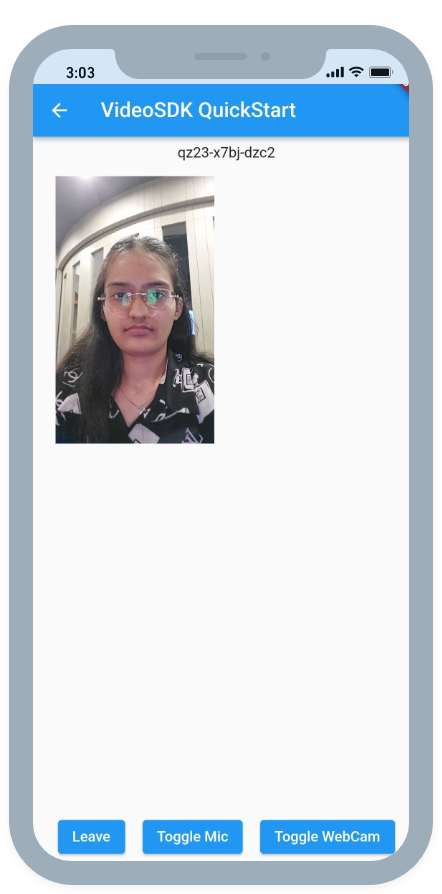
Output
Run and Test
The app is all set to test. Make sure to update the token in api_call.dart
Your app should look like this after the implementation.
Run the app on an ARM Android device or an arm64-v8a emulator, and on an iPhone, an iPad or the iOS Simulator on a Mac with Apple silicon. x86 and x86_64 Android emulators and the iOS Simulator on an Intel Mac are not supported. See Known Issues.
You can checkout the complete flutter riverpod example here (this example uses an older SDK version).
Got a Question?  Ask us on discord

