Layout and Grid Management - Flutter
In this guide, we will take a look at how to efficiently manage the participants in different types of layout.
Grid Layout
The most usual way to showing participants within a grid. There are multiple things you should keep in mind when showing participants in the grid.
This includes the number of participants being shown on the screens, number of participants in the background(in the room but not on the grid), and the quality you receive for each participant in the grid.
Quality of Participant's Video
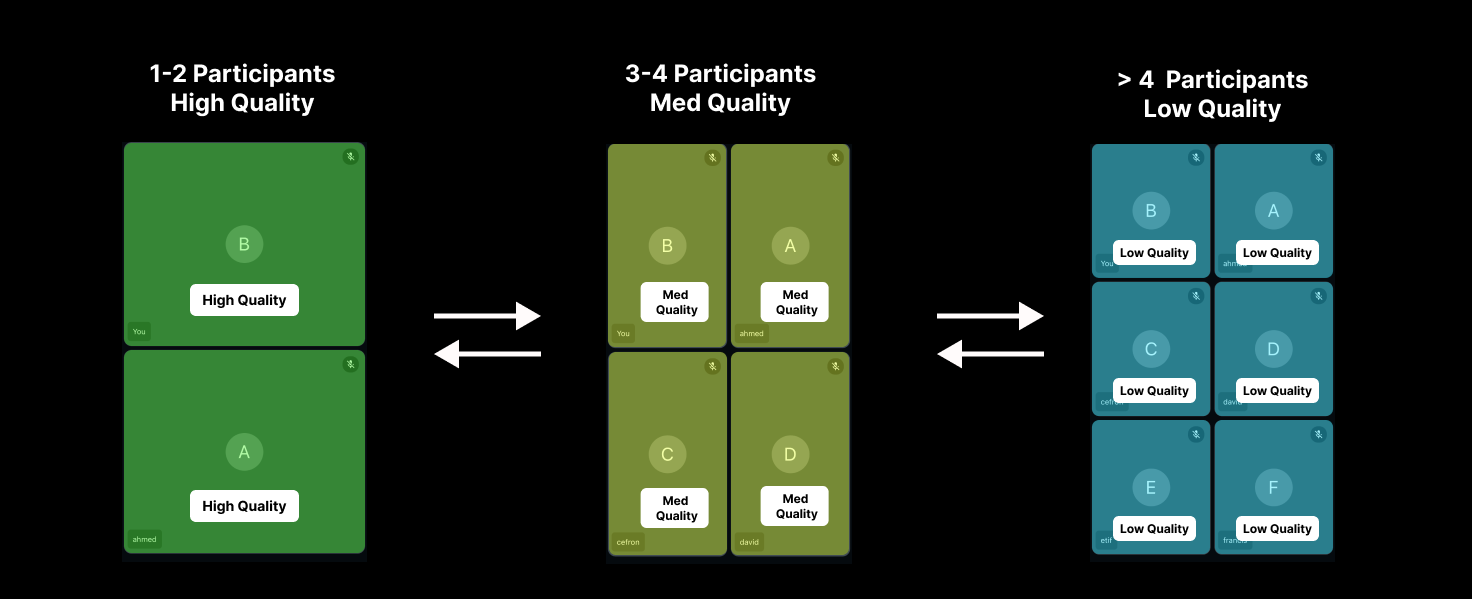
When there are large number of participants present on the screen, it is best to receive them at lower resolutions. For this we recommend you to call the setQuality method on the participants present in the grid with dynamic values based on the number of participants on the screen.
Here is the recommended video quality:
- Participants less than 3:
setQuality(VideoQuality.HIGH) - Participants between 3 to 4:
setQuality(VideoQuality.MEDIUM) - Participants greater than 4:
setQuality(VideoQuality.LOW)
setQuality() takes a VideoQuality: VideoQuality.LOW, VideoQuality.MEDIUM or VideoQuality.HIGH. It returns a Future that throws a VideoSDKError if the request fails, so await it inside try. It changes only the quality you receive, so it has no effect on the local participant, who is also part of room.participants.
// Sets the recommended quality for every remote participant on the grid
Future<void> applyGridQuality(Room room) async {
  // Everyone on the grid: the remote participants plus you
  final int count = room.participants.length + 1;
  final VideoQuality quality = count < 3
      ? VideoQuality.HIGH
      : count <= 4
          ? VideoQuality.MEDIUM
          : VideoQuality.LOW;

  // A copy, because participants can join or leave while you await
  for (final participant in room.participants.values.toList()) {
    // An AI agent throws UnsupportedError
    if (participant.isAgent()) continue;
    try {
      await participant.setQuality(quality);
    } on VideoSDKError catch (error) {
      // For example, on Android, 3068 when this participant's camera is off
      print("Couldn't set the quality for ${participant.id}: ${error.code} ${error.name}");
    }
  }
}
Grid with Screen Share
When you are rendering a small grid along with the screen share of the presenter or you are showing a simple sidebar video of the participants while the screenshare is on, it is recommended to do setQuality(VideoQuality.LOW) for the participants who are present in the sidebar.
Grid with Pagination
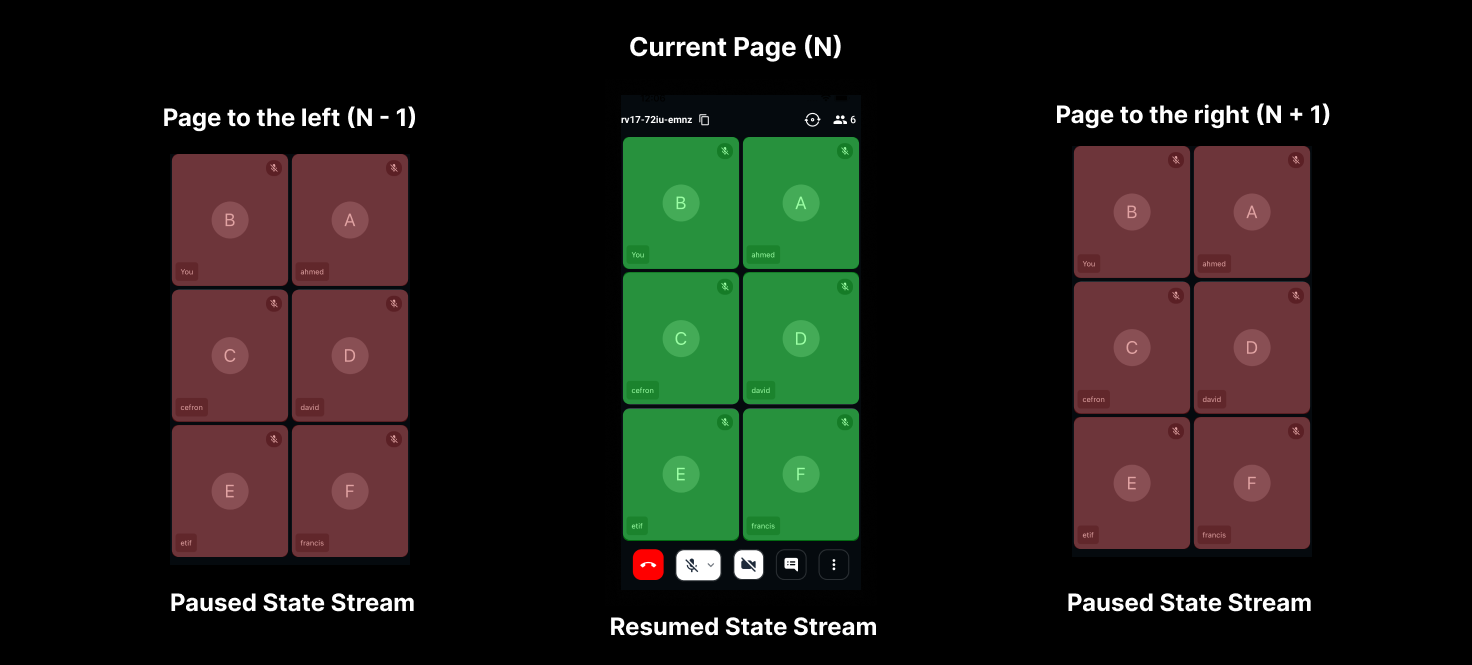
If you are having large video calls where there are multiple speakers with video turned on, it is best to implement a pagination type setup where only a few (4-6) participants are shown on the grid and rest can be seen by changing the page.
To best utilize the resources, you should pause the streams of the participants who are not present in the grid, and resume their streams when they come back into the grid.
pause() and resume() of the RTCStream class return a Future that throws a VideoSDKError if the request fails, for example 3054 when the stream is already paused, or already playing for resume(). They work only on the streams you receive from other participants: on your own stream they throw 3068.
Example to pause and resume streams
import 'package:flutter/material.dart';
import 'package:videosdk/videosdk.dart';

class ParticipantTile extends StatefulWidget {
  final Participant participant;
  ...
}

class _ParticipantTileState extends State<ParticipantTile> {

  @override
  void initState() {
    ...
  }

  // The participant's camera stream, or null while their camera is off
  RTCStream? get _videoStream => widget.participant.streams.values
      .where((stream) => stream.kind == MediaType.VIDEO)
      .firstOrNull;

  Future<void> pauseVideo() async {
    try {
      await _videoStream?.pause();
    } on VideoSDKError catch (error) {
      print("Couldn't pause the stream: ${error.code} ${error.name}");
    }
  }

  Future<void> resumeVideo() async {
    try {
      await _videoStream?.resume();
    } on VideoSDKError catch (error) {
      print("Couldn't resume the stream: ${error.code} ${error.name}");
    }
  }

  @override
  Widget build(BuildContext context) {
    return Column(
      children: [
        ElevatedButton(
          onPressed: pauseVideo,
          child: const Text("Pause Stream"),
        ),
        ElevatedButton(
          onPressed: resumeVideo,
          child: const Text("Resume Stream"),
        ),
      ],
    );
  }
}
API Reference
The API references for all the methods and events utilised in this guide are provided below.
Got a Question?  Ask us on discord

