Picture-in-Picture Mode
Overview
Picture-in-Picture (PiP) mode enhances the video conferencing experience by allowing users to multitask while keeping a small, floating video window on their screen. This guide walks you through implementing PiP mode on Android in Flutter using VideoSDK, without relying on third-party dependencies.
To enable PiP mode, a native Android method is called through the method channel. PiP mode is activated with the enterPictureInPictureMode() method.
PiP mode works on Android 8.0 (API level 26) and later. iOS is not supported in v5.0.0.
You can check out the complete implementation in the Github repository. It is built on an older SDK version, and its iOS part does not work with v5.0.0, so follow the Migration Guide for the 5.0.0 API.
Prerequisites
- Familiarity with method channels in Flutter.
- To implement PiP (Picture-in-Picture) mode, build the app from the Quick Start guide and follow the implementation steps. The Quick Start Repository is built on an older SDK version, so follow the Migration Guide if you start from it.
Architecture Diagram
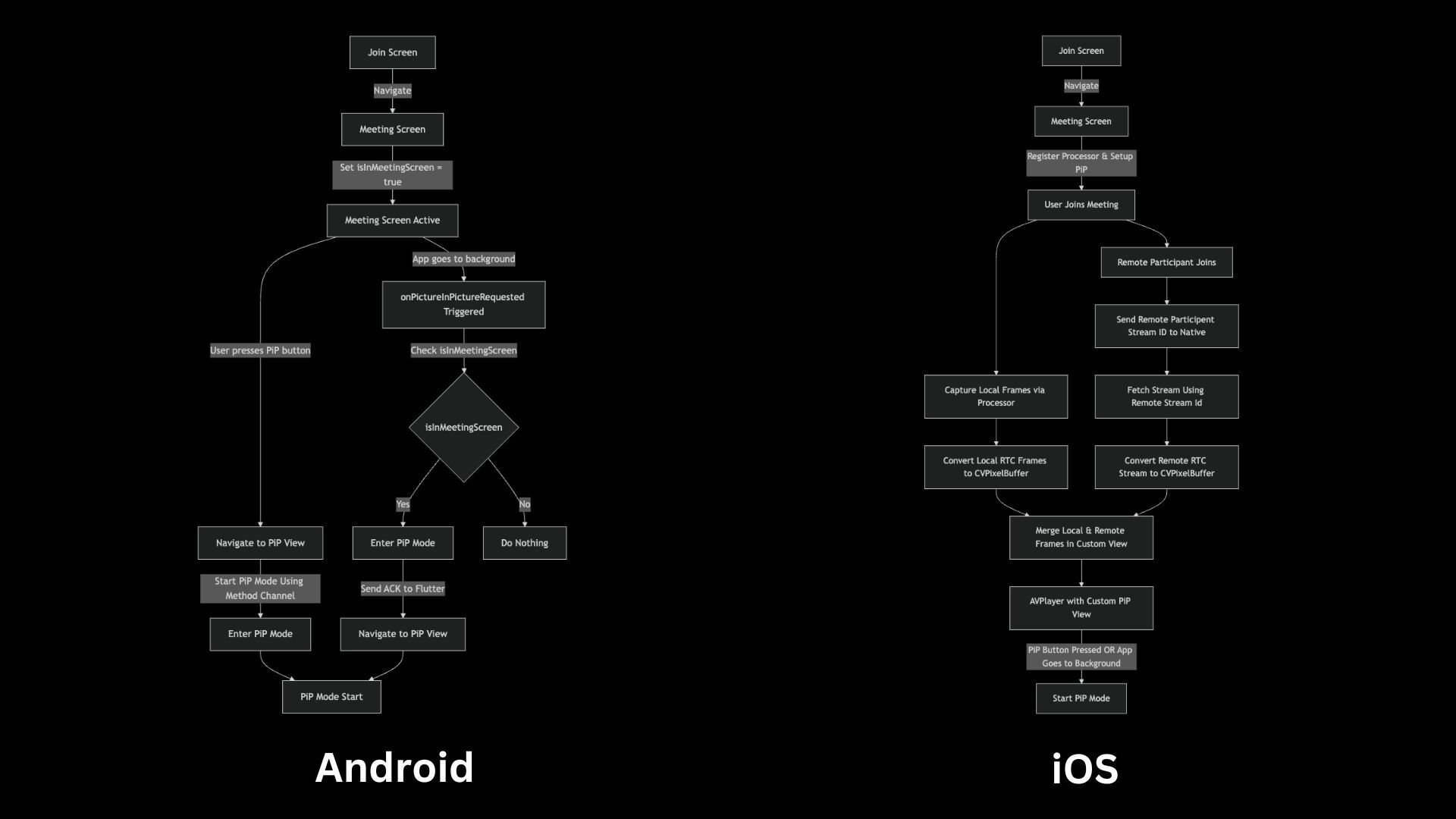
In v5.0.0, only the Android flow of the diagram applies.
Android Implementation
Step 1 : Configuring AndroidManifest.xml
To enable Picture-in-Picture (PiP) mode in your Flutter application, update the AndroidManifest.xml file with the necessary permissions and activity configurations:
<uses-permission android:name="android.permission.WAKE_LOCK" />
<uses-permission android:name="android.permission.SYSTEM_ALERT_WINDOW"/>

<activity
    android:configChanges="orientation|screenSize|smallestScreenSize|screenLayout"
    android:supportsPictureInPicture="true">
</activity>
Step 2: Implementing PiP Mode
The native Android implementation utilizes the Picture-in-Picture (PiP) API to manage PiP mode effectively. The following methods play a crucial role in this implementation:
onPictureInPictureRequested(System-defined)
- Invoked when the system detects a request to enter PiP mode.
startPiPMode(Custom implementation)
- Manually initiates PiP mode with a 16:9 aspect ratio.
- It invokes
enterPictureInPictureMode()Method - This method attempts to put the activity into Picture-in-Picture mode, allowing it to continue displaying content in a small, resizable window when the user navigates away from the app.
package com.example.quick_start

import android.app.PictureInPictureParams
import android.os.Build
import android.os.Bundle
import android.util.Log
import android.util.Rational
import io.flutter.embedding.android.FlutterActivity
import io.flutter.embedding.engine.FlutterEngine
import io.flutter.plugin.common.MethodChannel

class MainActivity : FlutterActivity() {

    companion object {
        var instance: MainActivity? = null
    }

    // MethodChannel for Flutter-native communication
    private val Channel = "pip_channel"

    // Flag to track if the user is on the room screen
    private var isInMeetingScreen: Boolean = false

    override fun onCreate(savedInstanceState: Bundle?) {
        super.onCreate(savedInstanceState)
        instance = this
    }

    override fun configureFlutterEngine(flutterEngine: FlutterEngine) {
        super.configureFlutterEngine(flutterEngine)

        // Establish a MethodChannel for interaction with Flutter
        MethodChannel(flutterEngine.dartExecutor.binaryMessenger, Channel)
            .setMethodCallHandler { call, result ->
                when (call.method) {
                    "enterPiPMode" -> {
                        // Enter PiP mode upon request from Flutter
                        startPiPMode()
                        result.success(null)
                    }
                    "setMeetingScreen" -> {
                        // Update the room screen flag based on Flutter’s input
                        isInMeetingScreen = call.arguments as Boolean
                        result.success(null)
                    }
                    else -> result.notImplemented()
                }
            }
    }

    // Sends a message from Android to Flutter via MethodChannel
    private fun sendMessageToFlutter(message: String) {
        // Notify Flutter when PiP mode is activated
        MethodChannel(flutterEngine!!.dartExecutor.binaryMessenger, Channel)
            .invokeMethod("sendMessage", hashMapOf("message" to message))
    }

    // Handles system-triggered PiP requests
    override fun onPictureInPictureRequested(): Boolean {
        Log.d("MainActivity", "onPictureInPictureRequested: $isInMeetingScreen")

        // If the user is on the room screen, activate PiP mode and notify Flutter
        return if (isInMeetingScreen) {
            startPiPMode()
            sendMessageToFlutter("Done")
            true
        } else {
            super.onPictureInPictureRequested()
        }
    }

    // Initiates PiP mode
    private fun startPiPMode() {
        Log.d("MainActivity", "startPiPService")

        if (Build.VERSION.SDK_INT >= Build.VERSION_CODES.O) {
            // Ensure PiP mode is supported (Android 8.0+)
            val paramsBuilder = PictureInPictureParams.Builder()
                .setAspectRatio(Rational(16, 9)) // Define the PiP window aspect ratio
            this.enterPictureInPictureMode(paramsBuilder.build()) // Activate PiP mode
        }
    }
}
Flutter Side Implementation
Step 1: Adding a PiP Mode Button in room_controls.dart
- Modify the room controls UI to include a PiP mode button:
import 'package:flutter/material.dart';

class RoomControls extends StatelessWidget {
  // ...
  final void Function() pipButtonPressed;

  const RoomControls({
    super.key,
    // ...
    required this.pipButtonPressed,
  });

  @override
  Widget build(BuildContext context) {
    return Row(
      mainAxisAlignment: MainAxisAlignment.spaceEvenly,
      children: [
        // ...
        ElevatedButton(
            onPressed: pipButtonPressed,
            child: const Text('PiP Mode'),
        ),
      ],
    );
  }
}
Step 2: Creating a Custom PiP View pip_view.dart
- Since Android natively converts the entire page into PiP mode, we need to create a custom PiP View in Flutter.
- The view uses the
ParticipantTilefrom the Quick Start, which takes theRoomas well as theParticipant.
import 'package:flutter/material.dart';
import 'package:videosdk/videosdk.dart';
import './participant_tile.dart';

class PiPView extends StatefulWidget {
  final Room room;

  const PiPView({super.key, required this.room});

  @override
  State<PiPView> createState() => _PiPViewState();
}

class _PiPViewState extends State<PiPView> with WidgetsBindingObserver {
  late Room _room;
  Map<String, Participant> participants = {};

  @override
  void initState() {
    super.initState();
    WidgetsBinding.instance.addObserver(this);
    _room = widget.room;
    setRoomEventListener();

    // Shown once the room is joined. room.participants holds the remote
    // participants only, so add yourself first.
    participants[_room.localParticipant.id] = _room.localParticipant;
    participants.addAll(_room.participants);
  }

  @override
  void dispose() {
    WidgetsBinding.instance.removeObserver(this);
    // The room outlives this view, so remove the handlers from it.
    _room.off(Events.participantJoined, _onParticipantJoined);
    _room.off(Events.participantLeft, _onParticipantLeft);
    super.dispose();
  }

  void setRoomEventListener() {
    _room.on(Events.participantJoined, _onParticipantJoined);
    _room.on(Events.participantLeft, _onParticipantLeft);
  }

  void _onParticipantJoined(Participant participant) {
    setState(() {
      participants.putIfAbsent(participant.id, () => participant);
    });
  }

  void _onParticipantLeft(Participant participant, LeaveReason reason) {
    setState(() {
      participants.remove(participant.id);
    });
  }

  // Close the PiP view when the app returns to full screen
  @override
  void didChangeAppLifecycleState(AppLifecycleState state) {
    if (state == AppLifecycleState.resumed) {
      Navigator.pop(context);
    }
  }

  @override
  Widget build(BuildContext context) {
    List<Participant> participantList = participants.values.toList();

    return Scaffold(
      backgroundColor: Colors.black,
      body: Center(
        child: SizedBox(
          width: 200,
          height: 120,
          child: _buildParticipantsView(participantList),
        ),
      ),
    );
  }

  Widget _buildParticipantsView(List<Participant> participantList) {
    if (participantList.length == 1) {
      return Row(
        children: [
          Expanded(
            child: ParticipantTile(room: _room, participant: _room.localParticipant),
          ),
          Expanded(
            child: Container(
              color: Colors.grey.shade800,
              child: const Center(
                child: Text(
                  "Only one participant in the room",
                  style: TextStyle(color: Colors.white, fontSize: 12),
                  textAlign: TextAlign.center,
                ),
              ),
            ),
          ),
        ],
      );
    } else {
      Participant localParticipant = _room.localParticipant;
      Participant remoteParticipant = participantList.firstWhere(
        (p) => p.id != localParticipant.id,
        orElse: () => participantList[1],
      );
      return Row(
        children: [
          Expanded(child: ParticipantTile(room: _room, participant: localParticipant)),
          Expanded(child: ParticipantTile(room: _room, participant: remoteParticipant)),
        ],
      );
    }
  }
}
Step 3: Updating room_screen.dart for PiP Mode
We now enhance the RoomScreen to support Picture-in-Picture (PiP) mode. This includes:
- Establishing a method channel for Flutter to interact with the native Android code.
- Telling Android when the room screen is open with
setMeetingScreen, so thatonPictureInPictureRequestedenters PiP mode only during a room. - Entering PiP mode when the PiP button is pressed, and showing the PiP view when Android enters PiP mode on its own.
- Properly disposing of PiP mode resources when leaving the room to prevent memory leaks and ensure smooth transitions.
The code below shows the changes to the RoomScreen from the Quick Start. The method channel calls run only on Android, because iOS has no PiP handler.
import 'dart:async' show unawaited;
import 'dart:developer';
import 'dart:io' show Platform;
import 'package:flutter/material.dart';
import 'package:flutter/services.dart';
import 'package:videosdk/videosdk.dart';
import './room_controls.dart';
import './participant_tile.dart';
import './pip_view.dart';

class _RoomScreenState extends State<RoomScreen> {
  late Room _room;
  final MethodChannel _pipChannel = const MethodChannel('pip_channel');

  @override
  void initState() {
    super.initState();
    // create the room, listen to its events and join it, as in the Quick Start
    ...

    if (Platform.isAndroid) {
      // Tell Android that the room screen is open
      unawaited(_pipChannel.invokeMethod('setMeetingScreen', true));
      // Android sends 'sendMessage' when it enters PiP mode on its own
      _pipChannel.setMethodCallHandler((MethodCall call) async {
        if (call.method == 'sendMessage') showPiPView();
      });
    }
  }

  Future<void> enterPiPMode() async {
    if (!Platform.isAndroid) return;
    await _pipChannel.invokeMethod('enterPiPMode');
    showPiPView();
  }

  void showPiPView() {
    if (!mounted) return;
    unawaited(Navigator.push(
      context,
      MaterialPageRoute(builder: (context) => PiPView(room: _room)),
    ));
  }

  @override
  void dispose() {
    if (Platform.isAndroid) {
      _pipChannel.setMethodCallHandler(null);
      unawaited(_pipChannel.invokeMethod('setMeetingScreen', false));
    }
    super.dispose();
  }

  @override
  Widget build(BuildContext context) {
    // the room UI from the Quick Start, with the PiP button added
    ...
              RoomControls(
                onToggleMicButtonPressed: toggleMic,
                onToggleCameraButtonPressed: toggleCamera,
                onLeaveButtonPressed: leaveRoom,
                pipButtonPressed: enterPiPMode,
              ),
    ...
  }
}
For the complete app, refer to the room_screen.dart of the example, which is built on an older SDK version.
Final Output
With these steps, your Flutter application shows the room in a Picture-in-Picture (PiP) window on Android, using VideoSDK and without relying on any third-party packages. You can further customize the view and optimize it as per your requirements.
Stuck anywhere? Check out this here on GitHub. It is built on an older SDK version, so follow the Migration Guide for the 5.0.0 API.
Got a Question?  Ask us on discord

