API Keys
The API Keys page lists the credentials created for your organization. Use it to create API keys, control whether a key is active, reveal its secret, and open token, storage, or feature settings for a selected key.
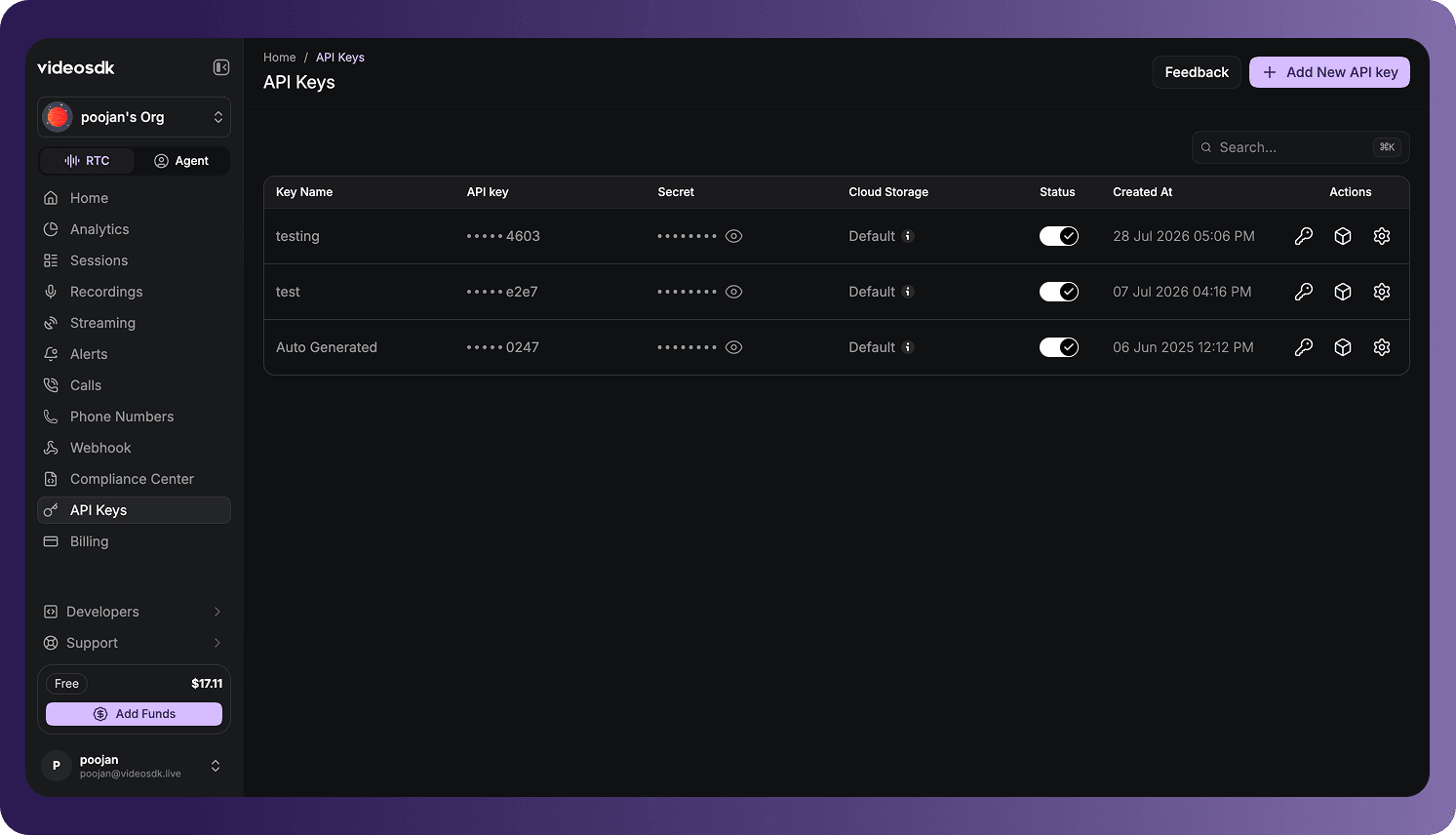
Open API Keys
To access the page:
- Sign in to the VideoSDK Dashboard.
- Select RTC.
- Select API Keys from the navigation sidebar.
Create an API Key
Select Add New API key to open the Create New API Key dialog.
- Enter a Key Name containing only letters and spaces.
- Make sure the name contains between 3 and 42 characters.
- Select Generate key.
Select Cancel or close the dialog to return without creating a key.
Find an API Key
Use Search to find a key by its name or other searchable information displayed in the list.
API Keys Table
Each row represents an API key created for the organization.
| Column | Description |
|---|---|
| Key Name | The descriptive name assigned when the key was created. |
| API key | The masked API key. Its final characters remain visible to help identify the credential. |
| Secret | The masked secret associated with the API key. Select the eye icon to reveal it. |
| Cloud Storage | The cloud storage configuration associated with the key. Default means recordings are stored using VideoSDK's default storage. |
| Status | Indicates whether the API key is active. Use the toggle to enable or disable it. |
| Created At | The date and time when the API key was created. |
| Actions | Opens token generation, cloud-storage configuration, and settings for the selected key. |
Generate Authentication Tokens Securely
Your API key and its corresponding secret are server-side credentials used to generate and sign authentication tokens. With the VideoSDK Server SDK, tokens are signed locally on your backend, so the secret does not need to be sent over the network.
The Server SDK uses:
- Management tokens to authenticate server-side API requests.
- Participant tokens to authorize a client application to join a room.
For production applications, use the following secure flow:
- Keep the API key and secret in secure server-side storage.
- Initialize the Server SDK on your backend with the API key and secret.
- Generate the required management or participant token with its expiry, permissions, role, and optional access restrictions.
- For a participant token, let the client request the generated token from your backend.
- Use the generated token—not the API key or secret—in the client application.
This flow prevents the secret from being exposed in a browser, mobile application, or other client environment. Use the Dashboard's Generate Token action for temporary development or testing tokens.
For implementation examples in Node.js, Go, and Rust, see Authentication & Tokens.
Treat API keys, secrets, generated tokens, and storage credentials as sensitive information. Do not expose them in client-side code, public repositories, screenshots, or logs.
Manage an API Key
The actions at the end of each row apply to that specific API key:
Generate Token
Generate a temporary authentication token using guided options or a JSON configuration.
Cloud Storage Configuration
Choose the storage provider and configure storage, access, encryption, fallback, and data-processing options.
Settings
Manage bandwidth, recording, streaming, integrations, transcription, translation, and access controls.
Enable or Disable an API Key
Use the Status toggle to control whether the key is active. Disabling a key can interrupt applications or services that use it, so confirm that the credential is no longer required before turning it off.
The information and actions available for an API key can depend on your organization, enabled products, and the key's current configuration.
Frequently Asked Questions
How are the API key and secret used to generate an authentication token?
The API key identifies the VideoSDK account in the JWT payload, while its matching secret signs the token locally on your backend. The Server SDK can use these credentials to create management tokens for server-side API requests or participant tokens for joining rooms. Provide only the participant token—not the API key or secret—to the client. See Authentication & Tokens for Node.js, Go, and Rust examples.
How can I rotate an API key without interrupting my application?
Create a replacement API key and update your server-side applications to use the new credentials. Verify that the replacement works before disabling the previous key. Keeping the old key active during verification helps avoid an immediate interruption.
What should I do if an API key or secret is exposed?
Stop using the exposed credential, create a replacement, and update every service that used it. Disable the exposed API key after moving those services to the replacement. Also remove the credential from source code, logs, screenshots, and repository history where applicable.
Why did authentication stop working for an existing integration?
Confirm that the integration is using the intended API key and its corresponding secret, and check that the key's Status toggle is enabled. Authentication can fail if a different key and secret are combined or if the selected key has been disabled.
How should I organize API keys for multiple applications or environments?
Use separately named keys for independent applications or environments, such as development, staging, and production. This makes each credential easier to identify and allows you to replace or disable one key without changing every integration.
Got a Question?  Ask us on discord

