Cloud Storage Configuration
Use Cloud Storage Configuration to choose where recordings and related files for an API key are stored. You can use VideoSDK's default storage or connect a supported cloud-storage provider.
Open Cloud Storage Configuration
- Sign in to the VideoSDK Dashboard.
- Select RTC and go to API Keys.
- Find the API key whose storage configuration you want to manage.
- Select the cube icon in the Actions column.
The configuration applies to the selected API key.
Select a Storage Provider
Select a provider and complete the fields displayed for it.
- Default
- AWS
- Azure
- GCP
- S3 Compatible
Select Default to store recordings and files using VideoSDK's managed storage. No external cloud-provider credentials are required.
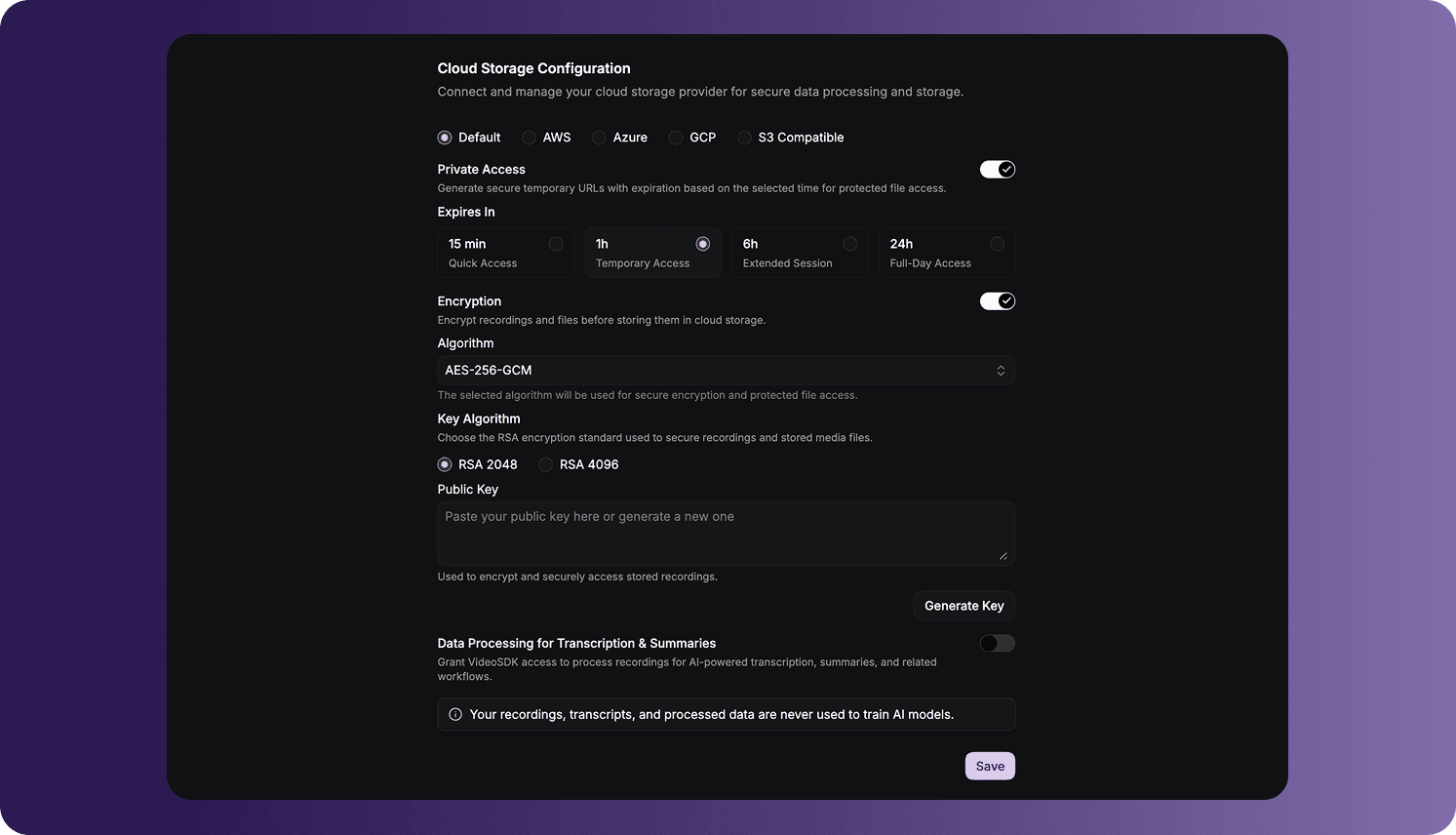
Private Access
Enable Private Access to generate temporary URLs for protected file access. Select how long each generated URL should remain valid:
| Expiry | Intended access period |
|---|---|
| 15 min | Quick access |
| 1h | Temporary access |
| 6h | Extended session |
| 24h | Full-day access |
Select AWS to store recordings and files in an Amazon S3 bucket.
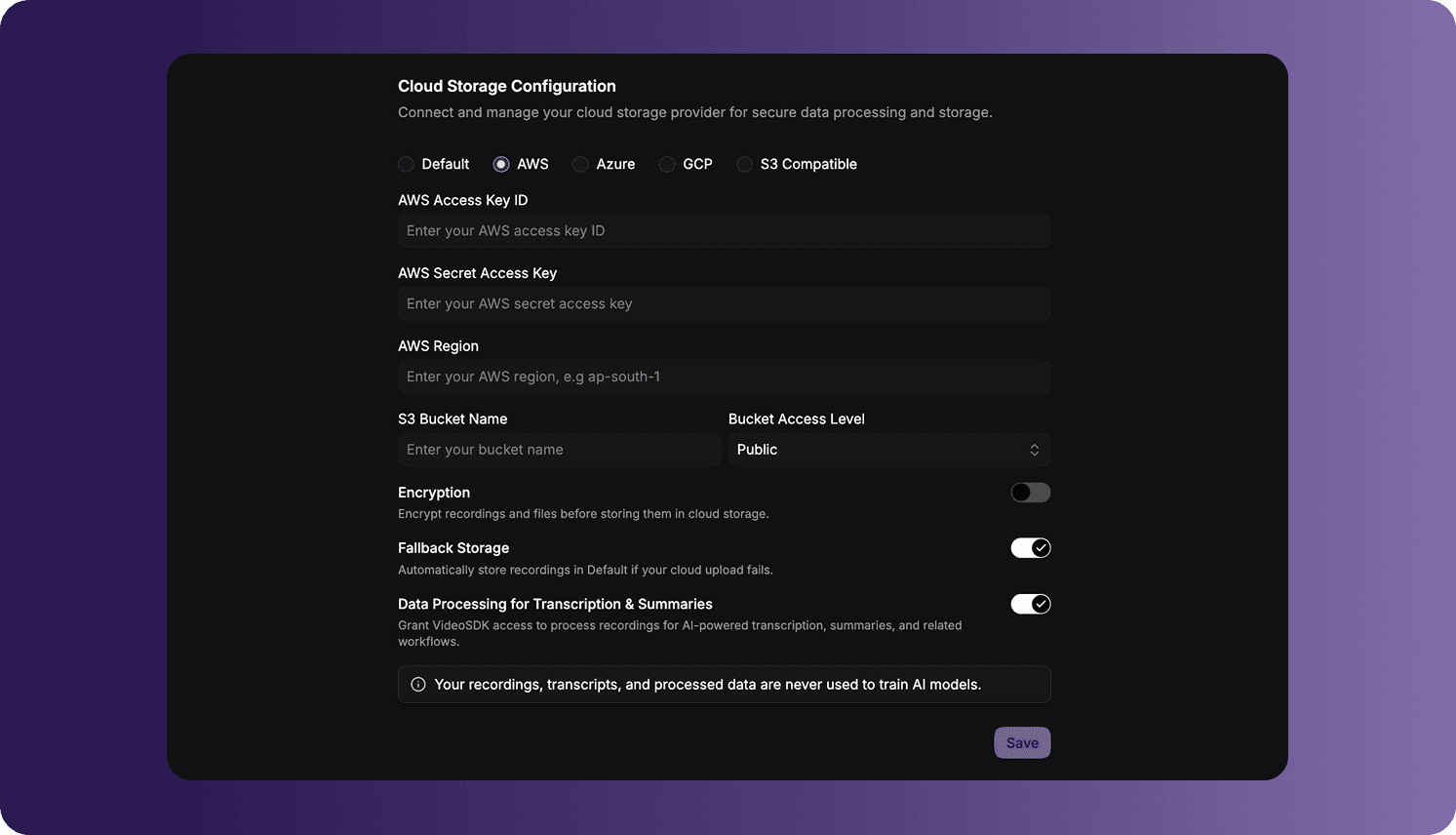
Complete the following fields:
| Field | Description |
|---|---|
| AWS Access Key ID | The access key ID for the AWS identity that can access the bucket. |
| AWS Secret Access Key | The secret access key paired with the access key ID. |
| AWS Region | The AWS Region containing the bucket, such as ap-south-1. |
| S3 Bucket Name | The name of the destination S3 bucket. |
| Bucket Access Level | The access level applied to stored objects. |
The available bucket access levels include Public, Private, Public Read, Public Read Write, Authenticated Read, AWS Exec Read, Bucket Owner Read, and Bucket Owner Full Control. Select the level that matches your bucket policy and access requirements.
Select Azure to store recordings and files in an Azure Blob Storage container.
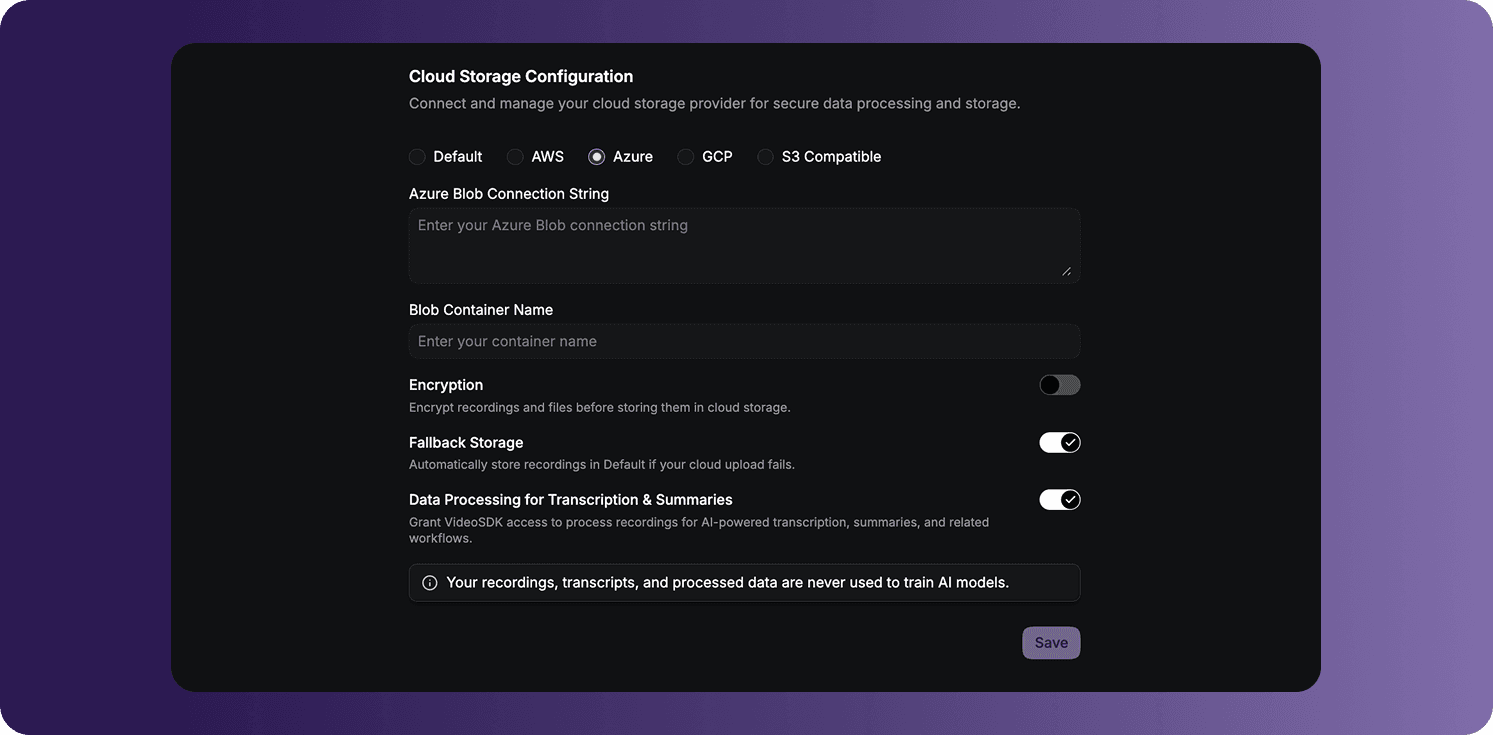
Complete the following fields:
| Field | Description |
|---|---|
| Azure Blob Connection String | The connection string used to authenticate with Azure Blob Storage. |
| Blob Container Name | The name of the destination blob container. |
Select GCP to store recordings and files in a Google Cloud Storage bucket.
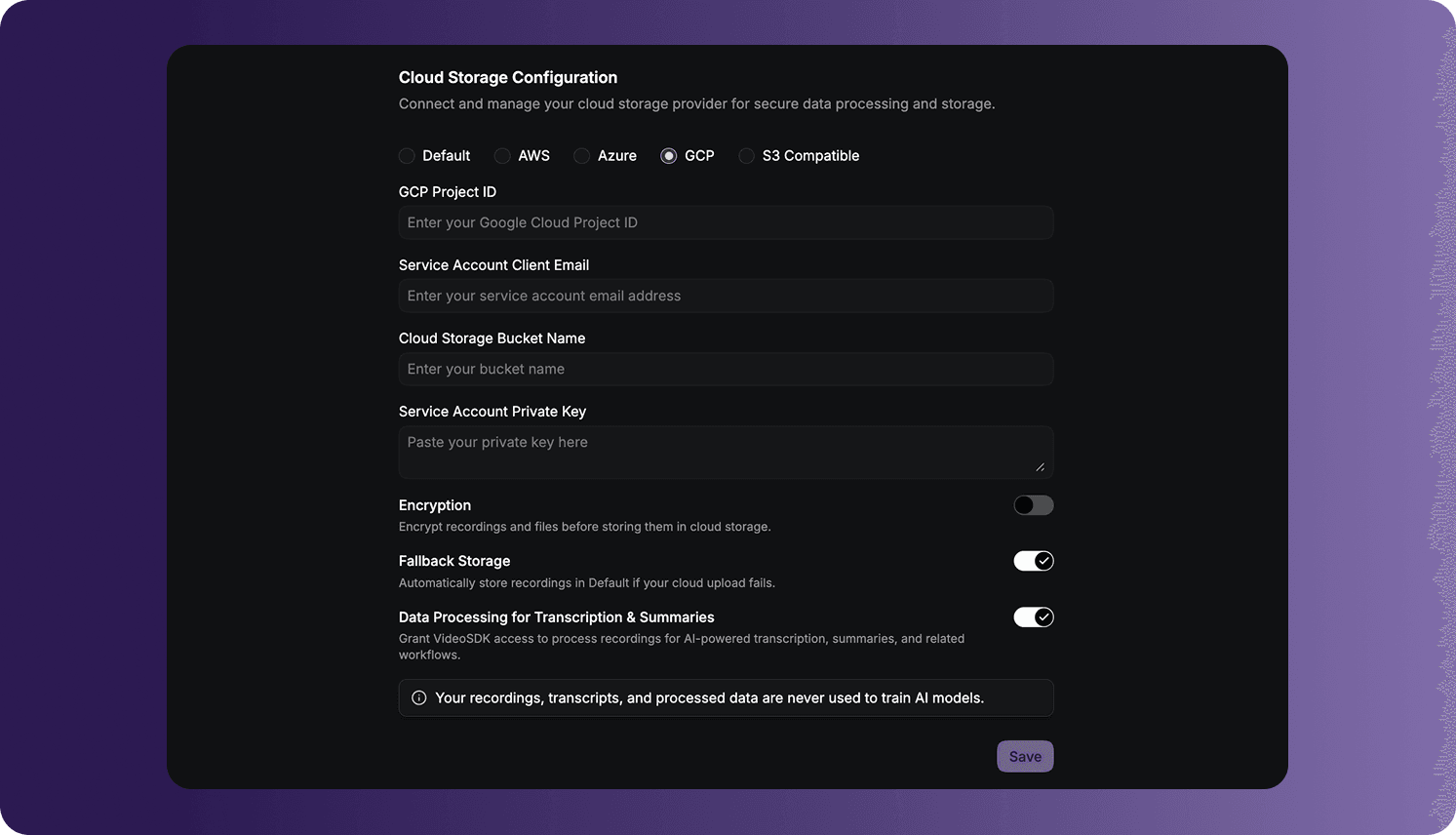
Complete the following fields:
| Field | Description |
|---|---|
| GCP Project ID | The Google Cloud project containing the storage resources. |
| Service Account Client Email | The email address of the service account used to access the bucket. |
| Cloud Storage Bucket Name | The name of the destination Cloud Storage bucket. |
| Service Account Private Key | The private key associated with the service account. |
Select S3 Compatible to use an object-storage service that supports the S3 API.
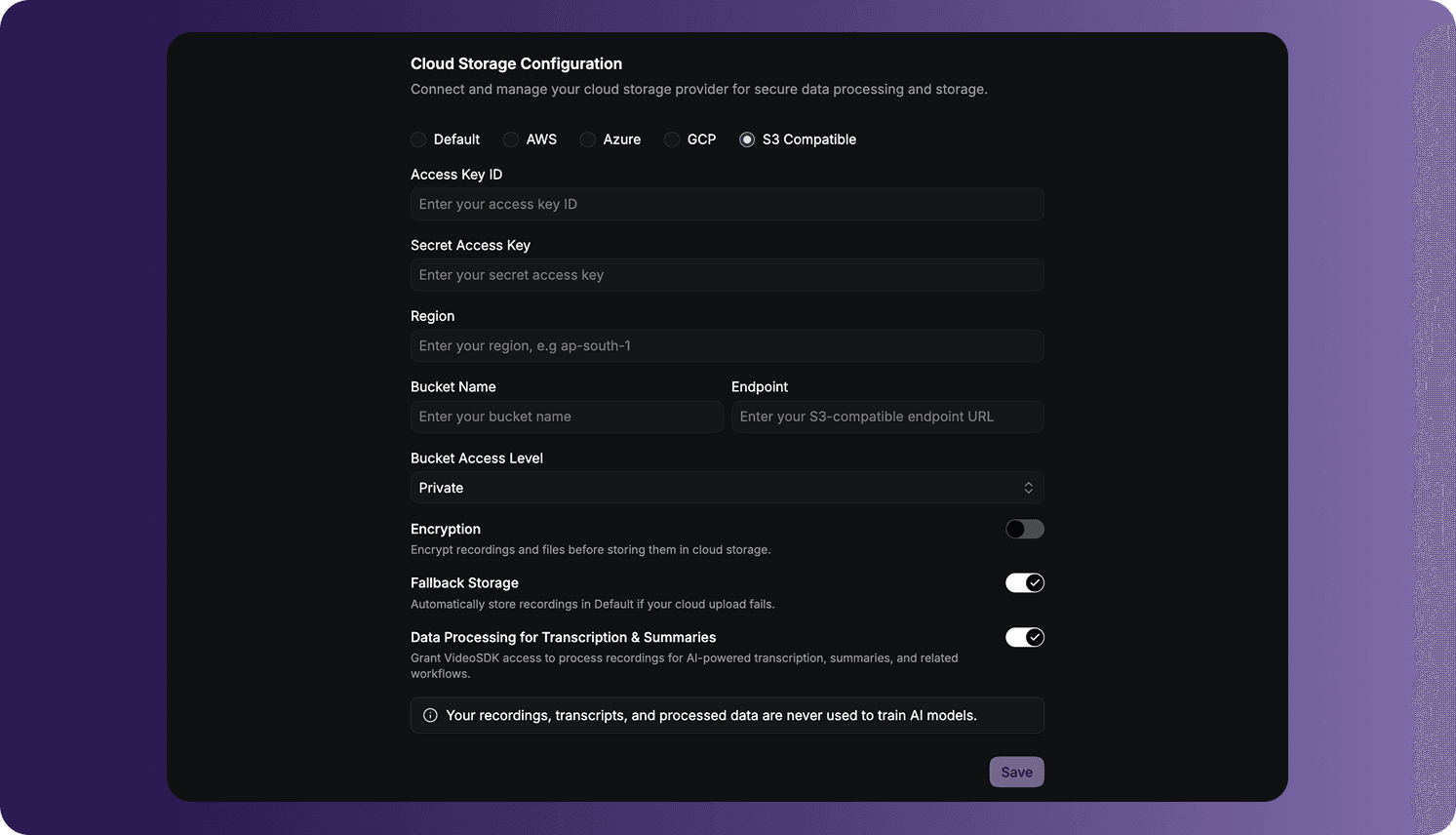
Complete the following fields:
| Field | Description |
|---|---|
| Access Key ID | The access key ID supplied by the storage provider. |
| Secret Access Key | The secret paired with the access key ID. |
| Region | The region configured for the storage service. |
| Bucket Name | The name of the destination bucket. |
| Endpoint | The S3-compatible endpoint URL supplied by the provider. |
| Bucket Access Level | The access level applied to stored objects. |
Configure Shared Storage Controls
The controls displayed below the provider fields depend on the selected provider and enabled options.
Encryption
Enable Encryption to encrypt recordings and files before they are stored.
When encryption is enabled:
- Select the AES-256-GCM encryption algorithm.
- Select RSA 2048 or RSA 4096 as the key algorithm.
- Paste your Public Key, or select Generate Key to generate one.
Keep the corresponding private key secure. It is required when your workflow needs to decrypt the protected files.
Fallback Storage
For an external provider, enable Fallback Storage to store recordings in VideoSDK's default storage if an upload to the configured provider fails. Recordings stored through fallback storage are billed according to the applicable recording storage charges.
Data Processing for Transcription & Summaries
Enable Data Processing for Transcription & Summaries to allow VideoSDK to process recordings for AI-powered transcription, summaries, and related workflows.
Recordings, transcripts, and processed data are not used to train AI models.
Encryption and Data Processing for Transcription & Summaries cannot remain enabled at the same time. Enable encryption when protected storage is required, or enable data processing when VideoSDK must process the recording for transcription and summaries.
Save the Configuration
Review the provider credentials, destination, access controls, and processing options, then select Save.
Cloud access keys, connection strings, and service-account private keys are sensitive credentials. Use credentials with only the permissions required for the destination and do not expose them in client-side code, public repositories, screenshots, or logs.
Frequently Asked Questions
Why does one toggle turn off when I enable Encryption or Data Processing?
The two options are mutually exclusive. Encrypted recordings cannot remain enabled for VideoSDK transcription and summary processing at the same time. Choose Encryption for protected storage or Data Processing for Transcription & Summaries when you need those processing workflows, then save the configuration.
Got a Question?  Ask us on discord

