API Key Settings
Use Settings to define fallback bandwidth, recording, streaming, integration, processing, and access-control behavior for sessions that use a selected API key.
Open Settings
- Sign in to the VideoSDK Dashboard.
- Select RTC and go to API Keys.
- Find the API key whose settings you want to manage.
- Select the gear icon in the Actions column.
The page header identifies the selected API key and shows when its settings were last updated.
Dashboard settings act as fallback configuration. If the same option is supplied through an API request, the value passed through the API takes higher priority.
Use the navigation panel on the left to move between settings sections. Select Save after making the required changes.
Maximum Send Bitrate
Maximum Send Bitrate Per Participant limits the total upload bandwidth used by all media streams sent by one participant.

| Option | Maximum send bitrate |
|---|---|
| Auto | Removes the configured upload limit. |
| SD | 800 kbps |
| HD | 1500 kbps |
| Full HD | 3000 kbps |
Choose a limit that suits the expected network conditions and media quality.
Recording Settings
Enable Recording Settings to define the fallback recording configuration for sessions using the API key.
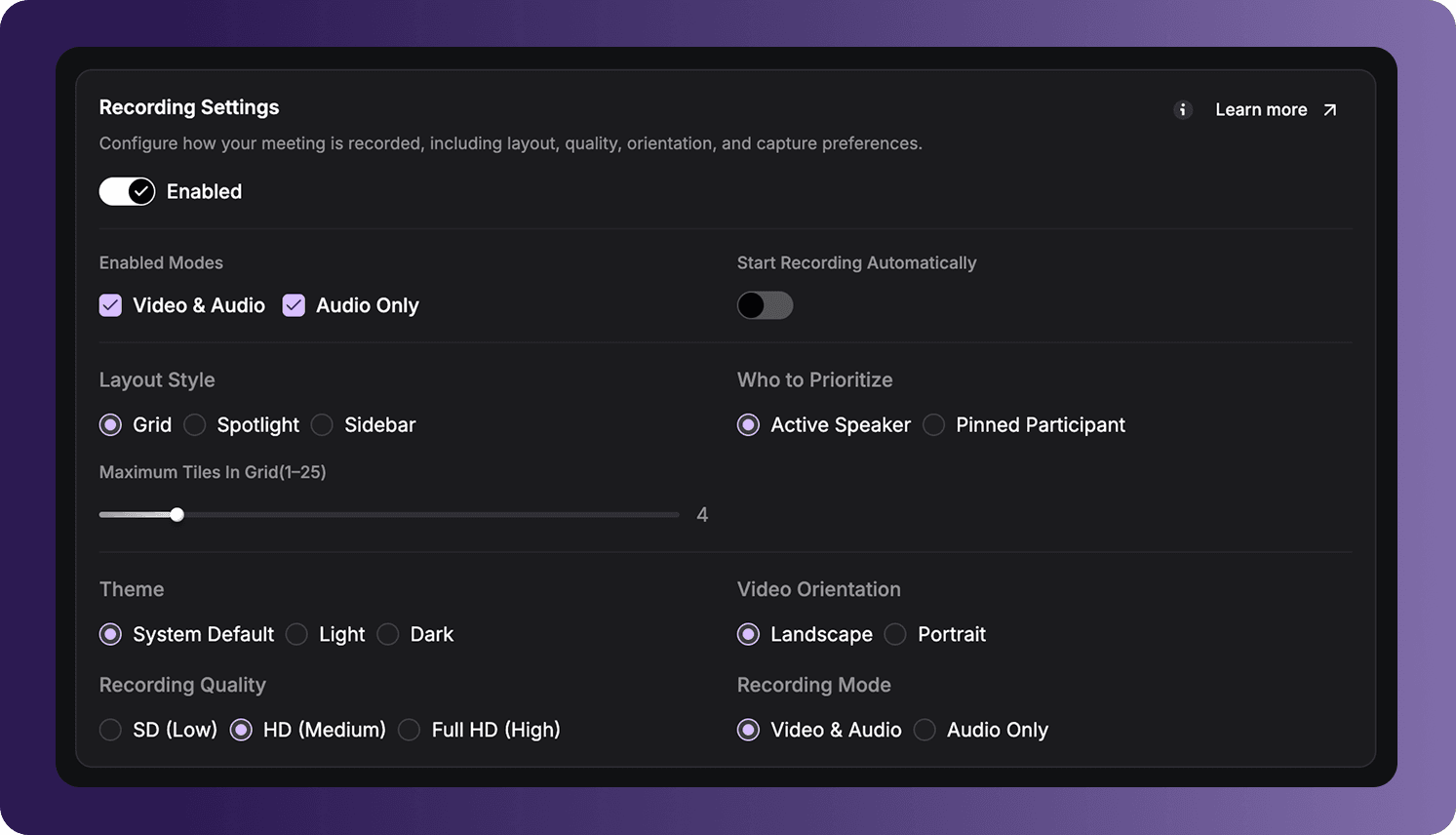
| Setting | Available options or behavior |
|---|---|
| Enabled Modes | Allow Video & Audio, Audio Only, or both recording modes. |
| Start Recording Automatically | Start recording automatically when the applicable session begins. |
| Layout Style | Grid, Spotlight, or Sidebar. |
| Who to Prioritize | Active Speaker or Pinned Participant. |
| Maximum Tiles In Grid | Select the maximum number of participant tiles, from 1 through 25. |
| Theme | System Default, Light, or Dark. |
| Video Orientation | Landscape or Portrait. |
| Recording Quality | SD (Low), HD (Medium), or Full HD (High). |
| Recording Mode | Video & Audio or Audio Only. |
Layout, participant priority, tile count, theme, and orientation primarily affect composed video output. Select an audio-only mode when video composition is not required.
HLS Streaming Settings
Enable HLS Streaming Settings to define how sessions are streamed through HLS.
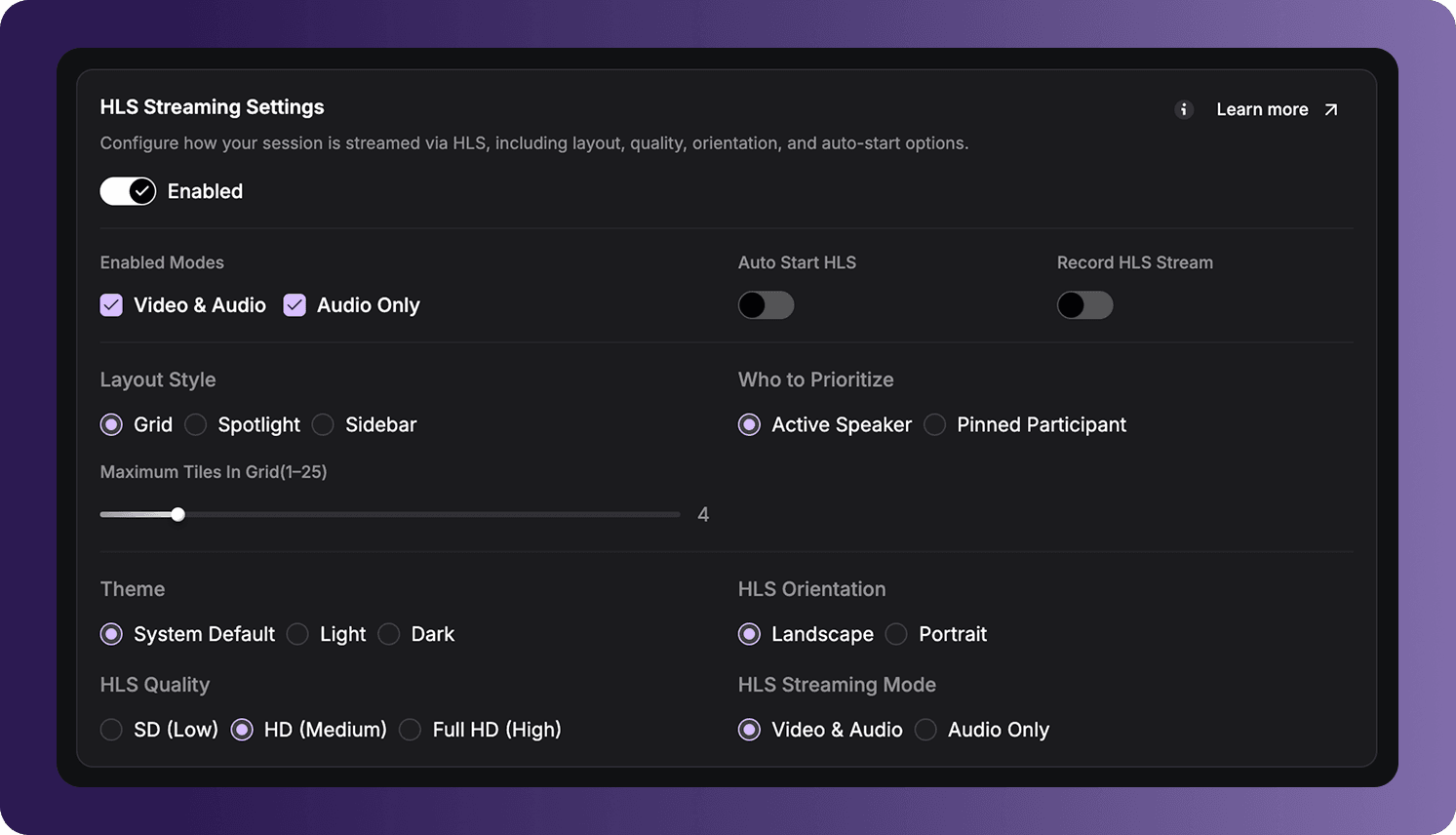
| Setting | Available options or behavior |
|---|---|
| Enabled Modes | Allow Video & Audio, Audio Only, or both streaming modes. |
| Auto Start HLS | Start HLS automatically for an applicable session. |
| Record HLS Stream | Save a recording of the HLS stream. |
| Layout Style | Grid, Spotlight, or Sidebar. |
| Who to Prioritize | Active Speaker or Pinned Participant. |
| Maximum Tiles In Grid | Select the maximum number of participant tiles, from 1 through 25. |
| Theme | System Default, Light, or Dark. |
| HLS Orientation | Landscape or Portrait. |
| HLS Quality | SD (Low), HD (Medium), or Full HD (High). |
| HLS Streaming Mode | Video & Audio or Audio Only. |
RTMP Output
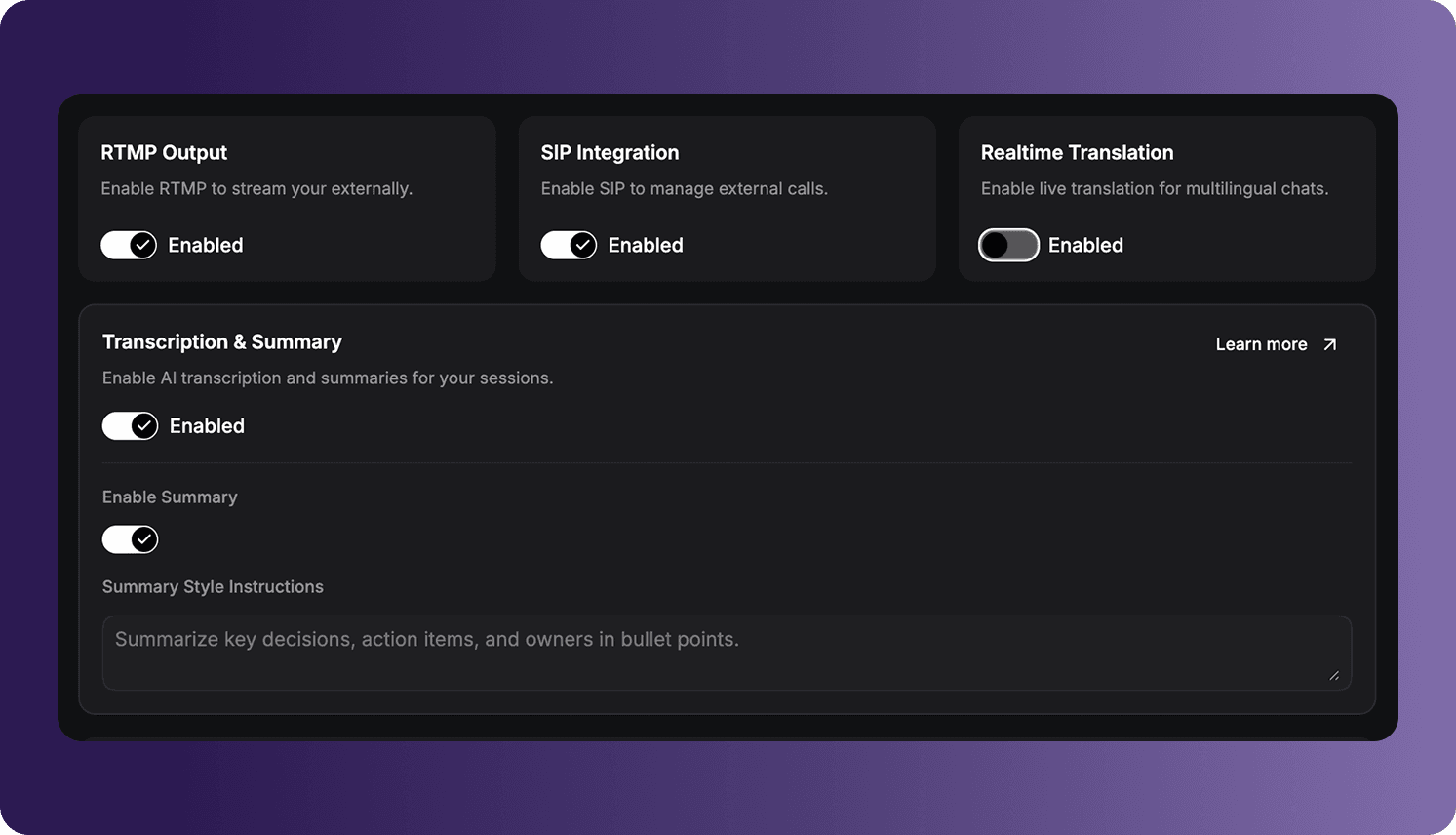
Enable RTMP Output to allow sessions using the API key to stream to external RTMP destinations.
This toggle provides the fallback availability setting. The destination and other stream-specific values are supplied when the RTMP stream is configured.
SIP Integration
Enable SIP Integration to allow sessions using the API key to manage external calls through SIP.
Disable the setting when applications using this API key should not use the fallback SIP integration.
Realtime Translation
Enable Realtime Translation to allow live translation for multilingual conversations.
The languages and translation behavior used by a session depend on its runtime configuration.
Transcription & Summary
Enable Transcription & Summary to allow AI transcription for sessions using the API key.
| Setting | Description |
|---|---|
| Enabled | Enables transcription and summary configuration. |
| Enable Summary | Generates a summary in addition to the transcription. |
| Summary Style Instructions | Provides instructions for the desired summary structure or focus, such as highlighting decisions, action items, and owners. |
Write clear summary instructions describing the information and format required. Summary settings are available when the feature and its required processing configuration are enabled.
Whitelist Domain
Use Whitelist Domain to restrict API-key usage to requests originating from approved domains.
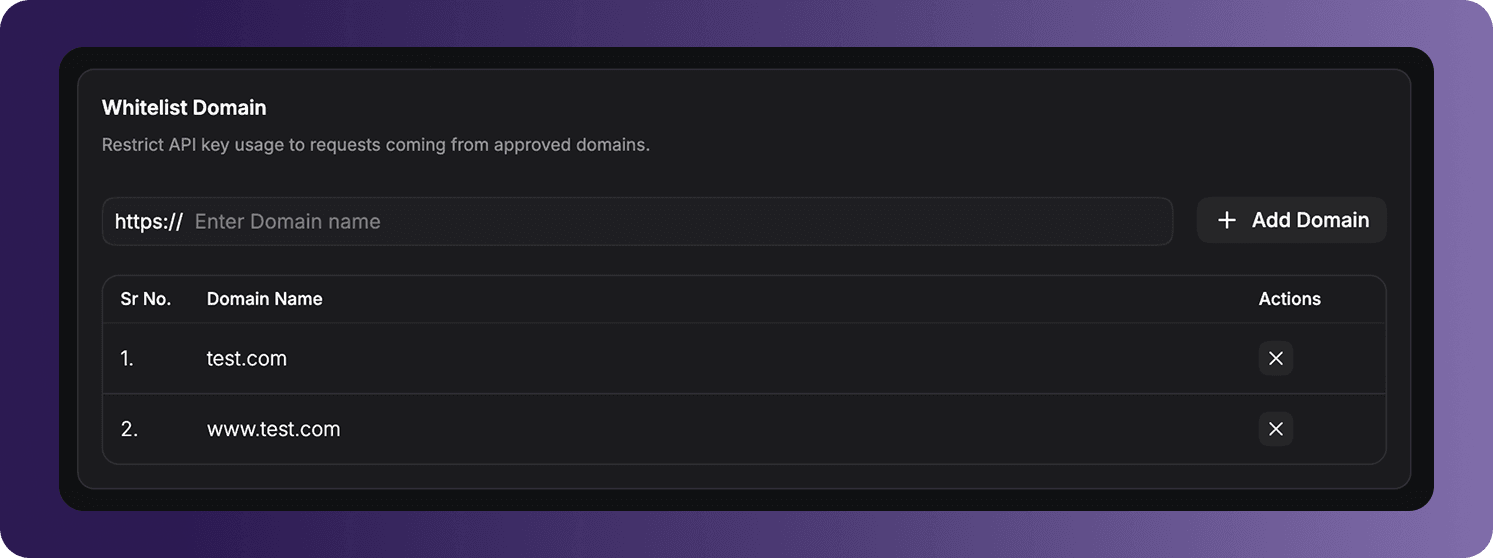
- Enter the domain after the
https://prefix. - Select Add Domain.
- Add each additional approved domain separately.
- Select Save to apply the updated whitelist.
Enter only domains that should be allowed to use the selected API key. Confirm the hostname carefully so legitimate application requests are not blocked.
Save Settings
After reviewing all sections, select Save. The updated-by information in the header identifies the user and time associated with the latest saved configuration.
Frequently Asked Questions
Why was a saved dashboard setting not used for my session?
Check whether the same option was included in the API request that created or configured the session. Values passed through the API take priority, so the dashboard value is used only when the request does not override it.
Got a Question?  Ask us on discord

