Billing History
The Billing History tab provides a record of your organization's payments, invoices, credit purchases, reloads, subscriptions, and other billing activity. The available records depend on the organization's billing model and completed transactions.
Open Billing History
To access the page:
- Sign in to the VideoSDK Dashboard.
- Select RTC.
- Select Billing from the navigation sidebar.
- Select Billing History.
Prepaid and Postpaid History
Use the selector at the top of the page to switch between the two billing models:
| View | Applies to | What it contains |
|---|---|---|
| Prepaid | Current Pay As You Go (On-Demand) organizations | Credit purchases, automatic reloads, subscriptions, payments, and related prepaid activity. |
| Postpaid | Legacy Pay As You Go organizations and Enterprise organizations configured for postpaid billing | Invoices generated for completed billing periods, including their due dates and payment status. |
An organization may have records in only one view. Switching to a billing model that has not been used can display an empty history.
Filter Prepaid History
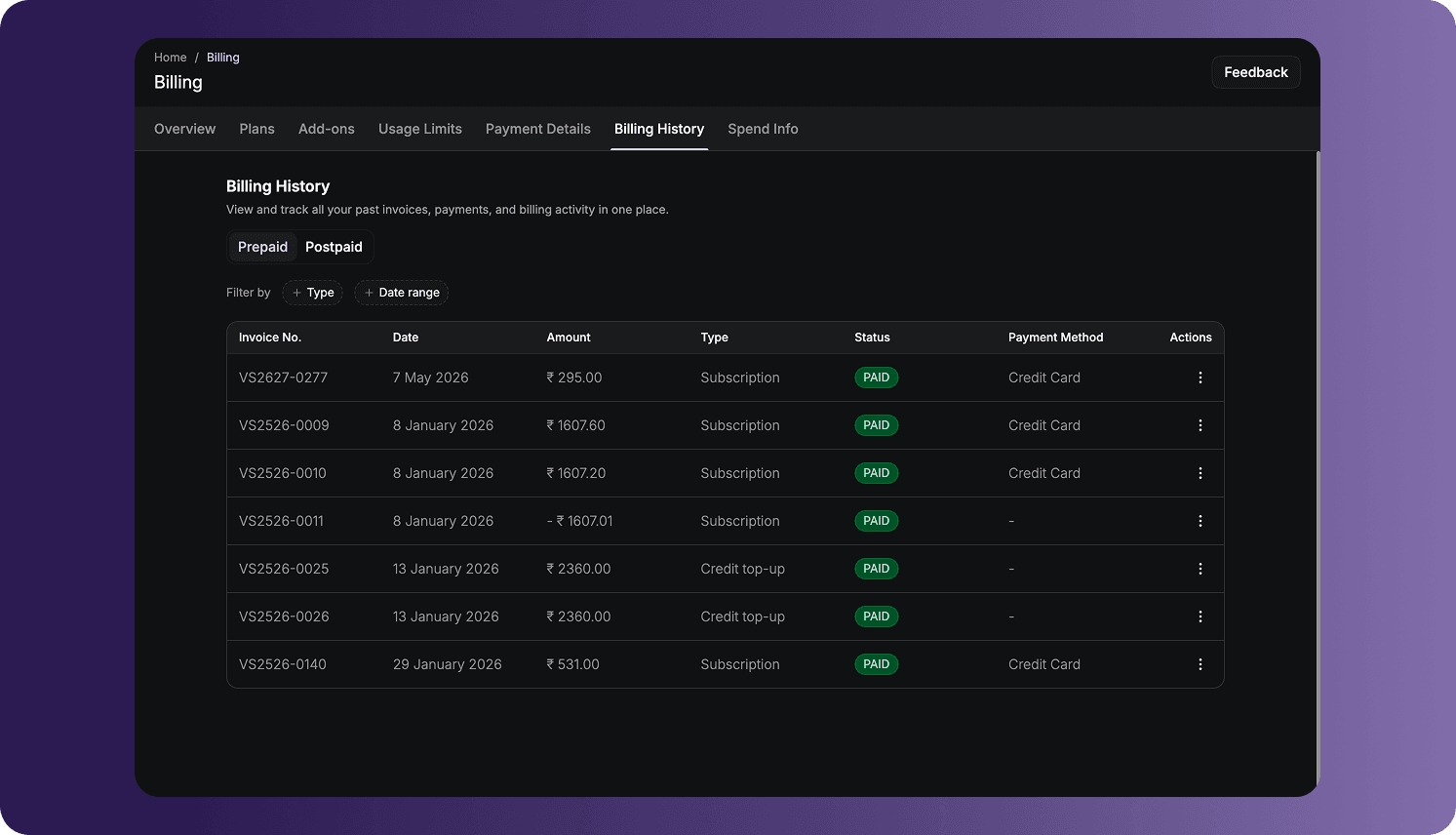
The Prepaid view supports the following filters:
- Type: Show one or more transaction types.
- Credit top-up: Funds added manually to the organization's wallet.
- Credit reload: Funds added through an automatic reload.
- Subscription: Charges associated with recurring subscriptions, add-ons, or usage-limit packs.
- Date range: Show transactions completed within a selected period.
Select the required values and apply the filter. Filters affect only the records displayed in the table and do not modify the underlying billing history.
Understand Prepaid Records
Each prepaid entry can contain:
| Column | Description |
|---|---|
| Invoice No. | The identifier assigned to the billing entry or invoice. |
| Date | The date on which the transaction was recorded. |
| Amount | The transaction amount in the organization's billing currency. |
| Type | The billing activity, such as a credit top-up, credit reload, or subscription. |
| Status | The current payment or transaction state, such as Paid. |
| Payment Method | The method used for the transaction, when available. |
| Actions | Opens the operations available for that billing entry. |
A dash indicates that information is unavailable or does not apply to that entry. For example, a wallet adjustment may not show a credit card as its payment method.
An amount prefixed with a minus sign represents a negative billing entry, such as a credit, reversal, or adjustment. Review the corresponding entry or invoice to confirm why the amount was applied.
View and Download an Invoice
For a billing entry that provides an invoice:
- Open the three-dot menu in the Actions column.
- Select View to open the invoice details page.
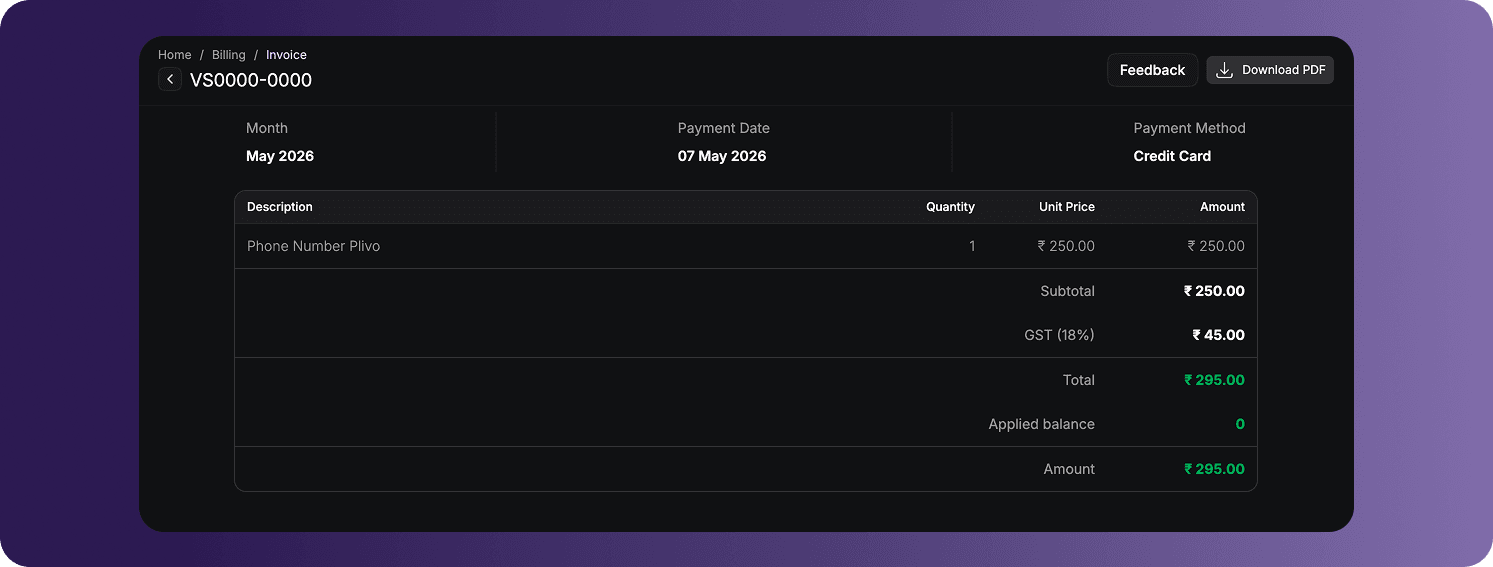
The details page provides an itemized breakdown of the invoice. Depending on the transaction, it can include:
- The invoice number and billing month.
- The payment date and payment method.
- Line-item descriptions, quantities, unit prices, and amounts.
- The subtotal and applicable taxes.
- The invoice total, applied wallet balance, and final amount charged.
Select Download PDF to download a PDF copy of the invoice for accounting, reconciliation, or record keeping. The exact fields and tax breakdown depend on the billing entry and the organization's billing country.
Filter and Review Postpaid History
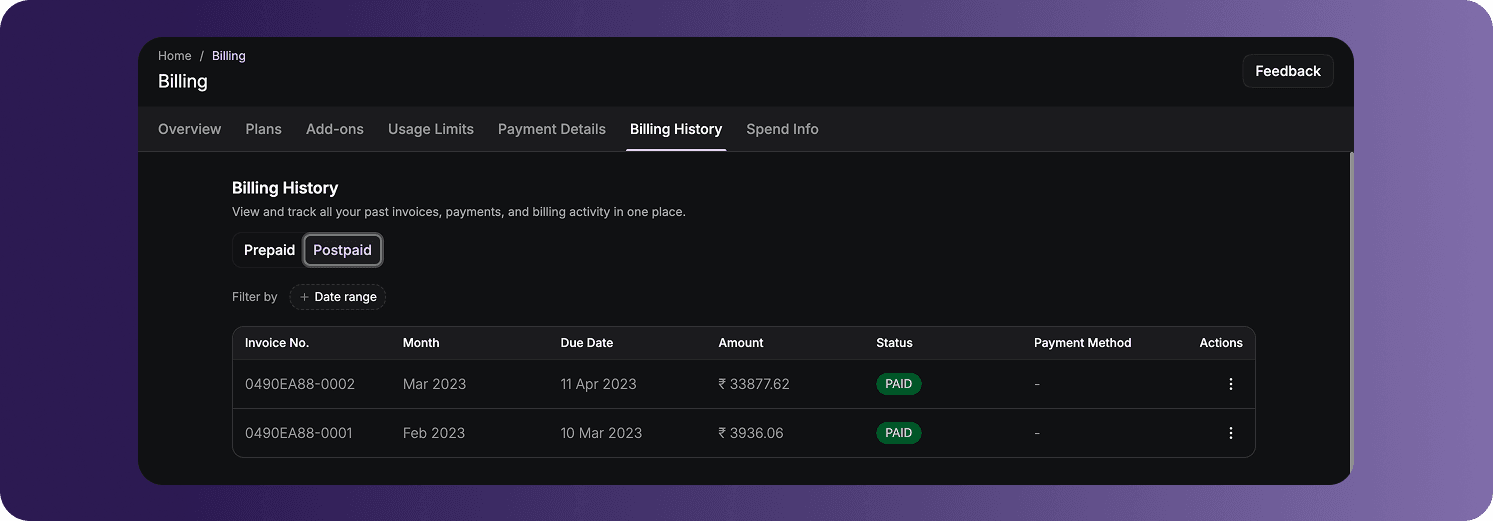
The Postpaid view supports filtering by Date range. Its table is organized around monthly invoices and can contain:
| Column | Description |
|---|---|
| Invoice No. | The identifier assigned to the postpaid invoice. |
| Month | The usage or billing month covered by the invoice. |
| Due Date | The date by which payment is due. |
| Amount | The invoiced amount in the organization's billing currency. |
| Status | The current invoice state, such as Paid. |
| Payment Method | The recorded payment method, when available. |
| Actions | Opens the operations available for that invoice. |
Postpaid records appear only for organizations that were billed through a postpaid account arrangement.
Billing Currency
Amounts are displayed in the billing currency determined by the country selected when the organization was created:
- Organizations registered in India use INR.
- Organizations registered outside India use USD.
The signup country is locked and cannot be changed from the billing address.
When No History Is Available
The page remains empty until qualifying billing activity occurs. A newly created organization, a Free organization that has not completed a transaction, or an organization viewing an unused billing model may not have any records.
Recent transactions also appear on the Overview tab under Last 5 billing history. The complete record is available on the Billing History tab.
Frequently Asked Questions
Why is Prepaid history available but Postpaid history is empty?
The current Pay As You Go (On-Demand) model is prepaid. Postpaid history is populated only for legacy Pay As You Go accounts and Enterprise organizations configured for postpaid billing.
Why does a billing entry show a negative amount?
A negative amount represents a credit, reversal, or adjustment applied to the billing account. Review the corresponding entry or invoice for its specific context.
Why is a recent transaction not visible?
Check whether the correct Prepaid or Postpaid view is selected, then clear or adjust the type and date-range filters. A transaction may also take time to appear while its payment status is being processed.
Got a Question?  Ask us on discord

