Payment Details
The Payment Details tab contains the payment methods and billing-address information associated with your organization. Use this page to add a card, review the default payment method, and keep the editable billing details up to date.
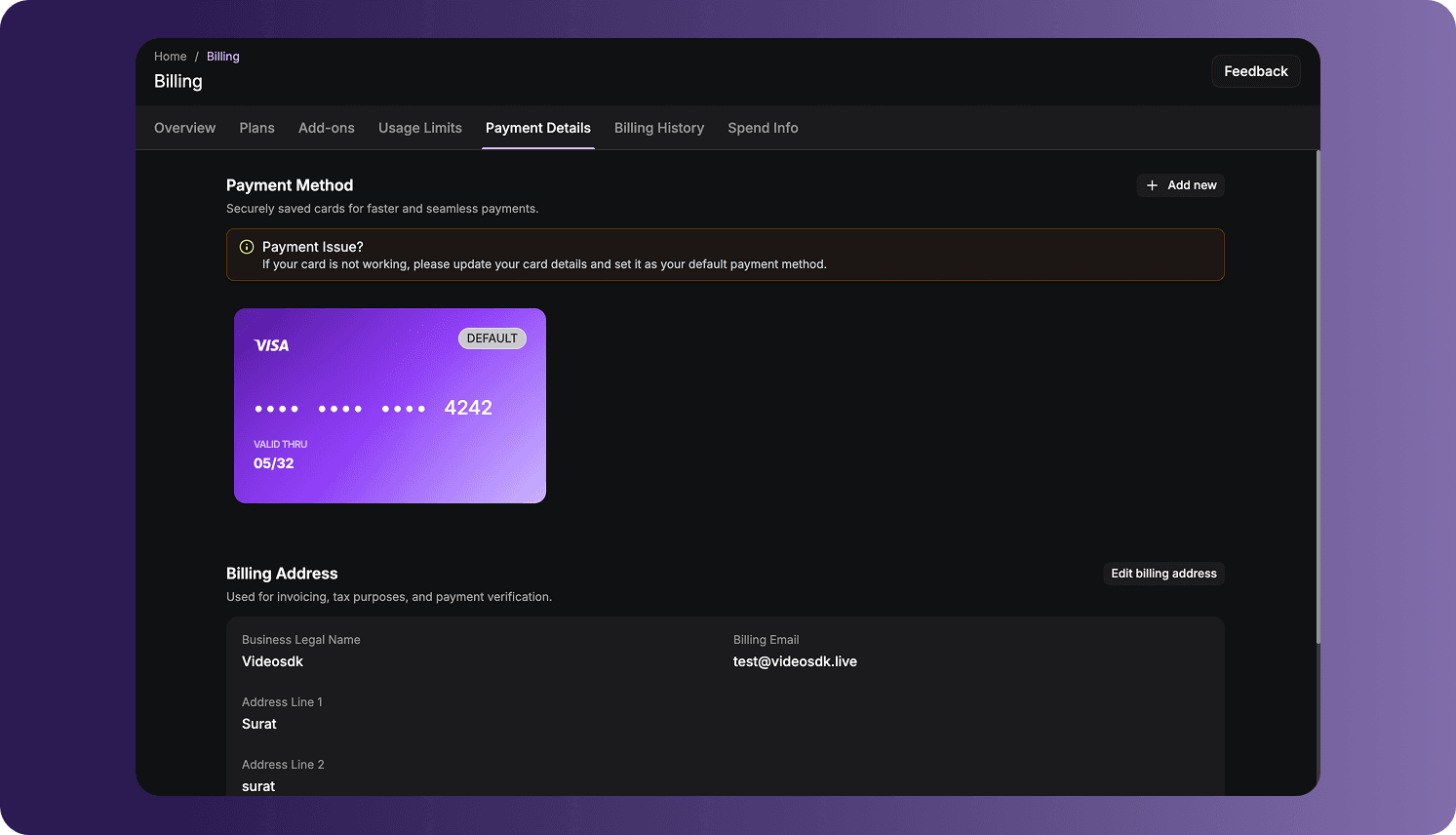
Open Payment Details
To access the page:
- Sign in to the VideoSDK Dashboard.
- Select RTC.
- Select Billing from the navigation sidebar.
- Select Payment Details.
Payment Method
The Payment Method section displays the cards saved for your organization. Card details are masked, and the card currently used for payments is marked Default.
If no card has been added, the page displays No payment method added.
Add a Card
To add a payment method:
- Select Add New Card or Add new.
- Enter the card number, expiration date, and security code.
- Enter the name shown on the card.
- Select Continue and complete any verification requested by the card issuer or payment provider.
After the card is added successfully, it appears in the Payment Method section. When multiple cards are available, make sure a working card is configured as the default payment method.
Never share complete card details, security codes, or payment-verification information with another person. The Dashboard masks stored card information when displaying it.
Resolve a Payment-Method Issue
When the Dashboard detects a problem with a saved card, it displays a Payment Issue notice. Review the saved payment method and add or update a working card. If multiple cards are saved, set the card that should be charged as the default payment method.
A card can still be declined by its issuer because of insufficient funds, online or international payment restrictions, an expired card, or a failed verification step. Contact the card issuer if the entered information is correct but the payment continues to fail.
Billing Address
The Billing Address section is used for invoicing, tax calculation, and payment verification. Depending on the organization, it can display:
| Field | Description |
|---|---|
| Business Legal Name | The legal name associated with the billing account. |
| Billing Email | The email address used for billing communication. |
| Address Line 1 and 2 | The organization's billing street address. |
| City | The billing city. |
| State | The billing state or region. |
| Country | The country selected when the organization was created. |
| Post Code | The postal or ZIP code for the billing address. |
Select Edit billing address to update the editable address fields, then save the changes.
The organization's country is selected during signup and is locked afterward. It cannot be changed from the billing address. Contact VideoSDK if the organization was created with an incorrect country or if the account must be moved to another billing country.
Billing Country and Currency
The locked signup country determines the organization's billing currency:
| Signup country | Billing currency |
|---|---|
| India | Indian rupee (INR) |
| Any country outside India | United States dollar (USD) |
Editing the street address, city, state, postal code, business name, or billing email does not change the billing country or currency.
Frequently Asked Questions
Why can I not change the country in my billing address?
The country is selected when the organization is created and is locked afterward because it determines the organization's billing currency and regional billing setup. Other editable billing-address fields can still be updated. Create a new account if want the account with a different country..
Why is my card not working?
Confirm that the card details are current and that the intended card is the default payment method. The card issuer can also decline online or international transactions, reject a verification attempt, or block a transaction because of account restrictions. Contact the issuer if the information is correct and the payment continues to fail.
Why did my billing currency not change after I edited the address?
Billing currency is determined by the locked country selected during signup. Changing editable address fields does not change the organization's country or currency.
Got a Question?  Ask us on discord

