Usage Limits
The Usage Limits tab shows the concurrent capacity available to your organization. Use it to monitor realtime usage, review recent peak demand, and purchase additional capacity for supported services.
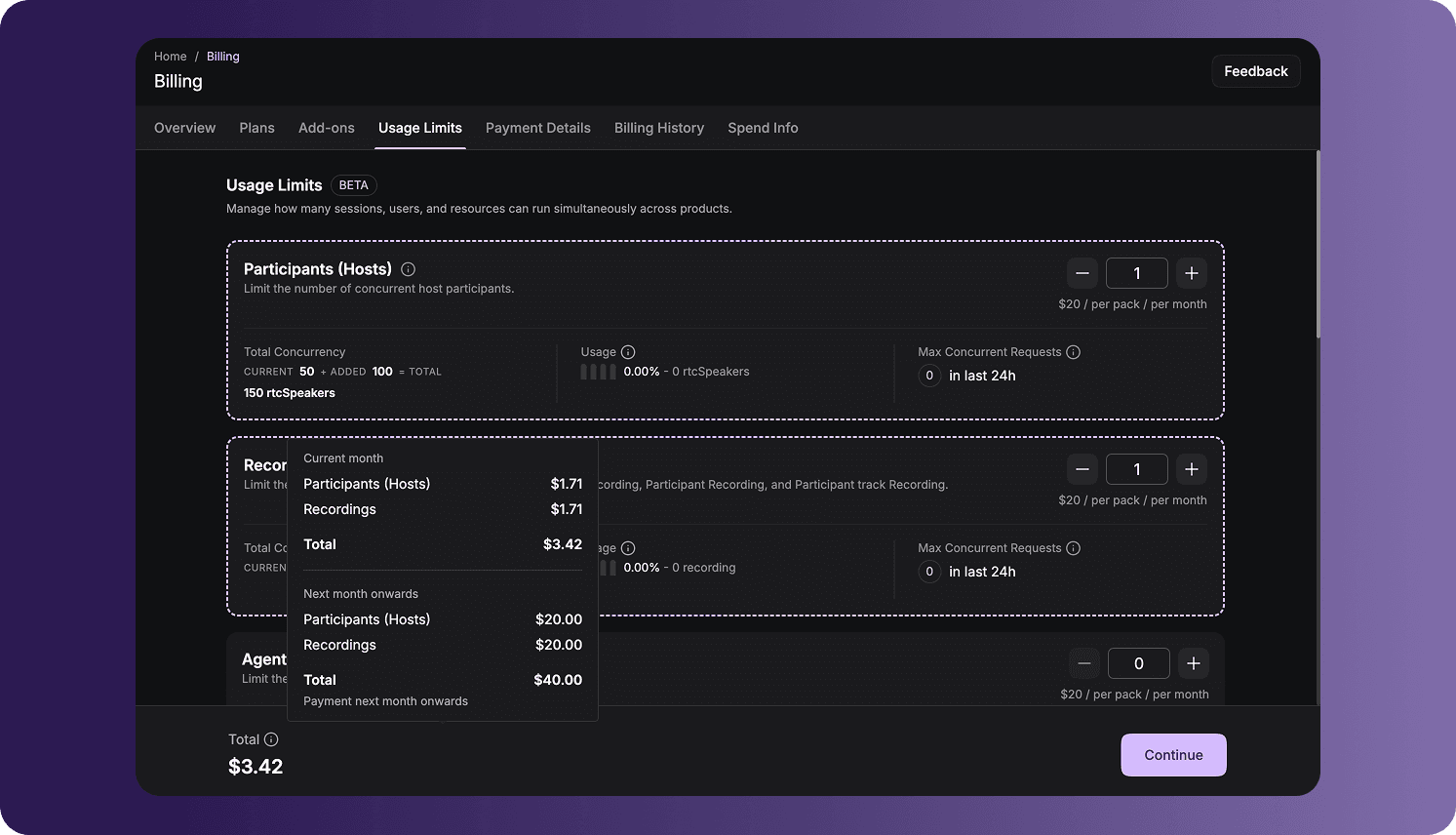
Open Usage Limits
To access the page:
- Sign in to the VideoSDK Dashboard.
- Select RTC.
- Select Billing from the navigation sidebar.
- Select Usage Limits.
How Concurrent Limits Work
Usage limits apply to simultaneous activity across the entire organization, not to the total activity accumulated during a month.
For example, an organization with a limit of 50 concurrent hosts can run multiple meetings at the same time, but no more than 50 hosts can be active across those meetings at once. When the limit is reached, another request cannot be processed until capacity becomes available or the limit is increased.
Default Limits and Packs
Default limits depend on the organization's plan. Supported Pay As You Go organizations can purchase packs to increase their concurrent capacity.
| Service | Free plan | Pay As You Go (On-Demand) | Capacity added per pack | Maximum packs on Dashboard |
|---|---|---|---|---|
| Participants (Hosts) | 50 concurrent hosts | 500 concurrent hosts | 100 hosts | 5 |
| Recordings | 1 concurrent recording | 10 concurrent recordings | 10 recordings | 5 |
| Agent Cloud Sessions | 1 concurrent session | 10 concurrent sessions | 10 sessions | 5 |
| Viewers (HLS/RTC) | 100 concurrent viewers | 200 concurrent viewers | 200 viewers | 10 |
| HLS Encoding | 1 concurrent encoding | 10 concurrent encodings | 10 encodings | 5 |
| SIP Connect | 1 concurrent connection | 10 concurrent connections | 10 connections | 5 |
| Realtime Transcription | 1 concurrent transcription | 10 concurrent transcriptions | 10 transcriptions | 5 |
| RTMP | 1 concurrent stream | 10 concurrent streams | 10 streams | 5 |
Default Per-Room Limits
These limits apply to each individual room and are separate from the organization-wide concurrency limits above.
| Limit | Value |
|---|---|
| Active speakers | 15 |
| Participants | 100 |
| Interactive Live Streaming viewers | 1,000 |
| HTTP Live Streaming viewers | 200 |
The dashboard displays the current pack price in the organization's billing currency. Organizations registered in India use INR, while organizations registered outside India use USD.
Limits, pack sizes, prices, and purchase maximums can change. Use the values displayed in your dashboard as the current source of truth.
Understand a Usage-Limit Card
Each service card summarizes the configured limit and observed usage:
| Field | Description |
|---|---|
| Current | The concurrent capacity included with the current plan or configuration. |
| Added | The additional capacity selected or purchased through packs. |
| Total | The combined concurrent capacity after applying the added packs. |
| Usage | The organization's current realtime consumption, shown as a value and percentage of the total limit. |
| Max Concurrent Requests | The highest simultaneous usage observed during the displayed period, such as the last 24 hours. |
The Usage indicator uses colors to show the current utilization:
- Green: Usage is 50% or below.
- Amber: Usage is above 50% and at or below 75%.
- Red: Usage is above 75%. Consider increasing the limit to reduce the risk of interrupted requests.
Realtime Usage and Max Concurrent Requests can show different values. Usage reflects the current moment, while the maximum records the highest simultaneous demand observed during the stated period.
Increase a Limit
To add capacity:
- Find the service you want to increase.
- Select the
+control to add one or more packs. - Review the updated Added and Total values.
- Repeat the selection for any other services that need more capacity.
- Review the order total at the bottom of the page.
- Select Continue.
- Confirm the billing details and complete the payment.
Use the − control to remove a pack from the pending selection before continuing. The dashboard prevents the selection from exceeding the maximum number of packs available for that service.
After the payment succeeds, the purchased capacity becomes active for the organization.
Review Pack Charges
The order summary separates the charges into:
- Current month: The prorated amount for the time remaining in the current billing month.
- Next month onwards: The full recurring monthly amount for the selected packs.
Select or hover over the information icon beside Total to review the charge for each selected pack. Applicable taxes are shown separately before payment.
When a Limit Is Reached
If an organization reaches a concurrency limit, additional requests for that service can fail until an active request ends or more capacity is added.
For example, if all available recording slots are already in use, a request to start another recording is not processed. The number of recordings created earlier in the month does not matter; only recordings active at the same time count toward the concurrent limit.
For limits beyond the maximum available through the Dashboard, contact VideoSDK. Enterprise limits can be configured according to the organization's requirements.
For additional concurrency examples, see Understanding Usage Quota Limits.
Frequently Asked Questions
Why did a request fail even though my monthly usage is low?
Usage limits measure simultaneous activity rather than total monthly activity. A request can fail when all concurrent capacity for that service is in use, even if the organization has used the service only briefly during the month.
Why is realtime Usage lower than Max Concurrent Requests?
Usage shows activity at the current moment. Max Concurrent Requests shows the highest simultaneous activity observed during the stated period, such as the last 24 hours. A previous peak can therefore be higher than current usage.
What should I do if the Dashboard does not offer enough packs?
The Dashboard limits how many packs can be purchased for each service. Contact VideoSDK to discuss custom or Enterprise capacity when the required limit exceeds the available pack maximum.
Got a Question?  Ask us on discord

