Recordings
The Recordings page lists the recordings created for meeting sessions in your organization. Use it to find a recording, check its processing status and storage destination, and open its detailed view.
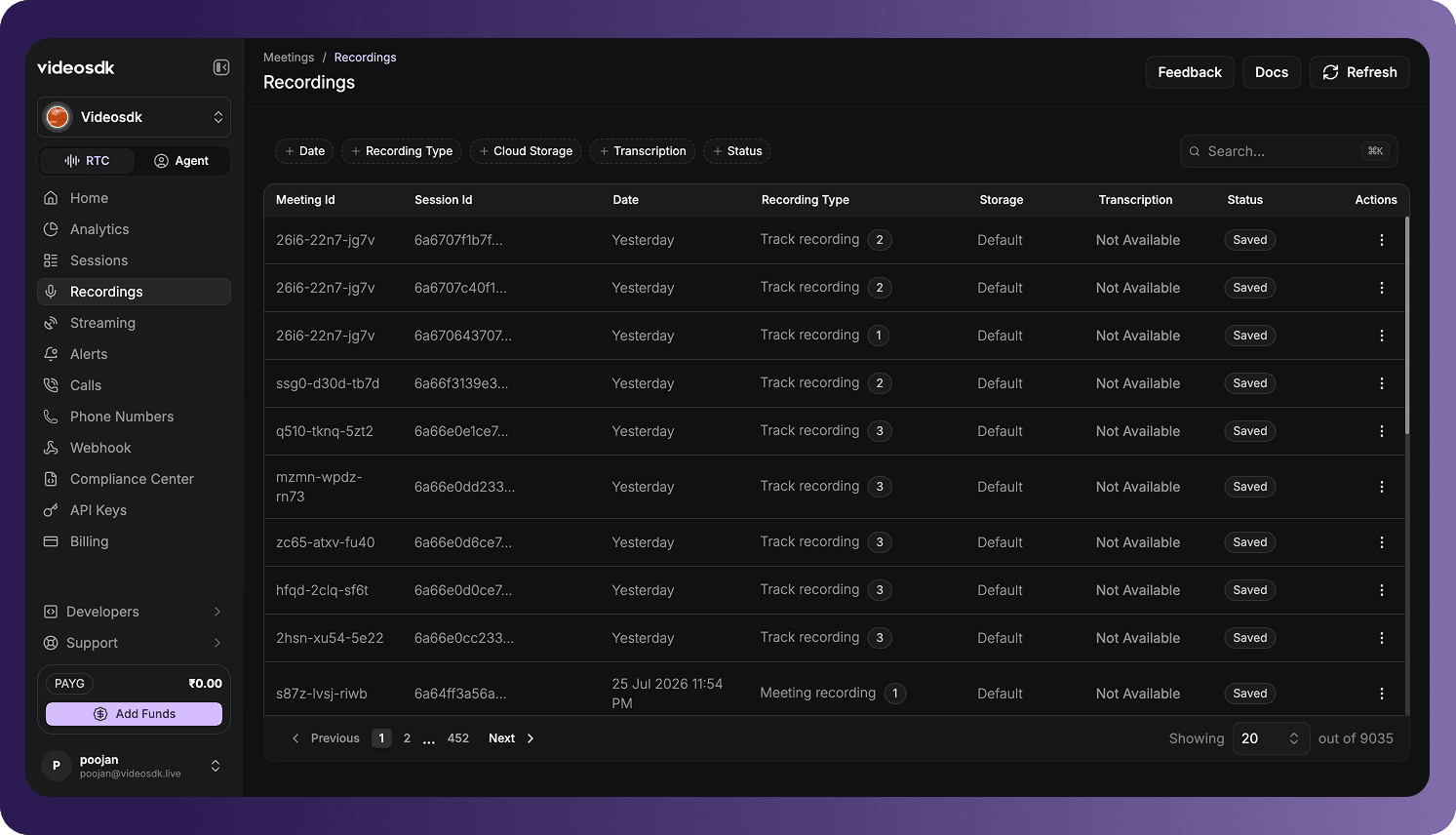
To access the page:
- Sign in to the VideoSDK Dashboard.
- Select RTC.
- Select Recordings from the navigation sidebar.
Find and Filter Recordings
Use Search to find matching recording records. You can narrow the list further by applying one or more filters.
Date
Use the Date filter to display recordings from the selected date or date range.
Recording Type
Use the Recording Type filter to select one or more recording types:
- Meeting Recording
- Participant Recording
- Track Recording
- Composite Recording
Cloud Storage
Use the Cloud Storage filter to find recordings by storage destination:
- VideoSDK
- GCP
- Azure
- AWS
- Presigned URL
Transcription
Use the Transcription filter to display recordings based on whether transcription is:
- Available
- Not Available
Status
Use the Status filter to select one or more recording states:
| Status | Description |
|---|---|
| Saved | The recording was processed and saved successfully. |
| In Progress | The recording is still being processed. |
| Failed | The recording could not be completed or saved. |
Select the required options in a filter and then select Apply. When multiple filters are active, the recordings list must match the selected filter criteria.
Recordings Table
Each row represents a recording record associated with a meeting session.
| Column | Description |
|---|---|
| Meeting Id | The unique ID of the meeting associated with the recording. |
| Session Id | The unique ID of the meeting session in which the recording was created. |
| Date | The date and time associated with the recording. |
| Recording Type | The type of recording, such as meeting, participant, track, or composite recording. |
| Storage | The storage destination used for the recording. |
| Transcription | Indicates whether a transcription is available for the recording. |
| Status | The current processing or storage state of the recording. |
| Actions | Provides the actions available for the recording. |
If an ID is shortened in the table, hover over it to view the complete value.
Open a Recording
Select the three-dot menu in the Actions column, then select View to open the recording.
The information and actions in the detailed view vary by recording type. See Recording Details for the type-specific fields.
Refresh the Recordings List
Select Refresh to retrieve the latest recording data. This is useful for recordings whose status is still In Progress.
Navigate the Recordings List
Use the controls below the table to:
- Move to the previous or next page.
- Select a specific page.
- Change the number of recording records displayed per page.
The counter at the bottom of the table shows the number of displayed records and the total number of available records.
The recording types, storage information, transcription availability, statuses, and actions shown depend on how each recording was configured and processed.
Got a Question?  Ask us on discord

