Recording Details
The Recording Details page lets you inspect and play the outputs associated with a recording record. The information displayed on the page depends on whether you opened a meeting, participant, track, or composite recording.
To open a recording:
- Sign in to the VideoSDK Dashboard.
- Select RTC and go to Recordings.
- Open the three-dot menu for a recording.
- Select View.
Select a Recording Output
The panel on the left lists the recording outputs available for the selected record. Use Search to find an output, then select it to update the details and player.
The number beside the page heading and the list label indicates how many outputs are available. Use the copy icon beside an identifier to copy its complete value.
Select the back arrow to return to the Recordings page. Select Refresh to retrieve the latest recording information.
Playback and Actions
When a playable recording is available, use the media player to:
- Play or pause the recording.
- Move backward or forward by 10 seconds.
- Seek to a specific point on the playback timeline.
- Adjust the volume.
- Change the playback speed.
- Enter full-screen mode for supported video recordings.
The recording header can also show its visibility and file size.
- Select Download to save the selected recording.
- Select Delete to remove the selected recording.
Deleting a recording removes that recording output. Confirm that you no longer need it before continuing.
Details by Recording Type
- Meeting Recording
- Participant Recording
- Track Recording
- Composite Recording
A Meeting Recording is the as it is recording of meeting in a configured layout.
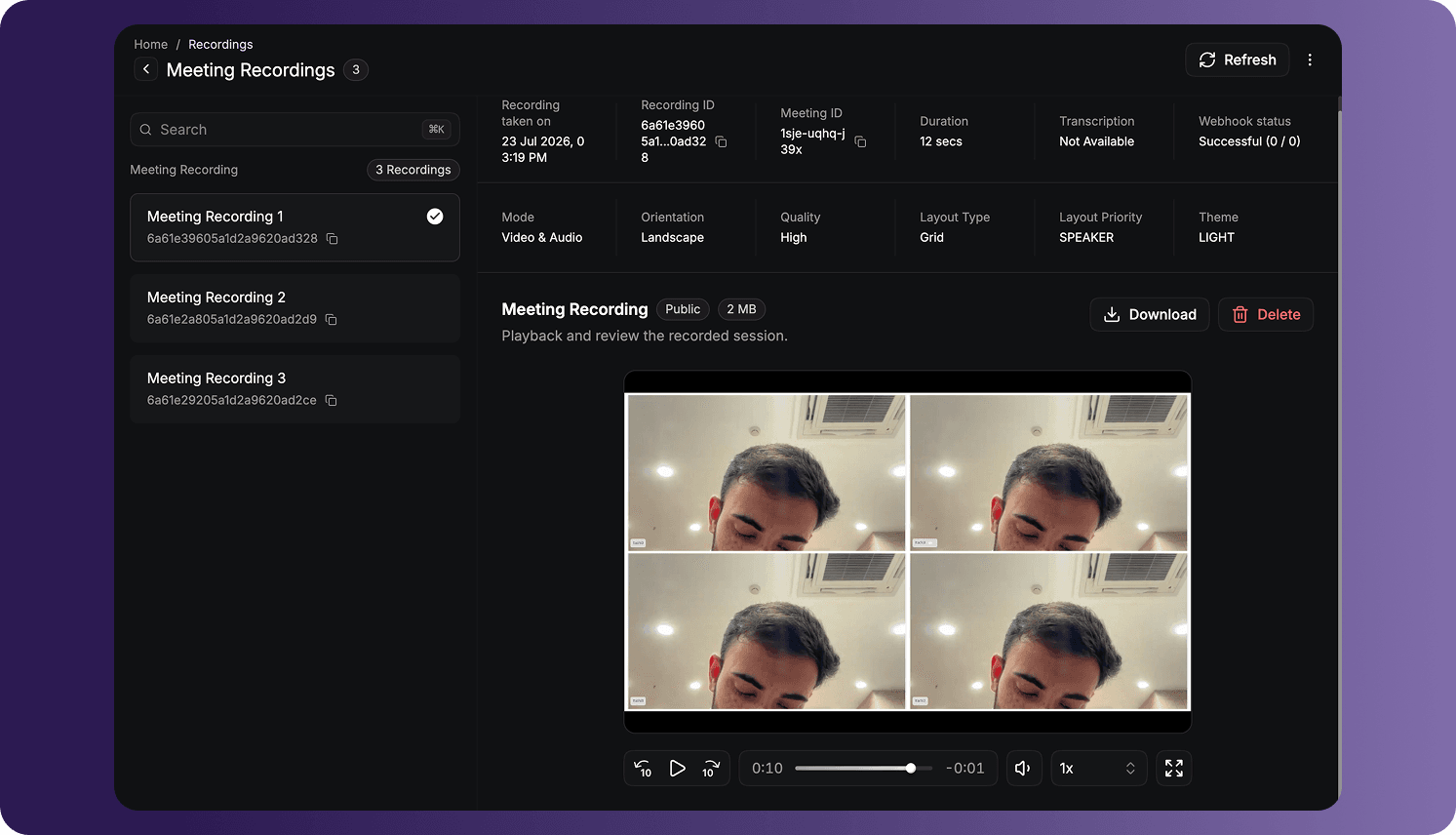
The details can include:
| Field | Description |
|---|---|
| Recording taken on | The date and time when the recording was created. |
| Recording ID | The unique ID of the recording. |
| Meeting ID | The unique ID of the recorded meeting. |
| Duration | The total length of the recording. |
| Transcription | Indicates whether a meeting transcription is available. |
| Webhook status | The delivery status recorded for recording webhooks. |
| Mode | The recorded media mode, such as video and audio. |
| Orientation | The video orientation, such as landscape. |
| Quality | The configured recording quality. |
| Layout Type | The layout used to arrange participant media, such as grid. |
| Layout Priority | The rule used to prioritize participants in the layout. |
| Theme | The visual theme applied to the recording layout. |
Select a meeting recording from the left panel to play, download, or delete that output.
Meeting Transcription
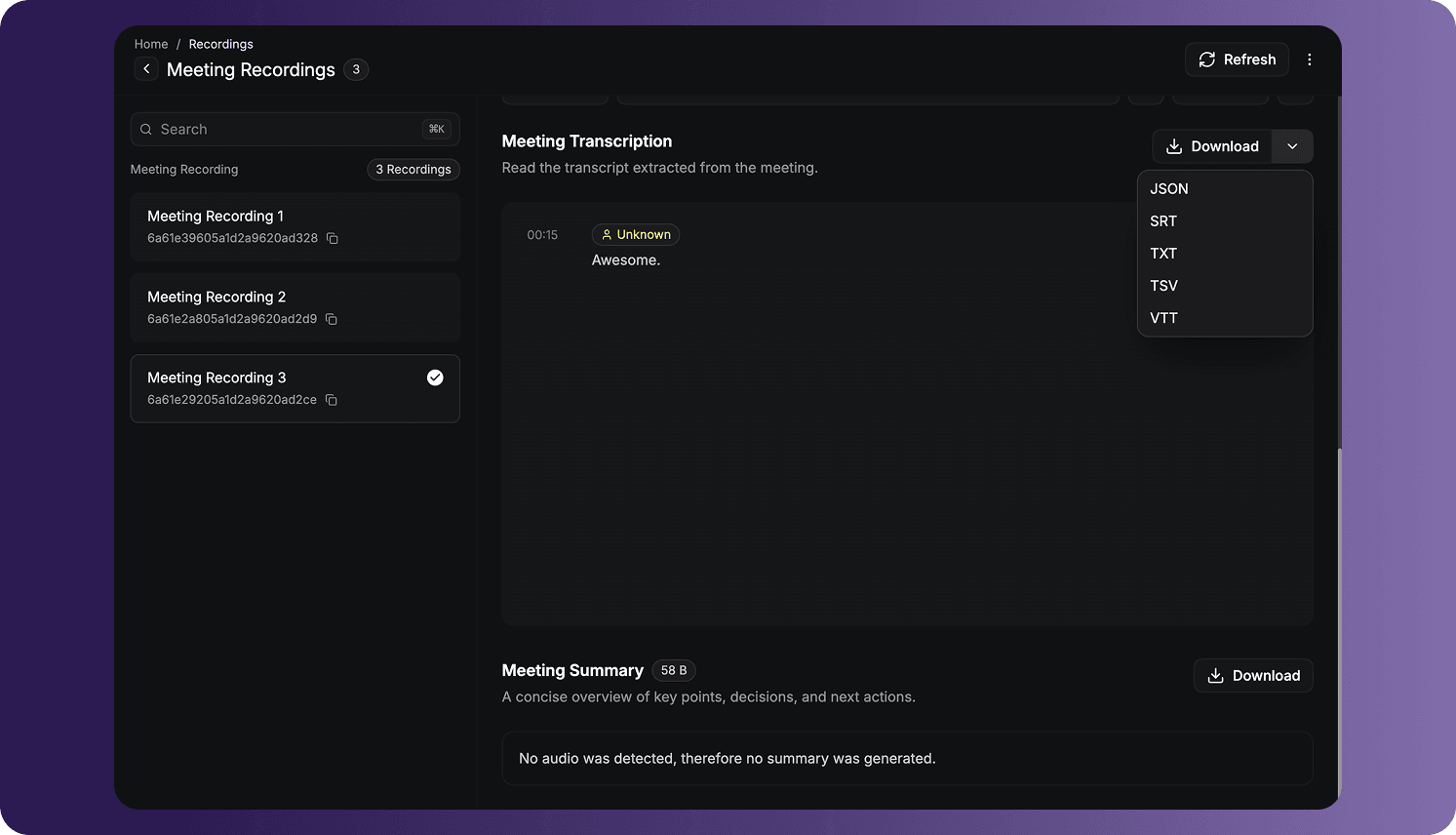
When transcription is available, the Meeting Transcription section displays timestamped transcript entries and their identified speakers when that information is available.
Use the transcription download menu to select one of the available formats:
- JSON
- SRT
- TXT
- TSV
- VTT
Meeting Summary
When a summary is generated, the Meeting Summary section provides the available overview of the meeting and a download action. If the required audio or transcription data is unavailable, the page can explain why a summary was not generated.
A Participant Recording contains media recorded for an individual participant.
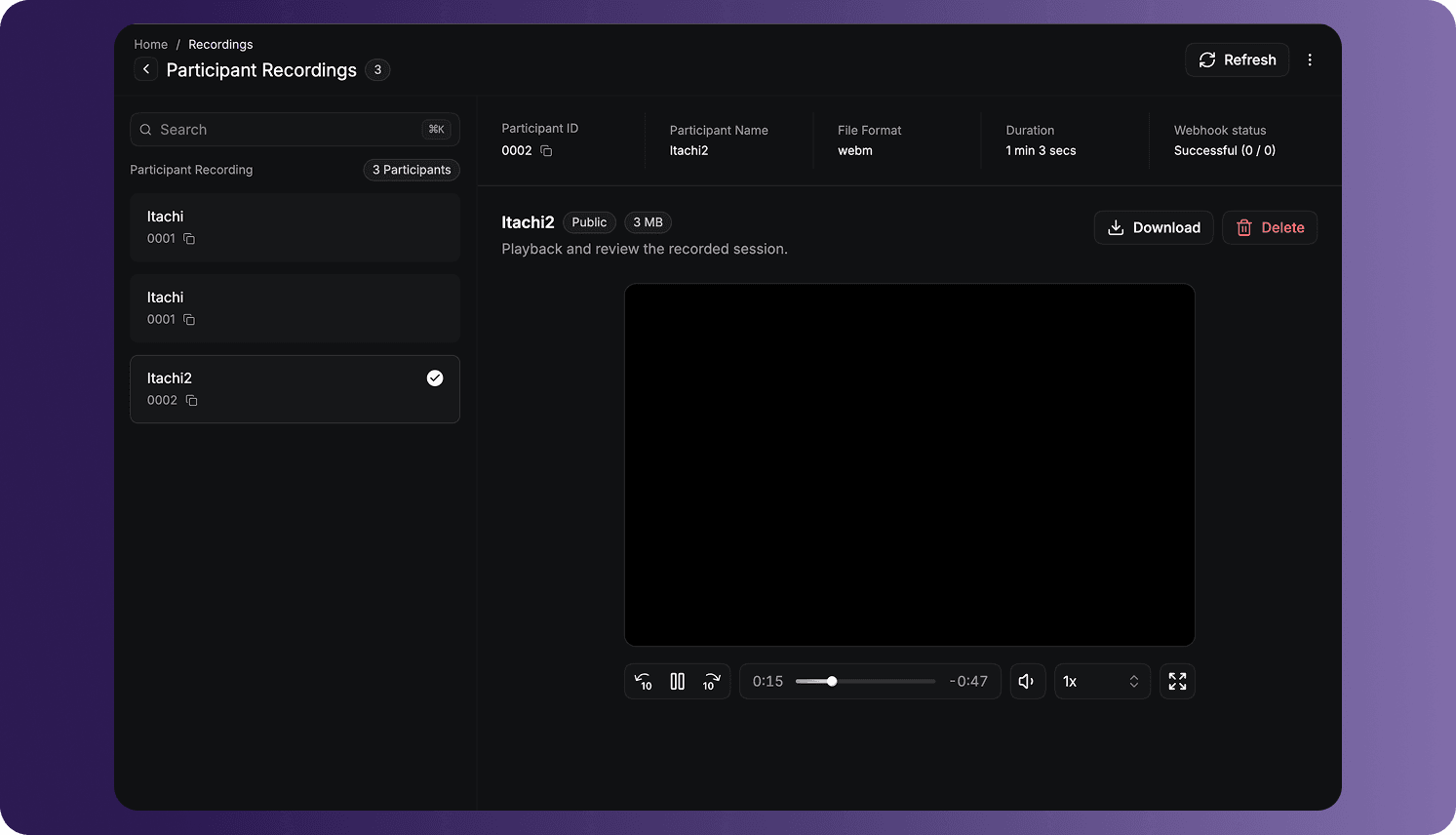
The details can include:
| Field | Description |
|---|---|
| Participant ID | The unique ID of the recorded participant. |
| Participant Name | The participant's display name. |
| File Format | The recording file format, such as webm. |
| Duration | The total length of the participant recording. |
| Webhook status | The delivery status recorded for recording webhooks. |
The left panel lists the available participant recordings. Select a participant to load that participant's media, then use the player or the Download and Delete actions.
A Track Recording contains an individual media track recorded for a participant.
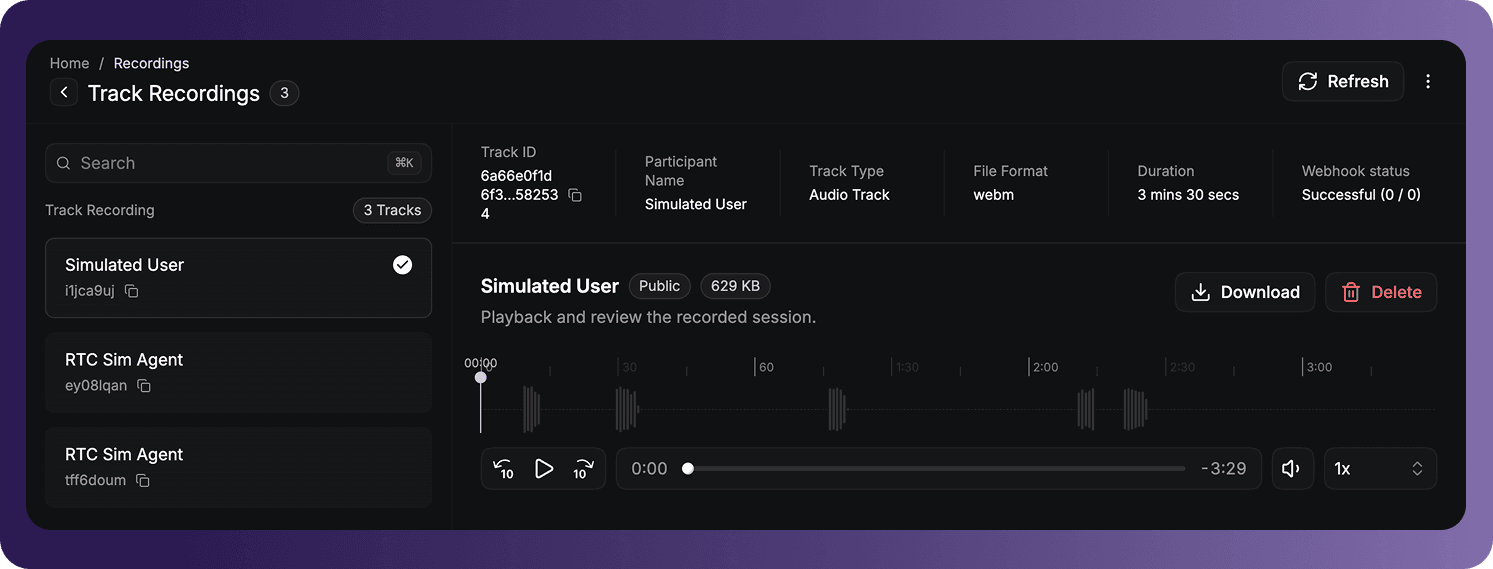
The details can include:
| Field | Description |
|---|---|
| Track ID | The unique ID of the recorded media track. |
| Participant Name | The name of the participant associated with the track. |
| Track Type | The media type of the track, such as an audio track. |
| File Format | The recording file format, such as webm. |
| Duration | The total length of the track recording. |
| Webhook status | The delivery status recorded for recording webhooks. |
The left panel lists the available tracks. Select a track to load its details and player. Audio tracks use an audio player, while playable video tracks can provide video playback.
A Composite Recording contains a combined recording output of a session.
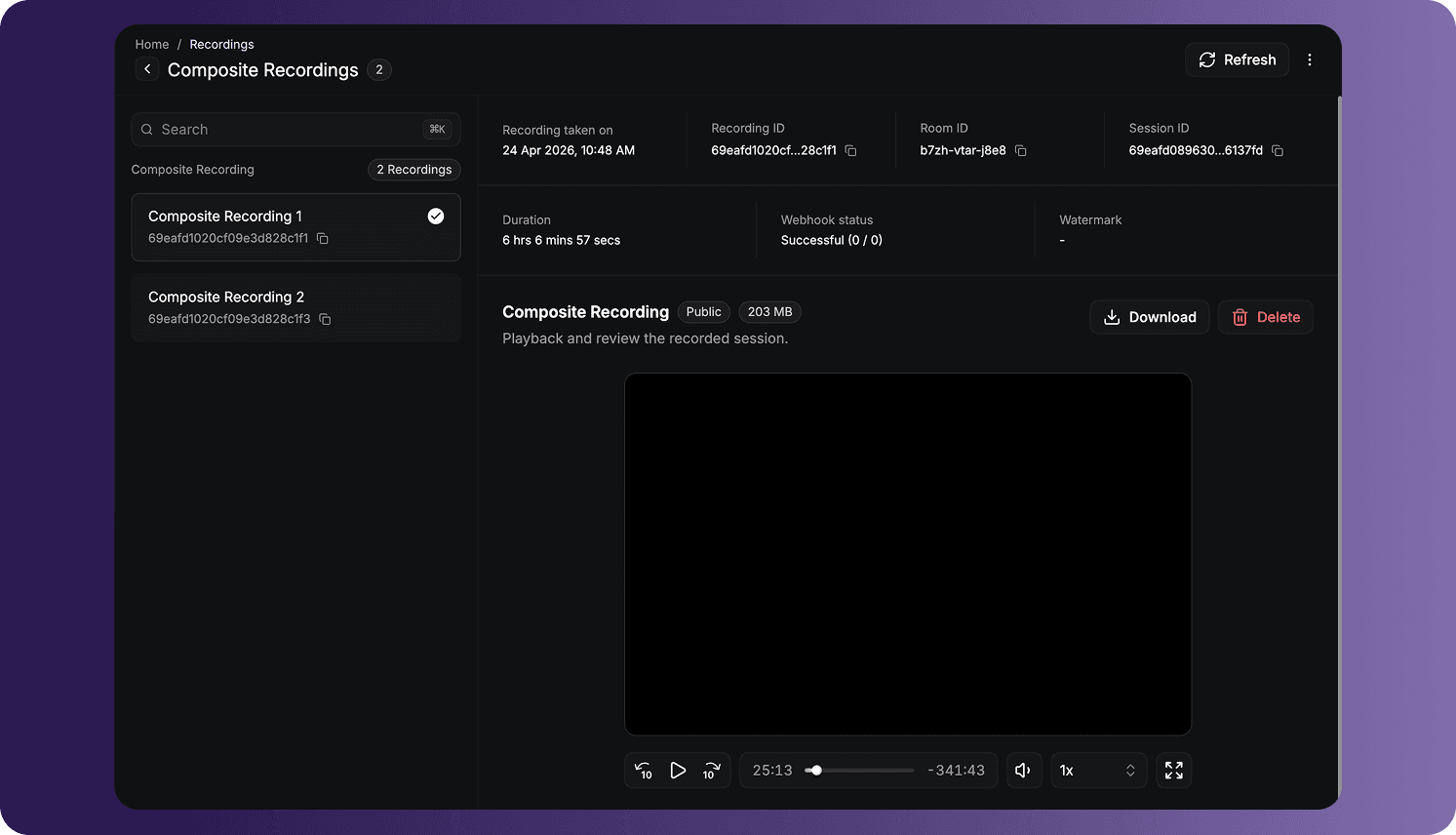
The details can include:
| Field | Description |
|---|---|
| Recording taken on | The date and time when the recording was created. |
| Recording ID | The unique ID of the composite recording. |
| Room ID | The unique ID of the room associated with the recording. |
| Session ID | The unique ID of the recorded session. |
| Duration | The total length of the composite recording. |
| Webhook status | The delivery status recorded for recording webhooks. |
| Watermark | Indicates the watermark information associated with the recording, when available. |
Select a composite recording from the left panel to load that output in the player and access its Download or Delete action.
Fields, playback options, transcription, summaries, and actions depend on the recording type, recording configuration, processing status, and data available for the selected output.
Got a Question?  Ask us on discord

