Sessions
The Sessions page lists the meeting sessions created in your organization. Use it to find a session, review its basic information, and open its detailed analytics.
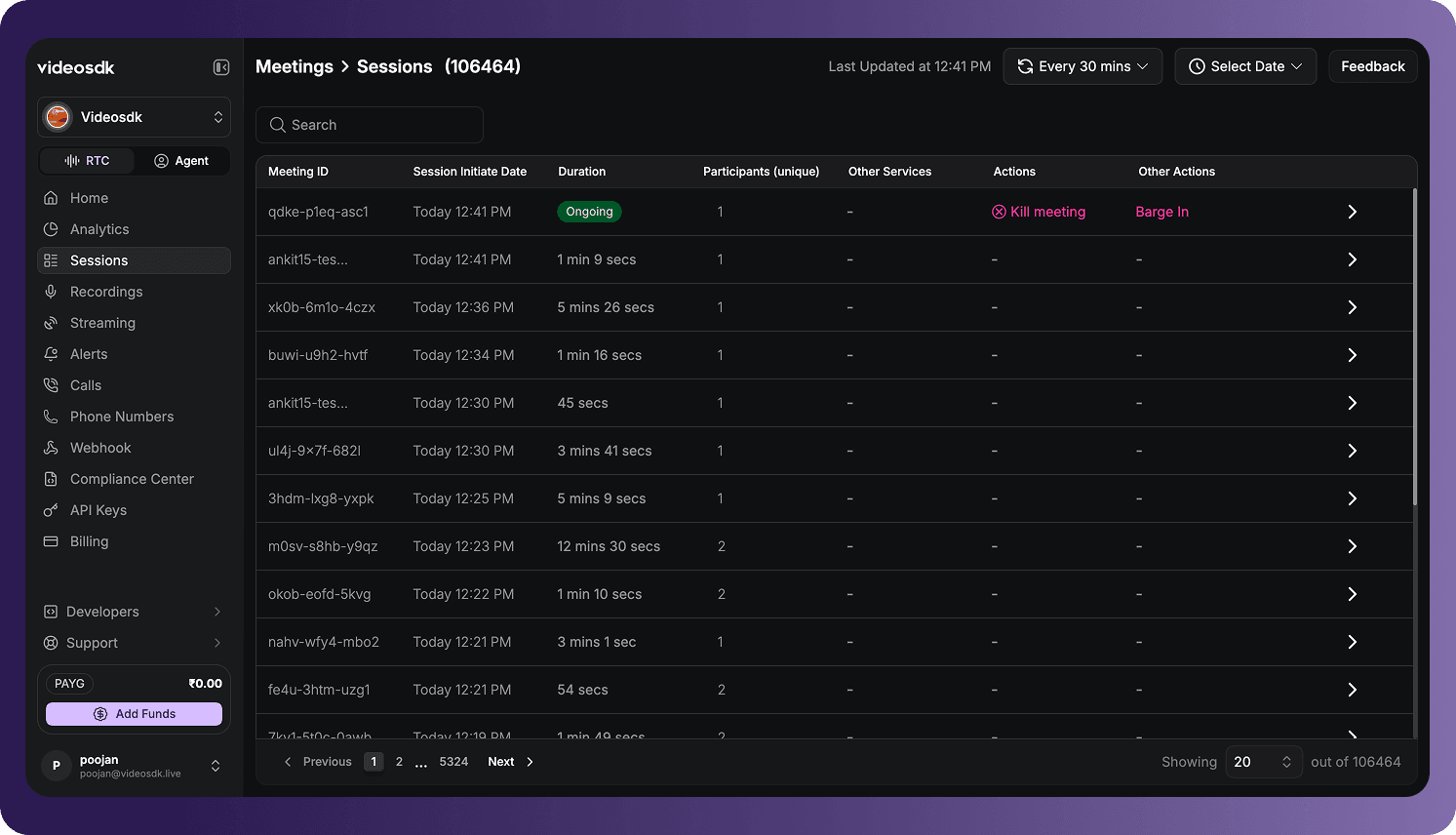
To access the page:
- Sign in to the VideoSDK Dashboard.
- Select RTC.
- Select Sessions from the navigation sidebar.
The number displayed beside the Sessions heading is the total number of session records in the selected organization.
Find and Filter Sessions
Use the controls above the table to find sessions and control how the list is updated:
- Search: Enter a meeting ID to find its sessions.
- Refresh interval: Select how frequently the session list refreshes. Last Updated shows when the data was most recently refreshed.
- Select Date: Limit the session list to the selected date or date range.
Sessions Table
The table displays one meeting session per row.
| Column | Description |
|---|---|
| Meeting ID | The unique ID of the meeting associated with the session. |
| Session Initiate Date | The date and time when the session was initiated. |
| Duration | The total time between the start and end of the session. |
| Participants (unique) | The number of unique participants who joined the session. A participant who reconnects is counted once. |
| Other Services | Additional VideoSDK services used during the session, when available. |
| Actions | Actions available for the session or its related services. |
| Other Actions | Additional options available for the session, such as View Analytics. |
A dash (-) indicates that no value or action is available for that field.
To open a session record, select its meeting ID, select View Analytics, or select the arrow at the end of its row.
Navigate the Session List
Use the controls below the table to:
- Move to the previous or next page.
- Select a specific page.
- Change the number of session records displayed per page.
The counter at the bottom of the table shows the number of displayed records and the total number of available records.
Session Details
Opening a session record shows detailed information and diagnostics for that session. The header displays the meeting ID and duration. It also provides options to download the session chat and share its analytics when those actions are available.
The information and actions available in a session record depend on the services used and the data collected during that session.
Session details are organized into the following tabs:
Session Overview
View session metadata, service usage, and the participant timeline.
Session Stats
View session-level media-quality and device-performance statistics.
Traces
Inspect operations, events, timings, and diagnostic properties recorded during the session.
Errors
Review participant-associated errors and diagnostic details reported during the session.
Got a Question?  Ask us on discord

