Errors
The Errors tab lists errors recorded during a meeting session. Use it to identify affected participants, understand failed or invalid operations, and gather context for troubleshooting.
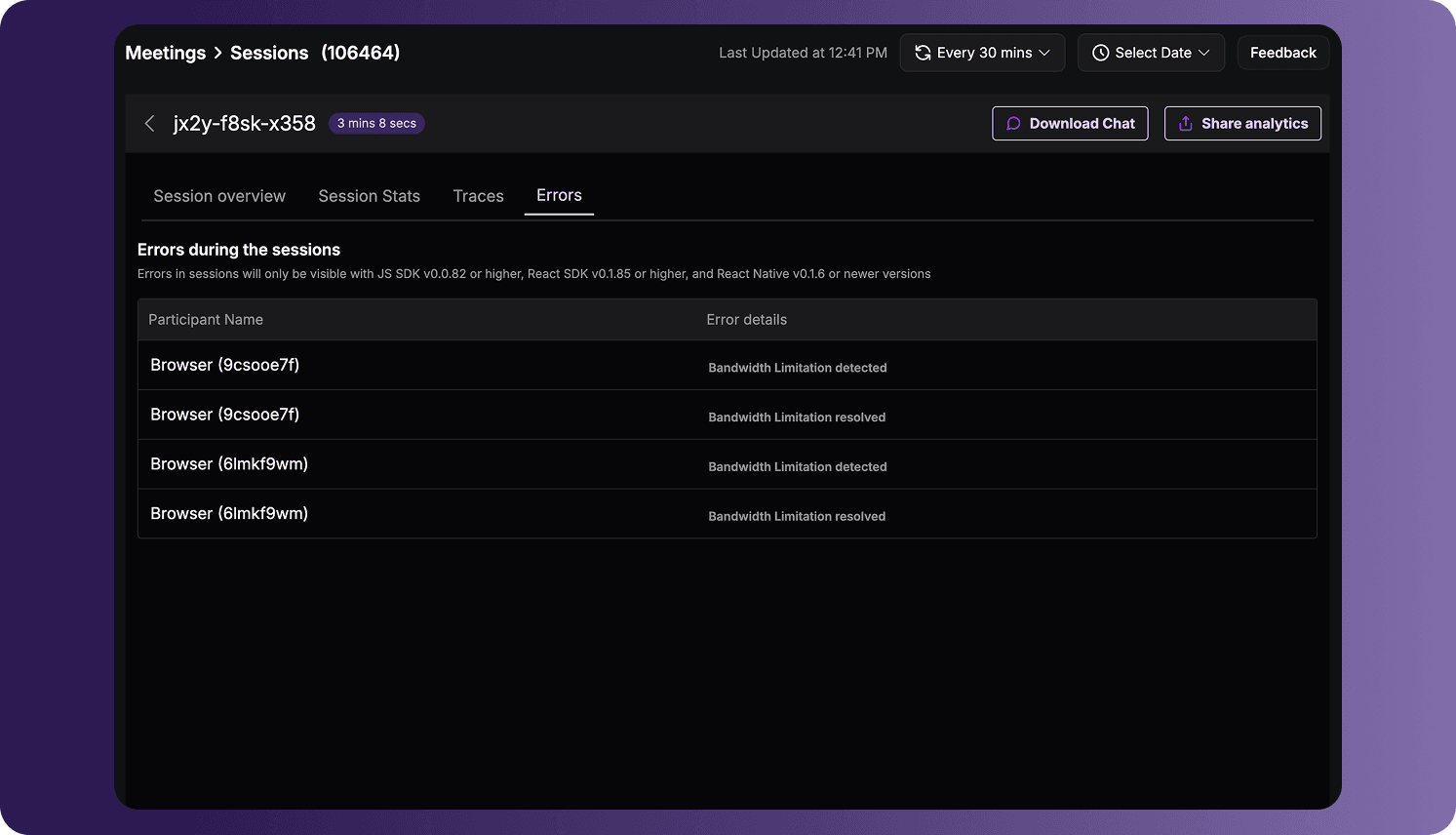
To open the tab:
- Sign in to the VideoSDK Dashboard.
- Select RTC and go to Sessions.
- Open a session record.
- Select Errors.
Errors Table
Each row represents an error occurrence recorded during the session.
| Column | Description |
|---|---|
| Participant Name | The display name and participant ID associated with the error. |
| Error details | Information about the operation that produced the error, the reported error message, and an explanation when available. |
The same participant can appear in multiple rows when more than one error was recorded. Repeated error messages indicate that the same type of error occurred more than once.
Interpret an Error
An error entry can provide:
- The SDK method, operation, or session activity associated with the error.
- A short description of the reported problem.
- Additional context about why the operation could not be completed.
- The participant associated with the occurrence.
For example, an error can indicate that an application attempted to perform a media action that was not valid for the participant's current state. The exact errors and details shown depend on the SDK and the activity recorded during the session.
Troubleshoot Session Errors
Use the information in an error entry to identify the affected operation and participant. You can then:
- Open Participant Details to review the participant's environment, timeline, and media-quality data.
- Open Traces to inspect the operations and state changes recorded around the issue.
- Check the application logic associated with the reported SDK method or operation.
- Compare repeated occurrences to determine whether the issue affected one participant or appeared across multiple clients.
Error Availability
Session errors are available only when they are supported and reported by the SDK version used by the participant. The dashboard displays the applicable minimum SDK-version requirements on the Errors tab.
If no errors are displayed, it can mean:
- No supported errors were recorded during the session.
- The participant used an SDK or SDK version that does not provide this error data.
- The required diagnostic data was not available for the session.
The Errors tab contains the errors reported to VideoSDK for the session. Its contents can vary by SDK, SDK version, platform, application behavior, and the diagnostic data collected.
Got a Question?  Ask us on discord

