Session Overview
The Session Overview tab summarizes a meeting session and shows when each participant joined and left. Use it to confirm the session status, review service usage, and inspect participant activity.
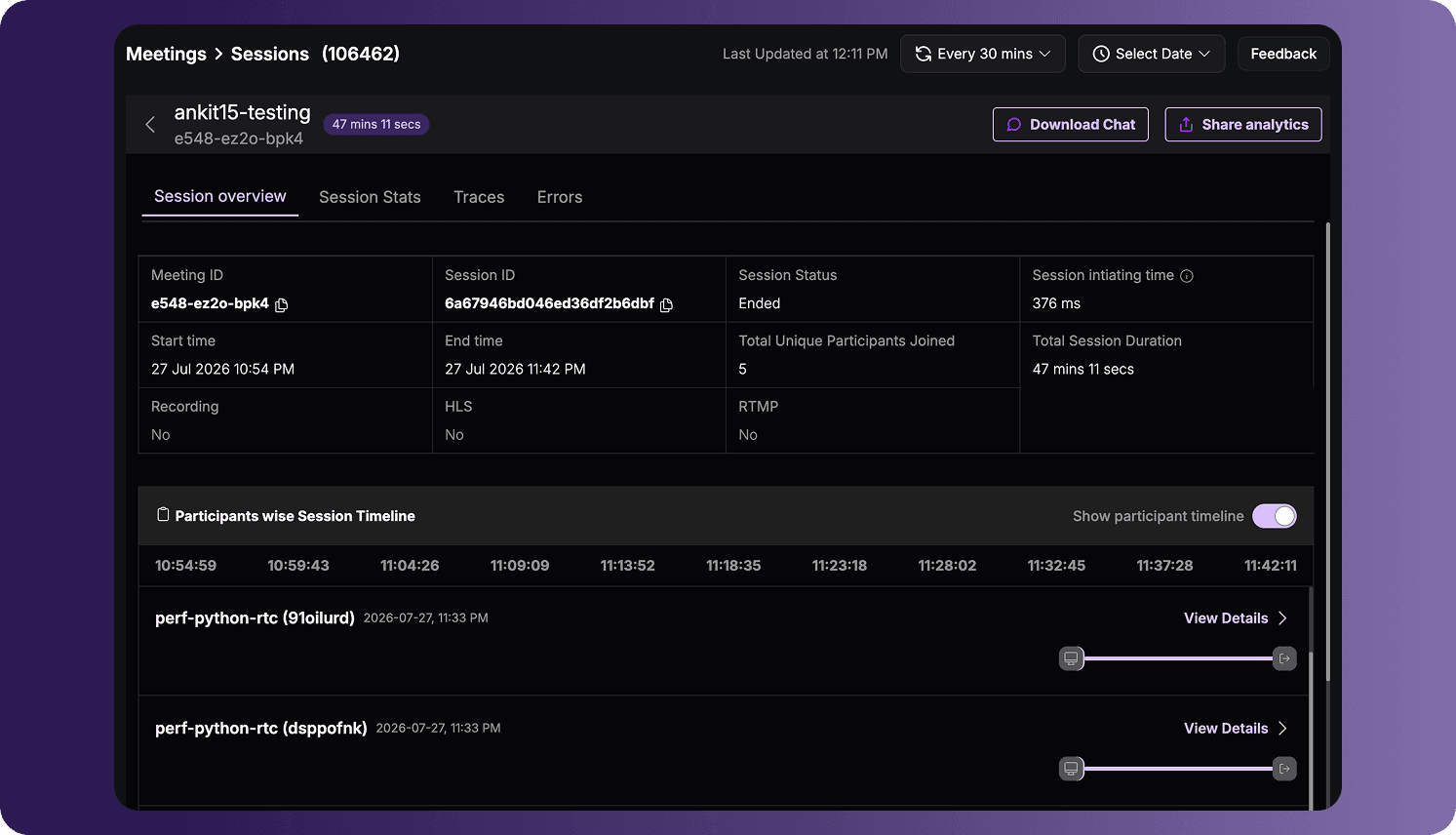
To open the tab:
- Sign in to the VideoSDK Dashboard.
- Select RTC and go to Sessions.
- Open a session record.
- Select Session Overview.
Session Header
The session header shows the meeting ID and the total session duration. Depending on the data available for the session, you can also:
- Select Download Chat to download the chat messages exchanged during the session.
- Select Share analytics to share the session analytics.
- Select the back arrow to return to the sessions list.
Session Summary
The summary section provides the following session information:
| Field | Description |
|---|---|
| Meeting ID | The unique ID of the meeting associated with the session. |
| Session ID | The unique ID generated for this specific meeting session. |
| Session Status | The current state of the session, such as Ended. |
| Session initiating time | The time taken to initiate the session. |
| Start time | The date and time when the session started. |
| End time | The date and time when the session ended. |
| Total Unique Participants Joined | The total number of unique participants who joined the session. |
| Total Session Duration | The elapsed time between the start and end of the session. |
| Recording | Indicates whether recording was used during the session. |
| HLS | Indicates whether HLS streaming was used during the session. |
| RTMP | Indicates whether RTMP streaming was used during the session. |
Use the copy icon beside the meeting ID or session ID to copy the corresponding value.
Participants-wise Session Timeline
This section shows participant activity for the session. Use the Show participant timeline toggle to switch between a graphical timeline and a table.
Timeline View
When Show participant timeline is enabled, each participant appears on a session-wide time scale. The horizontal bar indicates when the participant joined, how long they remained connected, and when they left.
The timeline marks participant and media events, including:
- Joining and leaving the session
- Starting and stopping the microphone
- Starting and stopping the webcam
Hover over an event icon to view the participant, the event that occurred, and its exact timestamp. This helps correlate a participant's media changes with other activity during the session.
Each participant entry displays the participant name and ID. Select View Details to open the Participant Details page.
Table View
When Show participant timeline is disabled, participant activity is displayed in a table.
| Column | Description |
|---|---|
| Participant ID | The unique ID assigned to the participant. |
| Participant Name | The participant's display name. |
| Join Time | The date and time when the participant joined the session. |
| Duration | The amount of time the participant remained in the session. |
| Mode | The participant mode used during the session, such as SEND_AND_RECV. |
| Actions | Actions available for the participant, when applicable. |
Select the arrow at the end of a participant row to open the Participant Details page. A dash (-) indicates that no additional action is available in the Actions column.
The fields, services, and actions shown on this page depend on the data collected and the features used during the session.
Got a Question?  Ask us on discord

