Traces
The Traces tab provides a structured view of the operations and events recorded during a meeting session. Use traces to understand how a participant or SDK progressed through session setup, permissions, meeting entry, and media connection.
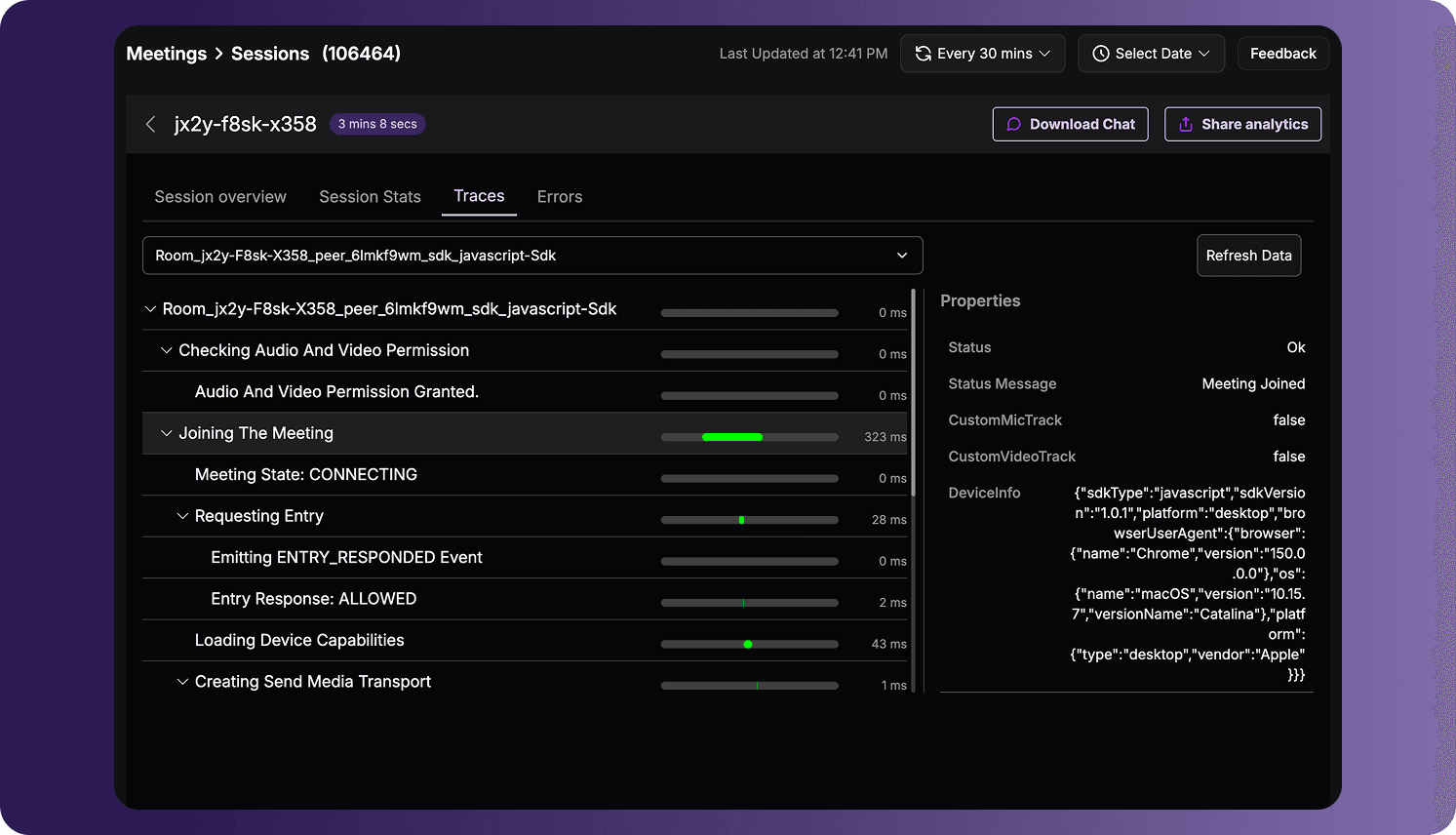
To open the tab:
- Sign in to the VideoSDK Dashboard.
- Select RTC and go to Sessions.
- Open a session record.
- Select Traces.
Select a Trace
Use the dropdown above the trace list to select the trace source you want to inspect. A session can contain multiple trace sources for different participants, peers, SDKs, or session components.
The name shown in the dropdown helps identify the room, peer, or SDK associated with the selected trace.
Read the Trace
The trace list presents recorded operations as a hierarchy:
- Parent operations represent broader stages or processes.
- Child events represent the steps, state changes, or results recorded within an operation.
- The bar beside an entry visualizes its timing.
- The duration at the end of an entry shows how long the recorded operation took, typically in milliseconds.
Use the arrow beside an operation to expand or collapse its child events.
For example, a meeting-join trace might contain events related to:
- Checking media permissions.
- Connecting to the meeting.
- Requesting entry.
- Loading device capabilities.
- Creating send and receive media transports.
- Establishing ICE and DTLS connections.
- Updating meeting or media-transport states.
These are representative examples only. The events shown depend on what occurred during the selected session.
Inspect Event Properties
Select a trace entry to inspect its Properties panel. Properties provide the context recorded for the selected operation or event.
Depending on the trace, properties can include:
| Property type | Examples |
|---|---|
| Result | Status and status message. |
| SDK context | SDK type, SDK version, platform, and telemetry state. |
| Device context | Device type, operating system, browser, and user agent. |
| Participant context | Display name, participant mode, and multistream state. |
| Media state | Microphone, webcam, or custom media-track state. |
| Session context | Session ID, signaling information, and related identifiers. |
Property names and values vary between trace entries. Some values can be empty or unavailable when they were not provided or did not apply to the recorded event.
Refresh Trace Data
Select Refresh Data to retrieve the latest trace information available for the session. This is useful when reviewing a recent or active session whose trace data might still be updating.
Use Traces for Troubleshooting
Traces can help you:
- Identify the stage at which session setup slowed down or stopped.
- Confirm whether permissions and entry requests completed.
- Follow meeting and media-transport state changes.
- Compare the recorded flow across participants or SDK clients.
- Review the environment and configuration associated with an event.
The Traces tab does not display a fixed set of events or properties. Available trace data depends on the SDK, SDK version, platform, session configuration, enabled telemetry, and the activity recorded during the session.
Got a Question?  Ask us on discord

