HLS Streaming
The HLS tab lists the HTTP Live Streaming (HLS) streams created for meetings in your organization. Use it to review stream timing, open stream details, access playback URLs, or delete a stream record.
Open HLS Streaming
To access the page:
- Sign in to the VideoSDK Dashboard.
- Select RTC and go to Streaming.
- Select HLS.
Find an HLS Stream
Use Search to find an HLS stream by its meeting ID. Select Refresh to retrieve the latest stream information.
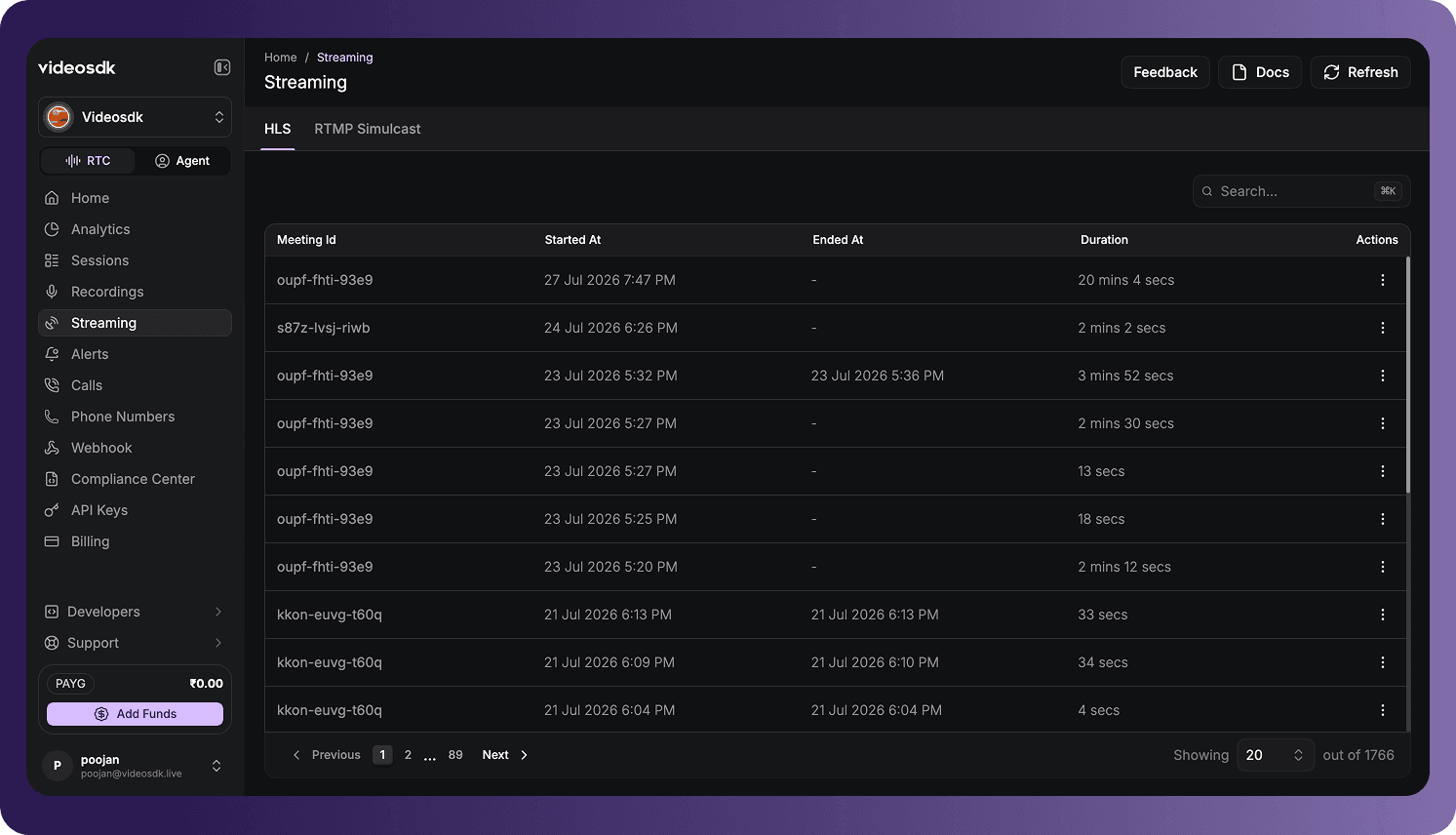
HLS Streams Table
Each row represents an HLS streaming instance associated with a meeting.
| Column | Description |
|---|---|
| Meeting Id | The unique ID of the meeting associated with the HLS stream. |
| Started At | The date and time when HLS streaming started. |
| Ended At | The date and time when HLS streaming ended. |
| Duration | The elapsed streaming time. |
| Actions | Provides actions for viewing or deleting the HLS stream. |
If a meeting ID is shortened, hover over it to view the complete value. A dash (-) indicates that an end time is not available, such as when a stream has not ended or the value was not recorded.
HLS Stream Actions
Open the three-dot menu in the Actions column to access:
- View: Open the HLS stream details.
- Delete: Remove the HLS stream record.
Deleting an HLS stream is a destructive action. Confirm that you no longer need the stream before continuing.
Navigate the HLS List
Use the controls below the table to:
- Move to the previous or next page.
- Select a specific page.
- Change the number of HLS records displayed per page.
The counter at the bottom of the table shows the number of displayed records and the total number of available records.
HLS Stream Details
Select View for an HLS stream to open its detailed view.
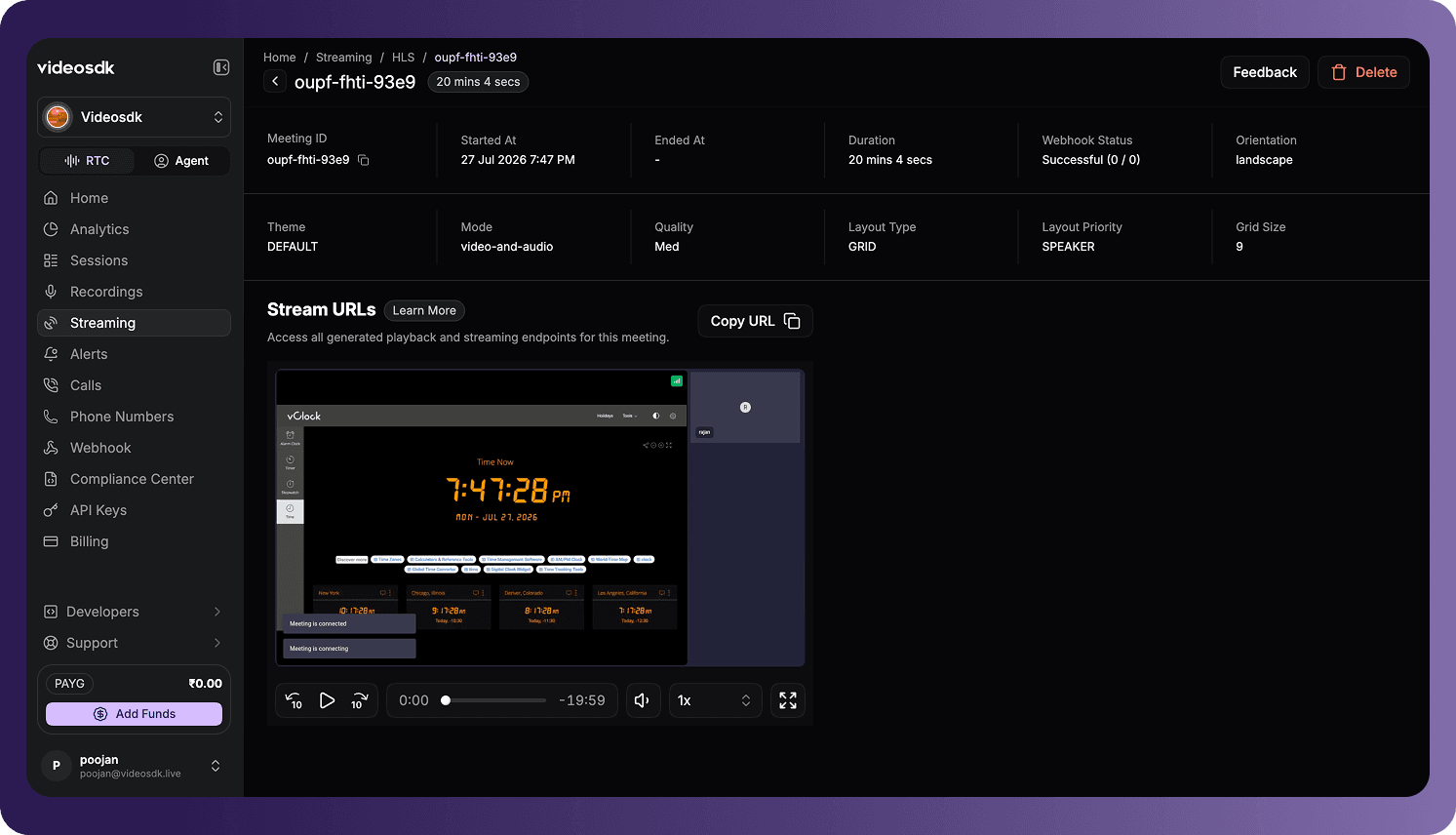
The page header displays the meeting ID and stream duration. The details can include:
| Field | Description |
|---|---|
| Meeting ID | The unique ID of the meeting associated with the stream. |
| Started At | The date and time when HLS streaming started. |
| Ended At | The date and time when HLS streaming ended. |
| Duration | The elapsed streaming time. |
| Webhook Status | The delivery status recorded for HLS-related webhooks. |
| Orientation | The configured stream orientation, such as landscape. |
| Theme | The visual theme applied to the stream layout. |
| Mode | The media included in the stream, such as video and audio. |
| Quality | The configured HLS stream quality. |
| Layout Type | The layout used to arrange participant media, such as grid. |
| Layout Priority | The rule used to prioritize participants in the layout. |
| Grid Size | The configured number of positions in the grid layout. |
Use the copy icon beside the meeting ID to copy its value. Select the back arrow to return to the HLS list.
Stream URLs and Playback
The Stream URLs section provides the generated playback and streaming endpoints available for the meeting.
- Select Copy URL to copy the available stream URL.
- Select Learn More to open additional information about using HLS stream URLs.
- Use the player to preview the stream when playback is available.
The player can provide controls to:
- Play or pause the stream.
- Move backward or forward by 10 seconds.
- Seek to a point on the playback timeline.
- Adjust the volume.
- Change the playback speed.
- Enter full-screen mode.
The player or stream URL might not be available until the HLS stream has started and the required stream data has been generated.
Delete an HLS Stream
Select Delete in the detail-page header to remove the current HLS stream. You can also delete it from the row action menu on the HLS list.
Fields, stream URLs, playback, webhook information, and actions depend on the HLS configuration, stream state, and data available for the selected meeting.
Got a Question?  Ask us on discord

