User Experience Guidelines - iOS
These practices help users join prepared, follow what happens in the room, switch devices and spot a poor connection:
| Section | Description |
|---|---|
| Configure Precall Before Joining | Users may enter rooms unprepared due to device or connection issues. A Precall setup can help them configure devices and settings beforehand for a smooth start. |
| Monitor Key Events for Optimal User Experience | Users can feel lost without real-time updates on room status, events, and errors. Event monitoring and notifications keep them informed and engaged. |
| Handling Media Devices | Users may want to change their audio or video setup while in a room but struggle to manage device controls. Providing easy device switching enhances control and flexibility. |
| Monitoring Real-Time Participant Statistics | Poor video or audio quality without real-time feedback leaves users frustrated. Real-time stats let them assess connection quality and troubleshoot issues actively. |
Configure Precall Before Joining
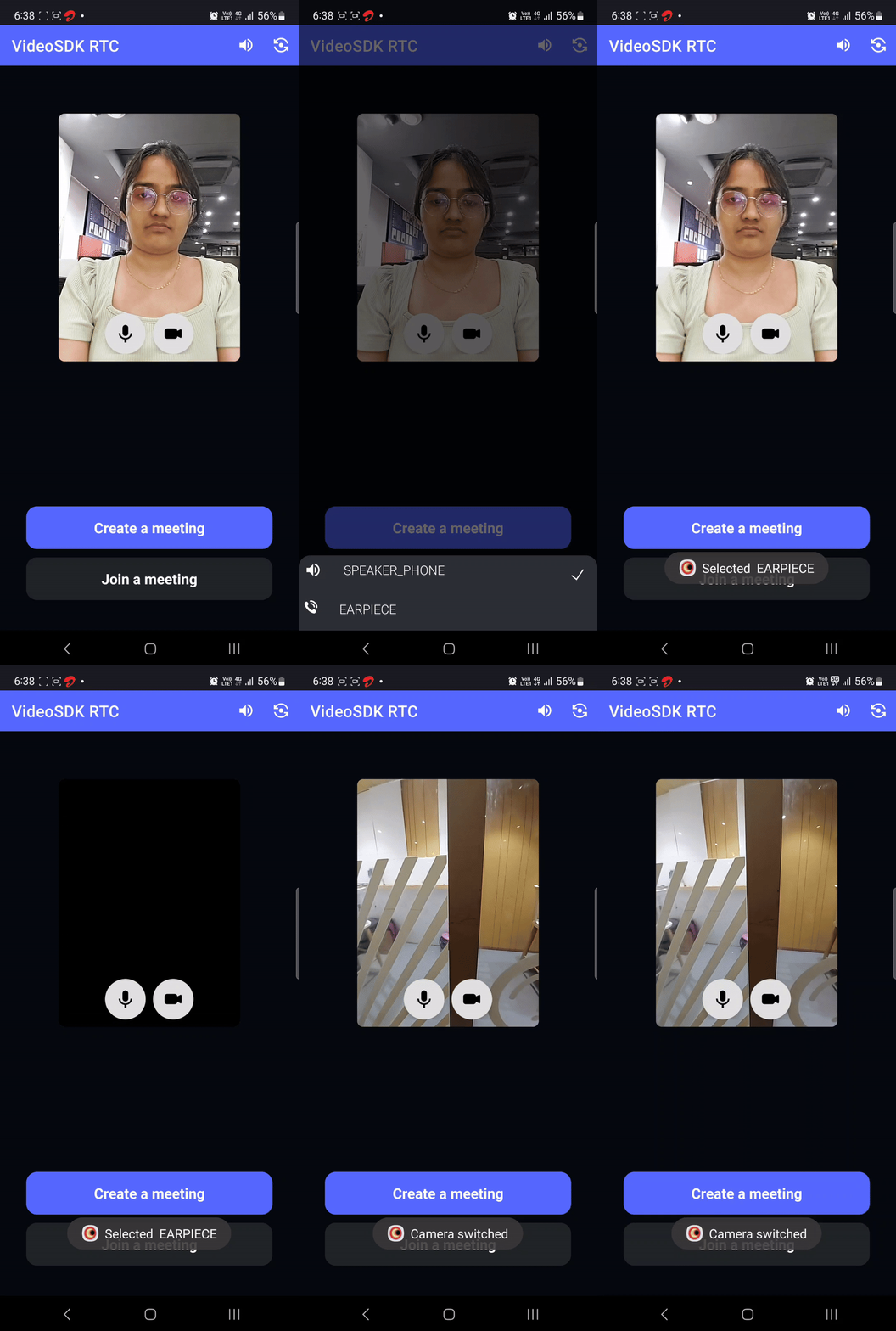
A Precall step lets users grant permissions, choose and check their devices, and pick their settings before they join a room.
Recommended Practices:
Request Permissions: Prompt users to grant microphone and camera permissions before entering the room.Device Selection: Allow users to select their preferred camera and microphone, giving them control over their setup from the start.Entry Preferences: Provide options to join with the microphone and camera either on or off, letting users choose their level of engagement upon entry.Camera Preview: Show a live camera preview, allowing users to adjust angles and lighting to ensure they appear clearly and professionally.Virtual Backgrounds: Allow users to choose from different virtual backgrounds or enter with a virtual background enabled, enhancing privacy and creating a more polished appearance.Network Check: Run runPreCallTest() before the user joins. It checks the camera and microphone and measures the network, so you can warn users about a poor connection before the call starts.
For detailed setup instructions on each of these features, check out our in-depth documentation here.
Monitor Key Events for Optimal User Experience
Listening for crucial events is vital for providing users with a responsive and engaging experience in your application. By effectively managing state changes and user notifications, you can keep participants informed and enhance their overall experience in the room.
Recommended Practices:
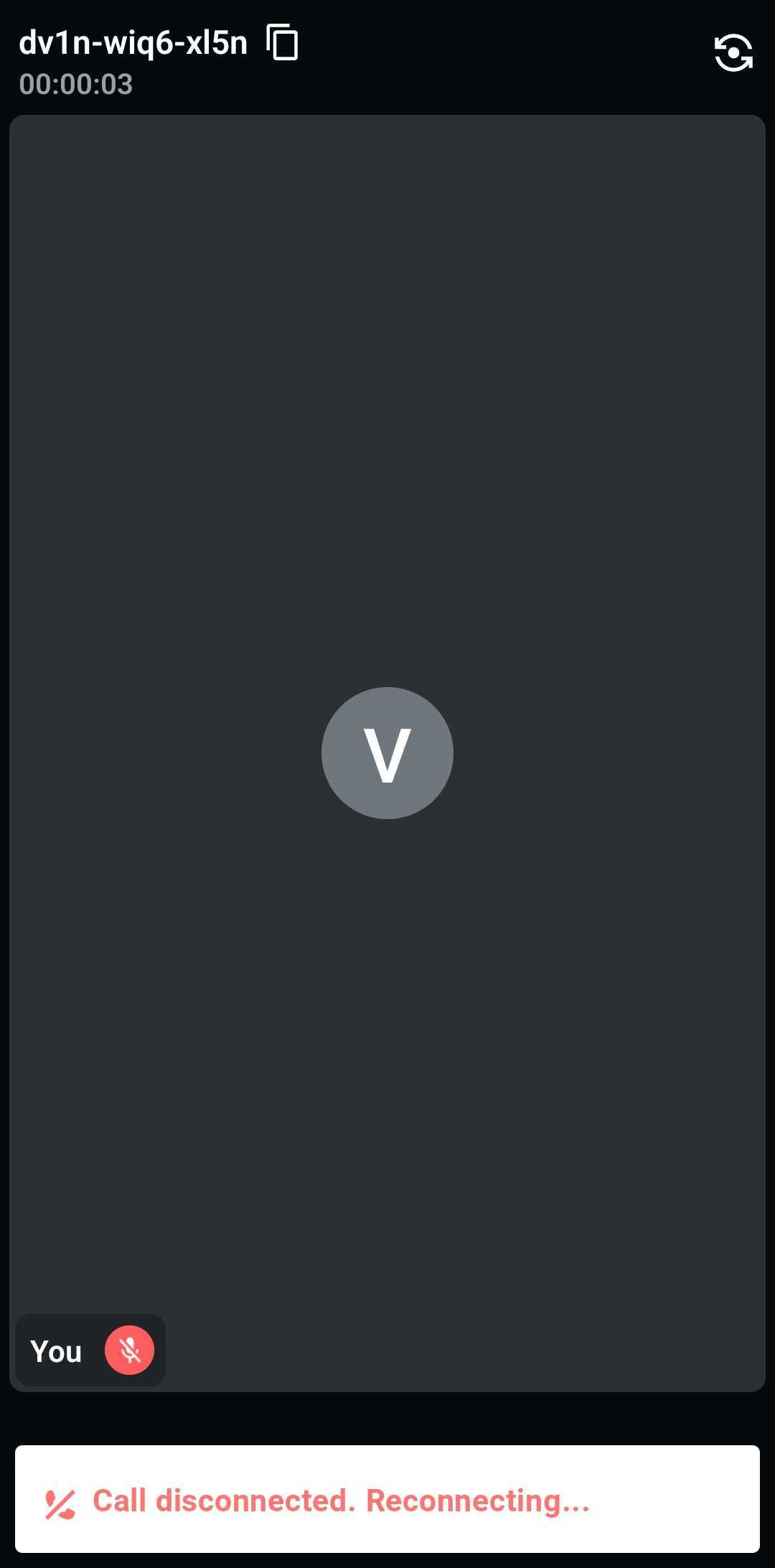
Monitor State Change Events: Listen for state change events, such asonRoomStateChangedandonRecordingStateChanged, and notify users promptly about these transitions. Keeping users informed helps them understand the current state of the room.
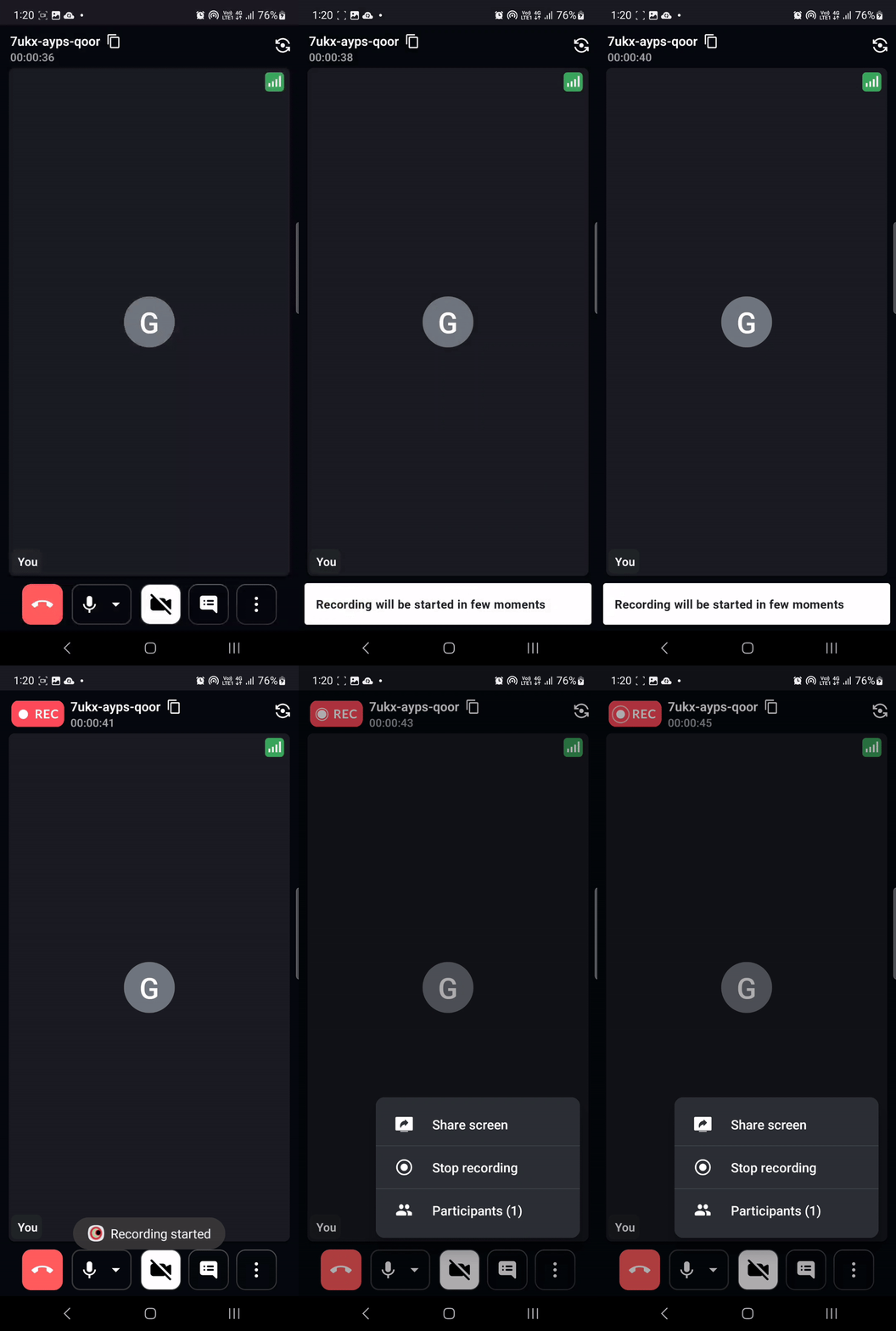
UI Handling on Event Trigger: Update the user interface only in response to specific events. For instance, display that the room is recording only when theonRecordingStateChangedevent with the statusRECORDING_STARTEDis received, rather than when the record button is clicked. This ensures users receive accurate and timely updates.
Notify Participants of Join/Leave Events: Keep users informed about participant activity by notifying them when someone joins or leaves the room. This fosters a sense of presence and awareness of who is currently available to engage.Listen for Error Events: It is crucial to monitor error events and notify users promptly when issues arise. Clear communication about errors can help users troubleshoot and address problems quickly, minimizing disruptions to the room. Most methods throw aVideoSDKErrorwhen they fail, so catch these errors and show them too. Some errors, such as a failedjoin(), are thrown and also sent toonError, so show each error only once. See Error Events.
Handling Media Devices
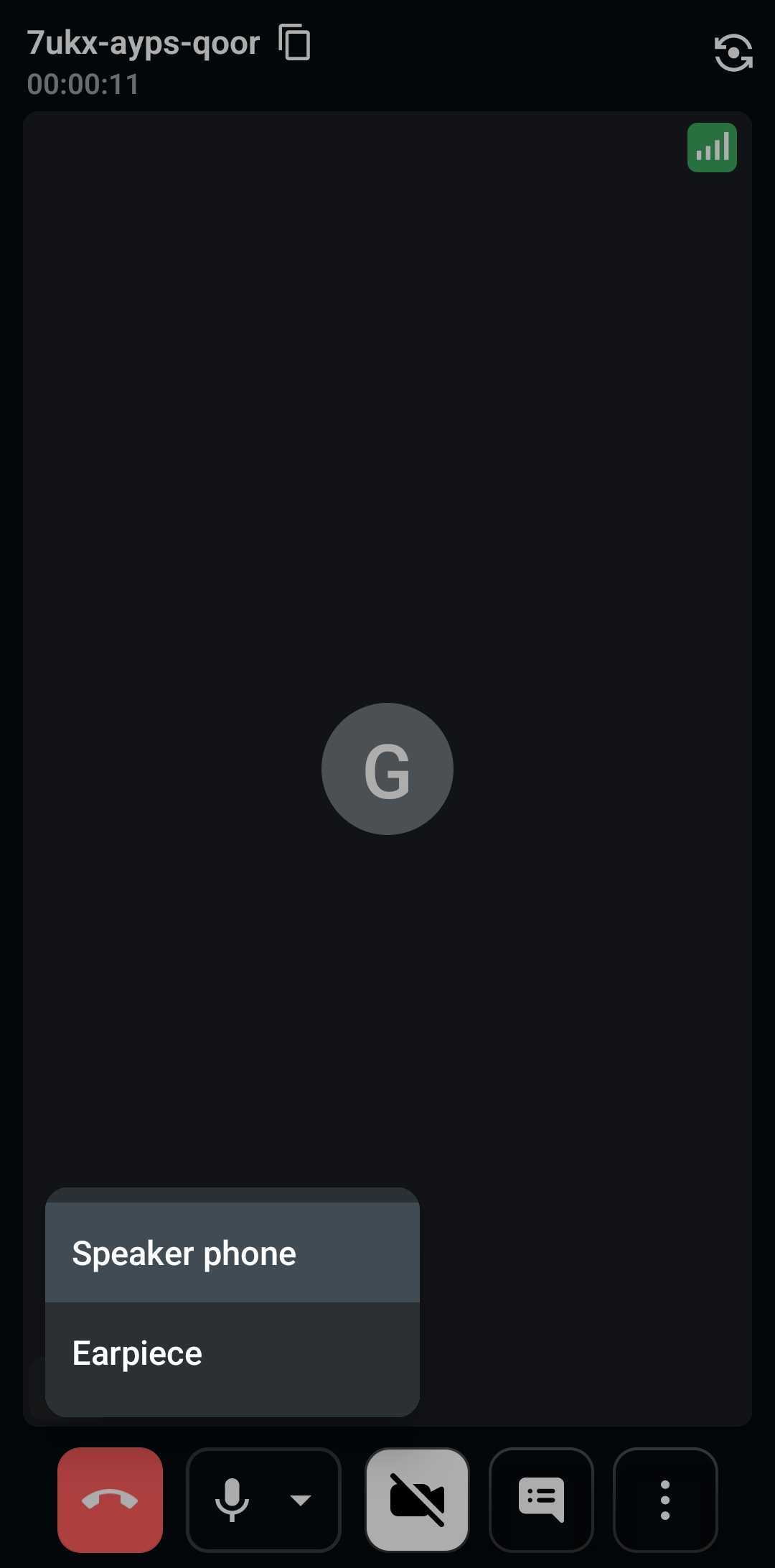
Let participants choose their camera, microphone and speaker. Proper device management within the UI also helps users stay informed about their current settings and troubleshoot issues effectively.
Recommended Practices:
Allow Device Switching: Provide users with the option to switch between available microphone and camera devices while in the room. This flexibility is essential, especially if users want to adjust their setup mid-call.Display Selected Devices: Ensure the UI shows users which microphone and camera devices are currently selected. Clear device labeling in the interface can reduce confusion and help users verify their setup at a glance.
Monitoring Real-Time Participant Statistics
Providing real-time insights into stream quality allows participants to monitor and optimize their connection for the best experience. With detailed metrics on video, audio, and screen sharing, users can assess and troubleshoot quality issues, ensuring smooth and uninterrupted sessions. To display these statistics, you can use the getVideoStats(), getAudioStats(), and getShareStats() methods.
Got a Question?  Ask us on discord

