Setup HLS Player - iOS
In this guide, we will add player which will be responsible for playing the HLS stream. Before starting this guide, make sure you have a VideoSDK meetings setup allowing you to join the room. To learn more about setting up a VideoSDK meeting, follow this quick start guide.
To play the HLS stream we will be using the native AVKit's VideoPlayer.
1. Setup player into your project
Step 1: Let's first add common component for Video Player.
import SwiftUI
import AVKit

struct HLSVideoPlayer: View {
    let url: URL
    let width: CGFloat?
    let height: CGFloat?

    @State private var player: AVPlayer = AVPlayer()

    var body: some View {
        ZStack {
            VideoPlayer(player: player)
                .frame(width: width ?? 400, height: height ?? 400)
                .background(Color.black)
                .onAppear {
                    setupPlayer()
                }
                .onDisappear {
                    player.pause()
                }
        }
    }

    private func setupPlayer() {
        let item = AVPlayerItem(url: url)
        player.replaceCurrentItem(with: item)
        player.play()
    }
}
Step 2: Now let's add the HLSVideoPlayer which will display livestreaming in MeetingView.swift. For these, we will use the onHlsStateChanged event from the MeetingEventListener abstract class to identify if there is an active HLS.
import SwiftUI
import VideoSDKRTC

struct MeetingView: View {
    //...

    var body: some View {
        //...
            VStack(spacing: 20) {
                //...
                if controller.role == .host {
                    //... view when role of joinee is host
                } else {
                    if ((controller.hlsState == .HLS_STARTED || controller.hlsState == .HLS_PLAYABLE) && controller.playbackURL != nil) {
                        HLSVideoPlayer(
                            url: URL(string: controller.playbackURL ?? "")!,
                            width: .infinity,
                            height: .infinity
                        )
                        .cornerRadius(12)
                        .padding()
                        Spacer()
                    } else {
                        Spacer()
                        Text("Waiting for host\nto start the live streaming")
                            .font(.title)
                            .foregroundStyle(.white)
                            .bold(true)
                            .multilineTextAlignment(.center)
                        Spacer()
                    }
                }

                //...
            }
        }
        .navigationBarBackButtonHidden(true)
        .navigationBarHidden(true)
    }
    //...
2. Initialize player and Playing HLS stream
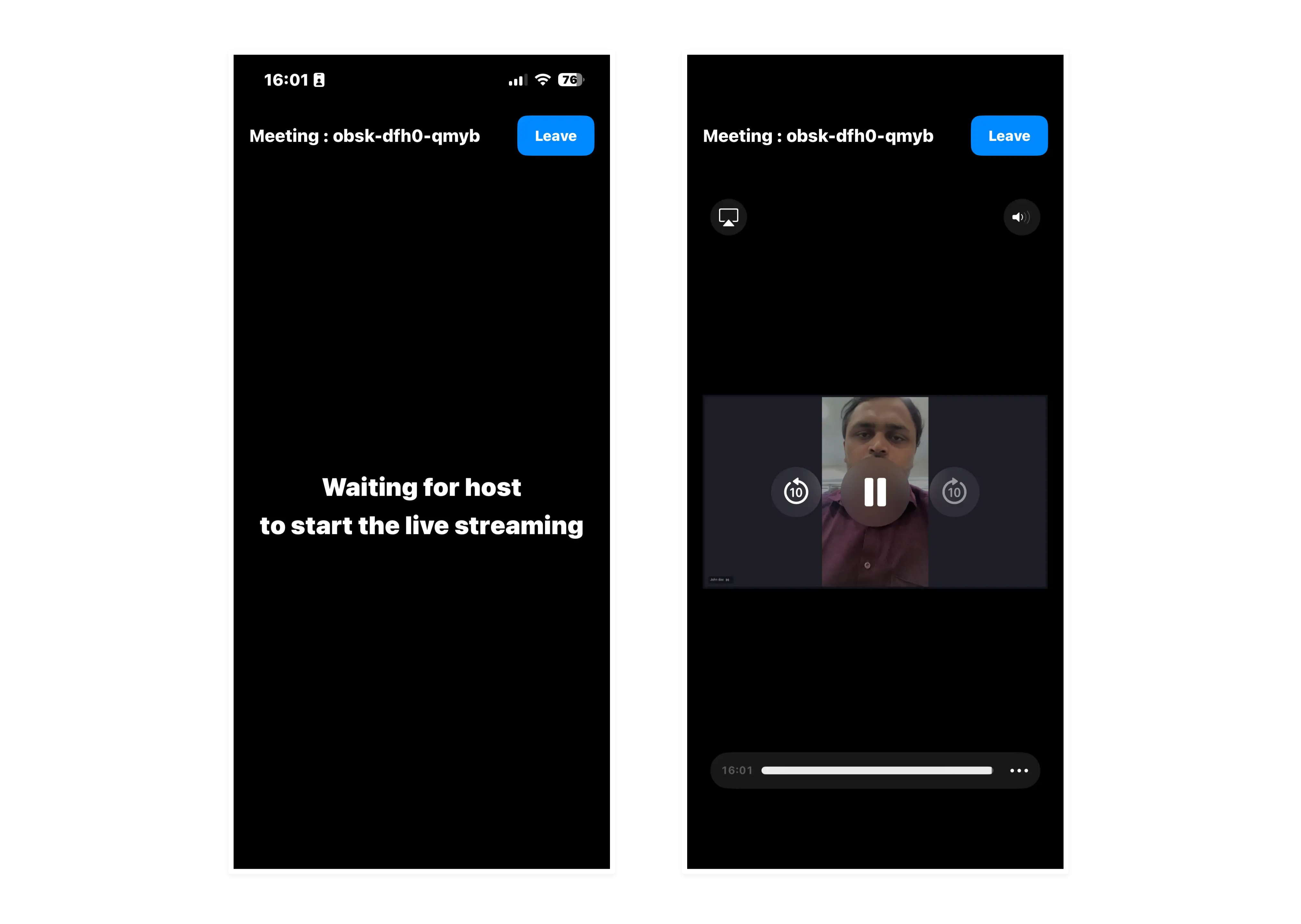
Now that player is setup, let's initialize player and play the HLS once it becomes playable. For these, we will get the playbackHlsUrl and livestreamUrl when the onHlsStateChanged event of MeetingEventListener state changes to HLS_PLAYABLE then we will updated the controller's playbackURL variable and it will start video player automatically until then it will show label of Waiting for host to start the live streaming to the viewers.
- when you receive
HLS_PLAYABLEstatus you will receive 2 urlsplaybackHlsUrl- Live HLS with playback supportlivestreamUrl- Live HLS without playback support
downstreamUrl is now deprecated. Use playbackHlsUrl or livestreamUrl in place of downstreamUrl
//...
class MeetingViewController: ObservableObject {
    //...
    @Published var playbackURL: String? = nil

    init(meetingId: String, role: UserRole) {
        //...
        initializeMeeting()
    }

    // MARK: - Meeting Initialization
    func initializeMeeting() {
        VideoSDK.config(token: AUTH_TOKEN)

        let videoMediaTrack = try? VideoSDK.createCameraVideoTrack(
            encoderConfig: .h720p_w1280p,
            facingMode: .front,
            multiStream: true
        )
        meeting = VideoSDK.initMeeting(
            meetingId: meetingId,
            participantName: "John doe",
            micEnabled: self.isMicOn,
            webcamEnabled: self.isWebcamOn,
            customCameraVideoStream: videoMediaTrack,
            multiStream: true,
            mode: self.role == .viewer ? .SIGNALLING_ONLY : .SEND_AND_RECV
        )
        // Add event listeners and join the meeting
        meeting?.addEventListener(self)
        meeting?.join()
    }
    //...
}

extension MeetingViewController: MeetingEventListener {
    //...
    func onHlsStateChanged(state: HLSState, hlsUrl: HLSUrl?) {
        hlsState = state
        switch (state) {
        case .HLS_PLAYABLE:
            playbackURL = hlsUrl?.playbackHlsUrl ?? ""
        default:
            print("HLS State: \(state.rawValue)")
        }
    }
}
//...
API Reference
The API references for all the methods utilized in this guide are provided below.
Got a Question?  Ask us on discord

