Start HLS - iOS
Before starting the HLS, the prequisite steps require you to have a VideoSDK Meeting running which you want to use for interactive livestream. To learn more about setting up a interactive live streaming, you can follow the steps here in the quick start guide.
Starting HLS
Once the user has joined the meeting, startHls() can be used to start a interactive livestream of the meeting which can be accessed from the Meeting class. This method accepts two optional parameters:
-
config (optional): This parameter will define how the interactive livestream layout should look like. -
transcription(optional): This parameter will be used to enable post transcription for the recording with the given config.
- Swift
let config: HLSConfig = HLSConfig(

  // Layout Configuration
  layout: ConfigLayout(
    type: .GRID, // .SPOTLIGHT | .SIDEBAR,  Default : .GRID
    priority: .SPEAKER, // .PIN, Default : .SPEAKER
    gridSize: 4 // MAX : 25
  ),

  // Theme of livestream
  theme: .DARK, //  .LIGHT | .DEFAULT

  // `mode` is used to either interactive livestream video & audio both or only audio.
  mode: .video_and_audio, // .audio, Default : .video_and_audio

  // Quality of livestream and is only applicable to `video-and-audio` type mode.
  quality: .high,  // .low | .med,  Default : .med

  // This mode refers to orientation of recording.
  // landscape : Livestream the meeting in horizontally
  // portrait : Livestream the meeting in vertically (Best for mobile view)
  orientation: .portrait  // .portrait,  Default : .landscape
)

//  let transcription: PostTranscriptionConfig =  PostTranscriptionConfig(
//   enabled: true,
//   summary: SummaryConfig(
//           enabled: true,
//           prompt: "Write summary in sections like Title, Agenda, Speakers, Action Items, Outlines, Notes and Summary"
//       )
//   )

startHLS(config: config)
If you want only the SEND_AND_RECV participants to be seen in the livestream, you can pin all the participants in the SEND_AND_RECV mode and start the livestream with the SPOTLIGHT layout and pin as the PRIORITY.
Deprecated: Use SEND_AND_RECV instead of CONFERENCE
Example
- Swift
func startHLS() {
  let config: HLSConfig = HLSConfig(
    layout: ConfigLayout(
      type: .GRID, // .SPOTLIGHT | .SIDEBAR,  Default : .GRID
      priority: .SPEAKER, // .PIN, Default : .SPEAKER
      gridSize: 4 // MAX : 25
    ),
    theme: .DARK, //  .LIGHT | .DEFAULT
    mode: .video_and_audio, // .audio, Default : .video_and_audio
    quality: .high,  // .low | .med,  Default : .med
    orientation: .portrait  // .portrait,  Default : .landscape
  )

  // let transcription: PostTranscriptionConfig =  PostTranscriptionConfig(
  //   enabled: true,
  //   summary: SummaryConfig(
  //           enabled: true,
  //           prompt: "Write summary in sections like Title, Agenda, Speakers, Action Items, Outlines, Notes and Summary"))

  DispatchQueue.main.async {
    self.meeting?.startHLS(config: config)
  }
}
Understanding Layouts
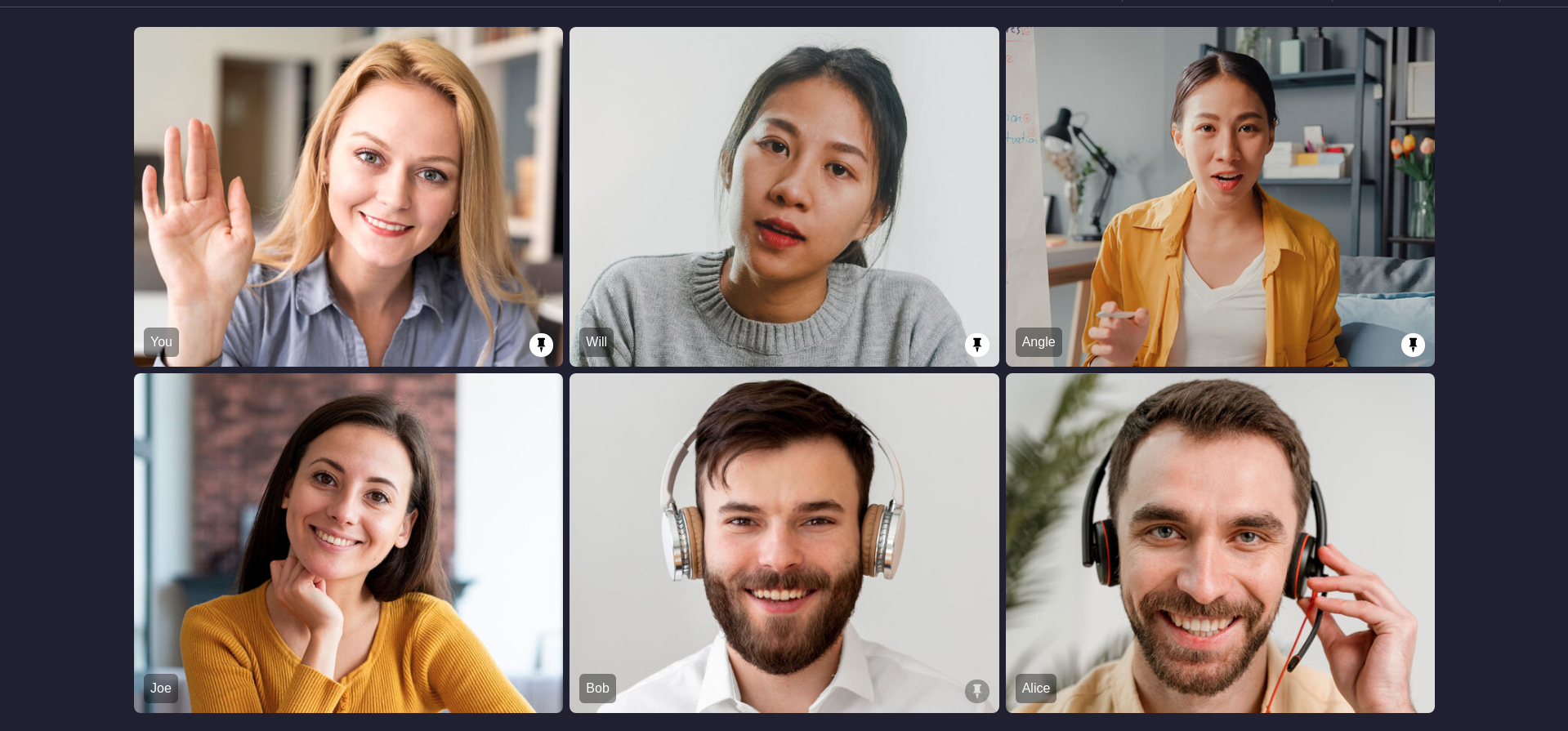
1. GRID Layout
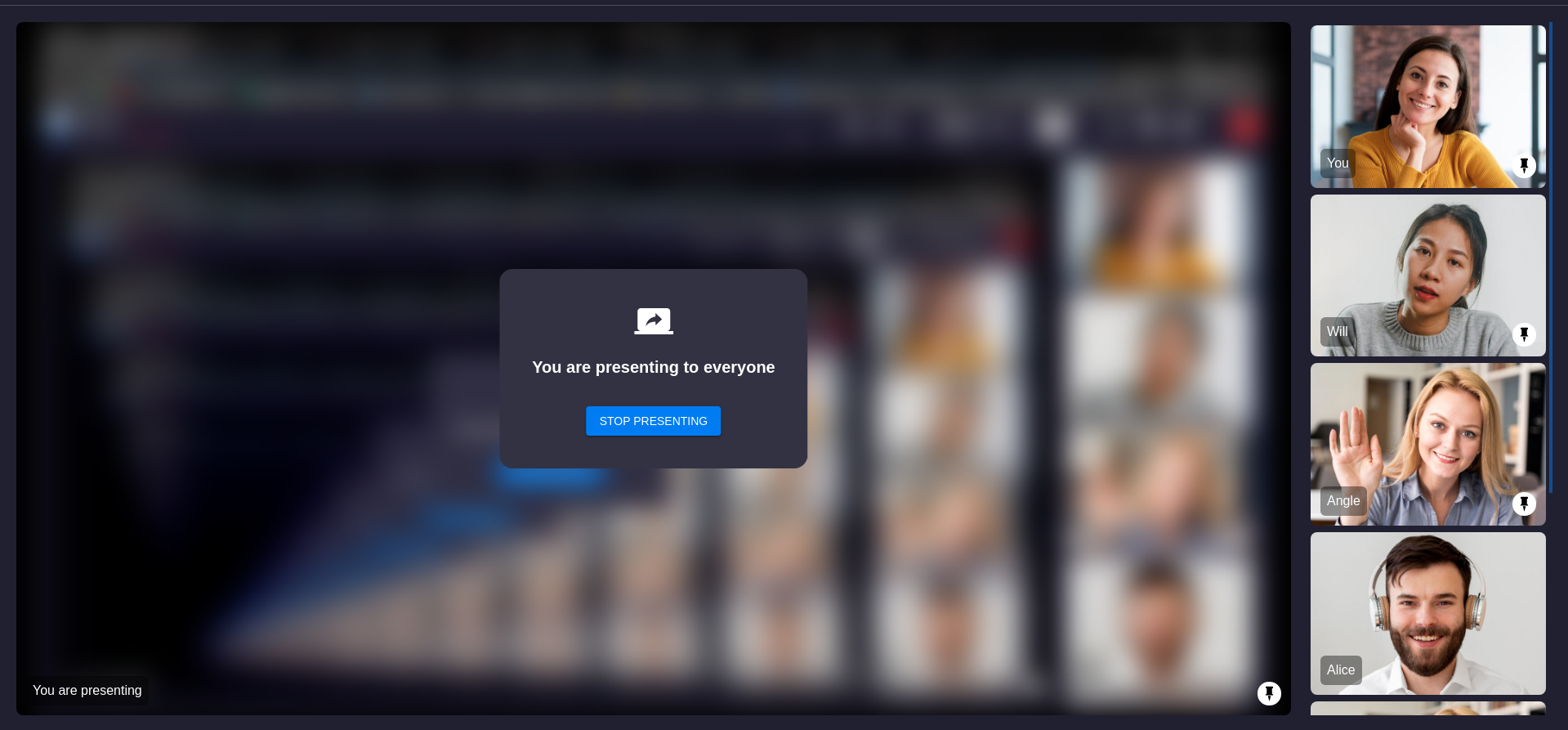
This layout is default layout if no participants are pinned, it will look same as a normal meeting grid layout, when any participant is pinned that participant will be moved on top of the main screen grid above all non pinned participants
While screenshare as well the main view will contain only screenshare media but the side panel view of participant grid will maintain same order of pinned and unpinned participants.
| Grid | Grid with Screenshare |
|---|---|
 |  |
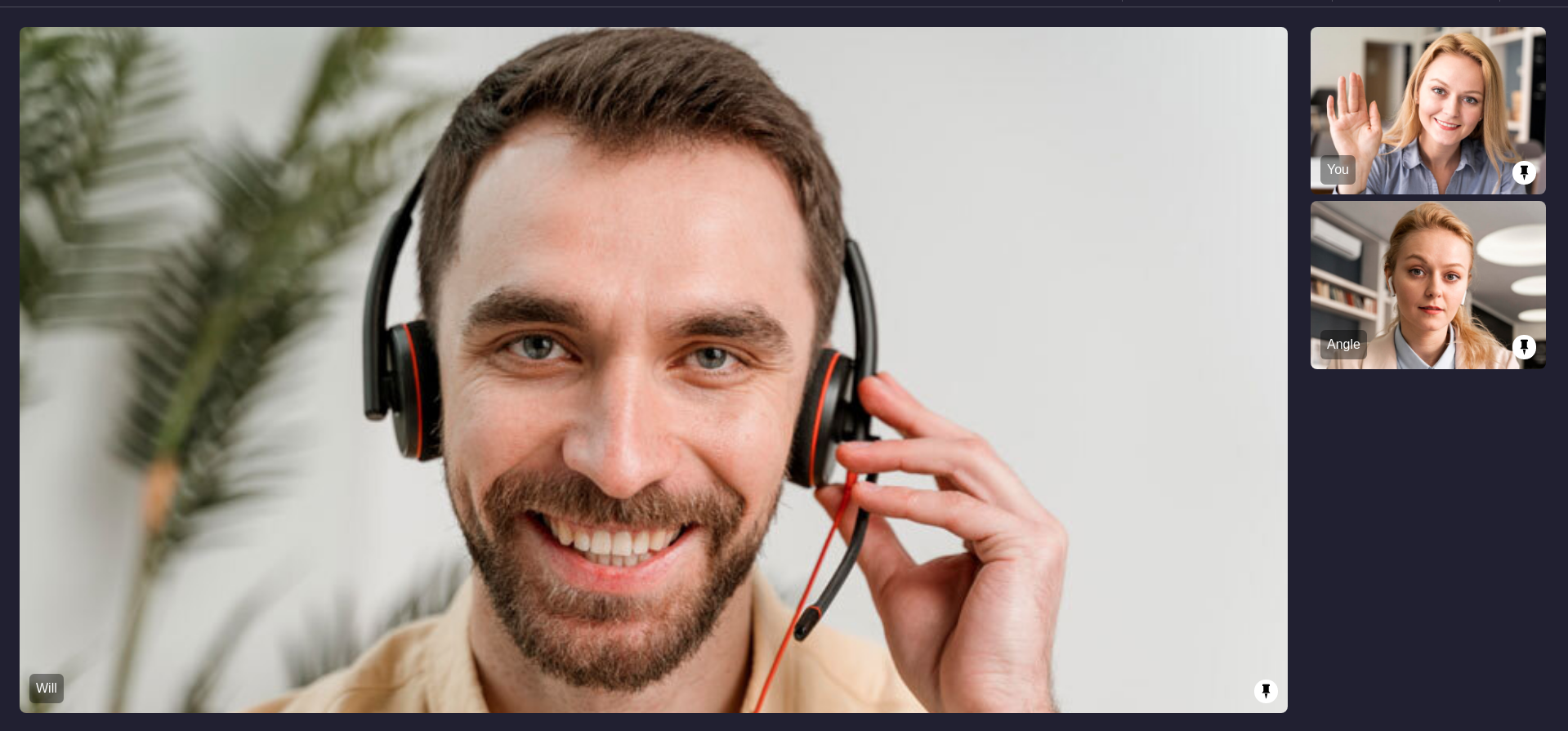
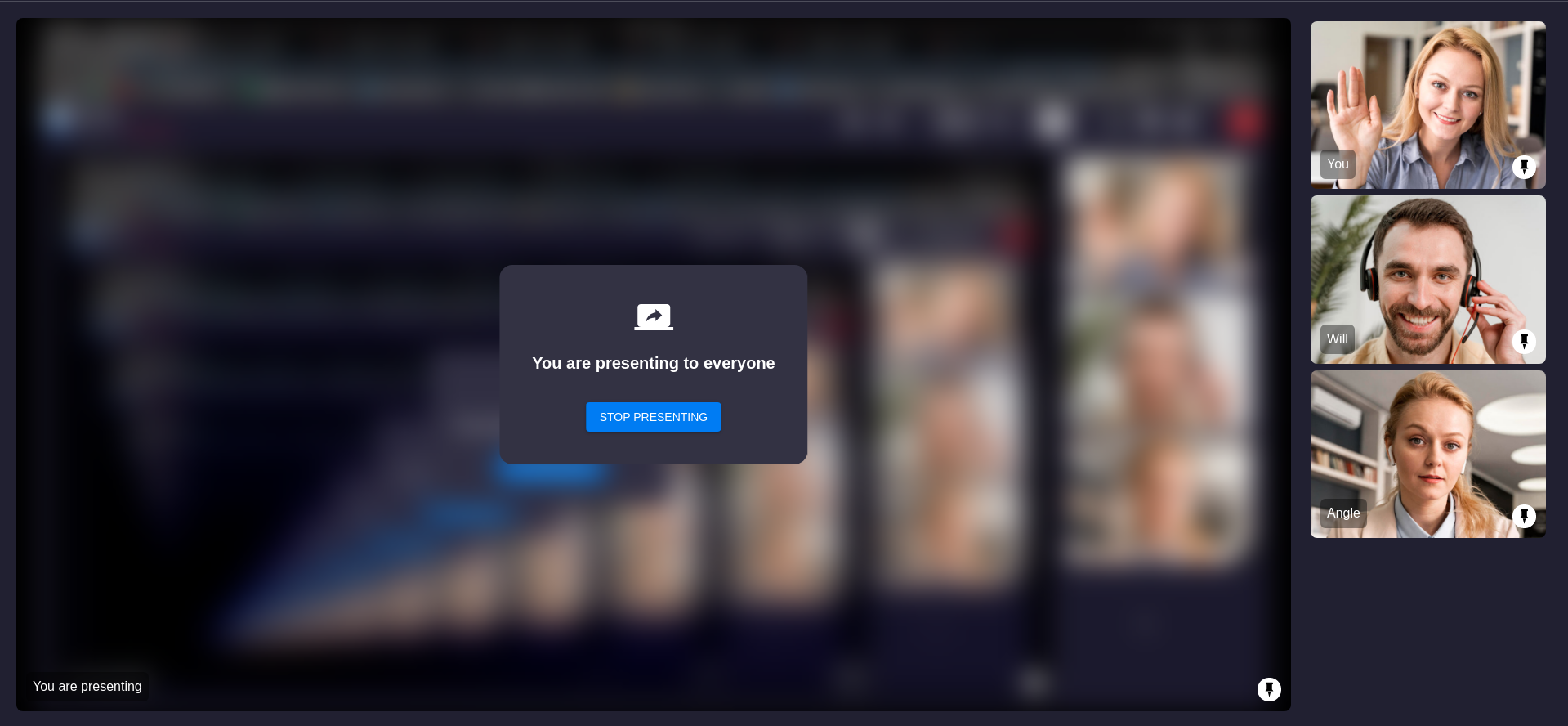
2. SIDEBAR Layout
This layout will have one main screen view and other sidebar grid layout. Only pinned participant will be visible in this layout, all unpinned participants will not be visible in this layout. If more than one participant is pinned then the first participant who was pinned will appear in main screen layout and all other remaining pinned particiapants will be visible in sidebar.
If any pinned participant started screenshare then the screenshare media will be visible in main screen layout and all other pinned participants webcam view will be visible in sidebar
| Sidebar | Sidebar with Screenshare |
|---|---|
 |  |
3. SPOTLIGHT Layout
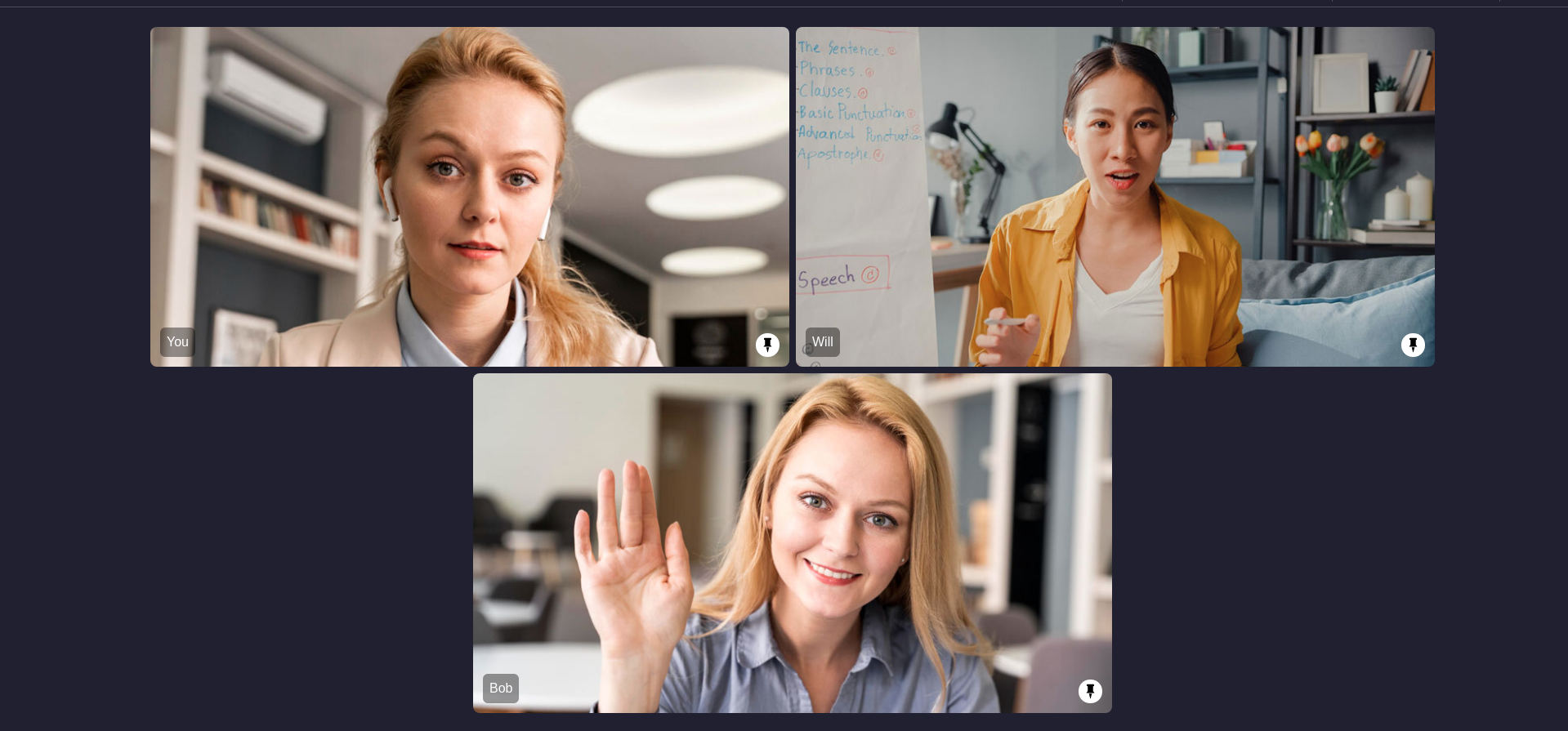
This layout will only contain main screen layout, multiple pinned participants will be visible in main screen view. Same as SIDEBAR layout only pinned participants will be visible in main screen.
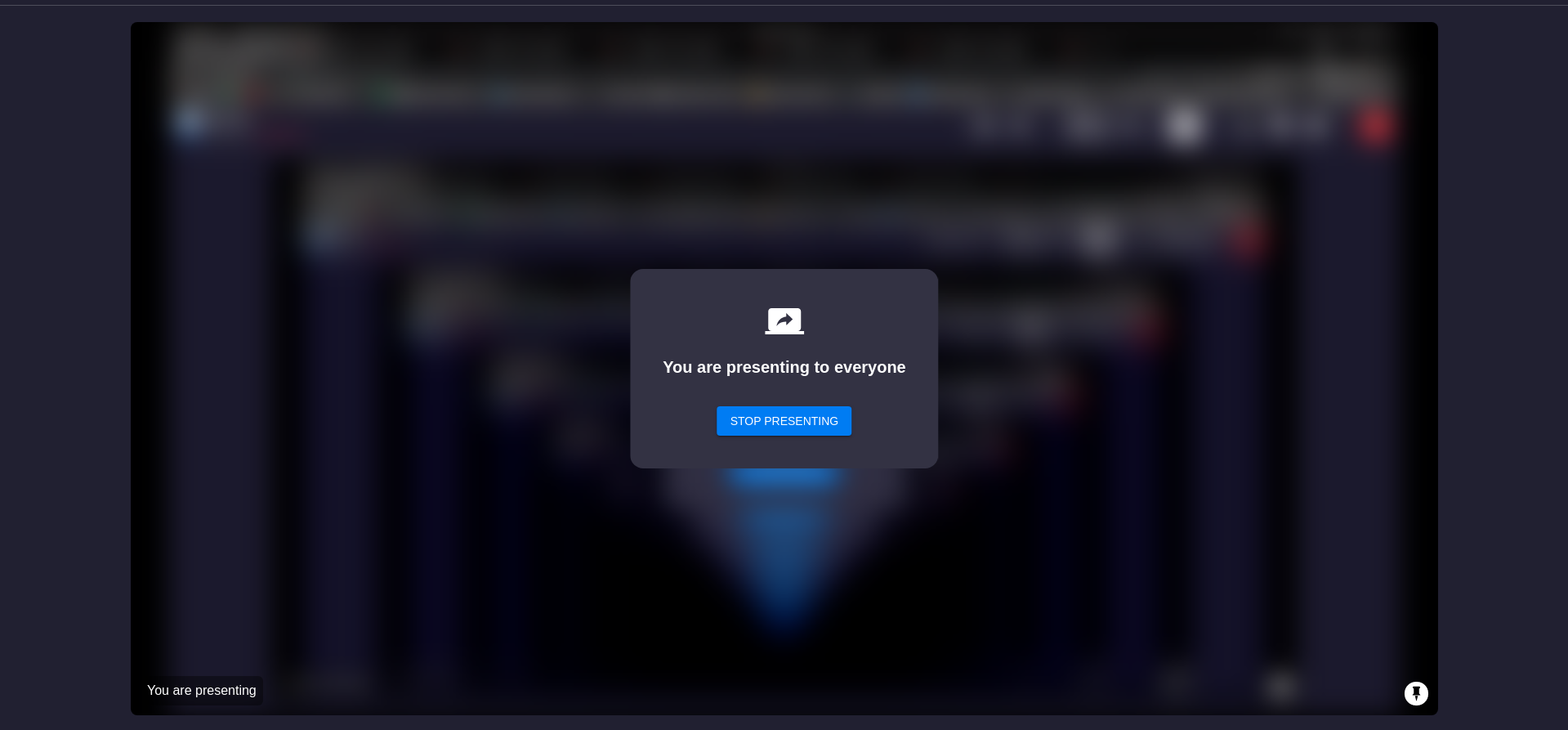
If any pinned participant started screenshare then only screenshare view will be visible in main screen, no webcam view will be visible when any pinned participant started screenshare.
| Spotlight | Spotlight with Screenshare |
|---|---|
 |  |
Event associated with HLS
-
onHlsStateChanged - Whenever meeting HLS state changes, then
onHlsStateChangedevent will trigger. -
You can get the
livestreamUrlandplaybackHlsUrlof the HLS to play it on the Viewer side when the state changes toHLS_PLAYABLE.playbackHlsUrl- Live HLS with playback supportlivestreamUrl- Live HLS without playback support
downstreamUrl is now deprecated. Use playbackHlsUrl or livestreamUrl in place of downstreamUrl
- Swift
class MeetingViewController: ObservableObject {
    //...
        // Add event listeners and join the meeting
        meeting?.addEventListener(self)
    //...
}

extension MeetingViewController: MeetingEventListener {
    //...
    func onHlsStateChanged(state: HLSState, hlsUrl: HLSUrl?) {
        hlsState = state
        switch (state) {
        case .HLS_STARTING:
            print("HLS is Starting")
        case .HLS_STARTED:
            print("HLS is Started")
        case .HLS_PLAYABLE:
            print("HLS is Playable Now!")
            // on hls started you will receive playbackHlsUrl and livestreamUrl
            let playableURL = hlsUrl?.playbackHlsUrl ?? ""
            let liveStreamURL = hlsUrl?.livestreamUrl ?? ""
        case .HLS_STOPPING:
            print("HLS is Stopping")
        case .HLS_STOPPED:
            print("HLS is Stopped")
        @unknown default:
            fatalError("Unknown HLS State")
        }
    }
}
//...
Custom Template
With VideoSDK, you can also use your own custom designed layout template to livestream the meetings. In order to use the custom template, you need to create a template for which you can follow this guide. Once you have setup the template, you can use the REST API to start the livestream with the templateURL parameter.
API Reference
The API references for all the methods utilized in this guide are provided below.
Got a Question?  Ask us on discord

