Quick Start for Http Live Streaming(HLS) in iOS
This quick start shows you how to add Http Live Streaming (HLS) to your iOS app with VideoSDK, step by step.
For low-latency interactive live streaming (under 100ms), follow this documentation.
Prerequisites
- Xcode, and an iPhone or iPad to run the app on.
You need a VideoSDK account to generate a token. Generate one from the VideoSDK dashboard.
App Architecture
The application consists of two primary interfaces:
Start Room View
- Allows users to create a new room or join an existing one by selecting their mode (Host or Viewer/Audience)
Room View
- Provides Http Live Stream controls and adapts the UI dynamically based on the user's mode (Host or Viewer/Audience).
Getting Started With the Code!
Follow the steps to create the environment necessary to add video calls into your app. Also you can find the code sample for quickstart here. The sample uses iOS SDK 3.x.
Mode.CONFERENCE and Mode.VIEWER no longer exist in 4.0.0. Use SEND_AND_RECV for the host and SIGNALLING_ONLY for viewers, as this quick start does.
Step 1: Create New iOS Application
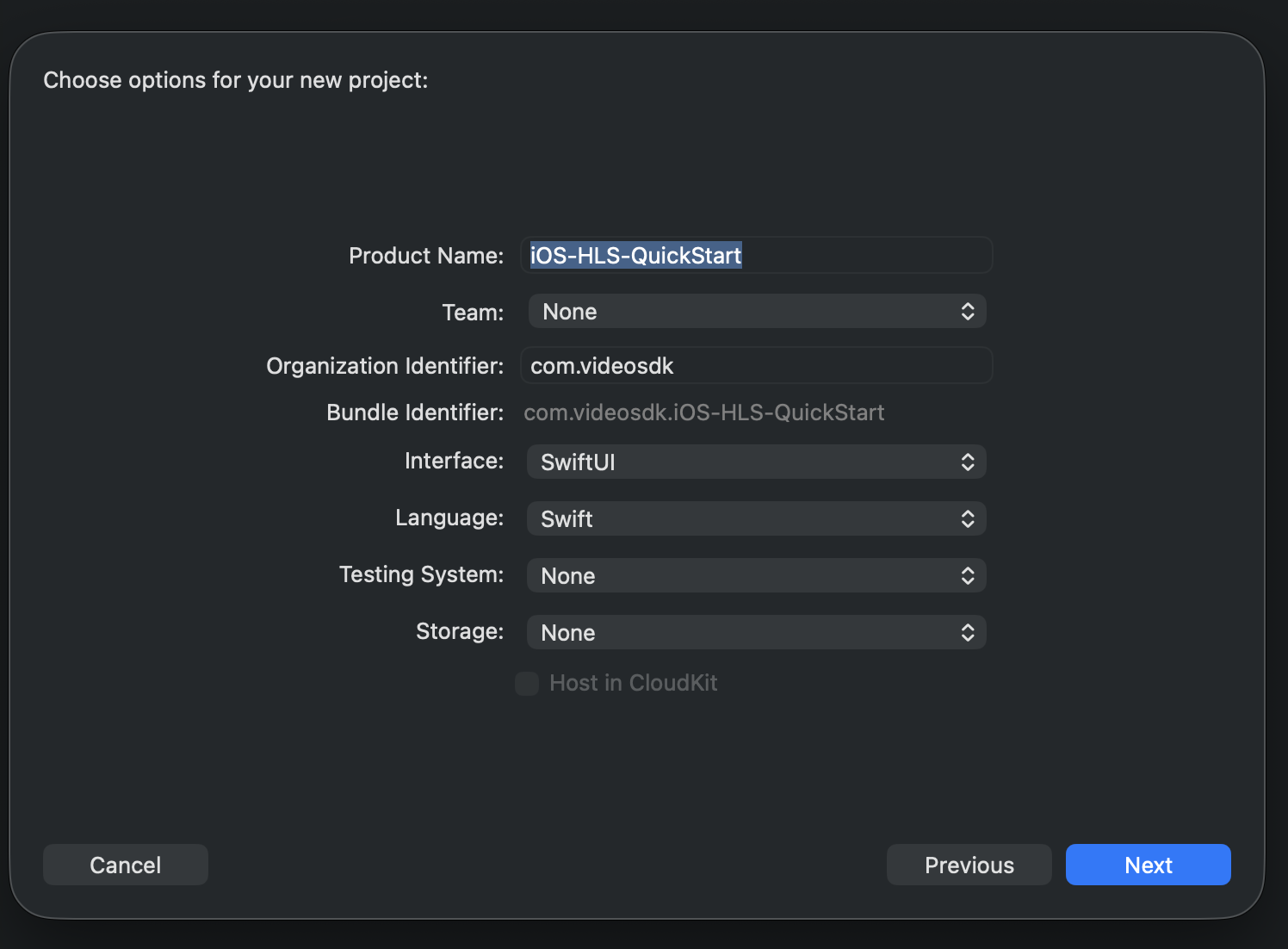
Step 1: Create a new application by selecting Create a new Xcode project
Step 2: Add Product Name and Save the project.
Step 2: VideoSDK Installation
VideoSDK 4.x is installed with Swift Package Manager (SPM). There is no 4.x CocoaPods release.
- Open your Xcode project and go to File > Add Package Dependencies….
- Enter the repository URL:
https://github.com/videosdk-live/videosdk-rtc-ios-spm
- Set Dependency Rule to Exact Version
4.0.0, and add theVideoSDKRTCSwiftproduct to your app target. - Import the library in Swift files:
import VideoSDKRTC
For more details, refer to the official guide on SPM installation.
Then declare the permissions in Info.plist:
<key>NSCameraUsageDescription</key>
<string>Camera permission description</string>
<key>NSMicrophoneUsageDescription</key>
<string>Microphone permission description</string>
Step 3: Project Structure
quick_start_ios_hls
   ├── quick_start_ios_hls.swift // Default
   ├── Screens
		├── StartRoomView.swift
        └── Room
            ├── Controller
                └── RoomViewController.swift
            └── RoomView.swift
   ├── Views
        ├── HLSPlayer.swift
        └── ParticipantViewItem.swift
   ├── Model
        └── RoomStruct.swift
   └── Info.plist // Default
Step 4: Create Start Room View
The StartRoomView acts as the entry point for users to initiate or participate in Http Live Streams with the following functionalities:
-
Create Room as Host: Start a new Http Live Stream in
SEND_AND_RECVmode, providing full host privileges. -
Join as Host: Enter an existing Http Live Stream with
SEND_AND_RECVmode, granting full host controls. -
Join as Viewer: Join an existing Http Live Stream with
SIGNALLING_ONLYmode, without sending or receiving audio & video.
Set AUTH_TOKEN at the top of StartRoomView.swift to a temporary token from the VideoSDK Dashboard.
- Swift
import SwiftUI

// Paste a temporary token from the VideoSDK dashboard
let AUTH_TOKEN: String = "YOUR_TOKEN"

// MARK: - Room Role Enum
enum UserRole: String { case host = "Host", viewer = "Viewer" }

struct StartRoomView: View {
    //MARK: - Properties
    @State private var roomId: String = "<RoomID goes here>"
    @State private var navigateToRoom = false
    @State private var selectedRole: UserRole = .host
    @State private var animateButtons = false
    @State private var isLoading = false

    var body: some View {
        NavigationStack {
            ZStack {
                // Background
                LinearGradient(
                    colors: [Color.black, Color.black.opacity(0.9)],
                    startPoint: .top,
                    endPoint: .bottom
                )
                .ignoresSafeArea()

                VStack(spacing: 30) {
                    Image("logo")
                        .resizable()
                        .renderingMode(.original)
                        .aspectRatio(contentMode: .fit)
                        .frame(width: 175, height: 175)
                        .cornerRadius(25)
                        .shadow(color: .white.opacity(0.5), radius: 20)
                    Spacer()
                    // Create Room Button
                    animatedButton(title: "Create Room", bgColor: .blue) {
                        if (!isLoading) {
                            Task {
                                await createRoom()
                            }
                        }
                    }
                    // Room ID TextField
                    VStack(alignment: .leading, spacing: 8) {
                        Text("Enter Room ID")
                            .font(.headline)
                            .foregroundColor(.white.opacity(0.8))

                        ZStack {
                            RoundedRectangle(cornerRadius: 14)
                                .fill(Color.white)
                                .frame(height: 55)

                            TextField("", text: $roomId)
                                .foregroundColor(.black)
                                .padding(.horizontal)
                                .textInputAutocapitalization(.never)
                        }
                    }
                    .padding(.horizontal)
                    // Host + Viewer Buttons
                    HStack(spacing: 5) {
                        animatedButton(title: "Join as Host", bgColor: .green) {
                            selectedRole = .host
                            navigateToRoom = true
                        }
                        animatedButton(title: "Join as Viewer", bgColor: .orange) {
                            selectedRole = .viewer
                            navigateToRoom = true
                        }
                    }
                    Spacer()
                }
                .padding()
            }
            .navigationDestination(isPresented: $navigateToRoom) {
                RoomView(roomId: roomId, role: selectedRole)
            }
        }
    }

    // MARK: - API: Create Room
    func createRoom() async {
        guard let url = URL(string: "https://api.videosdk.live/v2/rooms") else { return }
        isLoading = true
        var request = URLRequest(url: url)
        request.httpMethod = "POST"
        request.addValue(AUTH_TOKEN, forHTTPHeaderField: "Authorization")
        do {
            let (data, _) = try await URLSession.shared.data(for: request)
            let decoded = try JSONDecoder().decode(RoomsStruct.self, from: data)
            await MainActor.run {
                if let roomId = decoded.roomID {
                    self.roomId = roomId
                    self.selectedRole = .host
                    self.navigateToRoom = true
                }
            }
        } catch {
            print("Room creation failed:", error)
        }
        isLoading = false
    }

    // MARK: - Reusable Animated Button
    @ViewBuilder
    func animatedButton(title: String, bgColor: Color, action: @escaping () -> Void) -> some View {
        Button(action: {
            withAnimation(.spring(response: 0.25, dampingFraction: 0.5)) {
                action()
            }
        }) {
            Text(title)
                .font(.headline)
                .foregroundColor(.white)
                .padding(.horizontal, 5)
                .frame(height: 55)
                .frame(maxWidth: .infinity)
                .background(
                    RoundedRectangle(cornerRadius: 16)
                        .fill(bgColor.opacity(0.85))
                        .shadow(color: bgColor.opacity(0.6), radius: 10, x: 0, y: 4)
                )
        }
        .scaleEffect(animateButtons ? 1 : 0.85)
        .animation(.spring(response: 0.5, dampingFraction: 0.6), value: animateButtons)
        .padding(.horizontal, 5)
    }
}
Also, Add HLSPlayer.swift and RoomStruct.swift from below:
- Swift
import AVKit
import SwiftUI

struct HLSVideoPlayer: View {
    let url: URL
    let width: CGFloat?
    let height: CGFloat?

    @State private var player: AVPlayer = AVPlayer()

    var body: some View {
        ZStack {
            VideoPlayer(player: player)
                .frame(width: width ?? 400, height: height ?? 400)
                .background(Color.black)
                .onAppear {
                    setupPlayer()
                }
                .onDisappear {
                    player.pause()
                }
        }
    }

    private func setupPlayer() {
        let item = AVPlayerItem(url: url)
        player.replaceCurrentItem(with: item)
        player.play()
    }
}
- Swift
struct RoomsStruct: Codable {
    let createdAt, updatedAt, roomID: String?
    let links: Links?
    let id: String?

    enum CodingKeys: String, CodingKey {
        case createdAt, updatedAt
        case roomID = "roomId"
        case links, id
    }
}

struct Links: Codable {
    let getRoom, getSession: String?

    enum CodingKeys: String, CodingKey {
        case getRoom = "get_room"
        case getSession = "get_session"
    }
}
Output
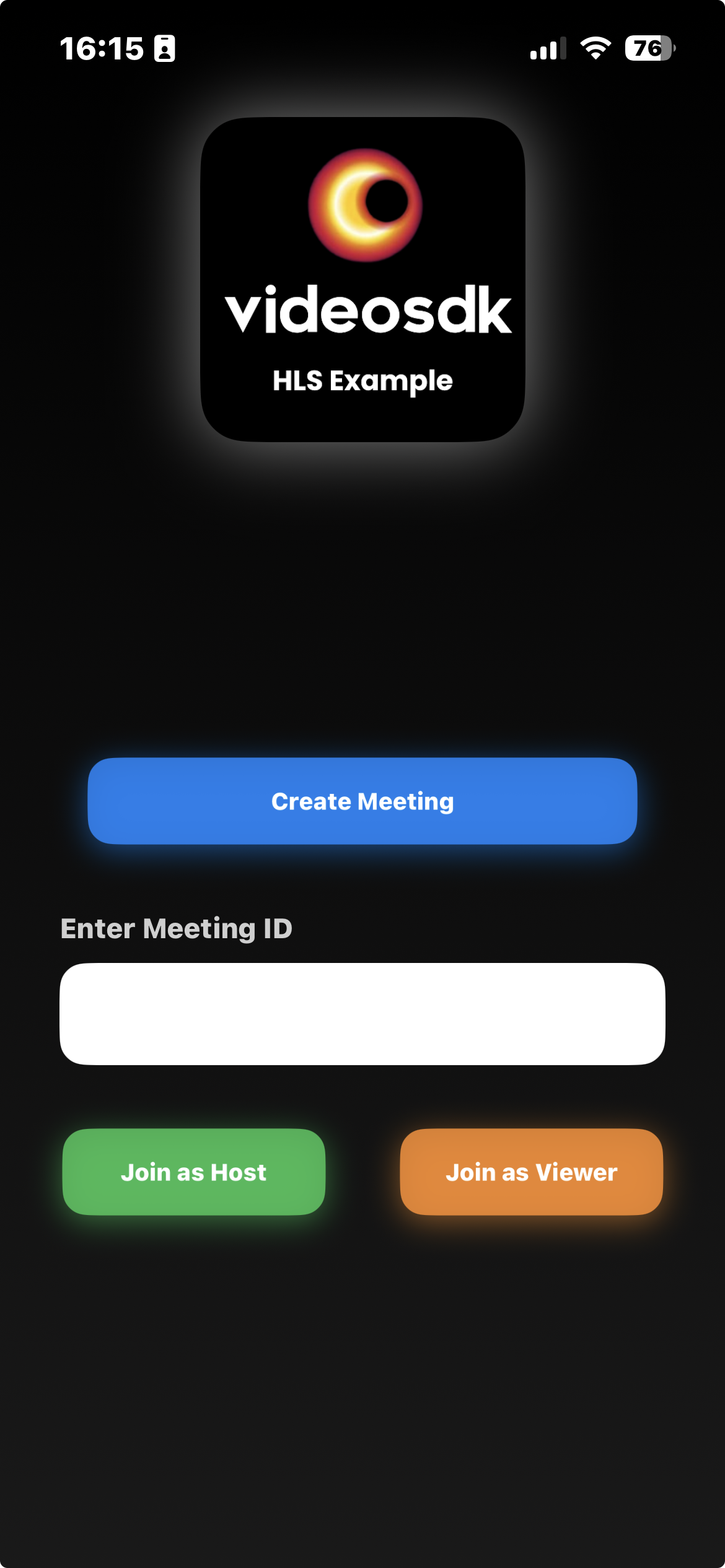
Also add the StartRoomView in main app as shown below
- Swift
import SwiftUI

@main
struct quick_start_ios_hls: App {
    var body: some Scene {
        WindowGroup {
            StartRoomView()
        }
    }
}
Before proceeding, let's understand the two modes of an HTTP Live Stream:
1. SEND_AND_RECV (For Host or Co-host):
- Designed primarily for the Host or Co-host.
- Allows sending and receiving media.
- Hosts can broadcast their audio/video and interact directly with the audience.
2. SIGNALLING_ONLY (For Viewer/Audience):
- Tailored for the Viewer/Audience.
- Does not receive the media shared by the Host.
- Audience members cannot see or hear the room directly, and cannot share their own media.
Step 5: Initialize and Join the Http Live Stream
In this step, inside RoomViewController, we will set up initializeRoom and its related functions. You need an Auth token. Generate it with videosdk-server-api-example or from the Video SDK Dashboard.
RoomViewController will implement various event listeners such as RoomEventListener, ParticipantEventListener.
VideoSDK.createRoom(roomId:token:...) creates the Room and takes the token as a parameter. It throws ERROR_INVALID_PARAMETER for an empty room ID or token, so call it with try. join(), startHLS(), stopHLS(), muteMic(), unmuteMic(), enableCam(), disableCam() and leave() are async throws, so call them with try await inside a Task or an async function. The app's toggleMicrophone() and toggleCamera() read room.isMicEnabled and room.isCamEnabled to turn the device off if it is on, and on if it is off.
- Swift
import Foundation
import SwiftUI
import Combine
import VideoSDKRTC

// MARK: - RoomViewController
class RoomViewController: ObservableObject {

    @Published var participants: [Participant] = []
    @Published var hlsState: HLSState = .HLS_STOPPED

    @Published var isMicOn: Bool = true
    @Published var isCamOn: Bool = true
    @Published var room: Room? = nil
    @Published var participantVideoTracks: [String: RTCVideoTrack] = [:]
    @Published var participantMicStatus: [String: Bool] = [:]
    @Published var playbackURL: String? = nil
    private var cancellables = Set<AnyCancellable>()
    let roomId: String
    let role: UserRole

    init(roomId: String, role: UserRole) {
        self.roomId = roomId
        self.role = role

        // Auto-start room logic when created
        initializeRoom()
    }
    // MARK: - Room Initialization
    func initializeRoom() {
        do {
            room = try VideoSDK.createRoom(
                roomId: roomId,
                token: AUTH_TOKEN,
                participantName: "John doe",
                micEnabled: self.isMicOn,
                camEnabled: self.isCamOn,
                mode: self.role == .viewer ? .SIGNALLING_ONLY : .SEND_AND_RECV,
                multiStream: true
            )
        } catch {
            print("Setup failed: \(error)")   // ERROR_INVALID_PARAMETER for an empty room ID or token
            return
        }

        // Add event listeners and join the room
        room?.addEventListener(self)
        Task {
            do {
                try await room?.join()
            } catch {
                print("Join failed: \(error)")
            }
        }
    }

    // MARK: - HLS Handling
    func startHLS() {
        Task {
            do {
                try await room?.startHLS()
            } catch {
                print("Start HLS failed: \(error)")
            }
        }
    }

    func stopHLS() {
        Task {
            do {
                try await room?.stopHLS()
            } catch {
                print("Stop HLS failed: \(error)")
            }
        }
    }

    // MARK: - Media Toggles
    func toggleMicrophone() {
        Task {
            do {
                // mutes the mic if it is on, unmutes it if it is off
                guard let room = room else { return }
                if room.isMicEnabled {
                    try await room.muteMic()
                } else {
                    try await room.unmuteMic()
                }
            } catch let error as VideoSDKError where error == .ERROR_OPERATION_IN_PROGRESS {
                // an earlier tap is still running
            } catch {
                print("Mic toggle failed: \(error)")
            }
        }
    }

    func toggleCamera() {
        Task {
            do {
                // turns the camera off if it is on, on if it is off
                guard let room = room else { return }
                if room.isCamEnabled {
                    try await room.disableCam()
                } else {
                    try await room.enableCam()
                }
            } catch let error as VideoSDKError where error == .ERROR_OPERATION_IN_PROGRESS {
                // an earlier tap is still running
            } catch {
                print("Camera toggle failed: \(error)")
            }
        }
    }

    // MARK: - Leave Room
    func leaveRoom() async {
        if (role == .host) {
            if (self.hlsState == .HLS_STARTED || self.hlsState == .HLS_PLAYABLE || self.hlsState == .HLS_STARTING) {
                do {
                    try await self.room?.stopHLS()
                } catch {
                    print("Stop HLS failed: \(error)")
                }
            }
        }
        do {
            try await self.room?.leave()
        } catch {
            print("Leave failed: \(error)")
        }
    }
}

extension RoomViewController: RoomEventListener {
    func onRoomJoined() {
        guard let localParticipant = self.room?.localParticipant else { return }
        let isExist = participants.first { $0.id == localParticipant.id } != nil
        if (!isExist && localParticipant.mode != .SIGNALLING_ONLY) {
            participants.append(localParticipant)
        }
        // add event listener
        localParticipant.addEventListener(self)
    }
    //...
}

extension RoomViewController: ParticipantEventListener {
    func onStreamEnabled(_ stream: RTCStream, forParticipant participant: Participant) {
        if let track = stream.track as? RTCVideoTrack {
            DispatchQueue.main.async {
                if stream.kind == .video {
                    self.participantVideoTracks[participant.id] = track
                }
            }
        }

        if stream.kind == .audio {
            self.participantMicStatus[participant.id] = true // Mic enabled
        }
    }

    func onStreamDisabled(_ stream: RTCStream, forParticipant participant: Participant) {
        DispatchQueue.main.async {
            if stream.kind == .video {
                self.participantVideoTracks.removeValue(forKey: participant.id)
            }
        }
        if stream.kind == .audio {
            // Update microphone state for this participant
            self.participantMicStatus[participant.id] = false // Mic disabled

        }
    }
}
Step 6: Create ParticipantViewItem View
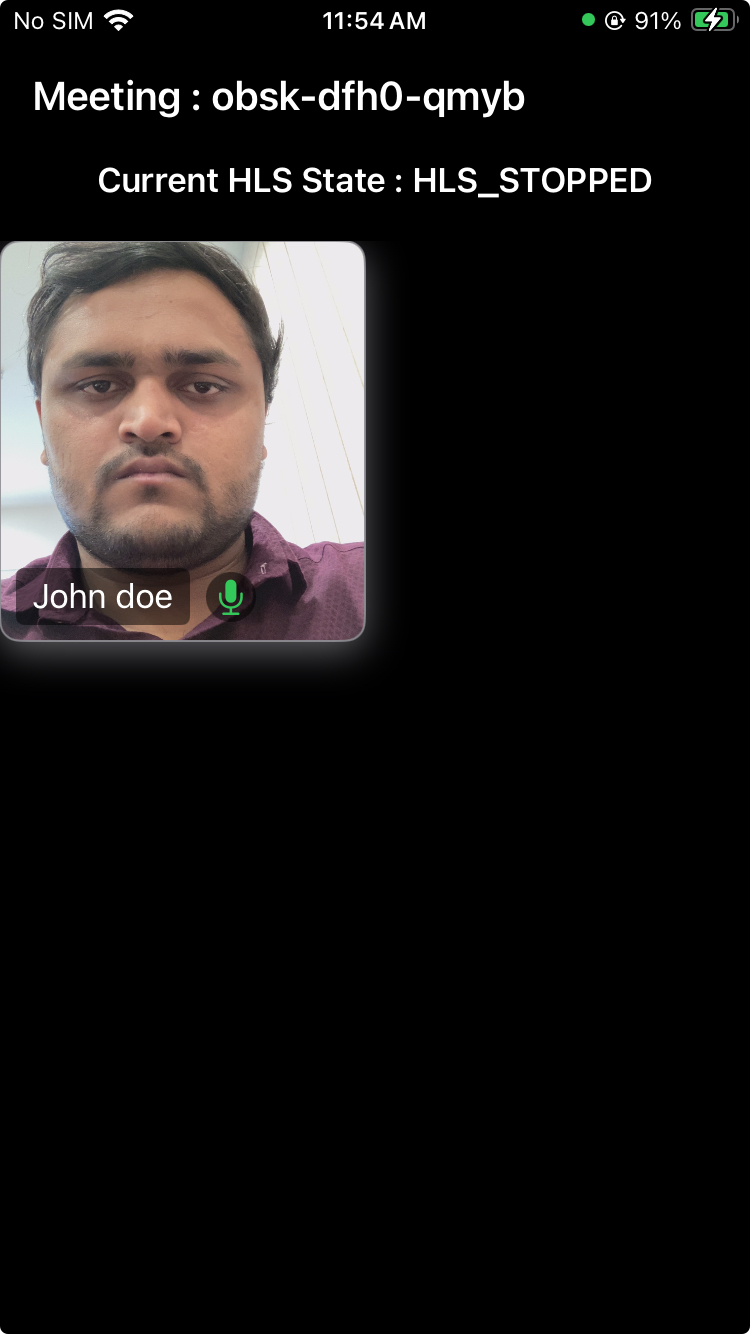
The ParticipantViewItem file manages the view of each host participant in the room.
- Swift
import VideoSDKRTC
import SwiftUI

struct ParticipantContainerView: View {
    let participant: Participant

    @ObservedObject var controller: RoomViewController

    var body: some View {
        ZStack {
            participantView(participant: participant, controller: controller)

            VStack {
                Spacer()
                HStack {

                    // Participant name
                    Text(participant.displayName)
                        .foregroundColor(.white)
                        .padding(.horizontal, 8)
                        .padding(.vertical, 4)
                        .background(Color.black.opacity(0.5))
                        .cornerRadius(4)

                    // Mic status indicator
                    Image(systemName: controller.participantMicStatus[participant.id] ?? false ? "mic.fill" : "mic.slash.fill")
                        .foregroundColor(controller.participantMicStatus[participant.id] ?? false ? .green : .red)
                        .padding(4)
                        .background(Color.black.opacity(0.5))
                        .clipShape(Circle())


                    Spacer()
                }
                .padding(8)
            }
        }
        .background(Color.black.opacity(0.9)) // Background color
        .cornerRadius(10) // Rounded corners
        .shadow(color: Color.gray.opacity(0.7), radius: 10, x: 0, y: 5) // Shadow effect
        .overlay(
            RoundedRectangle(cornerRadius: 10) // Rounded border
                .stroke(Color.gray.opacity(0.9), lineWidth: 1)
        )

    }

    private func participantView(participant: Participant, controller: RoomViewController) -> some View {
        ZStack {
            ParticipantView(participant: participant, controller: controller)
        }
    }
}

/// VideoView for participant's video
class VideoView: UIView {
    var videoView: RTCMTLVideoView = {
        let view = RTCMTLVideoView()
        view.videoContentMode = .scaleAspectFill
        view.backgroundColor = UIColor.black
        view.clipsToBounds = true
        view.transform = CGAffineTransform(scaleX: 1, y: 1)

        return view
    }()

    init(track: RTCVideoTrack?, frame: CGRect) {
        super.init(frame: frame)
        backgroundColor = .clear

        // Set videoView frame to match parent view
        videoView.frame = bounds

        DispatchQueue.main.async {
            self.addSubview(self.videoView)
            self.bringSubviewToFront(self.videoView)
            track?.add(self.videoView)
        }
    }

    required init?(coder: NSCoder) {
        fatalError("init(coder:) has not been implemented")
    }

    override func layoutSubviews() {
        super.layoutSubviews()
        // Update videoView frame when parent view size changes
        videoView.frame = bounds
    }
}

/// ParticipantView for showing and hiding VideoView
struct ParticipantView: View {
    let participant: Participant
    @ObservedObject var controller: RoomViewController

    var body: some View {
        ZStack {
            if let track = controller.participantVideoTracks[participant.id] {
                VideoStreamView(track: track)
            } else {
                Color.white.opacity(1.0)
                Text("No media")
                    .font(.largeTitle)
                    .foregroundStyle(.black)
            }
        }
    }
}

struct VideoStreamView: UIViewRepresentable {
    let track: RTCVideoTrack

    func makeUIView(context: Context) -> VideoView {
        let view = VideoView(track: track, frame: .zero)
        return view
    }

    func updateUIView(_ uiView: VideoView, context: Context) {
        track.add(uiView.videoView)
        uiView.videoView.videoContentMode = .scaleAspectFill
    }
}
Output
Step 7: Implementing Media Toggles and Start/Stop HLS
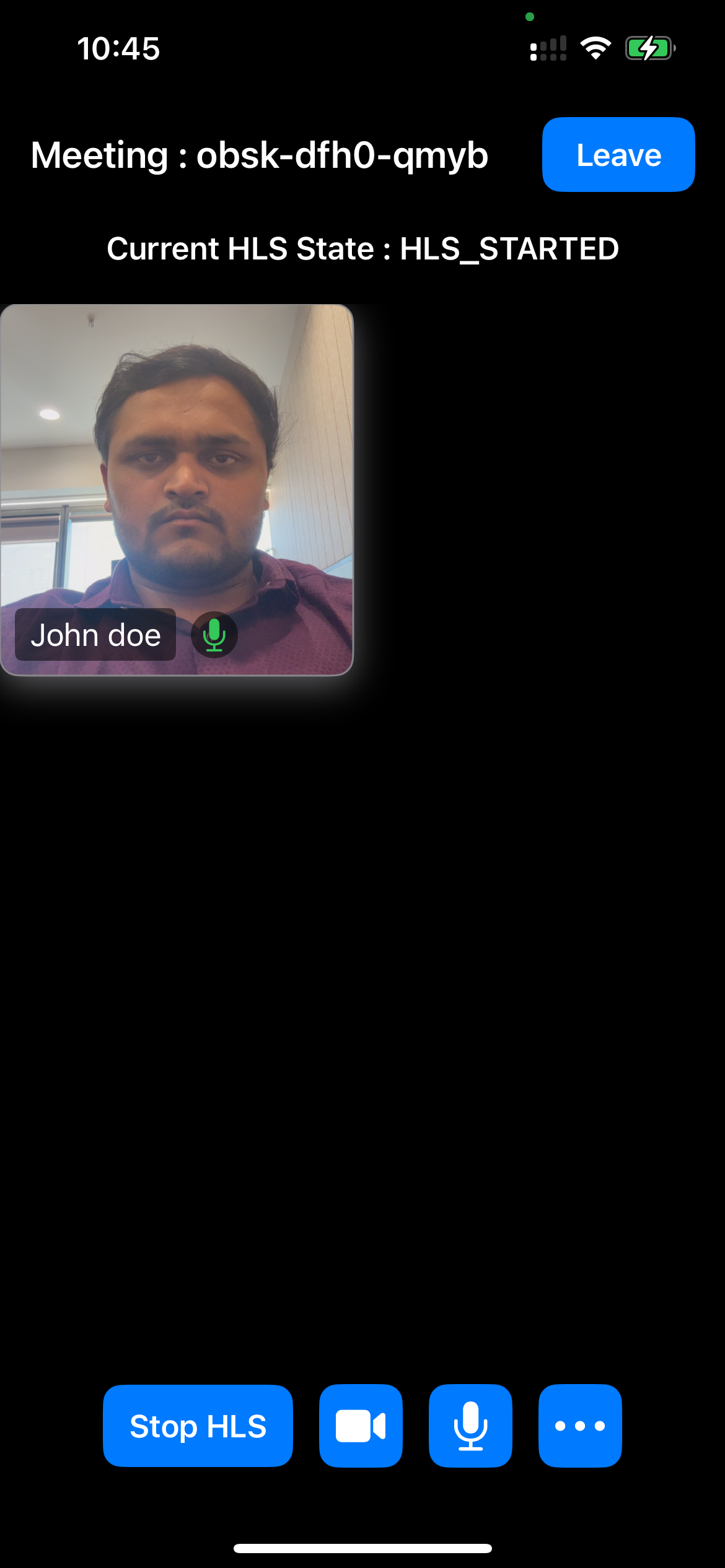
Host Controls: Include buttons to toggle the microphone, camera and HLS, allowing users to mute/unmute their microphone and enable/disable their camera and start/stop the HLS entirely.
Header UI: Includes a button to leave the room, and also displays the room ID.
- Swift
import SwiftUI
import VideoSDKRTC

struct RoomView: View {

    @StateObject private var controller: RoomViewController
    @Environment(\.dismiss) var dismiss

    init(roomId: String, role: UserRole) {
        _controller = StateObject(
            wrappedValue: RoomViewController(roomId: roomId, role: role)
        )
    }

    // Grid layout
    private let columns = [
        GridItem(.flexible(), spacing: 10),
        GridItem(.flexible(), spacing: 10),
    ]

    var body: some View {
        ZStack {
            Color.black.ignoresSafeArea()

            VStack(spacing: 20) {

                // HEADER
                header

                if controller.role == .host {
                    // HLS State
                    Text("Current HLS State : \(controller.hlsState.rawValue)")
                        .foregroundColor(.white)
                        .font(.headline)

                    // Participants Grid
                    ScrollView {
                        LazyVGrid(columns: columns) {
                            ForEach(controller.participants, id: \.id) { participant in
                                ParticipantContainerView(
                                    participant: participant,
                                    controller: controller
                                )
                                .frame(height: 200, alignment: .center)

                            }
                        }
                    }

                    Spacer()
                } else {
                    if ((controller.hlsState == .HLS_STARTED || controller.hlsState == .HLS_PLAYABLE) && controller.playbackURL != nil) {
                        HLSVideoPlayer(
                            url: URL(string: controller.playbackURL ?? "")!,
                            width: .infinity,
                            height: .infinity
                        )
                        .cornerRadius(12)
                        .padding()

                        Spacer()
                    } else {
                        Spacer()
                        Text("Waiting for host\nto start the live streaming")
                            .font(.title)
                            .foregroundStyle(.white)
                            .bold(true)
                            .multilineTextAlignment(.center)
                        Spacer()
                    }
                }

                // Host Controls
                if controller.role == .host {
                    hostControls
                }
            }
        }
        .navigationBarBackButtonHidden(true)
        .navigationBarHidden(true)
    }

    // MARK: Header UI
    private var header: some View {
        HStack {
            Text("Room : \(controller.roomId)")
                .foregroundColor(.white)
                .font(.title3.bold())

            Spacer()

            Button {
                Task {
                    await controller.leaveRoom()
                    dismiss()
                }
            } label: {
                Text("Leave")
                    .font(.headline)
                    .padding(.horizontal, 18)
                    .padding(.vertical, 10)
                    .background(Color.blue)
                    .foregroundColor(.white)
                    .cornerRadius(10)
            }
        }
        .padding(.horizontal)
        .padding(.top)
    }

    // MARK: Host bottom controls
    private var hostControls: some View {
        HStack(spacing: 14) {

            if (controller.hlsState == .HLS_STARTING || controller.hlsState == .HLS_STARTED || controller.hlsState == .HLS_PLAYABLE) {
                    controlButton(title: "Stop HLS") {
                        controller.stopHLS()
                    }
            } else {
                controlButton(title: "Start HLS") {
                    controller.startHLS()
                }
            }

            controlButton(title: "Toggle Camera") {
                controller.toggleCamera()
            }

            controlButton(title: "Toggle Mic") {
                controller.toggleMicrophone()
            }
        }
        .padding(.bottom, 20)
    }

    // MARK: Reusable UI Elements
    func controlButton(title: String, action: @escaping () -> Void) -> some View {
        Button(action: action) {
            Text(title)
                .font(.headline)
                .padding(.horizontal, 14)
                .padding(.vertical, 12)
                .background(Color.blue)
                .foregroundColor(.white)
                .cornerRadius(10)
        }
    }
}
Output
Step 8: Extending Room Event Listeners
In this step, we add more events to the RoomEventListener implementation in RoomViewController:
onParticipantJoined and onParticipantLeft to handle participant updates, onRoomStateChanged to handle room state changes, and onHlsStateChanged to track HLS state.
- Swift
class RoomViewController: ObservableObject {
    //...
}

extension RoomViewController: RoomEventListener {
    //...
    func onParticipantJoined(_ participant: Participant) {
        let isExist = participants.first { $0.id == participant.id } != nil
        if (!isExist && participant.mode != .SIGNALLING_ONLY) {
            participants.append(participant)
        }
        // add listener
        participant.addEventListener(self)
    }

    func onParticipantLeft(_ participant: Participant, reason: LeaveReason) {
        participants = participants.filter({ $0.id != participant.id })
    }

    func onRoomStateChanged(roomState: RoomState) {
        switch roomState {
        case .DISCONNECTED:
                participants.removeAll()
            default:
            print("room state: \(roomState.rawValue)")
        }
    }

    func onHlsStateChanged(state: HLSState, hlsUrl: HLSUrl?) {
        hlsState = state
        switch (state) {
        case .HLS_PLAYABLE:
            playbackURL = hlsUrl?.playbackHlsUrl ?? ""
        case .HLS_STOPPED:
            playbackURL = nil   // show the waiting label until the stream is playable again
        default:
            print("HLS State: \(state.rawValue)")
        }
    }
}
Output
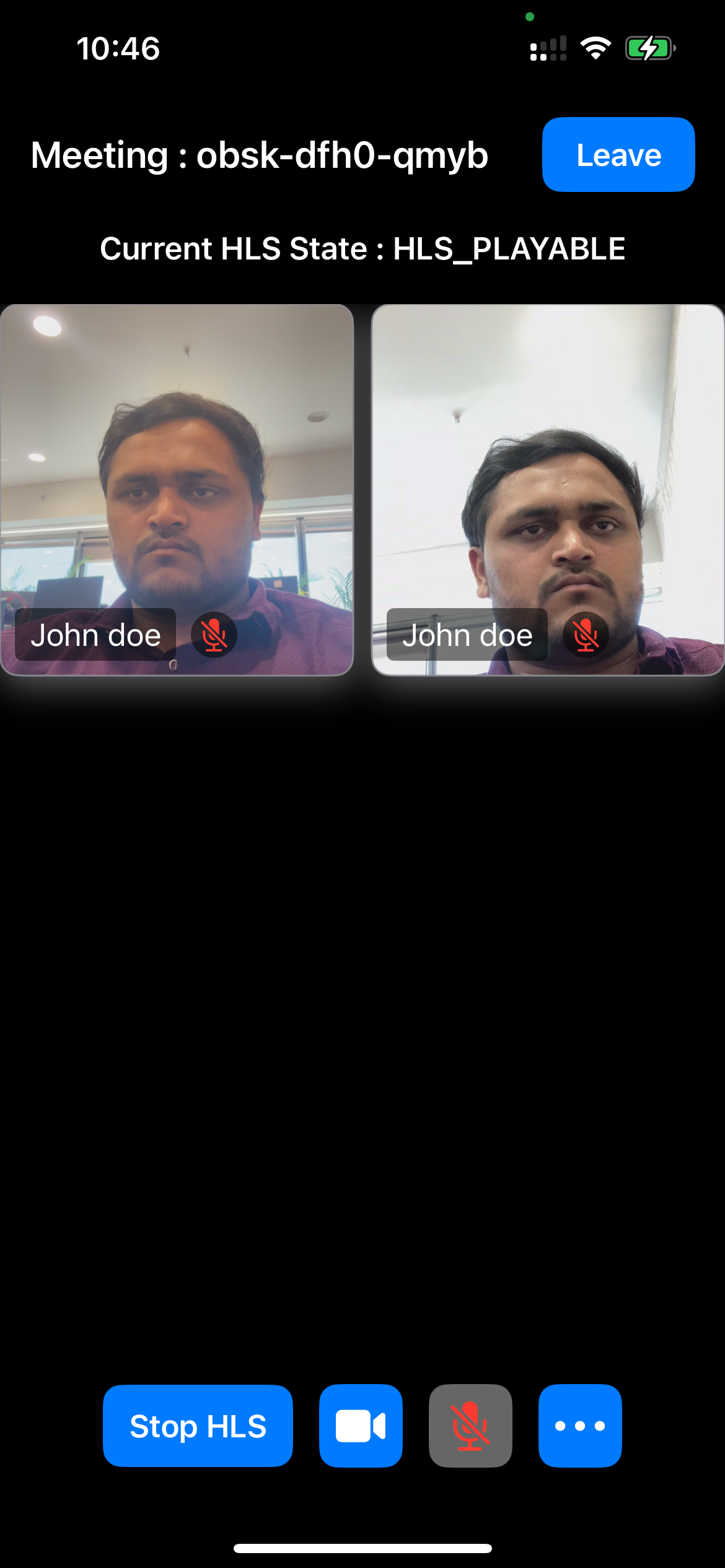
Final Output
You have now added HLS Live Streaming to your iOS app with Video SDK. To explore more, see the Basic and Advanced features.
Stuck anywhere? Check out this example code on GitHub. The example uses iOS SDK 3.x; the Migration Guide lists what changed in 4.0.0.
Got a Question?  Ask us on discord

