Layout and Grid Management - iOS
In this guide, we will take a look at how to efficiently manage the participants in different types of layout.
Grid Layout
The most common way to show participants is a grid. There are multiple things you should keep in mind when showing participants in the grid.
This includes the number of participants shown on the screen, the number of participants in the background (in the room but not on the grid), and the video quality you receive for each participant on the grid.
Quality of Participant's Video
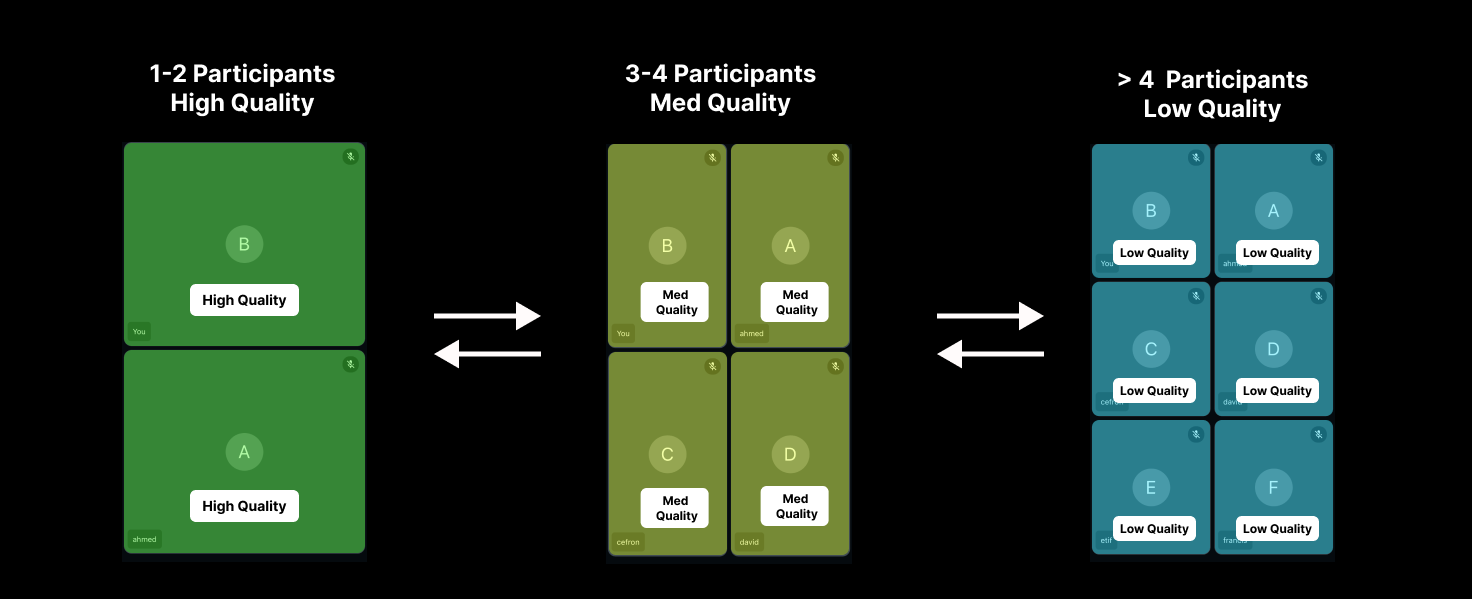
When there are a large number of participants on the screen, it is best to receive their video in lower resolutions. For this we recommend calling the setQuality method on the participants present in the grid with dynamic values based on the number of participants on the screen.
Here is the recommended video quality:
- Participants less than 3:
setQuality(.high) - Participants between 3 to 4:
setQuality(.medium) - Participants greater than 4:
setQuality(.low)
setQuality() is async throws, so call it with try await inside a Task. It sets the quality you receive from a remote participant, and does nothing for the local participant.
Instead of choosing a quality yourself, you can report the size of each video tile with setViewPort(width:height:), and VideoSDK sends a quality that fits that size. Use one of the two methods for a given participant. Refer to the Simulcast guide for examples of both.
Grid with Screen Share
When you are rendering a small grid along with the screen share of the presenter or you are showing a simple sidebar video of the participants while the screenshare is on, it is recommended to do setQuality(.low) for the participants who are present in the sidebar.
Grid with Pagination
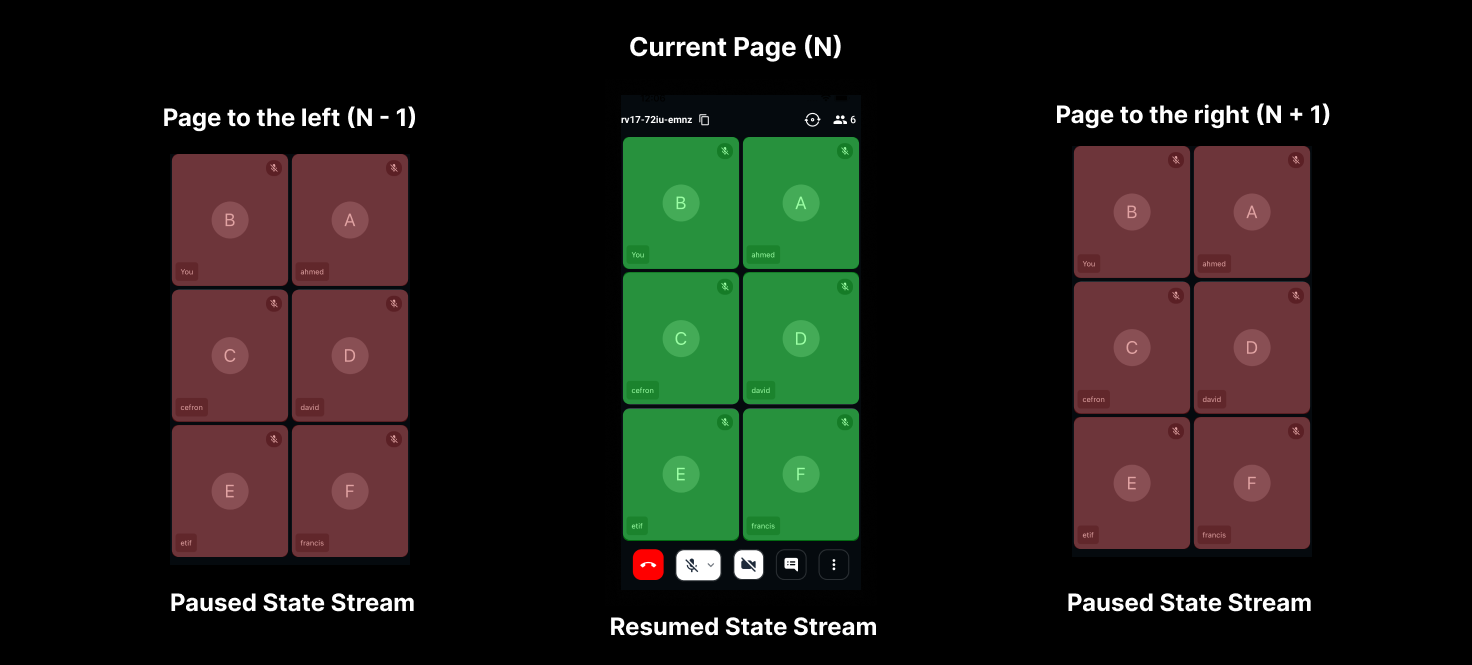
If you are having large video calls where there are multiple speakers with video turned on, it is best to implement a pagination type setup where only a few (4-6) participants are shown on the grid and rest can be seen by changing the page.
To best utilize the resources, you should pause the streams of the participants who are not present in the grid and resume them when they come into the grid. You can follow this guide to pause/resume the stream.
To receive no audio or video until you ask for it, pass autoConsume: false to createRoom(), and then call consumeMicStreams() and consumeWebcamStreams() for the participants you want to see and hear. For participants who stay off the grid for longer, stopConsumingWebcamStreams() stops receiving their video completely, and consumeWebcamStreams() receives it again when they come back. These methods take effect only when the room was created with autoConsume set to false. They are async throws and change only what your device receives.
Pause/Resume Stream
To stop or resume receiving a participant's stream (webcam, screen share or mic), use the pause and resume methods.
Both methods are async throws, so call them with try await inside a Task. They work only on streams you receive from remote participants. On your own streams, they throw ERROR_ACTION_NOT_SUPPORTED.
Pause stream
pause()pauses a participant's stream (webcam, screen share or mic).
- Swift
if let videoStream = participant.streams.first(where: { $1.kind == .video })?.value {
    Task {
        do {
            try await videoStream.pause()
        } catch {
            print("Failed to pause the stream: \(error)")
        }
    }
}
Resume stream
resume()resumes a participant's stream (webcam, screen share or mic).
- Swift
if let videoStream = participant.streams.first(where: { $1.kind == .video })?.value {
    Task {
        do {
            try await videoStream.resume()
        } catch {
            print("Failed to resume the stream: \(error)")
        }
    }
}
API Reference
The API references for all the methods and events utilised in this guide are provided below.
Got a Question?  Ask us on discord

