Video Codecs - React
A video codec compresses your camera video so it can be sent efficiently to other participants. VideoSDK supports four codecs, VP8 (the default), H264, VP9, and AV1, and each one balances picture quality, processing power, and support across browsers and devices in its own way. This guide helps you pick the right one and set it with the codec parameter of createCameraVideoTrack().
How a Codec Works
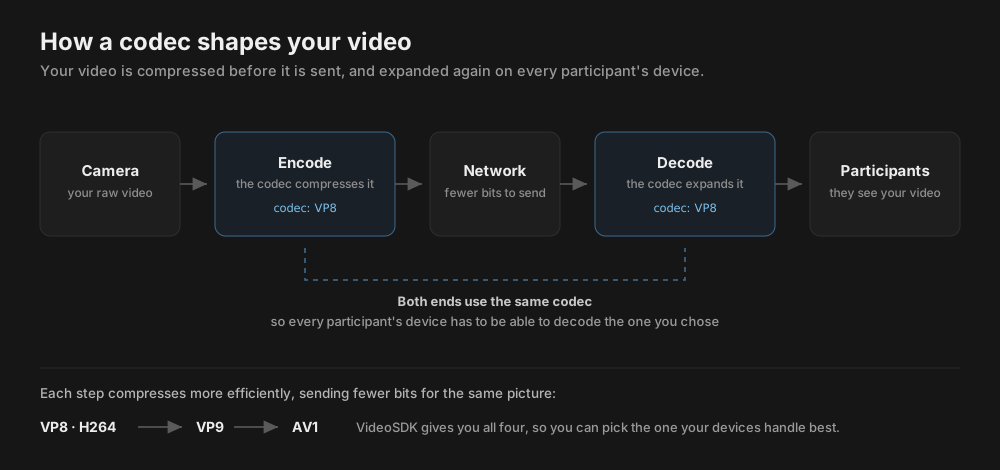
Uncompressed camera video is far too large to send in real time, so a codec compresses it. It keeps the detail viewers notice most and stores each frame largely as the changes from the one before, which makes the video much smaller. Your device compresses the video with the codec you choose, and each participant's device uses the same codec to decompress it. VP9 and AV1 compress more efficiently than VP8 and H264, so they can deliver sharper video over the same connection.
Choosing a Codec
VP8 is a reliable starting point for most apps. The comparison below shows how the codecs differ, and each codec's section describes where it works best.
Comparing the four codecs
| Codec | Quality / Compression | CPU | Support | Use it when |
|---|---|---|---|---|
VP8 | Good | Low | Very Broad | You want a dependable default |
H264 | Good | Low | Broad | Your devices or media pipeline work best with H.264 |
VP9 | Better | Medium-High | Modern Browsers | You want better picture quality on modern devices |
AV1 | Best | High* | Growing | You want the most efficient compression on devices you've tested |
* Hardware acceleration can significantly reduce CPU usage.
VP8
- Google released
VP8as an open-source codec in 2010 as part of the WebM project. The WebRTC standard requires browsers to support it, so it runs on the widest range of browsers and devices. - It is the default codec in VideoSDK and gives good video quality with low CPU use.
- VideoSDK supports
multiStreamforVP8, so it can publish several quality layers and send a lighter layer to participants viewing small tiles or on slower connections. - It's also VideoSDK's fallback codec. If your device can't encode the codec you chose, or another participant can't decode it, VideoSDK switches your video to
VP8so the call keeps running.
H264
H264, also known as AVC, was published in 2003 by the ITU-T and ISO/IEC MPEG. The WebRTC standard requires browsers to support it alongsideVP8.- It gives good video quality with low CPU use, and devices often encode it in hardware. Safari on iPhone and iPad encodes
H264in hardware, which keeps the processing load light. - On Android, Chrome and Firefox send
H264through the phone's hardware encoder, so support can vary between devices. - VideoSDK supports
multiStreamforH264, so it can publish several quality layers. - It's a good fit when your devices or media pipeline work best with H.264. On the web,
VP8gives the same quality with broader support, so it's usually the simpler default.
VP9
- Google released
VP9in 2013 as the successor toVP8, and it compresses video more efficiently thanVP8. - It may need more processing power than older codecs to encode and decode.
- Currently, VideoSDK doesn't support
multiStreamforVP9, so it publishesVP9video as a single quality layer andmaxLayerhas no effect. - It works well for one-to-few calls on modern devices where picture quality matters most.
AV1
- The Alliance for Open Media finalized
AV1in 2018 as the successor toVP9. It has the most efficient compression of the four codecs, with excellent video quality. - As the newest of the four,
AV1is still gaining hardware support and may need more processing power to encode and decode than older codecs. Most of that work happens on the device that sends the video, because decoding is lighter than encoding. - Currently, VideoSDK doesn't support
multiStreamforAV1, so it publishesAV1video as a single quality layer. - It's a good fit when you want the most efficient compression on browsers and devices you've tested.
AV1 browser support is still growing. In our testing it did not work on some versions of Safari (macOS) or on mobile web (Chrome and Safari on iPhone), so test it on your target browsers and devices before using it.
Setting the Codec
codecis an optional parameter of thecreateCameraVideoTrack()method. When you don't pass it, VideoSDK encodes the track withVP8.- Pass the codec through
Constants.VideoCodec, which providesVP8,H264,VP9, andAV1. - To use the track, pass it to
MeetingProviderascustomCameraVideoTrack, which applies it whenwebcamEnabledistrue, or pass it toenableWebcam()ortoggleWebcam()during the meeting. Refer to How to Setup a Custom Video Track for full examples. - The codec is set when you create the track. When you turn the webcam off and on again, VideoSDK reuses that track's settings, codec included, unless it has already switched your video to
VP8. - To change the codec during the meeting, create a new track with the codec you want and pass it to
changeWebcam(), which restarts the webcam with the new track. - If you pass a value other than these four, the returned Promise rejects as an invalid configuration.
- For the other parameters of
createCameraVideoTrack(), refer to the Optimize Video Tracks guide.
Example
import { createCameraVideoTrack, useMeeting, Constants } from "@videosdk.live/react-sdk";

const StartWebcamWithVP9 = () => {
  const { enableWebcam } = useMeeting();

  const handleEnableWebcam = async () => {
    try {
      const customTrack = await createCameraVideoTrack({
        encoderConfig: "h720p_w1280p",
        multiStream: false,
        codec: Constants.VideoCodec.VP9,
      });

      await enableWebcam(customTrack);
    } catch (err) {
      console.error("Could not start the webcam:", err);
    }
  };

  return <button onClick={handleEnableWebcam}>Enable webcam</button>;
};
Codec and multiStream
multiStream(simulcast) publishes several quality layers of your video, so VideoSDK can send a lighter layer to participants viewing small tiles or on slower connections.
Currently, VideoSDK doesn't support multiStream for VP9 and AV1. multiStream defaults to true, so set multiStream: false when you create a VP9 or AV1 track. Otherwise VideoSDK sets it to false for you and emits the ERROR_MULTISTREAM_NOT_SUPPORTED error event.
maxLayerrequiresmultiStream: true, somaxLayerhas no effect withVP9orAV1. Refer to Optimize Video Tracks for whatmaxLayercontrols.
How VideoSDK Handles Codec Compatibility
VideoSDK automatically handles codec compatibility, so an unsupported codec never interrupts a meeting.
When your device cannot send the codec
- If your browser or device doesn't support the codec you passed, VideoSDK automatically switches your camera track to
VP8so your video keeps flowing, and reportsERROR_VIDEO_PRODUCE_CODEC_NOT_SUPPORTEDthrough theonErrorcallback. You can use this as a signal to pick a different codec for that kind of device. - If the device can encode neither the codec you passed nor
VP8,enableWebcam()rejects withERROR_NO_SUPPORTED_VIDEO_CODECand no video is sent.
Example
import { useMeeting, Constants } from "@videosdk.live/react-sdk";

const mMeeting = useMeeting({
  onError: (error) => {
    if (error.code === Constants.errors.ERROR_VIDEO_PRODUCE_CODEC_NOT_SUPPORTED) {
      // VideoSDK switched the codec to VP8 because the provided codec is not supported
    }
  },
});
When a participant cannot receive the codec
- If a participant's device or browser can't decode the codec in use, that participant receives
CODEC_NOT_SUPPORTEDthrough theonErrorcallback. - VideoSDK then switches to
VP8every participant whose video that participant can't decode, so everyone can keep seeing each other. Those participants receive theonCodecChangedevent through theuseMeetinghook, and their video stays onVP8for the rest of the meeting, even after that participant leaves.
Example
import { useMeeting, Constants } from "@videosdk.live/react-sdk";

const mMeeting = useMeeting({
  onError: (error) => {
    if (error.code === Constants.errors.CODEC_NOT_SUPPORTED) {
      // Your device or browser can't decode the codec another participant is sending
    }
  },
  onCodecChanged: (data) => {
    // VideoSDK switched your own video to VP8 because another participant can't decode your codec
    console.log("Current codec:", data.currentCodec);
    console.log("Unsupported remote codec:", data.unsupportedRemoteCodec);
    console.log("Media kind:", data.kind);
    console.log("Participant that caused the codec switch:", data.causedBy);
    console.log("Previous codec:", data.previousCodec);
  },
});
The codecSwitchEnabled flag in MeetingProvider controls this switch and defaults to true. If you set it to false, VideoSDK keeps the current codec and does not emit onCodecChanged. Participants who can decode that codec keep seeing the video as usual, while a participant who can't may see a black screen.
For each error's code and message, refer to the Error Events guide.
Checking Which Codec Is in Use
- VideoSDK may switch a participant's video to
VP8during a meeting to keep the call running, so the codec in use isn't always the one that was requested. - The
getVideoStats()method of theuseParticipanthook resolves with an array of statistics entries, and each entry has acodecfield. The first entry'scodectells you what that participant's video is encoded with. It resolvesundefinedwhen the participant has no active video or before the first statistics are collected. Refer to the Understanding Call Quality guide for the other statistics it returns.
Example
import { useParticipant } from "@videosdk.live/react-sdk";

const ParticipantCodec = ({ participantId }) => {
  const { getVideoStats } = useParticipant(participantId);

  const checkCodec = async () => {
    try {
      const stats = await getVideoStats();
      console.log("Codec in use:", stats?.[0]?.codec);
    } catch (err) {
      console.error("getVideoStats failed:", err);
    }
  };

  return <button onClick={checkCodec}>Check codec</button>;
};
These statistics are a snapshot. To follow a codec change as it happens, listen for the onCodecChanged event instead of polling.
For the smoothest experience, test your codec choice on the lowest-specification device you support, with participants joining from every platform your app runs on. This helps you find any device that can't use your codec, which would make VideoSDK switch video to VP8.
API Reference
The API references for all the methods and events utilized in this guide are provided below.
Got a Question?  Ask us on discord

